1. 서론
This manual provides comprehensive instructions for the setup, operation, and maintenance of your A4tech FGK21C 2.4G Wireless Numeric Keypad. Please read this manual thoroughly before using the device to ensure proper functionality and longevity.
2. 패키지 내용
패키지에 모든 품목이 들어 있는지 확인하세요.
- A4tech FGK21C Wireless Numeric Keypad
- 2.4G USB 수신기
- USB Type-C 충전 케이블
- 사용 설명서 (본 문서)
3. 제품 오버view
The A4tech FGK21C is a 2.4G wireless numeric keypad designed for enhanced productivity, featuring ultra-slim keycaps, a rechargeable battery, and dual-mode Num Lock functionality. It is compatible with Windows operating systems.

이미지 3.1: 앞쪽 view of the A4tech FGK21C numeric keypad, showing all keys and the FSTYLER branding.

이미지 3.2: 각진 앞면 view of the A4tech FGK21C numeric keypad, highlighting its ergonomic design.
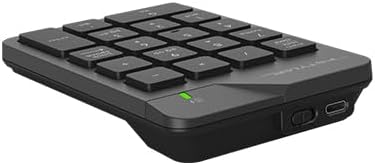
이미지 3.3: 옆 view of the A4tech FGK21C numeric keypad, displaying the USB Type-C charging port and the power switch.
4. 설정
4.1. 키패드 충전
- Connect the supplied USB Type-C charging cable to the charging port on the keypad.
- 케이블의 다른 쪽 끝을 USB 전원(예: 컴퓨터 USB 포트, USB 벽면 어댑터)에 연결합니다.
- The charging indicator light will illuminate. Once fully charged, the light may change color or turn off, depending on the keypad's design.
4.2. Connecting the Keypad
- Locate the 2.4G USB receiver. It is typically stored in a compartment on the keypad itself or included separately in the packaging.
- Plug the USB receiver into an available USB-A port on your computer. If your computer only has USB-C ports, use a USB-C to USB-A adapter (not included unless specified).
- Turn on the keypad using the power switch, usually located on the side or back of the device.
- The keypad should automatically connect to your computer. No additional drivers are typically required for Windows operating systems.
5. 사용 설명서
5.1. Basic Keypad Usage
The numeric keypad functions like a standard 10-key pad. Simply press the desired number or operator keys to input data into your applications.
5.2. Dual Mode Num Lock
The FGK21C features a dual-mode Num Lock function. This means the Num Lock key on the keypad operates independently of your main keyboard's Num Lock. This allows you to use the numeric keypad for number input while your main keyboard's Num Lock is off, or vice-versa.
- 를 누르세요 Num Lock / Clear key once to activate or deactivate the numeric input mode.
- When Num Lock is active, the numeric keys (0-9) will input numbers.
- When Num Lock is inactive, the keys will function as navigation keys (e.g., Home, End, Pg Up, Pg Dn, Insert, Delete) as indicated by the secondary legends on the keycaps.
6. 유지관리
6.1. 청소
To clean the keypad, gently wipe the surface with a soft, damp cloth. Avoid using harsh chemicals or abrasive materials, as these can damage the finish or keycap legends. Ensure the keypad is powered off before cleaning.
6.2. 배터리 관리
The keypad contains a built-in rechargeable lithium-ion battery. To prolong battery life:
- 배터리를 자주 완전히 방전시키지 마세요.
- 장기간 사용하지 않을 때는 키패드를 시원하고 건조한 곳에 보관하세요.
- Charge the keypad regularly, even if not used daily.
7. 문제 해결
7.1. 키패드가 작동하지 않음
- 키패드의 전원이 켜져 있는지 확인하십시오.
- USB 수신기가 컴퓨터의 작동하는 USB 포트에 제대로 꽂혀 있는지 확인하십시오.
- Verify that the keypad's battery is charged. Connect it to a power source using the USB Type-C cable.
- USB 수신기를 다른 USB 포트에 연결해 보십시오.
- 컴퓨터를 다시 시작하세요.
7.2. 간헐적 연결
- Ensure the keypad is within the effective range (up to 10-15 meters) of the USB receiver.
- Minimize obstructions between the keypad and the receiver, such as large metal objects.
- 수신기를 무선 간섭을 일으킬 수 있는 다른 무선 기기(예: Wi-Fi 라우터, 무선 전화기) 근처에 두지 마십시오.
7.3. Num Lock Not Working as Expected
- Remember that the keypad's Num Lock operates independently. Press the Num Lock / Clear key on the numeric keypad to toggle its state.
- Ensure the keypad is properly connected and powered on.
8. 사양

이미지 8.1: Diagram showing the dimensions of the A4tech FGK21C numeric keypad (124mm width, 187mm length, 24mm thickness).
| 특징 | 세부 사항 |
|---|---|
| 모델명 | FGK21C |
| 상표 | 에이4테크 |
| 연결 기술 | 2.4 GHz Wireless (USB-A, USB-C Adaptor) |
| 호환 장치 | PC(윈도우) |
| 키보드 설명 | Membrane, Ultra-Slim Keycaps |
| 특별 기능 | Ergonomic, Rechargeable, Dual Mode Num Lock |
| 전원 | 1 Lithium Ion battery (included, built-in) |
| 무선 범위 | 10-15 미터 |
| 품목 무게 | 4.8 온스 |
| 패키지 크기 | 7.25 x 5.5 x 1.5 인치 |
| 첫 번째 이용 가능 날짜 | 23년 2024월 XNUMX일 |
9. 보증 및 지원
보증 정보 및 기술 지원에 대해서는 구매 시 제공된 설명서를 참조하시거나 A4tech 공식 웹사이트를 방문하십시오. web사이트. 보증 청구를 위해 구매 증빙 자료를 보관하세요.


