1. 서론
The Darmoshark M2 Wireless Gaming Mouse is engineered for high-performance gaming, offering versatile connectivity options, a high-precision sensor, and a lightweight, ergonomic design. This manual provides essential information for setup, operation, and maintenance to ensure optimal performance.
2. 주요 특징
2.1 Tri-Mode 연결
The Darmoshark M2 supports three connection modes: 2.4G wireless, USB-C wired, and Bluetooth. This versatility allows seamless switching between devices and setups, providing flexibility for various gaming and work environments. The 4K mode enhances responsiveness and battery life during gaming sessions.

Image: Darmoshark M2 showcasing its tri-mode connectivity features.
비디오: 오버view of the Darmoshark M2 Wireless Gaming Mouse, demonstrating its various features and connectivity options.
2.2 PAW3395 광학 센서
Equipped with the top-tier PAW3395 optical sensor, the M2 mouse delivers exceptional precision with up to 26,000 DPI resolution, 650 IPS tracking speed, and a response rate of 1000-4000Hz (up to 8000Hz with a 4K receiver). This ensures faster and more accurate tracking for a superior gaming experience.

Image: Close-up of the Darmoshark M2's internal components, featuring the high-end PAW3395 flagship sensor.
2.3 Lightweight Magnesium Alloy Design
The M2 features a pure right-handed ergonomic design crafted from magnesium alloy, making it incredibly durable and lightweight at approximately 39g. This design minimizes wrist strain and palm sweating during extended use, enhancing comfort and reducing fatigue.
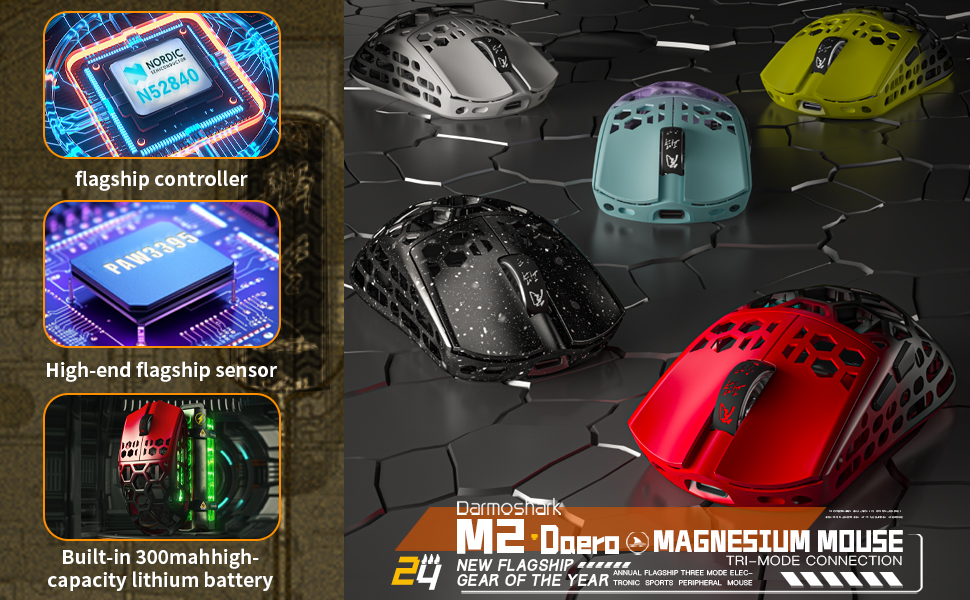
Image: The Darmoshark M2 mouse showcasing its magnesium alloy exoskeleton structure.
Video: The Darmoshark M2 Magnesium aluminum alloy Wireless Gaming Mouse, highlighting its lightweight construction and material.
2.4개의 프로그래밍 가능한 버튼
The mouse features 5 programmable buttons, allowing users to customize DPI settings, key functions, and macro assignments through dedicated software. This level of customization provides a competitive edge and adapts the mouse to individual gaming styles.

Image: A visual representation of the Darmoshark M2 mouse's customizable settings via its software interface.
3. 설정
3.1 마우스 연결
- 2.4G 무선 모드:
- 2.4G USB 수신기를 컴퓨터의 사용 가능한 USB 포트에 꽂으세요.
- 마우스 하단의 모드 선택기를 2.4G 위치로 전환하십시오.
- 마우스가 자동으로 연결됩니다.
- 블루투스 모드 :
- 마우스 하단에 있는 모드 선택기를 블루투스 위치로 전환하세요.
- 컴퓨터나 기기에서 Bluetooth 설정으로 이동하여 새 기기를 검색하세요.
- Select "Darmoshark M2" from the list to pair.
- 유선 모드 :
- Connect the provided USB-C cable to the mouse and the other end to your computer.
- 마우스가 자동으로 유선 모드로 전환되고 충전이 시작됩니다.
3.2 마우스 충전
Connect the mouse to your computer using the supplied USB-C cable. The mouse will charge while in wired mode or when connected to a power source. The 500mAh battery provides extended usage time.

Image: The Darmoshark M2 mouse connected to a computer via its USB-C charging cable.
4. 사용 설명서
4.1 DPI 조정
The DPI (Dots Per Inch) can be adjusted to change the mouse's sensitivity. Use the dedicated DPI button (refer to the product diagram for location) or the accompanying software to cycle through preset DPI levels or customize your own.
4.2개의 프로그래밍 가능한 버튼
Utilize the Darmoshark software to assign custom functions, macros, or hotkeys to the 5 programmable buttons. This allows for personalized control and optimized gameplay.
4.3 폴링 속도
The mouse supports polling rates from 1000Hz to 4000Hz, with an option for 8000Hz when using the 4K receiver. Higher polling rates provide more frequent updates to your computer, resulting in smoother and more responsive cursor movement.
5. 유지관리
5.1 청소
To clean your Darmoshark M2 mouse, use a soft, dry, lint-free cloth. Avoid using harsh chemicals, cleaning solvents, or abrasive materials, as these may damage the mouse's finish or internal components.
5.2 배터리 관리
To prolong battery life, avoid exposing the mouse to extreme temperatures. Charge the mouse regularly, especially if it will not be used for an extended period. Do not attempt to replace the internal battery yourself.
6. 문제 해결
6.1 마우스가 응답하지 않음
- 배터리 수준을 확인하고 필요한 경우 마우스를 충전하세요.
- Ensure the mouse is correctly connected in your chosen mode (2.4G, Bluetooth, or Wired).
- 2.4G 모드를 사용하려면 USB 수신기가 제대로 연결되어 있는지 확인하십시오.
- For Bluetooth mode, ensure Bluetooth is enabled on your device and the mouse is paired.
- 포트나 컴퓨터 문제인지 확인하기 위해 마우스를 다른 USB 포트나 컴퓨터에 연결해 보세요.
6.2 Lag or Stuttering Cursor
- Ensure there are no obstructions or sources of interference (e.g., other wireless devices) between the mouse and the receiver (2.4G mode).
- Update your mouse drivers and firmware to the latest version using the Darmoshark software.
- Reduce the polling rate if your system experiences performance issues.
6.3 DPI가 변경되지 않음
- 마우스의 전원이 켜져 있고 연결되어 있는지 확인하세요.
- Check if the DPI button is functioning correctly.
- Open the Darmoshark software to verify and adjust DPI settings.
7. 사양
| 특징 | 세부 사항 |
|---|---|
| 모델 | 다르모샤크 M2 |
| 연결 기술 | 3가지 모드 지원 (2.4G 무선, USB-C 유선, 블루투스) |
| 움직임 감지 기술 | 광학(PAW3395 센서) |
| DPI 해상도 | 최대 26,000 DPI |
| 추적 속도 | 650 IPS |
| 가속 | 50G |
| 폴링 속도 | 1000-4000Hz (up to 8000Hz with 4K receiver) |
| 프로그래밍 가능한 버튼 | 5 |
| 품목 무게 | 1.48온스(약 42g) |
| 배터리 | 500mAh 리튬 이온(포함) |
| 패키지 크기 | 6.34 x 4.45 x 3.03 인치 |
| 색상 | Red (variant) |
8. 보증 및 지원
The Darmoshark M2 Wireless Gaming Mouse comes with a manufacturer's warranty. For detailed warranty information, product support, or technical assistance, please visit the official Darmoshark web해당 사이트를 방문하거나 고객 서비스에 문의하세요. 보증 청구를 위해 구매 영수증을 보관하세요.


