소개
This user manual provides essential information for setting up, operating, maintaining, and troubleshooting your VIBOX I-45 Gaming PC. Please read this manual thoroughly before using your new computer to ensure optimal performance and longevity.
1. 설정
1.1 언박싱 및 패키지 구성품
Carefully remove all components from the packaging. Ensure all items listed below are present. Retain the packaging for future transport or service needs.
- VIBOX I-45 Gaming PC (VTX-4 Black Tower)
- 전원 케이블
- Wi-Fi Network Adapter (300 Mbps)
- 문서(이 매뉴얼)
1.2 주변기기 연결하기
PC 전원을 켜기 전에 필요한 주변 장치를 모두 연결하십시오.
- 감시 장치: Connect your monitor to the graphics output port (HDMI or DisplayPort) on the rear of the PC. Ensure the monitor is also connected to a power source.
- 키보드 및 마우스: 키보드와 마우스를 사용 가능한 USB 포트에 연결하세요.
- 회로망: For wired internet, connect an Ethernet cable to the LAN port. For wireless internet, ensure the included Wi-Fi adapter is installed or connected.
- 오디오: Connect speakers or a headset to the audio output jacks.
- 힘: Connect the power cable to the PC's power input and then to a wall outlet.

Figure 1.2.1: Rear I/O Ports for connecting peripherals.
1.3 초기 부팅 및 Windows 11 설정
After connecting all peripherals, press the power button on the front of the PC. The system will boot into Windows 11 Home. Follow the on-screen instructions to complete the initial setup, including language selection, network connection, and user account creation.

Figure 1.3.1: Windows 11 Home Operating System.
2. 사용 설명서
2.1 전원 켜기/끄기 및 다시 시작
- 전원 켜기: 전면 패널에 있는 전원 버튼을 누릅니다.
- 종료: Windows에서 시작 버튼을 클릭한 다음 전원 > 시스템 종료를 선택합니다.
- 다시 시작: Windows에서 시작 버튼을 클릭한 다음 전원 > 다시 시작을 선택합니다.
2.2 Windows 11 Home Features
Your VIBOX I-45 comes pre-installed with Windows 11 Home, offering several features designed to enhance your computing experience:
- DirectStorage: Enables faster game loading times.
- AutoHDR: Automatically enhances visuals for improved graphics.
- Xbox Game Pass Integration: Seamless access to a library of games.
- Optimized CPU Performance: Enhanced performance for various tasks.
2.3 RGB 조명 제어
The VTX-4 case features Hex RGB Infinity 120mm fans. You can customize the lighting effects and colors using the dedicated RGB change button on the top panel or through compatible software if available.

Figure 2.3.1: Customizable RGB Fans.
3. 유지관리
3.1 Cleaning Your PC
Regular cleaning helps maintain performance and extends the lifespan of your computer.
- 외부: 부드러운 d를 사용하세요amp 외부 표면을 닦을 천을 사용하십시오. 강한 화학 약품은 사용하지 마십시오.
- 먼지 제거: 주기적으로 압축 공기를 사용하여 팬 통풍구와 내부 부품의 먼지를 제거하십시오. 청소하기 전에 PC 전원을 끄고 전원 케이블을 뽑으십시오.
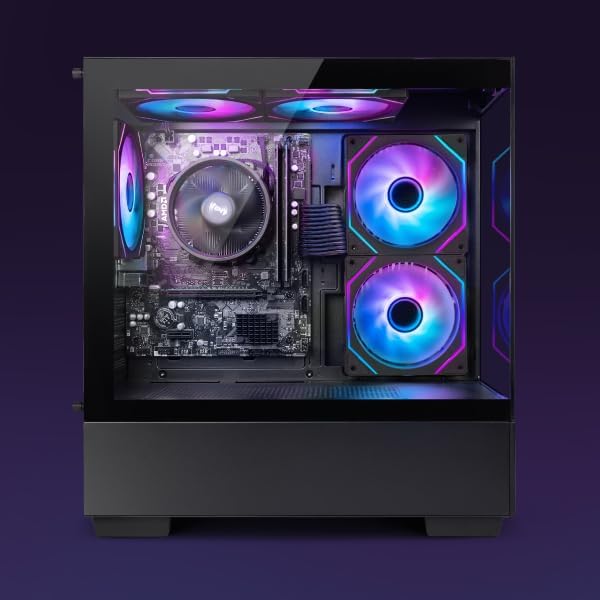
Figure 3.1.1: Internal components of the VIBOX I-45 PC.
3.2 소프트웨어 업데이트
보안, 안정성 및 최적의 성능을 보장하려면 운영 체제와 드라이버를 최신 상태로 유지하십시오.
- Windows 업데이트: Windows 11 automatically checks for updates. You can manually check by going to Settings > Windows Update.
- 드라이버 업데이트 : Regularly check the VIBOX support web사이트 또는 구성 요소 제조업체 websites (AMD for CPU/GPU) for the latest drivers.
3.3 시스템 백업
데이터 손실을 방지하려면 중요한 데이터를 정기적으로 외장 드라이브나 클라우드 스토리지에 백업하세요.
4. 문제 해결
This section addresses common issues you might encounter. For more complex problems, please contact VIBOX support.
4.1 전원 없음
- 전원 케이블이 PC와 벽면 콘센트에 모두 단단히 연결되어 있는지 확인하세요.
- 다른 장치를 연결하여 벽면 콘센트가 작동하는지 확인하세요.
- Check the power supply switch on the rear of the PC (if present) is in the 'On' position.
4.2 모니터에 디스플레이가 표시되지 않음
- Confirm the monitor is powered on and correctly connected to the PC's graphics output port.
- 모니터에서 올바른 입력 소스가 선택되었는지 확인하세요.
- Try a different display cable if available.
4.3 느린 성능
- 백그라운드에서 실행 중인 불필요한 애플리케이션을 닫으세요.
- 보류 중인 Windows 또는 드라이버 업데이트가 있는지 확인하고 설치하십시오.
- 디스크 정리 및 조각 모음을 실행하세요(HDD의 경우, SSD에는 일반적으로 필요하지 않습니다).
- 악성코드나 바이러스를 검사하세요.
4.4 네트워크 연결 문제
- 와이파이: Ensure the Wi-Fi adapter is properly installed and drivers are up to date. Check your router and internet connection.
- 이더넷: Verify the Ethernet cable is securely connected to both the PC and the router/modem. Check router status.
- 라우터/모뎀과 PC를 재시작하세요.
5. 사양
| 특징 | 사양 |
|---|---|
| 상표 | VIBOX |
| 모델 번호 | 이-45 |
| 색상 | VTX-4 Black |
| 운영 체제 | 윈도우 11 홈 |
| 프로세서 | AMD Ryzen 3 3200G (4 Cores, 3.6 GHz Base, up to 4.0 GHz Max) |
| 제도법 | Integrated Radeon Vega 8 Graphics (2GB Shared Memory) |
| 숫양 | 16 GB DDR4 (3200 MHz Dual Channel) |
| 저장 | 480GB SSD |
| 최대 메모리 지원 | 128GB (XNUMX기가바이트) |
| 와이파이 | 802.11n (300 Mbps adapter included) |
| HDMI 포트 | 1 |
| USB 2.0 포트 | 3 |
| USB 3.0 포트 | 3 |
| 치수(길이 x 너비 x 높이) | 36 x 20 x 41cm |
| 호환 장치 | Headset, Keyboard, Printer, Monitor, Mouse |
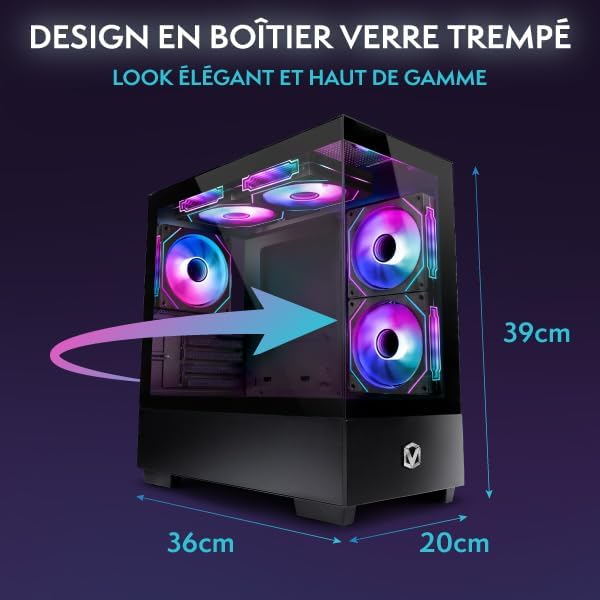
Figure 5.1.1: VIBOX I-45 PC Dimensions.
6. 보증 정보
Your VIBOX I-45 Gaming PC comes with a manufacturer's warranty covering:
- 부분품: 2년
- 노동: 일생
Please retain your proof of purchase for warranty claims. For detailed terms and conditions, refer to the warranty card included with your product or visit the official VIBOX web대지.
7. 지원
For technical assistance, troubleshooting beyond this manual, or warranty inquiries, please contact VIBOX customer support. You can find contact information on the official VIBOX Gaming web사이트나 소매업체를 통해 구매하세요.
온라인 리소스:
- 방문하세요 VIBOX Gaming Store on Amazon 제품 정보 및 업데이트를 확인하세요.


