1. 서론
Welcome to the user manual for your new SGIN 17 inch Laptop. This guide provides essential information to help you set up, operate, maintain, and troubleshoot your device. Please read this manual carefully before using your laptop to ensure proper function and safety.
1.1 안전 정보
- 노트북을 극한의 온도, 습도 또는 직사광선에 노출시키지 마십시오.
- 노트북 위에 무거운 물건을 올려놓지 마세요.
- 감전이나 기기 손상을 방지하기 위해 액체가 기기에 닿지 않도록 하십시오.
- 노트북과 함께 제공된 정품 전원 어댑터만 사용하십시오.
- 노트북을 직접 분해하거나 수리하려고 하지 마십시오. 자격을 갖춘 서비스 담당자에게 문의하십시오.
- 과열을 방지하기 위해 사용 중에는 적절한 환기를 보장하십시오.
2. 제품 오버view
Familiarize yourself with the components and ports of your SGIN 17 inch Laptop.

그림 2.1: 전면 view of the SGIN 17 inch Laptop, showcasing its large 17.3-inch display, full-size keyboard, and touchpad.
2.1 구성 요소 및 포트
Your laptop is equipped with various ports for connectivity and expansion.
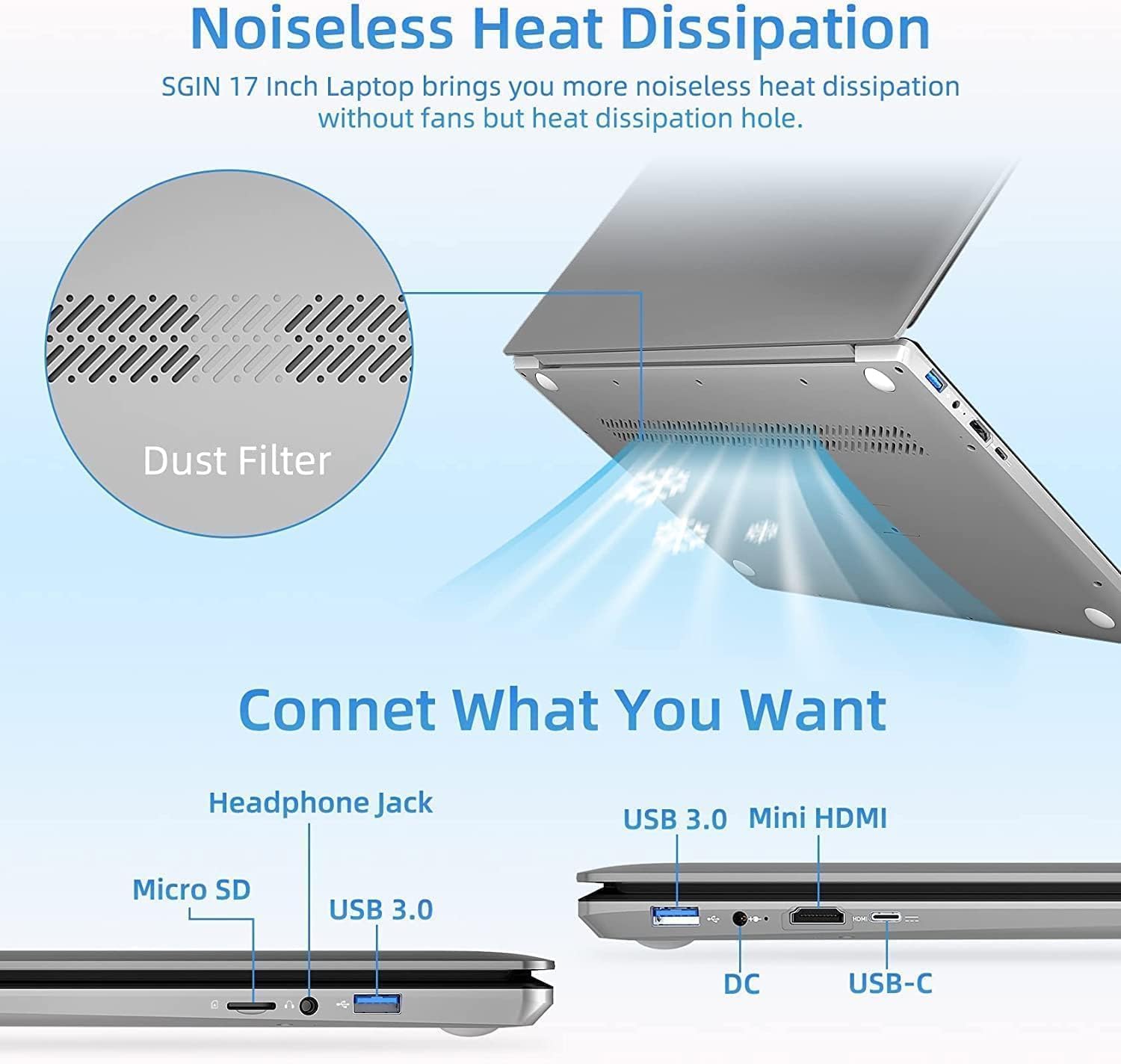
그림 2.2: 측면 view of the SGIN 17 inch Laptop highlighting the various input/output ports including USB 3.0, USB-C, Mini HDMI, Headphone Jack, Micro SD card slot, and DC power input.
- 표시하다: 17.3-inch Full HD (1920x1080) LED screen.
- Web캠: 통합 web화상 통화 및 회의를 위한 캠.
- 건반: Full-size keyboard with numeric keypad for comfortable typing.
- 터치패드: Multi-touch enabled touchpad for precise navigation.
- USB 3.2 포트: For high-speed data transfer and connecting peripherals.
- C 형 포트 : Versatile port for data, display, and power delivery.
- 미니 HDMI 포트: 외부 디스플레이나 프로젝터에 연결합니다.
- 헤드폰 잭: 헤드폰이나 외부 스피커로 오디오를 출력합니다.
- 마이크로 SD 카드 슬롯: 저장 공간을 확장하거나 메모리 카드에서 데이터를 전송하는 데 사용됩니다.
- DC-in 포트: 노트북 충전을 위해 전원 어댑터를 연결하세요.
3. 설정
3.1 초기 충전
Before first use, it is recommended to fully charge your laptop's battery. Connect the provided power adapter to the DC-in port on the laptop and then plug it into a power outlet. The charging indicator light will illuminate.
3.2 첫 번째 부팅 및 운영 체제 설정
- 전원 버튼을 눌러 노트북을 켭니다.
- Follow the on-screen instructions to complete the initial setup of the Windows 8.1 operating system. This includes selecting your language, region, accepting terms, and setting up user accounts.
- Connect to a Wi-Fi network when prompted to enable internet access.
4. 노트북 작동
4.1 전원 관리
- 켜기: 키보드 데크에 있는 전원 버튼을 누르세요.
- 끄기: 시작 버튼을 클릭한 다음 전원 > 시스템 종료를 클릭합니다.
- 수면 모드 : 시작 버튼을 클릭한 다음 전원 > 절전을 클릭하거나 노트북 덮개를 닫습니다.
- 다시 시작: 시작 버튼을 클릭한 다음 전원 > 다시 시작을 클릭합니다.
4.2 키보드 및 터치패드 사용

그림 4.1: 클로즈업 view of the SGIN 17 inch Laptop's full-size keyboard and integrated numeric keypad, designed for comfortable and efficient typing.
The laptop features a full-size keyboard for comfortable typing and a dedicated numeric keypad for data entry. The touchpad supports multi-touch gestures for intuitive navigation, including scrolling, zooming, and switching applications.
4.3 네트워크 연결
Wi-Fi 네트워크에 연결하려면:
- 시스템 트레이(화면 오른쪽 하단)에 있는 Wi-Fi 아이콘을 클릭하세요.
- 목록에서 원하는 네트워크를 선택하세요.
- 메시지가 표시되면 네트워크 보안 키(비밀번호)를 입력한 다음 연결을 클릭합니다.
4.4 외부 디스플레이 연결
Use the Mini HDMI port to connect your laptop to an external monitor or projector. Connect one end of a Mini HDMI cable to your laptop and the other end to the display device. You may need to adjust display settings in Windows to extend or duplicate your screen.
4.5 데이터 전송
Utilize the USB 3.2 ports for connecting external hard drives, USB flash drives, and other peripherals for fast data transfer. The Micro SD card slot allows for easy access to data on compatible memory cards.
5. 유지관리
5.1 노트북 청소
- 부드럽고 털이 없는 천을 살짝 사용하세요.amp물이나 화면 세척제를 사용하여 디스플레이를 청소합니다.
- For the keyboard and chassis, use a soft, dry cloth. Avoid abrasive cleaners.
- Periodically use compressed air to clear dust from vents to maintain optimal cooling.
5.2 배터리 관리

Figure 5.1: Illustration of the SGIN 17 inch Laptop's battery capacity (7.6V 8000mAh, 38Wh) and estimated usage time (up to 8 hours of video playback).
- 배터리 수명을 연장하려면 배터리를 자주 완전히 방전하지 마세요.
- 장시간 사용하지 않을 경우 노트북을 서늘하고 건조한 곳에 보관하세요.
- It is normal for battery capacity to decrease over time with usage.
5.3 보관 및 취급
When transporting your laptop, use a protective sleeve or bag to prevent scratches and impacts. Avoid exposing the laptop to strong magnetic fields.
6. 문제 해결
이 섹션에서는 흔히 발생할 수 있는 문제와 기본적인 해결 방법을 다룹니다.
| 문제 | 가능한 원인 | 해결책 |
|---|---|---|
| 노트북의 전원이 켜지지 않습니다. | 배터리가 방전되었거나 전원 어댑터가 제대로 연결되지 않았습니다. | Connect the power adapter and ensure it's plugged into a working outlet. Allow it to charge for a few minutes before attempting to power on again. |
| 디스플레이가 비어 있거나 깜빡입니다. | Incorrect display settings, loose cable (if external monitor), or driver issue. | Press Fn + F7 (or similar function key) to cycle through display modes. Restart the laptop. Update graphics drivers if possible. |
| Wi-Fi 연결 문제. | Wi-Fi adapter off, incorrect password, or router issue. | Ensure Wi-Fi is enabled (Fn + F5 or check settings). Re-enter Wi-Fi password. Restart your router and laptop. |
| 노트북이 느리게 작동합니다. | Too many applications open, low storage space, or malware. | 불필요한 애플리케이션을 닫으세요. 디스크 공간을 확보하세요. 바이러스 검사를 실행하세요. |
이러한 해결 방법을 시도한 후에도 문제가 지속되면 고객 지원팀에 문의하세요.
7. 기술 사양
Detailed specifications for your SGIN 17 inch Laptop (SGIN-M17S).

Figure 7.1: Diagram illustrating the Intel Core i3-5005U Processor, which powers the SGIN 17 inch Laptop, providing efficient performance.
| 특징 | 사양 |
|---|---|
| 모델명 | SGIN-M17S |
| 화면 크기 | 17.3 인치 |
| 화면 해상도 | 1920 x 1080픽셀(풀 HD) |
| 프로세서 | 인텔 코어 i3-5005U(2.4GHz) |
| 숫양 | 4GB DDR4 SDRAM |
| 하드 드라이브 | 128 GB SSD (NVMe interface) |
| 그래픽 코프로세서 | 인텔 HD 그래픽 5500 |
| 운영 체제 | 윈도우 8.1 |
| 무선형 | 802.11b Wi-Fi |
| 배터리 | 1 Lithium Ion battery (8000Wh, 38Wh, up to 8 hours video play) |
| 품목 무게 | 6.34파운드 |
| 제품 치수 | 17.3 x 10 x 0.6 인치 |
8. 보증 및 지원
8.1 보증 정보
Your SGIN 17 inch Laptop comes with a 1년 보증 구매일로부터 적용됩니다. 이 보증은 정상적인 사용 조건에서 발생하는 제조상의 결함 및 오작동에 적용됩니다. 단, 오용, 사고, 무단 수리 또는 자연재해로 인한 손상은 보증 대상에서 제외됩니다.
보증 청구를 위해 구매 증명서를 보관하십시오.
8.2 고객 지원
For technical assistance, warranty claims, or any other inquiries, please contact SGIN customer support through the official channels provided at the time of purchase or on the SGIN official website. When contacting support, please have your laptop's model number (SGIN-M17S) and purchase details ready.


