1. 서론
The MUNBYN P047 is an 80mm thermal receipt printer designed for various business environments. It offers versatile connectivity options including Bluetooth, USB, Serial, and Ethernet, supporting Android, Windows, Mac, Linux, and ChromeOS systems. This printer is ideal for point-of-sale (POS) systems, providing fast and efficient receipt printing without the need for ink.
중요 호환성 참고 사항: This printer is not compatible with PayPal, DoorDash, Grubhub, or Vagaro. It also does not support Wi-Fi connectivity directly, though it can connect via Ethernet to a network.
2. 상자 안에 무엇이 들어있나요?
Upon unboxing your MUNBYN P047 printer, please ensure all the following items are included:
- MUNBYN P047 감열식 영수증 프린터
- 전원 어댑터
- 전원 코드
- USB 케이블
- 종이 롤러
- 사용자 설명서
- Sample Paper Roll

Figure 2.1: Included accessories with the MUNBYN P047 printer.
3. 설정
3.1 물리적 설정
- 전원 연결: Connect the power adapter to the printer's power port and then plug the power cord into a standard wall outlet.
- 감열지 로드:
- Press the cover open button on the side of the printer to open the paper compartment cover.
- Insert the thermal paper roll into the compartment, ensuring the paper feeds from the bottom and the leading edge extends out of the printer. The paper should be placed so that it feeds downwards towards the print head.
- 용지 보관함 덮개를 딸깍 소리가 날 때까지 단단히 닫습니다.
- 켜기: Flip the power switch located on the front of the printer to the 'On' position. The power indicator light will illuminate.

Figure 3.1: Loading thermal paper into the printer.
Video 3.1: Demonstrates how to install a USB printer, including physical setup steps like paper loading.
3.2 Connectivity Setup
The P047 printer offers multiple ways to connect to your devices:
- 블루투스 연결 : Ideal for Android and iOS devices.
- USB 연결: Compatible with Windows, Mac, Linux, and ChromeOS PCs.
- 직렬 연결: For legacy systems.
- 이더넷(LAN) 연결: For network printing.
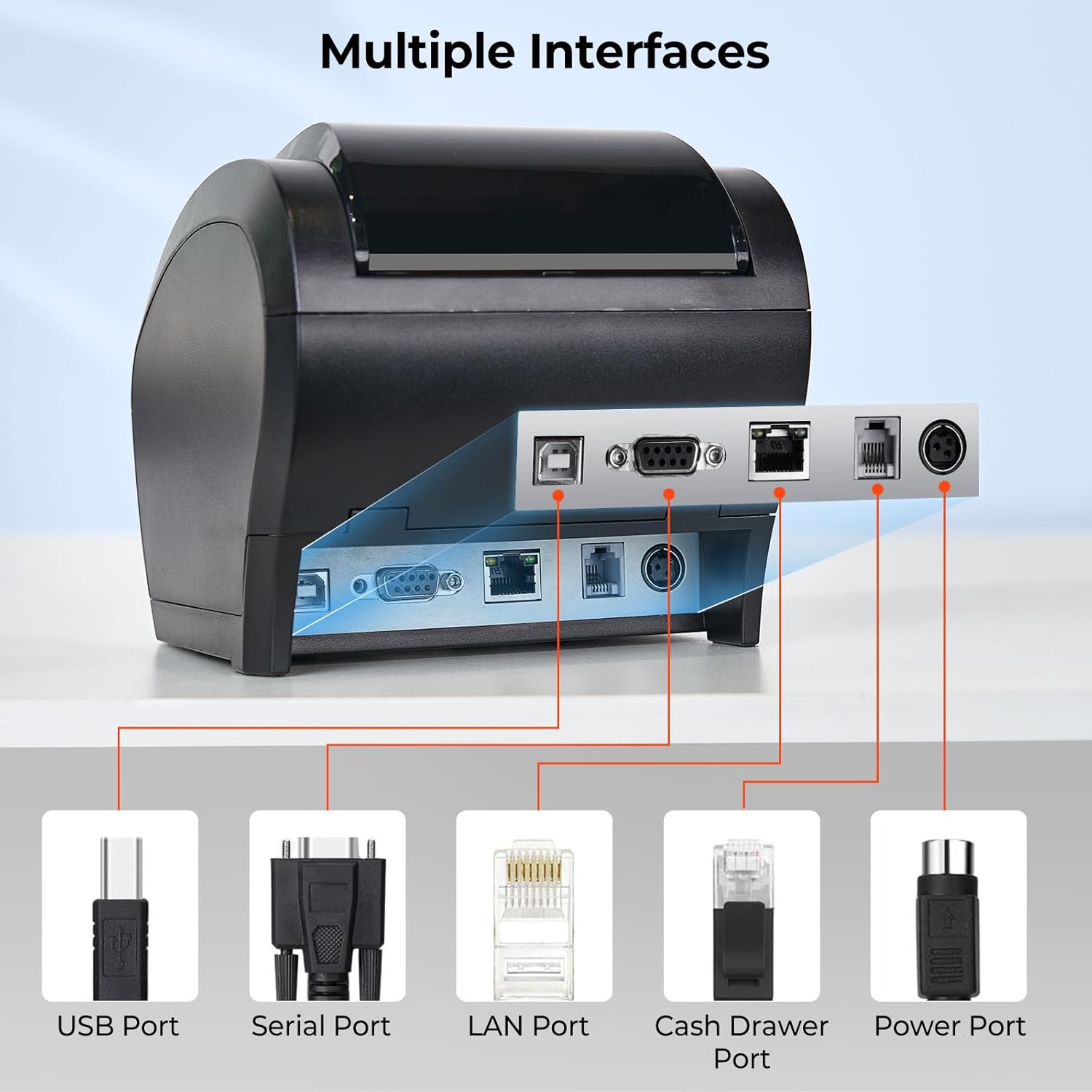
Figure 3.2: Multiple interface ports for versatile connectivity.
3.2.1 Bluetooth Pairing (Android/iOS)
블루투스를 통해 연결하려면:
- 프린터 전원이 켜져 있는지 확인하세요.
- On your Android or iOS device, go to Bluetooth settings and search for available devices.
- Locate and select the printer, typically named "TM-m30-b001". The default pair code is 0000.
- Once paired, you can use compatible POS applications (e.g., Loyverse, Uber Eats, Shopify POS) to print.
- Note for Shopify POS: Due to software updates, you may need to manually modify the Bluetooth name from "TM-m30-b001" to "TM-m30III" in your device's Bluetooth settings for compatibility. If the Bluetooth name is already "TM-m30III", no change is required.
Video 3.2: Guide on connecting the printer to Uber Eats app via Bluetooth on an Android device.
Video 3.3: Instructions for connecting the printer to Shopify POS via Bluetooth on an Android device.
3.2.2 시스템 및 애플리케이션 호환성
The MUNBYN P047 printer is designed for broad compatibility. Refer to the table below for a detailed overview of supported operating systems and POS applications.

Figure 3.3: Detailed compatibility matrix for the P047 printer.
4. 프린터 작동
4.1 기본 인쇄
Once connected to your device and configured with your POS software, the printer will automatically receive and print receipts. The P047 features a high printing speed of 300mm/s and an automatic paper cutter for efficient operation.
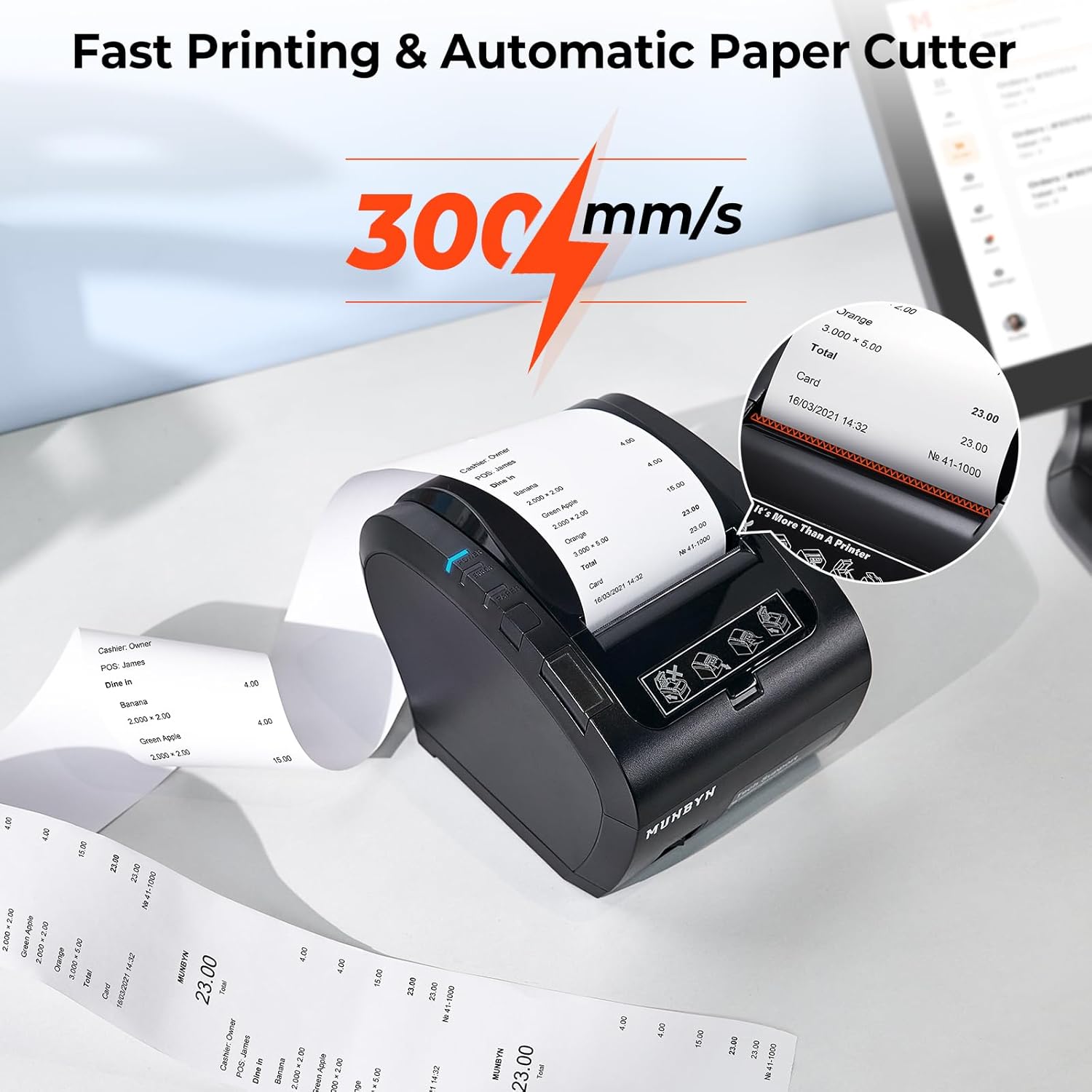
Figure 4.1: High-speed printing and automatic paper cutting.
4.2 표시기와 버튼
The printer has several indicators and buttons for easy monitoring and control:
- 전원 표시기: Illuminates when the printer is powered on.
- 오류 표시기: Lights up or flashes to indicate an error (e.g., paper jam, cover open).
- 종이 표시기: 용지 재고 상태를 나타냅니다(예: 용지 부족, 용지 없음).
- 피드 버튼: 용지를 수동으로 공급하려면 누르십시오.
- 커버 열기 버튼: Releases the paper compartment cover.
- 전원 스위치: 프린터를 켜거나 끕니다.
Figure 4.2: Front panel with indicators and buttons.
5. 유지관리
5.1 용지 교체
When the paper roll is depleted or running low, replace it by following the paper loading instructions in Section 3.1. The printer uses 80mm thermal paper rolls.
5.2 청소
Regular cleaning helps maintain print quality and extends the printer's lifespan. Use a soft, lint-free cloth to wipe the exterior. For the print head, refer to the detailed cleaning instructions in the official Troubleshooting Guide (PDF) available on the product page.
6. 문제 해결
If you encounter issues with your MUNBYN P047 printer, please refer to the following common solutions:
- 프린터가 응답하지 않음: Ensure the power cord is securely connected and the printer is turned on. Check the power indicator light.
- 출력 없음: Verify that thermal paper is correctly loaded and the paper compartment cover is closed. Check the paper indicator.
- 블루투스 연결 문제: Confirm Bluetooth is enabled on your device and the printer is discoverable. Ensure the correct printer name is selected and the pair code (0000) is entered correctly. For Shopify POS, remember to check and potentially modify the Bluetooth name to "TM-m30III".
- 호환성 문제: Double-check the compatibility table in Section 3.2.2 to ensure your operating system and POS application are supported. Note that some applications like DoorDash, Grubhub, and Vagaro are not supported.
- App Recognition: The "EMlabel" App can assist your devices in recognizing the printer and facilitating setup.
For more detailed troubleshooting steps and solutions, please consult the official 문제 해결 가이드(PDF).
If you have specific questions about product compatibility with your POS system, please contact MUNBYN customer support for prompt assistance.
7. 기술 사양
| 특징 | 사양 |
|---|---|
| 모델명 | ITPP047P-USEB |
| 인쇄 기술 | 열의 |
| 프린터 출력 | 단색화 |
| 최대 인쇄 속도(흑백) | 48ppm(300mm/s) |
| 최대 흑백 인쇄 해상도 | 203dpi |
| 프린터 미디어 크기 최대 | 80mm |
| 연결 기술 | Bluetooth, USB, Serial, Ethernet |
| 호환 장치 | PC, Tablets (Android, Windows, Mac, Linux, ChromeOS, iOS) |
| 제품 치수 | 11.26인치 깊이 x 6.46인치 너비 x 6.3인치 높이 |
| 품목 무게 | 3.69파운드 |
| 프린터 잉크 유형 | 잉크 없음 (열전사 방식) |
8. 보증 및 지원
The MUNBYN P047 Thermal Receipt Printer comes with a Limited Warranty. For specific warranty terms and conditions, please refer to the warranty documentation included with your product or contact MUNBYN customer support.
고객 지원
For technical assistance, troubleshooting, or any inquiries regarding your MUNBYN product, please reach out to our support team:
- 이메일: support@munbyn.com
- Phone (PT): +1 403 477 1911 (8:00 AM - 5:00 PM PT)
- Phone (UTC+8): +86 178 1788 1067 (9:00 AM - 6:00 PM UTC+8)
Our dedicated support team is available to provide remote setup assistance, how-to videos, and local tech support to ensure you have the best experience with your MUNBYN printer.


