1. 서론
This manual provides detailed instructions for the installation, operation, and maintenance of your Codnida 2K Security Light Bulb Camera (Model LC323). Please read this manual thoroughly before using the product to ensure proper function and safety.
The Codnida LC323 is a versatile security camera designed for both outdoor and indoor use, featuring 2K resolution, PTZ capabilities, 24/7 recording, sound and light alarms, human motion detection, and color night vision. It is designed to fit into standard E27 light bulb sockets for easy installation.
2. 패키지 내용
패키지에 모든 구성 요소가 들어 있는지 확인하세요.
- Codnida 2K Security Light Bulb Camera (LC323)
- 사용자 설명서
- Mounting Accessories (if applicable, e.g., E27 adapter if not integrated)
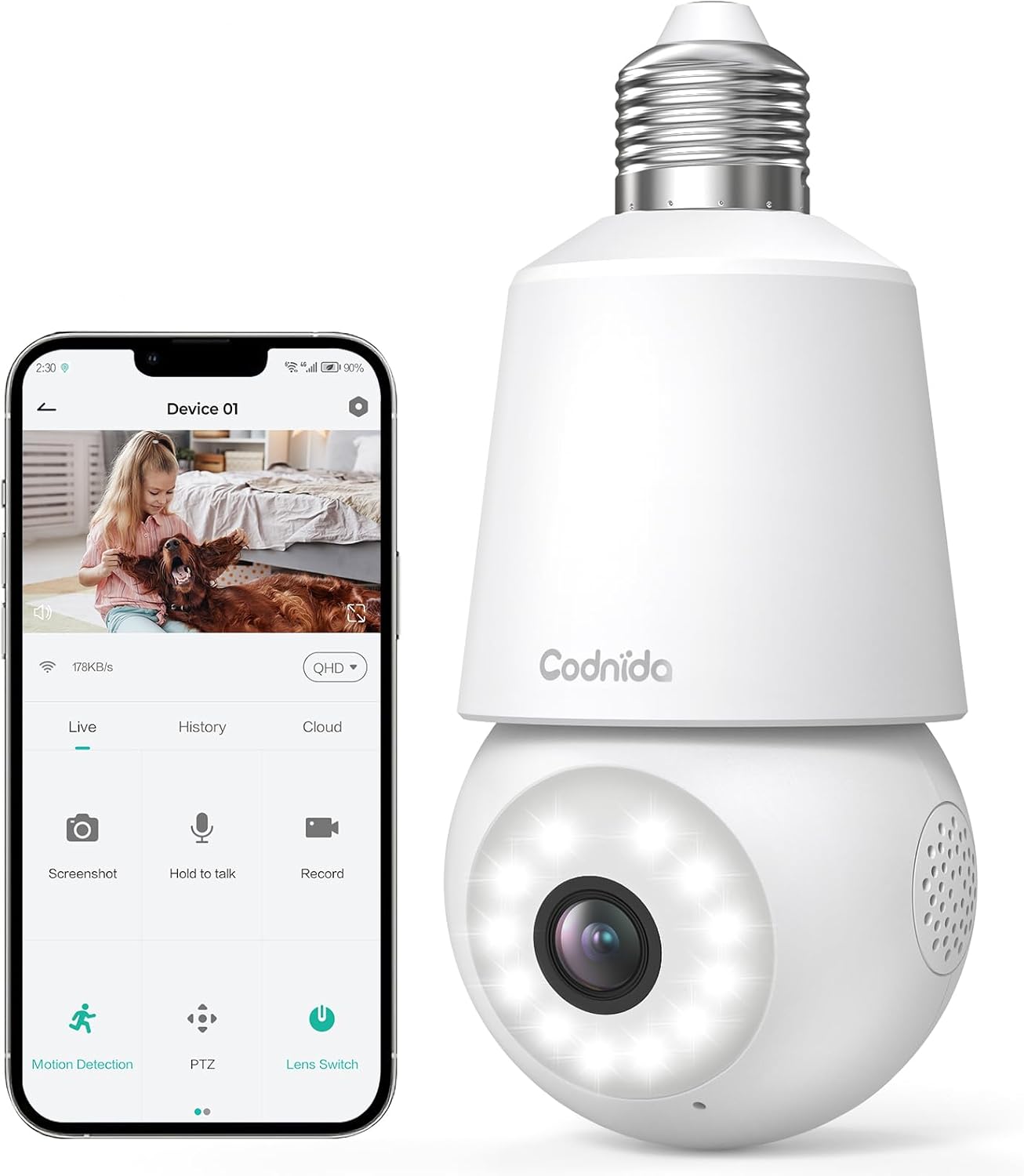
Image: The Codnida LC323 light bulb camera shown alongside a smartphone displaying its live view and control interface.
3. 사양
| 특징 | 세부 사항 |
|---|---|
| 모델 번호 | LC323 |
| 해결 | 2K(3만 화소) |
| 연결성 | Wi-Fi(2.4GHz만 해당) |
| 전원 | Corded Electric (E27 Socket) |
| 나이트 비전 범위 | 10 미터 |
| PTZ 회전 | 팬 355 °, 틸트 50 ° |
| 저장 옵션 | Micro SD Card (16-128GB, not included), Cloud Storage |
| 양방향 오디오 | 지원됨 |
| 동작 감지 | 인체 동작 감지, 자동 추적 |
| 알람 기능 | 소리와 빛 경보 |
| 실내/실외 사용 | Outdoor, Indoor (IP66 waterproof and dustproof) |
| 앱 호환성 | CloudEdge App (Tablet, Smartphone) |
Note: The camera requires a 2.4GHz Wi-Fi connection. 5GHz Wi-Fi is not supported.
4. 안전 정보
- 카메라를 설치하거나 제거하기 전에 전원이 꺼져 있는지 확인하세요.
- Install the camera in a standard E27 light bulb socket.
- 카메라를 작동 범위를 넘어서는 극한의 온도나 습도에 노출시키지 마세요.
- Avoid direct exposure to water jets or prolonged submersion, despite its IP66 rating.
- 어린이의 손이 닿지 않는 곳에 보관하세요.
- Only use the camera with compatible power sources (240 Volts, 5 watts).
5. 설정 가이드
5.1 앱 설치
- Download the "CloudEdge" app from your smartphone's app store (Google Play Store for Android or Apple App Store for iOS).
- 새 계정을 등록하거나 이미 계정이 있는 경우 로그인하세요.
5.2 카메라 설치
The camera is designed for easy installation into a standard E27 light bulb socket.
- Ensure the power to the E27 socket is turned off at the main switch.
- Carefully screw the Codnida LC323 camera into the E27 socket until it is securely fastened.
- Turn on the power to the E27 socket. The camera will power on and initiate its startup sequence.

Image: A hand demonstrates screwing the Codnida light bulb camera into an outdoor E27 light fixture, illustrating the simple installation process.
5.3 Wi-Fi에 연결하기
Follow the in-app instructions to connect your camera to your home Wi-Fi network. Remember, only 2.4GHz Wi-Fi is supported.
- Open the CloudEdge app and tap "Add Device" or the "+" icon.
- Select the appropriate device type (e.g., "Smart Camera" or "Light Bulb Camera").
- Follow the prompts to enter your 2.4GHz Wi-Fi network name (SSID) and password.
- The app will generate a QR code. Position your phone screen in front of the camera lens (approx. 15-20 cm away) until you hear a confirmation sound from the camera.
- Once connected, the camera's status indicator light will change, and you can name your device in the app.
6. 사용 설명서
6.1 라이브 View 및 PTZ 제어
Access the live video feed and control the camera's pan and tilt functions directly from the CloudEdge app.
- CloudEdge 앱을 열고 장치 목록에서 카메라를 선택하세요.
- 라이브 view will appear. Use the on-screen joystick or directional arrows to pan (355°) and tilt (50°) the camera lens.

Image: A smartphone screen displays the live view from the Codnida camera with on-screen controls for pan and tilt (PTZ) functionality.
6.2 양방향 오디오
The camera supports two-way audio communication, allowing you to speak and listen through the camera.
- 라이브에서 view, tap the microphone icon to speak. Hold the button while speaking.
- Ensure your phone's volume is up to hear audio from the camera.
Image: An illustration showing the two-way audio feature, with a person outside the house hearing "OK!" from the camera and a person inside speaking "Please put it at the door." through the app.
6.3 동작 감지 및 자동 추적
The camera can detect human motion and automatically track the subject within its field of view.
- Navigate to the camera settings in the CloudEdge app.
- Enable "Motion Detection" and "Human Detection" for optimized alerts.
- Activate "Auto Tracking" to have the camera follow detected movement.
- You can define specific detection zones to focus monitoring on critical areas.
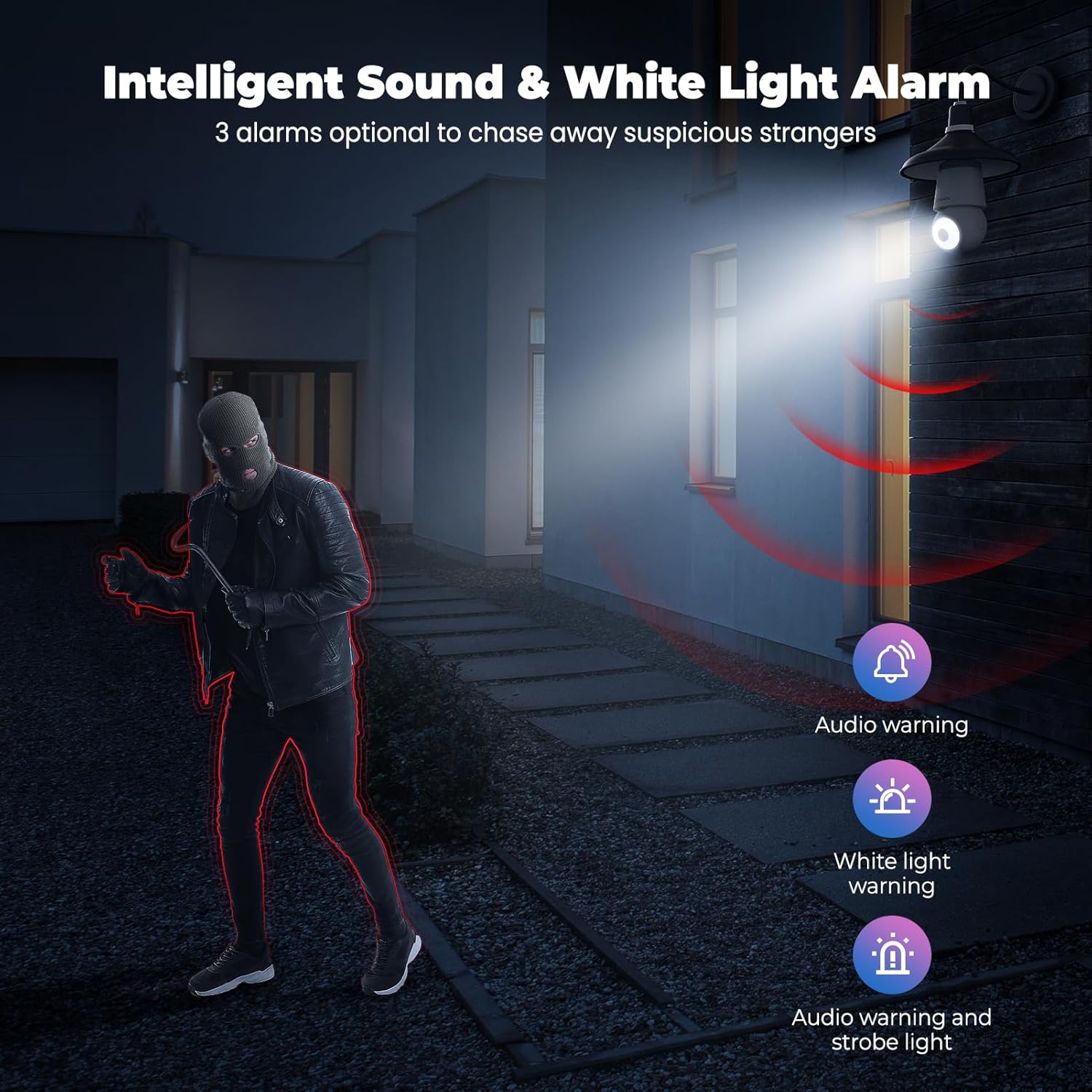
Image: An indoor scene demonstrating motion detection and auto-tracking, with dashed lines indicating the camera's pan and tilt range and boxes highlighting moving cats being tracked.

Image: An outdoor scene illustrating Human AI Intelligent Analytics, showing the camera's ability to detect and differentiate between a person, animal, car, and package.
6.4 야간 투시경
The camera provides clear surveillance even in low-light conditions with its color night vision capability.
- The camera automatically switches to night vision mode when ambient light is insufficient.
- Color night vision provides more detail than traditional black and white infrared night vision.

Image: A side-by-side comparison showing the superior detail and color provided by the camera's color night vision feature compared to standard black and white night vision in a low-light outdoor setting.
6.5 소리 및 빛 경보
Configure the camera to trigger an audible alarm and/or flashing white light upon detection of suspicious activity.
- In the app settings, enable the sound and light alarm features.
- Choose from audio warning, white light warning, or a combination of both.
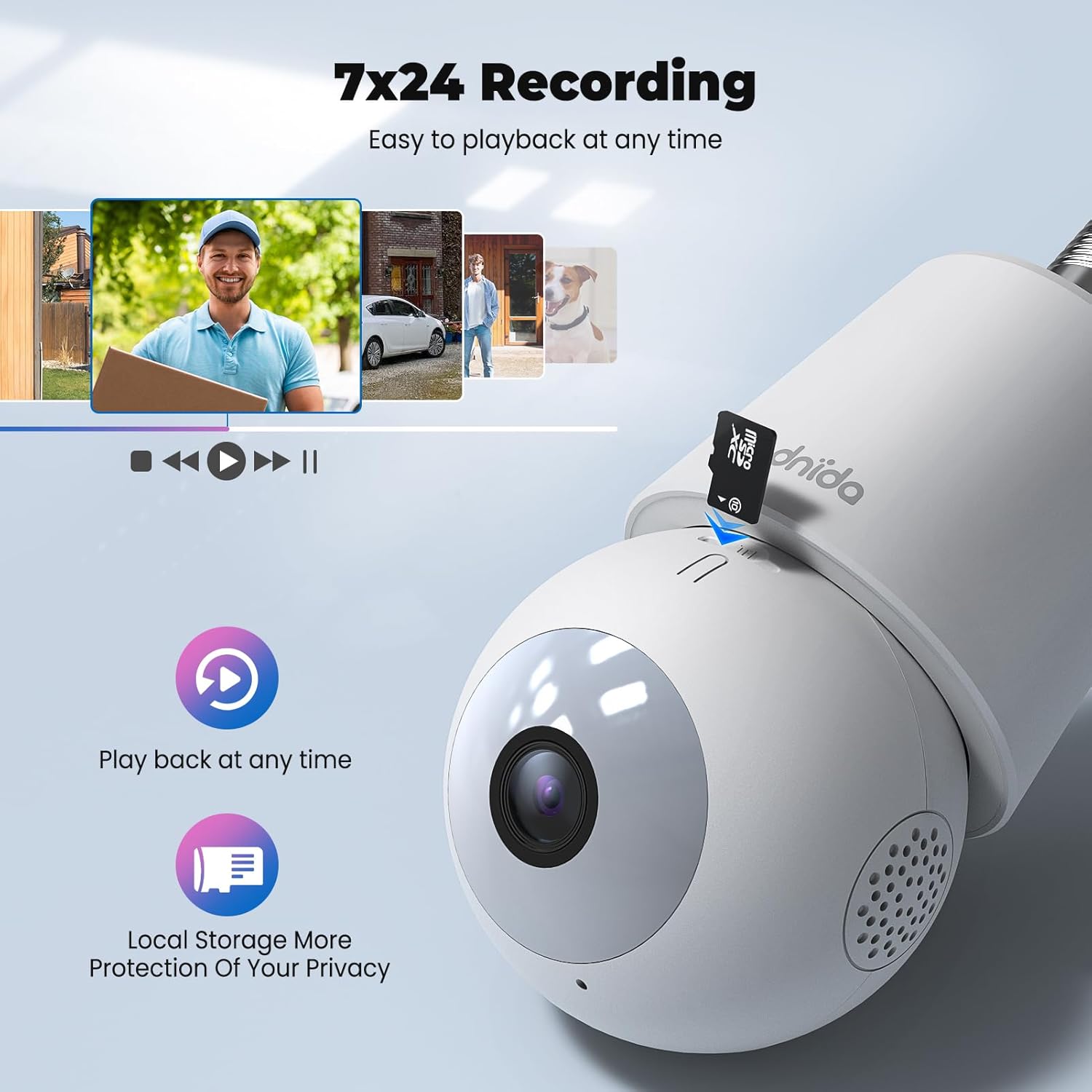
Image: An illustration depicting the intelligent sound and white light alarm feature, showing a bright light and red sound waves emanating from the camera towards a masked figure, with options for audio warning, white light warning, and audio warning with strobe light.
6.6 기록 및 저장
The camera supports 24/7 recording and offers both local and cloud storage options.
- 마이크로 SD 카드 : Insert a Micro SD card (16GB to 128GB, not included) into the designated slot for local storage. Ensure the card is formatted correctly via the app.
- 클라우드 스토리지: Cloud storage options may be available through the CloudEdge app (subscription may be required).
- 기록된 foo에 액세스tage via the "History" or "Playback" section in the app.

이미지: 클로즈업 view of the Codnida camera showing the Micro SD card slot, with icons indicating playback functionality and local storage benefits.

Image: A detailed diagram highlighting the key components of the Codnida camera, including the E27 base, TF card slot, reset button, loudspeaker, working indicator light, lens, and microphone.
6.7 장치 공유
Share access to your camera with family members or trusted individuals through the CloudEdge app.
- In the app, navigate to the device settings and find the "Share Device" option.
- You can share by scanning a QR code or by entering the recipient's registered CloudEdge account.

Image: An illustration demonstrating the device sharing feature within the CloudEdge app, showing options to share via QR code or by entering another user's registered account.
7. 유지관리
- 청소: 부드럽고 마른 천으로 카메라 렌즈와 본체를 부드럽게 닦으세요. 강한 화학 물질이나 연마성 세척제는 사용하지 마세요.
- 펌웨어 업데이트: Regularly check the CloudEdge app for firmware updates to ensure optimal performance and security.
- SD 카드 관리 : 주기적으로 다시view 그리고 기록된 음식을 관리하세요tage on your Micro SD card to prevent it from becoming full.
8. 문제 해결
| 문제 | 가능한 해결책 |
|---|---|
| 카메라가 Wi-Fi에 연결되지 않습니다. |
|
| 비디오 품질이 좋지 않습니다. |
|
| 동작 감지가 작동하지 않거나 오경보가 너무 많습니다. |
|
| Cannot hear audio or two-way audio not functioning. |
|
9. 보증 및 지원
For warranty information and technical support, please refer to the official Codnida web사이트를 방문하거나 고객 서비스에 직접 문의하세요. 보증 청구를 위해 구매 증빙 자료로 구매 영수증을 보관하세요.
제조업체: 대구
연락하다: Refer to Codnida's official support channels for assistance.
온라인 리소스: 방문하세요 Codnida Store on Amazon 제품 업데이트 및 추가 정보는 다음을 참조하십시오.


