1. 제품 오버view
The Yealink UVC34 is an all-in-one 4K webcam designed for conference rooms, integrating a high-resolution camera, microphones, and speakers into a single compact device. It features advanced AI functionalities to enhance meeting experiences and simplify setup.
This device is certified by Microsoft Teams and Zoom, ensuring seamless integration and optimal performance with leading unified communication platforms.
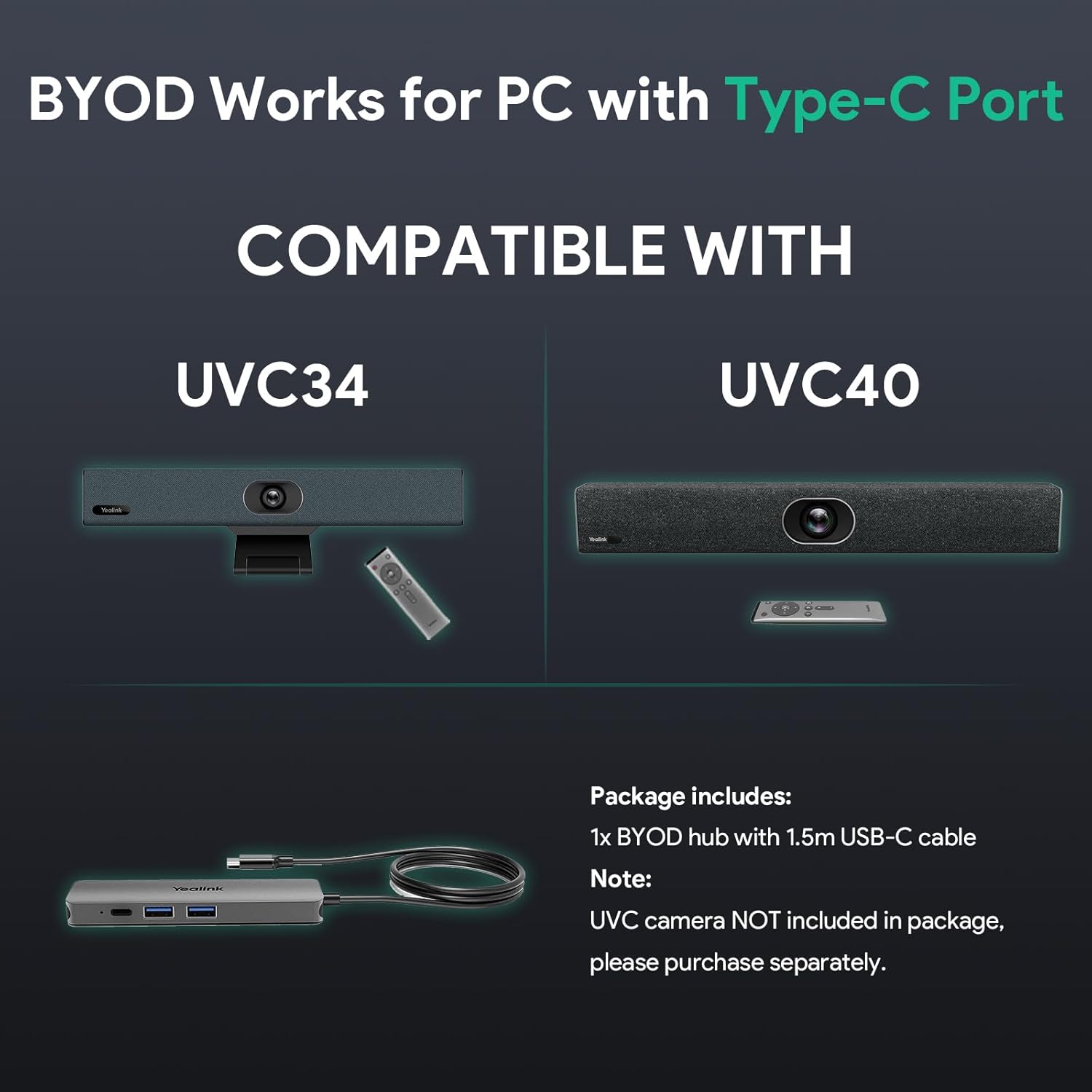
Figure 1: Yealink UVC34 4K Web캠 유닛
2. 패키지 내용
패키지에 모든 품목이 들어 있는지 확인하세요.
- Yealink UVC34 4K Web캠 유닛
- BYOD Cable Hub with 1.5m USB-C Cable
- VCR20 리모콘
- 전원 어댑터(48V/0.7A)
- USB 케이블(7m)

Figure 2: Connections and Package Contents
3. 설정 가이드
3.1 물리적 연결
- 전원 연결: Plug the power adapter into the UVC34 unit and then into a power outlet.
- PC에 연결:
- For PCs with a USB-A port, connect the provided USB-A cable from the UVC34 to your PC.
- For laptops with a Type-C port, use the BYOD Cable Hub. Connect the USB-B port of the UVC34 to the BYOD-BOX Hub, then connect the 1.5m USB-C cable from the BYOD-BOX Hub to your laptop.
- 위치: Place the UVC34 unit on top of your display or on a flat surface in your conference room.

Figure 3: BYOD Plug-and-Play Setup
3.2 소프트웨어 구성
The UVC34 is a plug-and-play device. No additional drivers are typically required for basic functionality.
- 기본 장치로 선택: Open your preferred video conferencing software (e.g., Microsoft Teams, Zoom). Navigate to the audio and video settings. Select the Yealink UVC34 as your default camera, microphone, and speaker.
- 회의 시작: You are now ready to start your meeting with enhanced audio and video.
4. 사용 설명서
4.1 AI 기능
The UVC34 incorporates several AI-powered features to optimize your meeting experience:
- 자동 프레이밍: Automatically adjusts the camera to frame all participants in the room, ensuring everyone is visible without manual intervention.
- AI 얼굴 보정: 이미지 밝기와 선명도를 최적화하여 어두운 환경이나 역광 환경과 같은 까다로운 조명 조건에서도 참가자의 얼굴이 선명하게 보이도록 합니다.
- Low-Light Optimization: Enhances video quality in poorly lit rooms.

Figure 4: Smart Video Conferencing with AI Technology
4.2 오디오 기능
Experience clear audio with the UVC34's advanced sound processing:
- 8개 마이크 어레이: Provides accurate sound pickup.
- High-Fidelity 5W Speakers: 선명한 오디오 출력을 제공합니다.
- Beamforming Algorithm: Focuses on active speakers and reduces background noise.
- 음향 에코 제거: Eliminates echo for natural conversations.
- De-reverberation Technology: Reduces room reverberation for clearer sound.

Figure 5: Intelligent Vocal Enhancement
4.3 비디오 기능
The UVC34 delivers high-quality video for professional meetings:
- 4K 30FPS Web캠: Captures crisp, detailed video.
- 120° Diagonal Field of View (DFoV): Wide-angle lens to capture the entire room.
- 105° Horizontal Field of View (HFoV): Ensures broad coverage.
- 5배율 e-PTZ 카메라: Electronic Pan-Tilt-Zoom for flexible framing.
- 전동식 프라이버시 셔터: Ensures privacy when the camera is not in use.

Figure 6: High-Quality Video Camera Features
4.4 지원 플랫폼
The Yealink UVC34 is compatible with a wide range of Unified Communications (UC) platforms, including:
- 마이크로소프트 팀
- 줌
- 시스코 Webex
- 스카이프
- 구글 미트
- 블루진스
- 고투미팅
- 딩톡
- 웰링크

Figure 7: UC Platforms Compatibility
5. 유지관리
Yealink UVC34의 수명 연장 및 최적의 성능을 보장하려면 다음 유지 관리 지침을 따르십시오.
- 청소: Use a soft, dry cloth to clean the camera lens and the unit's exterior. Avoid abrasive cleaners or solvents.
- 저장: 장시간 사용하지 않을 경우에는 기기를 시원하고 건조한 곳에 보관하세요.
- 케이블 관리 : 손상을 방지하기 위해 모든 케이블이 깔끔하게 정리되어 있고 장력이 가해지지 않도록 하십시오.
- 펌웨어 업데이트: Regularly check the Yealink official website for firmware updates to benefit from improved features and stability.
6. 문제 해결
If you encounter issues with your UVC34, refer to the following common troubleshooting steps:
- 비디오/오디오 없음:
- 모든 케이블(USB, 전원)이 제대로 연결되어 있는지 확인하십시오.
- Verify that the UVC34 is selected as the default camera, microphone, and speaker in your conferencing software settings.
- Restart your computer and the UVC34 unit.
- 낮은 비디오 품질:
- Check your internet connection speed. A stable, high-bandwidth connection is crucial for 4K video.
- 카메라 렌즈가 깨끗하고 이물질이 없는지 확인하십시오.
- Adjust lighting conditions in the room. The UVC34 has low-light optimization, but adequate lighting is always best.
- 음질 불량(에코/잡음):
- 기기 또는 소프트웨어에서 마이크가 음소거되어 있지 않은지 확인하십시오.
- Reduce background noise in the room.
- Adjust speaker volume to avoid feedback.
- AI 기능이 작동하지 않음:
- Ensure the room is adequately lit and participants are clearly visible to the camera.
- Check for any obstructions blocking the camera's view.
- Verify that your conferencing software supports and is configured to use the camera's AI features.
7. 사양
| 특징 | 사양 |
|---|---|
| 상표 | Yealink |
| 모델명 | 예링크 UVC34 |
| 최대 화면 해상도 | 3840x2160(4K UHD) |
| 비디오 캡처 해상도 | 4K |
| 비디오 캡처 형식 | MP4 |
| 포토 센서 기술 | CMOS |
| 연결 기술 | USB |
| 지원되는 오디오 형식 | AAC, MP3 |
| 특별 기능 | AI Features, Microphone Input, Speakers |
| 캠코더 유형 | Web캠 |
8. 공식 제품 영상
Yealink UVC34 All-in-One USB Video Bar
이 비디오는 이상을 제공합니다view of the Yealink UVC34 All-in-One USB Video Bar, highlighting its key features and design for modern meeting spaces.
Yealink A10-010 AI-POWERED VIEW, 항상 순조롭게 진행 중
This video demonstrates the AI-powered view and speaker tracking capabilities, showcasing how the camera intelligently frames participants and focuses on the active speaker.
9. 보증 및 지원
보증 정보 및 기술 지원에 대해서는 Yealink 공식 웹사이트를 참조하십시오. web사이트를 방문하거나 가까운 대리점에 문의하세요. 보증 청구를 위해 구매 영수증을 보관하세요.


