소개
The Keychron Q6 Max is a full-size, wireless custom mechanical keyboard designed for versatility and performance. This barebone knob version features a full-metal body, multi-mode connectivity (2.4 GHz, Bluetooth, and Type-C wired), QMK/VIA programmability, and a hot-swappable design. It is compatible with macOS, Windows, and Linux operating systems.
This manual provides detailed instructions to help you set up, operate, and maintain your Keychron Q6 Max keyboard.

Image: Keychron Q6 Max keyboard highlighting its key features.
패키지 내용
Verify that all items are present in your Keychron Q6 Max package:
- Keyboard Kit (Without Keycaps & Switches):
- 1x 알루미늄 케이스
- 1x PCB (Printed Circuit Board)
- 1x PC 플레이트
- 1x 흡음 폼
- 1x IXPE 폼
- 1x PET 필름
- 1x 라텍스 바닥 패드
- 1x 하단 케이스 음향 폼
- 1x 하단 케이스 PET 필름
- 16x 개스킷(12개 설치 및 4개 상자)
- 8 세트 x 안정기
- 케이블:
- 1x Type-C to Type-C 케이블
- 1x Type-A-Type-C 어댑터
- 수신기용 확장 어댑터 1개
- 수화기:
- 1x Type-A 2.4GHz 수신기
- 도구:
- 1x 키캡 및 스위치 풀러
- 1x 드라이버
- 1x 육각 키

Image: Detailed list of included items for the Keychron Q6 Max.
설정
1. 스위치 및 키캡 설치
The Keychron Q6 Max is a barebone keyboard, meaning switches and keycaps are not pre-installed. You will need to purchase these separately.
- The keyboard supports 3-pin and 5-pin MX-style mechanical switches.
- Use the included switch puller to carefully insert switches into the hot-swappable sockets on the PCB. Ensure the pins align correctly to avoid bending.
- Once switches are installed, place your desired keycaps onto the switches.

Image: Keychron Q6 Max barebone keyboard, ready for switch and keycap installation.

Image: Hot-swappable socket supporting 3-pin and 5-pin mechanical switches.
2. 연결 옵션
The Keychron Q6 Max offers three connection modes: 2.4 GHz wireless, Bluetooth 5.1, and Type-C wired.
- 2.4GHz 무선: Insert the included 2.4 GHz receiver into a USB-A port on your computer. Ensure the keyboard's mode switch (located on the back or side) is set to 2.4G.
- 블루투스 5.1 : Set the keyboard's mode switch to BT. On your computer or device, search for Bluetooth devices and select 'Keychron Q6 Max'. You can pair up to three devices.
- Type-C 유선: Connect the keyboard to your computer using the provided Type-C to Type-C cable (or Type-A to Type-C adapter). Set the keyboard's mode switch to Cable.

Image: Tri-Mode Connection options for the Keychron Q6 Max.
3. QMK/VIA Software Configuration
The Keychron Q6 Max supports QMK/VIA for advanced customization. VIA is a graphical user interface that allows you to remap keys, create macros, and adjust lighting without flashing firmware.
- Keychron 공식 웹사이트에서 VIA 소프트웨어를 다운로드하세요. web대지.
- Type-C 케이블을 사용하여 키보드를 연결하세요.
- Launch VIA. The software should automatically detect your keyboard.
- Use the interface to remap any key, assign macro commands, create shortcuts, or combine key functions.
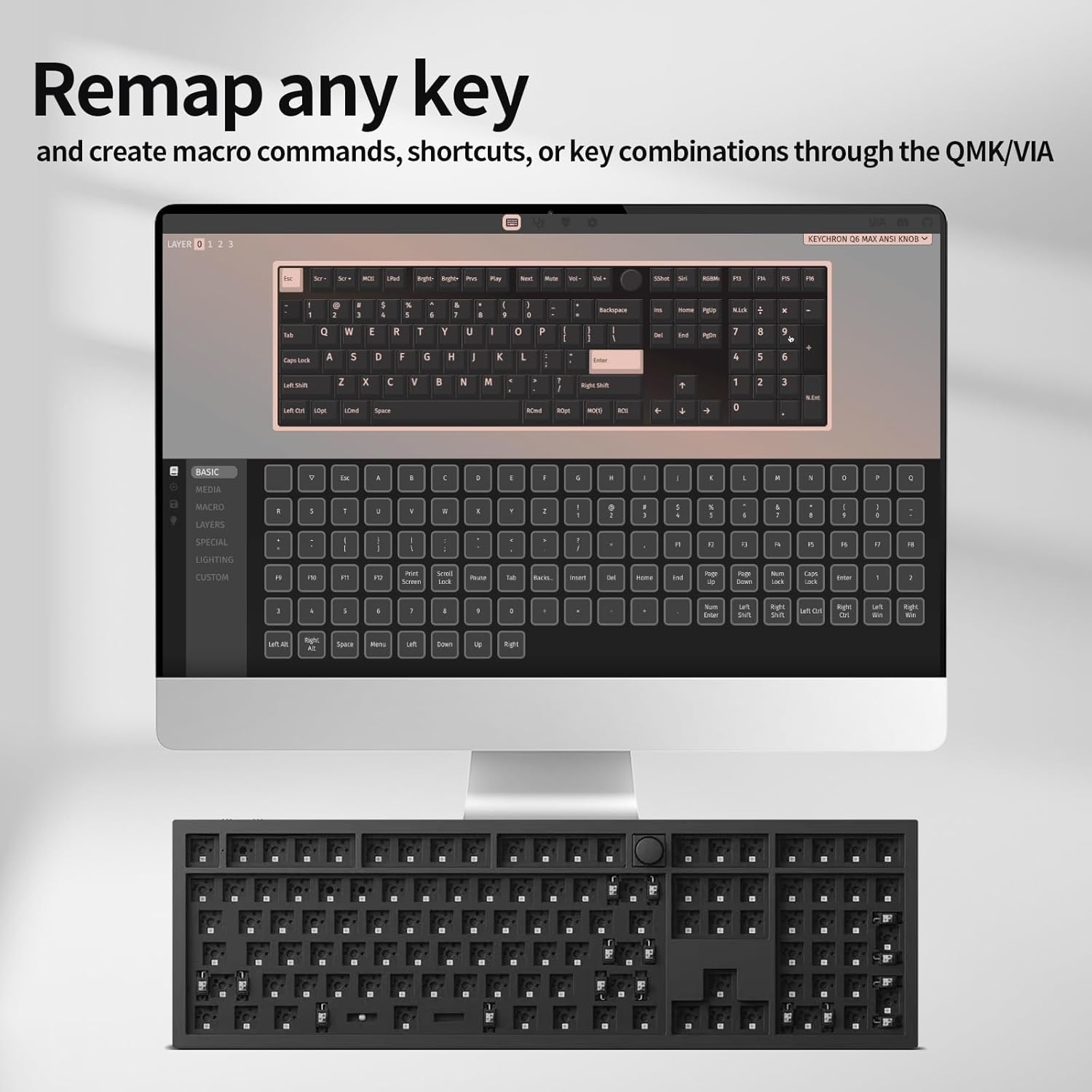
Image: VIA software interface for key remapping and customization.
작업
1. 연결 모드 전환
Use the physical switch on the keyboard to toggle between 2.4 GHz, Bluetooth, and wired (Cable) modes. Ensure the switch is set to the desired mode for proper functionality.
2. Key Customization with QMK/VIA
As detailed in the setup section, the VIA software allows for extensive key customization. You can create multiple layers of keymaps, enabling different functions for the same physical keys, which is useful for various applications or operating systems.
3. RGB 백라이트
The Keychron Q6 Max features south-facing RGB backlighting. You can adjust lighting effects, colors, and brightness directly on the keyboard using key combinations (refer to the keyboard's quick start guide for specific key commands) or through the VIA software for more granular control.

Image: South-Facing RGB Backlight illumination.
4. 회전식 조절 손잡이 기능
The rotary knob typically controls media functions such as volume up/down and mute. Its functionality can also be customized via the QMK/VIA software to perform other actions.
유지
1. 청소
- 청소하기 전에 키보드를 모든 전원에서 분리하세요.
- 부드럽고 털이 없는 천을 살짝 사용하세요.ampened with water or a mild cleaning solution to wipe the keyboard surface. Avoid harsh chemicals.
- 키캡 사이를 청소하려면 압축 공기를 사용하여 먼지와 이물질을 제거하세요.
- To deep clean, remove keycaps using the included keycap puller and clean the switches and plate area.
2. 스위치 교체
Thanks to the hot-swappable design, individual switches can be replaced without soldering. Use the switch puller to gently remove a switch and insert a new one, ensuring the pins are straight and align with the PCB sockets.
문제 해결
- 키보드가 응답하지 않음:
- 키보드가 충전되어 있거나 USB-C를 통해 연결되어 있는지 확인하세요.
- Check the mode switch (2.4G, BT, Cable) is set correctly for your connection type.
- For 2.4G, ensure the receiver is properly inserted. For Bluetooth, re-pair the device.
- 무선 문제를 배제하려면 USB-C 케이블을 통해 연결해보세요.
- 키가 등록되지 않거나 두 번 입력됨:
- This can sometimes be due to a faulty switch. Use the switch puller to remove the problematic switch and replace it with a new one.
- 스위치가 소켓에 완전히 꽂혀 있는지 확인하십시오.
- 스위치 주변의 이물질을 제거하십시오.
- 블루투스 연결 문제:
- 키보드가 블루투스 모드이고 검색 가능한 상태인지 확인하십시오.
- 기기의 Bluetooth 목록에서 키보드를 제거하고 다시 페어링하세요.
- 다른 장치가 Bluetooth 신호를 방해하지 않는지 확인하세요.
- QMK/VIA Software Not Detecting Keyboard:
- 키보드가 USB-C 케이블로 연결되어 있는지 확인하십시오.
- Verify that the keyboard's mode switch is set to 'Cable'.
- VIA 소프트웨어 또는 컴퓨터를 재시작하십시오.
- RGB 백라이트가 작동하지 않음:
- Check keyboard brightness settings using onboard controls or VIA software.
- Ensure the keyboard is not in a low-power mode.
명세서
| 특징 | 세부 사항 |
|---|---|
| 모델 번호 | Q6M-M1 |
| 제품 치수 | 17.56 x 5.39 x 12.83인치(44.6 x 13.7 x 32.6cm) |
| 품목 무게 | 5.39파운드(2.44kg) |
| 제조업체 | 키크론 |
| 배터리 | 1개의 리튬 폴리머 배터리(포함) |
| 호환 장치 | 맥OS, 윈도우, 리눅스 |
| 연결 기술 | 2.4 GHz Wireless, Bluetooth 5.1, Type-C Wired |
| 특징 | 백라이트(RGB) |
| 키보드 백라이트 색상 지원 | RGB |
| 폴링 속도 | 1000Hz(2.4GHz 유선), 90Hz(블루투스) |
| 사용자 정의 | QMK/VIA 프로그래밍 가능 |
| 스위치 호환성 | 3-pin and 5-pin MX style mechanical switches (hot-swappable) |
| 건설 | Full-metal body, Double-gasket design |

Image: Response speed comparison for 2.4G and Bluetooth modes.

이미지: 폭발 view illustrating the internal layers and components of the keyboard.
보증 및 지원
Warranty information for your Keychron Q6 Max keyboard is typically provided with the product packaging or can be found on the official Keychron website. For technical support, troubleshooting assistance, or warranty claims, please refer to the manufacturer's official support channels.
Manufacturer: Keychron
최신 지원 리소스를 보려면 다음을 방문하세요. 키크론 공식 Web대지.


