1. 서론
The ZEBRONICS Pulse Wireless Mouse is designed for versatile and comfortable use across various devices. Featuring multi-connectivity options including dual Bluetooth and a 2.4GHz USB nano receiver, it offers seamless switching between systems. Its ergonomic design and 1200 DPI optical sensor ensure precise and smooth cursor control for enhanced productivity.

이미지 1.1: 상단 view of the ZEBRONICS Pulse Wireless Mouse, showcasin세련된 검은색 디자인과 스크롤 휠이 특징입니다.
2. 패키지 내용
패키지에 모든 품목이 들어 있는지 확인하세요.
- ZEBRONICS Pulse Wireless Mouse
- USB 나노 수신기
- 사용자 설명서
3. 주요 특징
- 다중 연결성: Supports dual Bluetooth and 2.4GHz wireless connections.
- 높은 정밀도: 1200 DPI optical sensor for accurate tracking.
- 인체공학적 디자인: Comfortable and lightweight for extended use.
- 3 버튼: Standard left, right, and scroll wheel buttons.
- Removable USB Nano Receiver: Conveniently stored in the mouse's bottom panel.
- 폭넓은 호환성: Works with desktop PCs, laptops, Mac OS, tablets, and more.
- 절전: Features an auto-shutoff function to conserve battery life.

Image 3.1: A visual summary of the mouse's key features, including its comfortable design, power switch, plug-and-play functionality, and high precision.
4. 설정 가이드
4.1. 배터리 설치
- Flip the mouse over to access the bottom panel.
- 배터리함 덮개를 찾아서 밀어서 여세요.
- AA 배터리 1개를 올바른 극성(+/-)에 맞춰 삽입하세요.
- 배터리 덮개를 단단히 닫으세요.
4.2. Connecting via 2.4GHz USB Nano Receiver
- Locate the USB nano receiver stored in the slot on the bottom of the mouse.
- 수신기를 보관 슬롯에서 꺼내십시오.
- USB 나노 수신기를 컴퓨터 또는 노트북의 사용 가능한 USB 포트에 꽂으세요.
- 마우스 바닥의 전원 스위치를 'ON' 위치로 밀어 넣습니다.
- The mouse should automatically connect. If not, press the connection toggle button on the bottom of the mouse to select the 2.4GHz mode (indicated by '2.4G').

Image 4.1: The underside of the mouse, highlighting the battery slot, nano receiver storage, power switch, and connection toggle button.

Image 4.2: The USB nano receiver plugged into a laptop, demonstrating the 2.4GHz wireless connection.
4.3. 블루투스 연결 (BT1 / BT2)
- Ensure the mouse has a fresh battery and the power switch is in the 'ON' position.
- Press the connection toggle button on the bottom of the mouse to select either 'BT1' or 'BT2' mode. The corresponding LED indicator will blink.
- 사용하시는 기기(노트북, 태블릿 등)에서 블루투스 설정으로 이동하세요.
- 검색 new devices. The mouse should appear as 'ZEB-PULSE' or similar.
- Select the mouse to pair. Once paired, the LED indicator will stop blinking and remain solid for a few seconds before turning off.
- You can pair a second device using the other Bluetooth channel (BT2) by repeating steps 2-5.
5. 사용 설명서
5.1. 기본 기능
- 왼쪽 버튼: 주요 클릭 기능.
- 오른쪽 버튼: 2차 클릭 기능(컨텍스트 메뉴).
- 스크롤 휠: 위/아래로 스크롤하고 가운데 클릭 기능을 사용할 수 있습니다.

Image 5.1: Illustration of the mouse's three buttons: left, right, and the scroll wheel/middle button.
5.2. 연결 모드 전환
To switch between the 2.4GHz wireless mode and Bluetooth modes (BT1, BT2), press the connection toggle button located on the bottom of the mouse. The mouse will cycle through the available modes, indicated by the corresponding LED.
5.3. DPI 설정
The ZEBRONICS Pulse mouse operates at a fixed 1200 DPI (Dots Per Inch), providing a balance of speed and precision suitable for general use. This setting ensures smooth and responsive cursor movement.

Image 5.2: Visual representation of the mouse's 1200 DPI precision for accurate tracking.
6. 유지관리
- 청소: 부드럽고 마른 천을 사용하여 마우스를 닦으세요. 강한 화학 물질이나 연마재는 사용하지 마세요.
- 배터리 교체: 마우스 성능이 저하되거나 작동이 멈추면 AA 배터리를 교체하십시오.
- 저장: When not in use for extended periods, turn off the mouse to conserve battery life. Store the USB nano receiver in its dedicated slot on the mouse's bottom.
- 환경: 쥐를 극한 온도, 직사광선 또는 과도한 습기에 노출시키지 마십시오.
7. 문제 해결
7.1. 마우스가 응답하지 않음
- 마우스가 켜져 있는지 확인하십시오.
- 배터리를 확인하세요. 필요하면 교체하세요.
- For 2.4GHz connection: Ensure the USB nano receiver is securely plugged into a working USB port and the mouse is in 2.4GHz mode.
- For Bluetooth connection: Ensure Bluetooth is enabled on your device and the mouse is in the correct BT1/BT2 mode. Try re-pairing the mouse.
- Try connecting the mouse to a different USB port or a different device to rule out port or device issues.
7.2. 불규칙한 커서 움직임
- 부드럽고 마른 천으로 마우스 바닥의 광학 센서를 닦으세요.
- 마우스를 사용할 때는 깨끗하고 반사되지 않는 표면에서 사용하십시오.
- 다른 무선 장치의 간섭을 확인하십시오.
7.3. Difficulty Switching Modes
- 배터리 전원이 충분한지 확인하세요.
- Press the connection toggle button firmly and observe the LED indicators to confirm mode changes.
8. 사양
| 특징 | 세부 사항 |
|---|---|
| 상표 | 제 브로 닉스 |
| 모델 | Zeb-Pulse |
| 연결 기술 | Wireless (2.4GHz, Dual Bluetooth) |
| 움직임 감지 기술 | 광학 |
| 디피에이 | 1200 |
| 버튼의 수 | 3 |
| 전원 | 배터리 구동(AA 1개) |
| 품목 무게 | 160g |
| 제품 치수 | 16.6 x 9.5 x 0.1cm |
| 운영 체제 호환성 | Windows, Mac OS, etc. |
| 원산지 | 중국 |
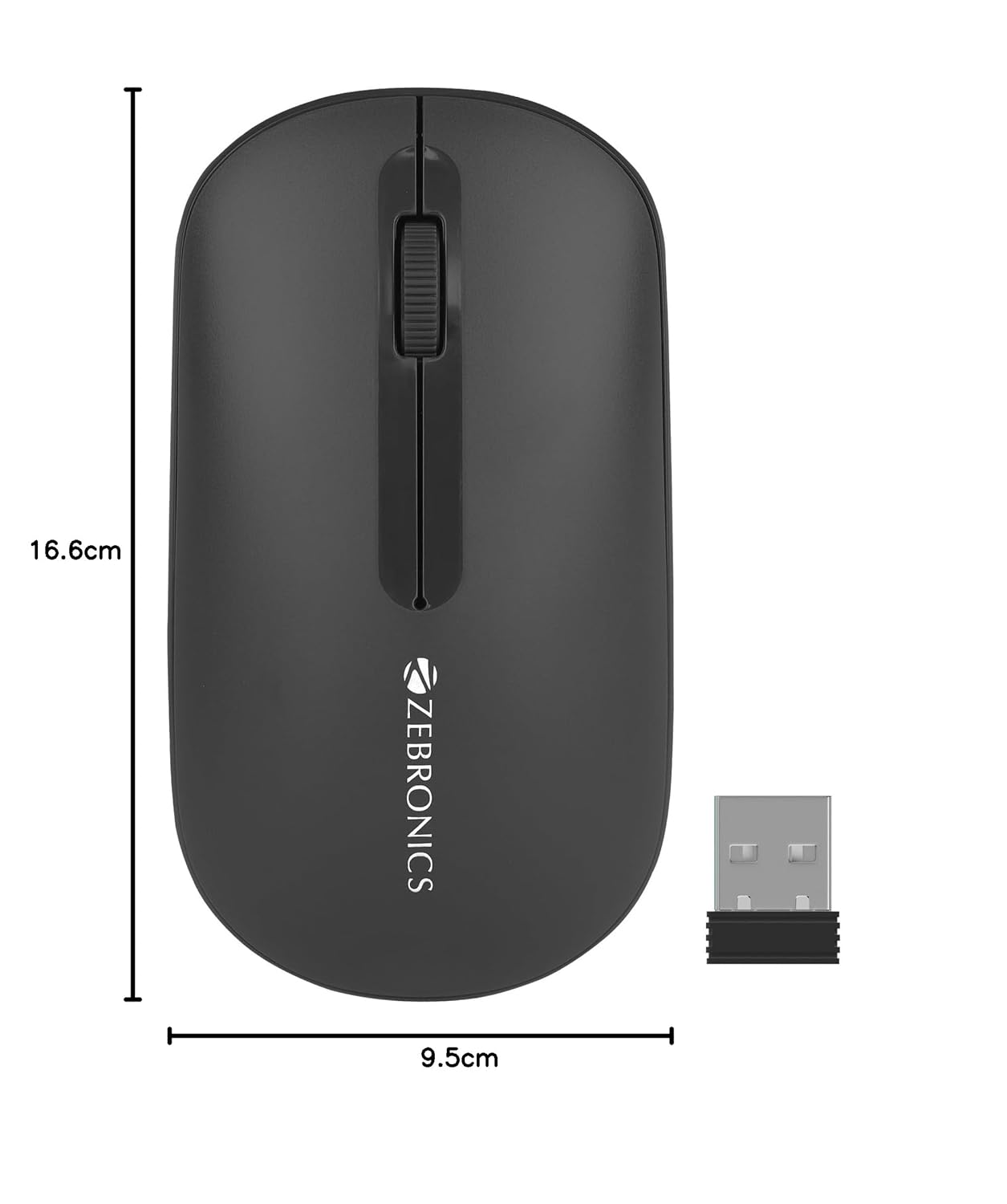
Image 8.1: Diagram showing the physical dimensions of the ZEBRONICS Pulse Wireless Mouse.
9. 보증 및 지원
For warranty information, technical support, or service inquiries, please refer to the warranty card included with your product or visit the official ZEBRONICS web사이트. 보증 청구를 위해 구매 증빙 자료로 구매 영수증을 보관하세요.
Official ZEBRONICS Web대지: www.zebronics.com


