1. 서론
The PANTUM M6700DW is a 3-in-1 multifunction laser printer designed for printing, copying, and scanning. This device supports automatic duplex printing and offers multiple connectivity options including WiFi, USB, and Ethernet. It is suitable for various environments, from home offices to small and medium-sized businesses.

Image: The PANTUM M6700DW printer, highlighting its stable, intelligent, fast, and simple operation, with a smartphone showing the mobile application.

Image: The PANTUM M6700DW printer demonstrating its 3-in-1 multifunction capabilities: Print, Copy, and Scan.
2. 안전 정보
프린터를 안전하고 올바르게 사용하려면 사용 전에 모든 안전 지침을 읽어 주십시오. 나중에 참조할 수 있도록 이 설명서를 보관하십시오.
- 먼지, 습기 또는 직사광선이 과도하게 닿는 곳에 프린터를 두지 마십시오.
- 프린터를 안정적이고 평평한 표면에 놓으세요.
- 지정된 전원 공급 장치와 볼륨만 사용하십시오.tage.
- 작동 중에는 움직이는 부분에 손이 닿지 않도록 주의하세요.
- 프린터를 직접 분해하거나 수리하려고 하지 마십시오. 자격을 갖춘 서비스 담당자에게 문의하십시오.
- 토너 카트리지는 어린이의 손이 닿지 않는 곳에 보관하십시오.
3. 패키지 내용
패키지에 모든 품목이 들어 있는지 확인하세요.
- PANTUM M6700DW Multifunction Laser Printer
- 전원 코드
- USB 케이블
- Starter Toner Cartridge (1000 pages)
- Starter Drum Unit (9000 pages, pre-installed)
- 사용 설명서 (본 문서)
- Installation CD (or driver download instructions)
4. 제품 오버view
Familiarize yourself with the main components of your PANTUM M6700DW printer.

이미지: 앞면 view of the PANTUM M6700DW printer, showing the control panel and paper trays.

Image: Detailed diagram of the PANTUM M6700DW, indicating the LCD control panel, NFC touch area, USB and Ethernet ports, multipurpose tray, paper input tray (250 pages), and paper output tray (150 pages).
주요 특징:
- 3-in-1 기능: Print, Copy, Scan.
- 고속: Up to 30 pages per minute (PPM) for A4, 32 PPM for Letter.
- 자동 양면 인쇄: Saves paper by printing on both sides automatically.
- 다중 연결: USB, Ethernet, Wi-Fi, NFC.
- 모바일 인쇄: Supports AirPrint, Mopria, and Pantum mobile app for Android/iOS.
- Separate Drum and Toner: Cost-effective maintenance.
- 조용한 작동: Silent mode and automatic standby reduce noise.
5. 설정
5.1 초기 하드웨어 설정
- 프린터 풀기: 프린터에서 모든 포장재, 테이프, 보호 필름을 제거하세요.
- Install Toner Cartridge and Drum Unit: The drum unit is pre-installed. Insert the toner cartridge into the drum unit as per the instructions provided with the cartridge.
- 용지 로드: Open the paper input tray and load paper (up to 250 sheets). Adjust the paper guides to fit the paper size.
- 전원 연결: 프린터에 전원 코드를 연결한 다음 벽면 콘센트에 꽂으세요.
- 전원 켜기: 전원 버튼을 눌러 프린터를 켭니다.
5.2 드라이버 설치 및 연결
The printer offers multiple connection methods:

이미지: 이상view of easy setup options for PC (USB, Ethernet, Wi-Fi) and mobile (Wi-Fi, NFC) for the PANTUM M6700DW printer.

Image: Visual guide for connecting the printer via USB, Ethernet, and Wi-Fi, showing the necessary cable connections and network setup.
5.2.1 USB Connection (for PC)
- 제공된 USB 케이블을 사용하여 프린터를 PC에 연결하십시오.
- 드라이버를 다운로드하세요 global.pantum.com/support/download/driver/.
- Run the installer and select 'connect with USB'.
5.2.2 Ethernet Connection (for PC)
- Ensure your PC is connected to your network.
- Connect the printer to the same network router using an Ethernet cable.
- 드라이버를 다운로드하세요 global.pantum.com/support/download/driver/.
- Run the installer and select 'connect with network'.
5.2.3 Wi-Fi Connection (for PC)
- Ensure your PC is connected to a wired network or Wi-Fi router.
- Connect the PC to the printer via a USB cable to configure wireless printing initially.
- 드라이버를 다운로드하세요 global.pantum.com/support/download/driver/.
- Run the installer and select 'connect with Wi-Fi'. Follow the on-screen instructions to connect the printer to your Wi-Fi network.
- Once configuration is complete, the USB cable can be removed, allowing multiple devices to connect wirelessly. 참고: 5G Wi-Fi 네트워크는 지원되지 않습니다.
5.2.4 Mobile Device Connection (Wi-Fi Hotspot / Router)
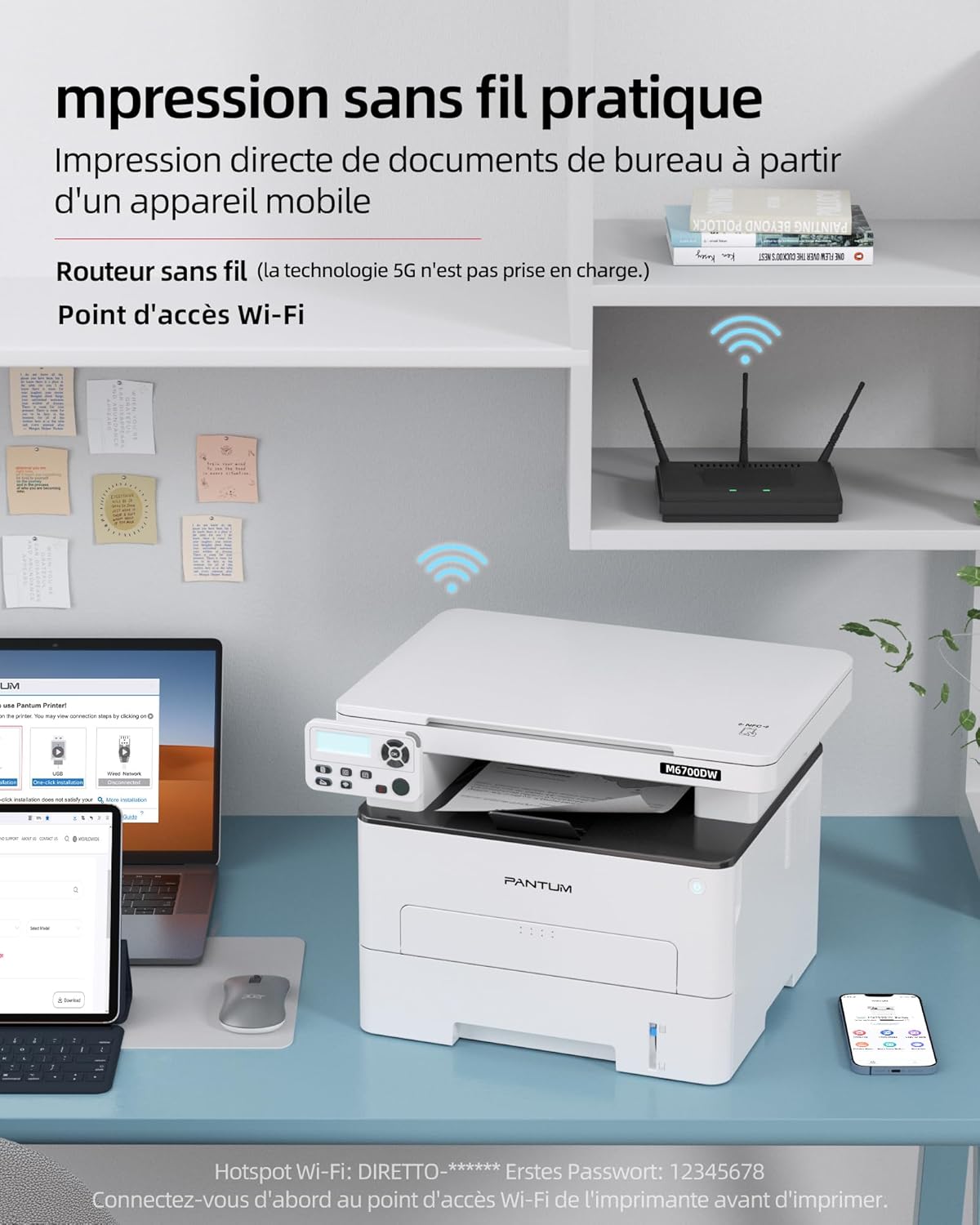
Image: The PANTUM M6700DW printer demonstrating convenient wireless printing from various mobile devices and a laptop.

Image: Explanation of Wi-Fi and wireless connectivity options, including router mode for PC/mobile and hotspot mode for direct mobile printing.
- Via Printer's Wi-Fi Hotspot:
- Connect your mobile device to the printer's Wi-Fi Hotspot (e.g., 'DIRECT-PANTUM M6700...'). The default password might be '12345678'.
- Use your phone's built-in print plug-in or download the PANTUM mobile application.
- Open the document, select print, and choose the printer.
- Via Wi-Fi Router:
- Ensure your mobile device is connected to your Wi-Fi router.
- Open the PANTUM application, add the printer, and find the corresponding printer.
- Enter your Wi-Fi router password to connect.
- NFC Connection (Android only): Tap your NFC-enabled Android device to the NFC touch area on the printer for quick connection.
- AirPrint(iOS): For iOS devices, connect to the printer's hotspot or the same Wi-Fi router to print via AirPrint without additional apps.
- 모프리아(안드로이드): For Android devices, connect to the printer's hotspot or the same Wi-Fi router to print via Mopria without additional apps.
6. 사용 설명서
6.1 인쇄
- PC에서: Open the document, select 'Print' from the application menu, choose the PANTUM M6700DW, adjust settings (e.g., paper size, duplex), and click 'Print'.
- 모바일 기기에서: Use the PANTUM app or your device's native print function (AirPrint/Mopria) to select the printer and print documents or photos.
- 양면 인쇄: Select the duplex option in your print settings to automatically print on both sides of the paper.
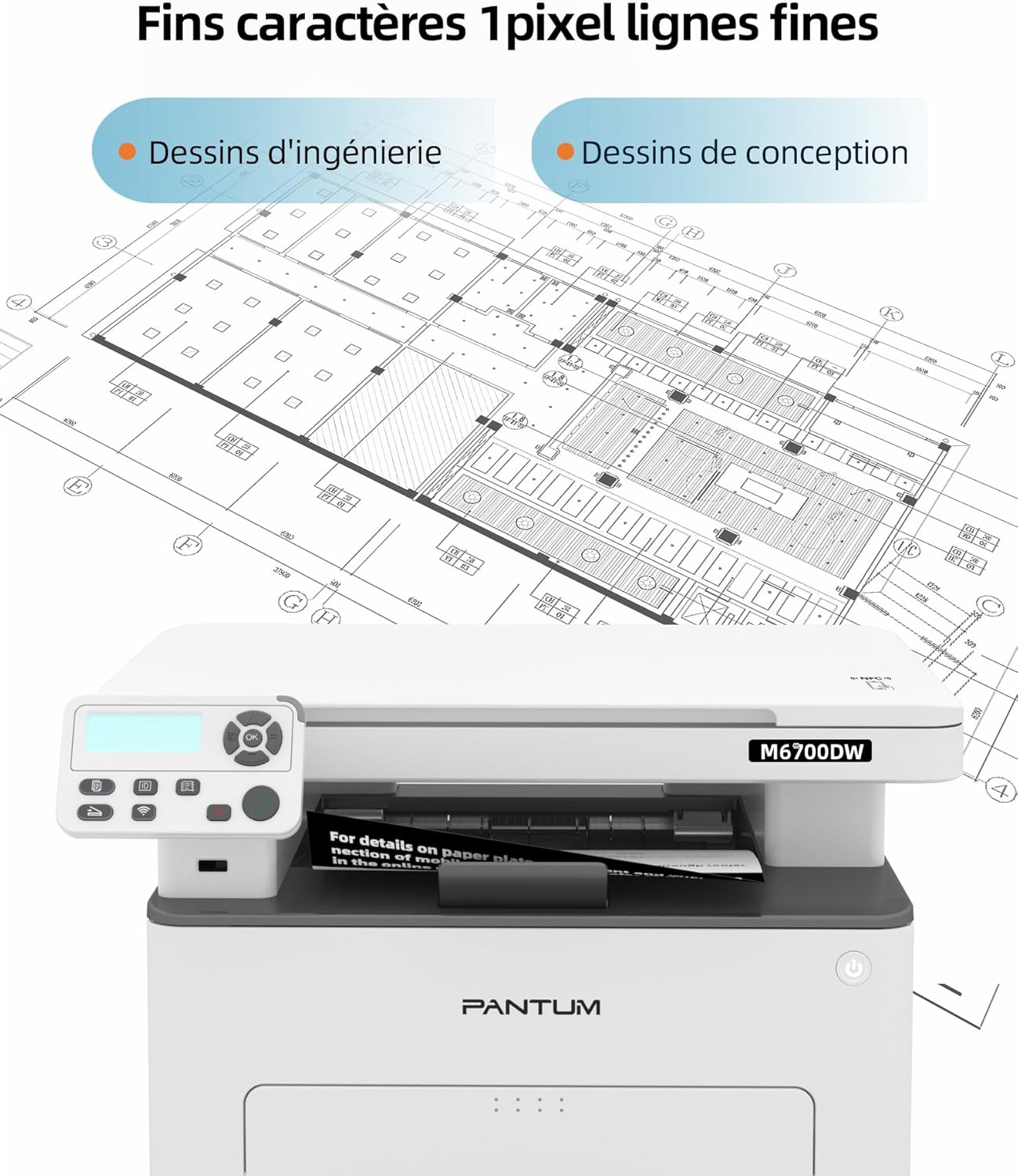
Image: The PANTUM M6700DW printer demonstrating its capability to produce fine characters and detailed engineering or design drawings with 1-pixel line precision.
6.2 복사
- 스캐너 유리에 문서를 앞면이 아래로 향하게 놓거나 자동 문서 공급기(ADF)에 앞면이 위로 향하게 놓습니다.
- Use the control panel to select 'Copy'.
- Adjust settings such as number of copies, darkness, or paper size.
- '시작' 버튼을 눌러 복사를 시작하세요.
6.3 스캔
- 스캐너 유리에는 문서를 앞면이 아래로 향하게 놓거나, 자동 문서 공급기(ADF)에는 앞면이 위로 향하게 놓으십시오.
- From your computer, open the scanning software (usually installed with the printer driver) or use the PANTUM mobile app.
- Select 'Scan' and choose scan settings (e.g., resolution, color/grayscale, destination folder).
- Initiate the scan. The scanned document will be saved to your specified location.

Image: The PANTUM M6700DW performing various tasks: copying documents, color scanning, and printing office materials.
7. 유지관리
7.1 토너 카트리지 및 드럼 유닛 교체
The PANTUM M6700DW uses separate toner cartridges and drum units. Replace them when indicated by the printer or when print quality deteriorates.

Image: PANTUM original toner cartridges (TL-410, TL-410H, TL-410X) and drum unit (DL-410) with varying page yields, emphasizing high capacity and RoHS compliance.

Image: PANTUM original toner cartridge, emphasizing its high capacity and environmental considerations. Note: Damages from non-original consumables are not covered by warranty.
- 프린터의 앞면 덮개를 엽니다.
- Remove the old drum unit and toner cartridge assembly.
- Separate the toner cartridge from the drum unit.
- Unpack the new toner cartridge and install it into the drum unit until it clicks into place.
- Insert the new drum unit and toner cartridge assembly back into the printer.
- 앞면 덮개를 닫습니다.
7.2 프린터 청소
- 외부: 프린터 외부를 부드러운 천으로 닦으세요.amp, 보푸라기 없는 천.
- 스캐너 유리: Clean the scanner glass with a soft cloth moistened with glass cleaner.
- 용지 공급 롤러: Refer to the detailed user manual (Section 14) for instructions on cleaning paper feed rollers if paper jams occur frequently.
8. 문제 해결
This section addresses common issues you might encounter with your PANTUM M6700DW printer.

이미지: 오버view of frequently asked questions covering wireless printing, driver installation, and common print quality issues.
Common Questions and Solutions:
Q1: How to print wirelessly via your mobile phone's Wi-Fi Hotspot?
A: 1. Connect your mobile phone to the printer's Wi-Fi Hotspot (e.g., 'DIRECT-PANTUM M6700...'). 2. Use your phone's built-in print plug-in or download the PANTUM application. Open the document, select print, and choose the printer.
Q2: How to install the driver for wireless printing via a Wi-Fi router (for PC)?
A: 1. Connect the printer to the PC with a USB cable. 2. Ensure your PC is connected to the Wi-Fi router. 3. Download and install the driver from the Pantum website, choosing 'connect with Wi-Fi'. The USB cable can be removed after installation. Note: 5G Wi-Fi is not supported.
Q3: How to install the driver via a USB cable (For PC)?
A: 1. Connect the printer to the PC with the USB cable. 2. Download and install the driver from the Pantum website, choosing 'connect with USB'. Only one PC can be connected for printing in this mode.
Q4: How to print wirelessly from your mobile phone via a Wi-Fi router?
A: 1. Ensure your mobile device is connected to your Wi-Fi router. 2. Open the Pantum application and add the printer. 3. Find the printer and enter your Wi-Fi router password to connect. Note: 5G Wi-Fi is not supported.
Q5: What is the difference between printing via a Wi-Fi router and via a Wi-Fi Hotspot?
A: The printer's Wi-Fi Hotspot is a direct connection for mobile devices when a local network is unavailable. A Wi-Fi router connection uses your existing local network, suitable for both PCs and mobile devices (requires the PANTUM app for mobile).
Q6: How to download drivers and user manuals?
A: Drivers and manuals can be downloaded from the official Pantum web대지: global.pantum.com/support.
Q7: How to resolve a paper jam?
A: Carefully remove any jammed paper. If the issue persists, restart the printer. Refer to Section 14 of the full user manual for detailed instructions.
Q8: Why are there spots or streaks on the print?
A: Ensure the toner cartridge is correctly installed. Clean the paper feed channel inside the device. If the problem continues, clean or replace the toner cartridge. Refer to Section 14 of the full user manual for detailed instructions.
9. 사양

Image: The PANTUM M6700DW highlighting its high yield with 30 ppm print speed and 50-page Automatic Document Feeder (ADF) capacity.
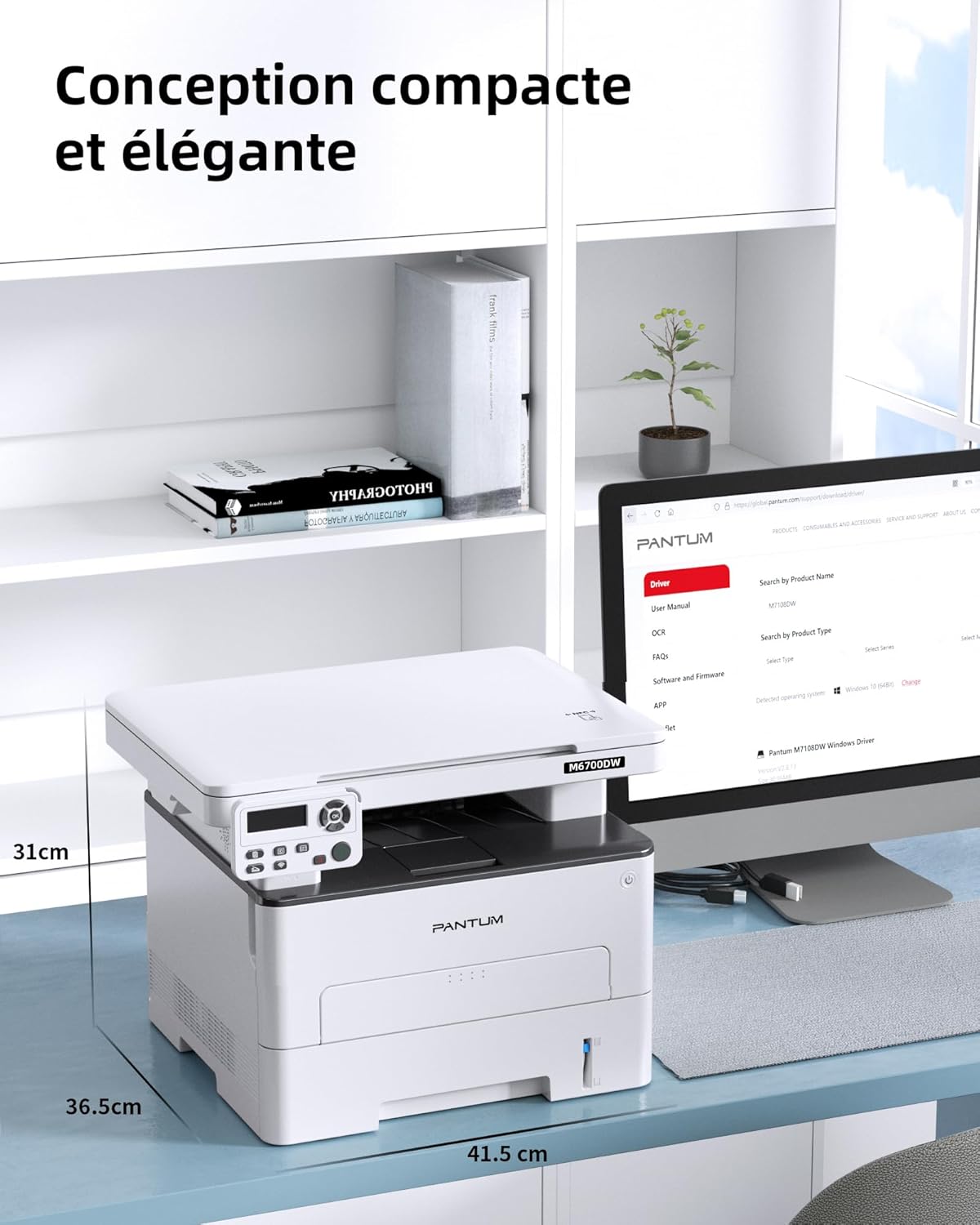
Image: The PANTUM M6700DW printer on a desk, illustrating its compact and elegant design with dimensions of 36.5cm (depth), 41.5cm (width), and 31cm (height).
| 특징 | 사양 |
|---|---|
| 모델명 | M6700DW |
| 상표 | 판텀 |
| 인쇄 기술 | 원자 램프 |
| 기능 | 인쇄, 복사, 스캔(3-in-1) |
| 인쇄 속도(흑백) | Up to 30 ppm (A4) / 32 ppm (Letter) |
| 인쇄 해상도(최대) | 1200dpi |
| 양면 인쇄 | 오토매틱 |
| 스캐너 유형 | 플랫베드 |
| 복사 속도(흑백) | 최대 30ppm |
| 연결성 | USB, Ethernet, Wi-Fi, NFC |
| 호환되는 운영 체제 | 윈도우, 맥 OS, 리눅스 |
| 용지 투입 용량 | 250매(표준 용지함) |
| 용지 출력 용량 | 150장 |
| 지원되는 미디어 크기 | A4, Letter, Legal, etc. |
| 호환 장치 | 노트북, PC, 스마트폰, 태블릿 |
| 품목 무게 | 10.26kg |
| 제품 크기(D x W x H) | 36.5cm x 41.5cm x 31cm |
| 소음 수준 | ≤48 dB(A) (Silent Mode) |
10. 보증 및 지원
10.1 제조업체 보증
The PANTUM M6700DW printer comes with a 2년 제조사 보증. Please retain your proof of purchase for warranty claims. The warranty does not cover damages caused by the use of non-original Pantum consumables.
10.2 고객 지원
For further assistance, technical support, or to download the latest drivers and full user manuals, please visit the official PANTUM support web대지:


