1. 서론
This manual provides comprehensive instructions for the Hyperkin Pixel Art Bluetooth Controller, Tetris™ Edition (Model M01328-TETS). This limited-edition wireless controller is designed for use with various gaming platforms, offering a blend of retro aesthetics and modern functionality. Please read this manual thoroughly before use to ensure proper setup and operation.

Image 1.1: The Hyperkin Pixel Art Bluetooth Controller, Tetris™ Edition, showcasing its unique Tetris-themed design.
2. 패키지 내용
패키지에 모든 품목이 들어 있는지 확인하세요.
- Hyperkin Pixel Art Bluetooth Controller (Tetris™ Edition)
- USB-C 충전 케이블
- 사용 설명서 (본 문서)
3. 컨트롤러 레이아웃
컨트롤러의 버튼과 기능을 숙지하세요.

이미지 3.1: 앞면 view of the controller, displaying the D-pad, analog sticks, action buttons (A, B, X, Y), SELECT, START, and Tetris™ logo.
- 방향 패드: 방향 입력.
- 왼쪽/오른쪽 아날로그 스틱: Precise 360-degree movement.
- 동작 버튼(A, B, X, Y): 주요 상호 작용 버튼.
- 선택 버튼: Function varies by platform/game.
- 시작 버튼: Function varies by platform/game.
- 어깨 버튼(L1, R1): 상단에 장착된 버튼.
- 트리거 버튼(L2, R2): Bottom-mounted analog triggers.
- 홈 버튼: Returns to system menu (functionality varies by platform).
- 터보 버튼: Activates/deactivates turbo function for selected buttons.
- USB-C 포트: 충전 및 유선 연결용입니다.

이미지 3.2: 뒤 view of the controller, showing the ergonomic grip and product label.
4. 설정
4.1. 컨트롤러 충전
Before initial use, fully charge the controller. Connect the included USB-C charging cable to the controller's USB-C port and the other end to a USB power source (e.g., computer, USB wall adapter). The charging indicator light will show charging status and turn off when fully charged.
4.2. 블루투스 페어링
The controller supports wireless connection via Bluetooth up to 30 feet. Follow these general steps for pairing:
- 컨트롤러가 충전되어 있는지 확인하세요.
- Turn on the controller (specific method may vary, typically holding the Home button).
- Activate pairing mode on the controller (refer to specific platform instructions below, usually a combination of buttons or a dedicated pairing button). The indicator lights will flash rapidly.
- On your device (Nintendo Switch, PC, Mac, Android, iOS), navigate to the Bluetooth settings.
- 검색 available devices and select "Hyperkin Pixel Art Controller" or similar.
- 페어링이 완료되면 컨트롤러의 표시등이 계속 켜져 있습니다.
4.2.1. Pairing with Nintendo Switch/OLED Model
- From the HOME Menu, select "Controllers" > "Change Grip/Order."
- While on this screen, press and hold the pairing button on the Hyperkin controller until the indicator lights flash.
- Once paired, the controller will appear on the screen, and the player indicator will light up.
4.2.2. Pairing with PC (Windows 10/11)
- Go to "Settings" > "Devices" > "Bluetooth & other devices."
- Turn on Bluetooth and click "Add Bluetooth or other device."
- Select "Bluetooth" and then choose "Hyperkin Pixel Art Controller" from the list.
4.2.3. Pairing with Mac
- Open "System Settings" (or "System Preferences") > "Bluetooth."
- Ensure Bluetooth is on. The controller should appear in the list of devices.
- Click "Connect" or "Pair" next to "Hyperkin Pixel Art Controller."
4.2.4. Pairing with Android/iOS Devices
- Go to your device's "Settings" > "Bluetooth."
- Turn on Bluetooth. The controller should appear in the list of available devices.
- Tap on "Hyperkin Pixel Art Controller" to pair.

Image 4.1: The controller demonstrating wireless connectivity with a Nintendo Switch console, highlighting its Bluetooth capability.
5. 사용 설명서
5.1. 기본 제어
The controller functions as a standard gamepad. Button mapping may vary depending on the game and platform. Refer to your game's instructions for specific control schemes.
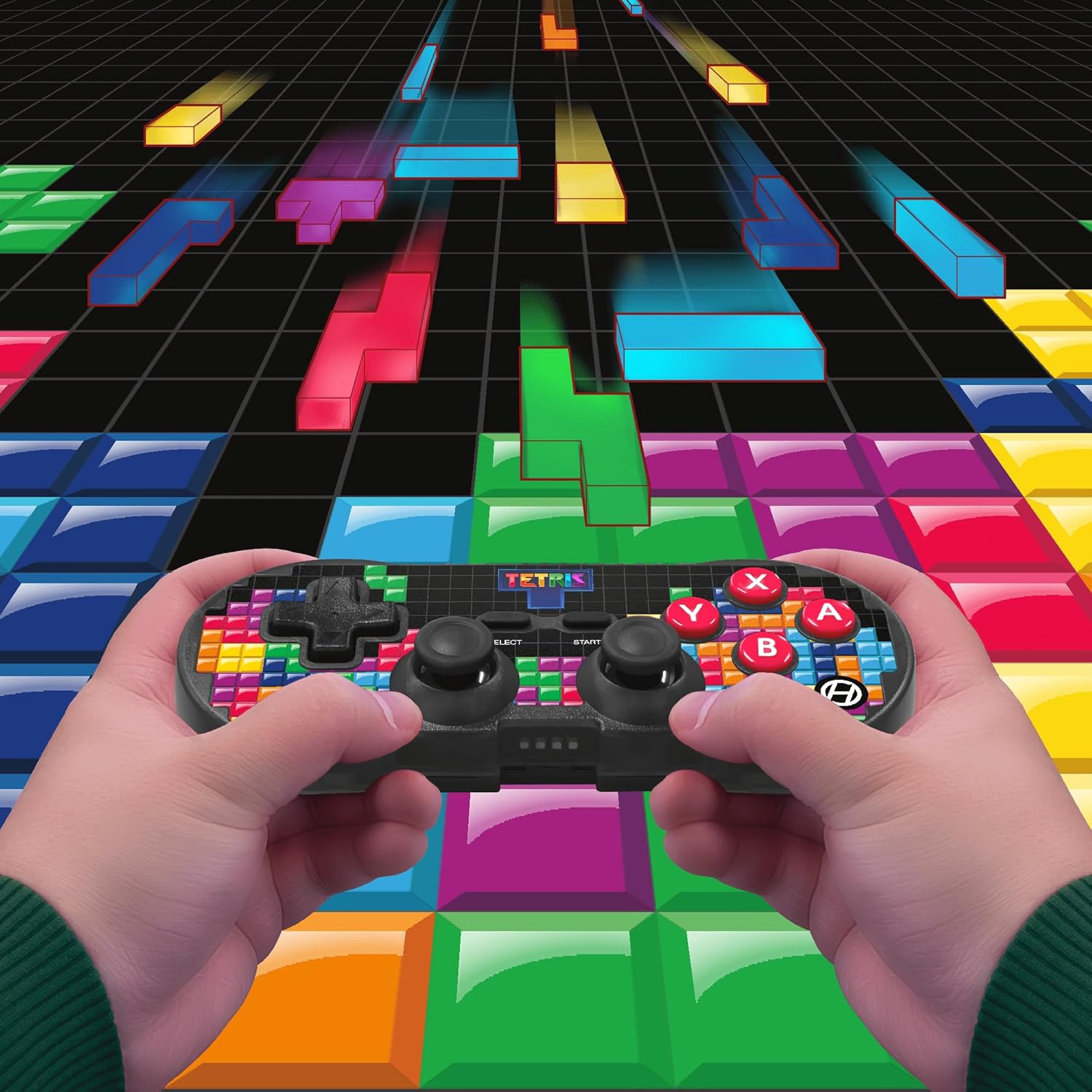
Image 5.1: A user holding the controller, illustrating its use during gameplay.
5.2. 터보 기능
The controller features a turbo function for rapid button presses. To activate or deactivate turbo for a specific button:
- 를 누르고 계세요 터보 버튼.
- While holding the Turbo button, press the desired 액션 버튼 (A, B, X, Y, L1, R1, L2, R2) you wish to apply turbo to.
- Release both buttons. The selected action button will now have turbo enabled.
- To disable turbo for that button, repeat the process.
6. 호환성
The Hyperkin Pixel Art Bluetooth Controller is compatible with a wide range of platforms:
- 닌텐도 스위치
- 닌텐도 스위치 OLED 모델
- 윈도우 10/11 PC
- 스코틀랜드 사람
- 안드로이드 기기
- iOS 기기
- 증기
- 라즈베리파이
- Amazon Games
- 아마존 루나
- 테슬라

Image 6.1: Visual representation of the controller's broad compatibility across multiple gaming and computing platforms.
7. 유지관리
컨트롤러의 수명 연장 및 최적 성능 보장을 위해 다음 사항을 준수하십시오.
- 청소: 컨트롤러를 닦을 때는 부드럽고 마른 천을 사용하십시오. 연마성 세척제나 용제는 사용하지 마십시오.
- 저장: 컨트롤러는 직사광선과 극한의 온도를 피해 서늘하고 건조한 곳에 보관하세요.
- 배터리 관리 : Do not attempt to replace the internal Lithium Polymer battery. Avoid fully discharging the battery for extended periods.
- 낙하 방지: 컨트롤러를 떨어뜨리거나 충격을 가하지 마십시오. 내부 구성 요소가 손상될 수 있습니다.
8. 문제 해결
If you encounter issues with your Hyperkin Pixel Art Bluetooth Controller, refer to the following common problems and solutions:
| 문제 | 가능한 해결책 |
|---|---|
| 컨트롤러가 켜지지 않습니다. | 컨트롤러가 완전히 충전되었는지 확인하십시오. USB-C 케이블을 사용하여 전원에 연결하십시오. |
| Controller does not pair via Bluetooth. |
|
| 입력 지연 또는 연결 끊김. |
|
| 버튼이 작동하지 않거나 눌린 상태로 고정되어 있습니다. | Clean around the buttons with a soft, dry cloth. Avoid liquid cleaners. If the issue persists, contact support. |
9. 사양
| 특징 | 세부 사항 |
|---|---|
| 모델 번호 | M01328-TETS |
| 연결성 | Bluetooth (Wireless up to 30 ft.), USB-C (Wired) |
| 호환성 | Nintendo Switch/OLED, Windows 10/11 PC, Mac, Android, iOS, Steam, Raspberry Pi, Amazon Games, Amazon Luna, Tesla |
| 특별 기능 | Turbo function, Retro design with modern ergonomics, High-quality symmetrical sticks, Responsive action buttons, Reliable triggers |
| 배터리 유형 | 1. 리튬 폴리머 배터리(내장형) |
| 패키지 크기 | 7.24 x 5 x 2.48 인치 |
| 품목 무게 | 9.9 온스 |
| 제조업체 | 하이퍼킨 |
10. 보증 및 지원
For warranty information and technical support, please visit the official Hyperkin web사이트를 방문하거나 고객 서비스 부서에 문의하세요. 보증 청구를 위해 구매 증빙 자료를 보관하세요.
하이퍼킨 공식 Web대지: www.hyperkin.com


