소개
This manual provides comprehensive instructions for the setup, operation, maintenance, and troubleshooting of your A4TECH FG20 2.4G Wireless Mouse. Please read this manual carefully before using the product to ensure optimal performance and longevity.
패키지 내용
- A4TECH FG20 2.4G Wireless Mouse
- USB 나노 수신기
- AA 배터리 (사전 설치되어 있거나 별도로 제공될 수 있습니다)
- 사용 설명서 (본 문서)
설치 가이드
Follow these steps to set up your A4TECH FG20 Wireless Mouse:
- 배터리 설치: Locate the battery compartment on the underside of the mouse. Open the cover and insert the AA battery, ensuring the polarity (+/-) matches the diagram inside the compartment. Close the battery cover securely.
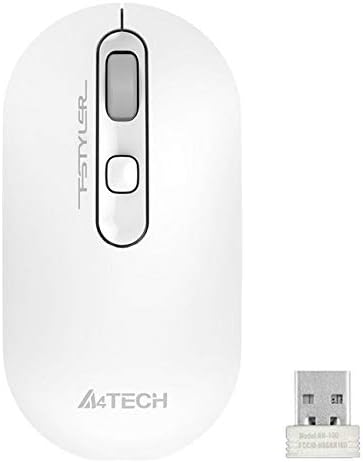
Image: A4TECH FG20 Wireless Mouse shown alongside its USB Nano Receiver. This illustrates the two main components required for operation.
- USB 나노 수신기를 연결합니다: Remove the USB Nano Receiver from its storage slot, usually located within the battery compartment or near it. Plug the receiver into an available USB port on your computer.

Image: A schematic diagram depicting the wireless connection between the mouse and a computer via the USB receiver. This visual aid helps understand the connection process.
- 마우스 전원 켜기: If your mouse has an On/Off switch, slide it to the "On" position. The mouse should automatically connect to the receiver.
- 드라이버 설치: Your computer's operating system (Windows, Linux) should automatically detect and install the necessary drivers. No manual driver installation is typically required.
작동 지침
The A4TECH FG20 Wireless Mouse is designed for intuitive use. Here are its primary functions:
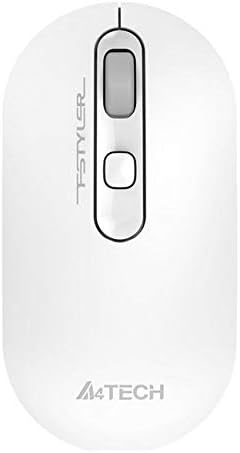
이미지: 위에서 아래로 view of the A4TECH FG20 Wireless Mouse, highlighting its ergonomic shape and button layout.
- 좌 클릭: 항목 선택, 열기에 사용 files, 그리고 활성화 기능.
- 마우스 오른쪽 버튼으로 클릭: 선택한 항목에 대한 추가 옵션을 제공하는 상황별 메뉴를 엽니다.
- 스크롤 휠: 문서를 위아래로 스크롤하고 web pages. The scroll wheel can also function as a middle click button.
- DPI 조정 버튼: (If applicable, typically located near the scroll wheel) This button allows you to cycle through different cursor speeds (DPI settings) to suit your preference and task.
- 인체공학적 디자인: The mouse features an ergonomic design for comfortable use during extended periods.
유지
적절한 유지 관리는 마우스의 수명과 성능을 보장합니다.
- 청소: 부드럽고 마른 천으로 마우스 표면을 닦으세요. 잘 지워지지 않는 얼룩은 살짝 두드려 닦아내세요.amp천에 물이나 순한 세척액을 묻혀 닦아주세요. 강한 화학 물질이나 연마재는 사용하지 마세요.
- 센서 청소: Occasionally, clean the optical sensor on the underside of the mouse with a cotton swab to ensure accurate tracking.
- 배터리 교체: When the mouse performance degrades or it stops responding, replace the AA battery with a fresh one.
- 저장: When not in use for extended periods, turn off the mouse to conserve battery life. Store the USB Nano Receiver in its designated slot to prevent loss.
문제 해결
If you encounter issues with your A4TECH FG20 Wireless Mouse, refer to the following common solutions:
- 마우스가 응답하지 않음:
- 마우스가 켜져 있는지 확인하세요.
- 배터리가 올바르게 설치되었고 충전량이 충분한지 확인하세요. 필요하면 교체하세요.
- USB 나노 수신기가 컴퓨터의 정상 작동하는 USB 포트에 제대로 꽂혀 있는지 확인하십시오. 다른 USB 포트를 사용해 보십시오.
- 컴퓨터를 다시 시작하세요.
- Lagging or Erratic Cursor Movement:
- 마우스 밑면의 광학 센서를 청소하세요.
- 마우스를 적절한 표면(반사되지 않고 불투명한 표면)에서 사용하고 있는지 확인하세요.
- Move the mouse closer to the USB Nano Receiver to reduce interference.
- 간섭을 일으킬 수 있는 다른 무선 장치가 있는지 확인하세요.
- 연결 문제:
- If the mouse loses connection frequently, try re-pairing it (if a pairing button is available, otherwise, simply unplug and replug the receiver).
- Ensure no large metal objects are between the mouse and the receiver.
명세서

이미지: 사이드 프로file view of the A4TECH FG20 Wireless Mouse, illustrating its slim and ergonomic contour.
| 특징 | 세부 사항 |
|---|---|
| 모델 | FG20 |
| 연결 기술 | 2.4G Wireless (Infrared) |
| 움직임 감지 | 원자 램프 |
| 버튼 수량 | 3 |
| 손의 방향 | 양손잡이 |
| 특별 기능 | 인체공학적 디자인 |
| 색상 | 하얀색 |
| 호환 장치 | 개인용 컴퓨터 |
| 운영 체제 호환성 | 리눅스, 윈도우 7, 윈도우 XP |
| 제조업체 | 에이포테크 |
| 원산지 | 중국 |
보증 및 지원
The A4TECH FG20 Wireless Mouse is manufactured to high-quality standards. For information regarding the manufacturer's warranty, please refer to the documentation provided with your purchase or visit the official A4TECH web대지.
살라마 케어(Salama Care)의 1년 또는 2년 연장 보증과 같은 제3자 제공업체를 통해 추가 보증 옵션을 이용하실 수 있습니다. 이러한 연장 보증은 제조업체 보증과는 별개입니다.
For technical support or further assistance, please contact the retailer where you purchased the product or visit the official A4TECH support channels.


