1. 서론
This manual provides comprehensive instructions for the Keychron M6 Wireless Optical Mouse. It covers setup, operation, maintenance, and troubleshooting to ensure optimal performance and longevity of your device. The Keychron M6 is a high-performance wireless mouse designed for productivity and gaming, featuring multiple connectivity options, a precise sensor, and customizable buttons.

Figure 1: Keychron M6 Wireless Optical Mouse (Black)
This image shows the Keychron M6 wireless optical mouse in black, highlighting its ergonomic design and sleek appearance. A separate component, likely a wireless receiver, is also visible to the right.
2. 주요 특징
- 다양한 연결성: Supports 2.4 GHz wireless, Bluetooth 5.1, and wired USB connections.
- 높은 폴링률: Up to 4000 Hz polling rate for ultra-low latency response.
- Precise Sensor: Equipped with PixArt 3395 sensor, offering up to 26,000 DPI and 650 IPS.
- 가벼운 디자인: Weighs approximately 78g for comfortable extended use.
- 프로그래밍 가능한 버튼: Over ten customizable buttons and an infinite scroll wheel.
- 소프트웨어 사용자 정의: Keychron Engine software for macOS/Windows allows personalization of keys, shortcuts, macros, LOD, polling rate, and DPI settings.

Figure 2: Key Features of Keychron M6 Mouse
This image visually highlights the key features of the Keychron M6 mouse, including its infinite scroll wheel, 4000 Hz polling rate, up to 26000 DPI, and 78g lightweight design.
3. 패키지 내용
패키지에 모든 품목이 들어 있는지 확인하세요.
- 1x Keychron M6 Wireless Optical Mouse
- 1x Type-C to Type-C 케이블
- 1x Type-A-Type-C 어댑터
- 4K 무선 수신기 1개

Figure 3: Standard Version (4K) Package Contents
This image illustrates the contents included with the Keychron M6 mouse, showing the mouse itself, a USB-C cable, a USB-A to USB-C adapter, and the 4K wireless receiver.
4. 설정 가이드
4.1 마우스 충전
The Keychron M6 mouse comes with a built-in 800 mAh battery. Before first use, it is recommended to fully charge the mouse.
- 제공된 Type-C 케이블을 마우스의 충전 포트에 연결하십시오.
- 케이블의 다른 쪽 끝을 USB 전원(예: 컴퓨터 USB 포트, USB 벽면 어댑터)에 연결합니다.
- The charging indicator light will show the charging status. A full charge can provide up to 80 hours of use.

Figure 4: Mouse Dimensions and Battery Life
This image provides the physical dimensions of the Keychron M6 mouse and highlights its 800 mAh battery, which offers up to 80 hours of usage. It also shows the Huano 80M Micro Switch and DPI/Report Rate adjustment buttons.
4.2 마우스 연결
The Keychron M6 supports three connection modes: 2.4 GHz wireless, Bluetooth 5.1, and wired USB.
4.2.1 2.4GHz 무선 연결
- Locate the 4K wireless receiver included in the package.
- 4K 무선 수신기를 컴퓨터의 사용 가능한 USB 포트에 연결하세요.
- On the bottom of the mouse, slide the switch to the "2.4G" position.
- 마우스가 자동으로 수신기에 연결되어야 합니다.

그림 5: 연결 옵션
This image illustrates the stable and ultra-low latency response of the Keychron M6 mouse, showcasing its 2.4GHz, Bluetooth 5.1, and USB Wired connectivity options.
4.2.2 블루투스 5.1 연결
- On the bottom of the mouse, slide the switch to the "B" (Bluetooth) position.
- 마우스가 페어링 모드로 진입합니다(표시등이 깜빡일 수 있습니다).
- 컴퓨터나 기기에서 Bluetooth 설정을 열고 새 기기를 검색하세요.
- 페어링할 수 있는 장치 목록에서 "Keychron M6"을 선택하십시오.
4.2.3 유선 USB 연결
- Connect the provided Type-C cable to the mouse's port.
- Connect the other end of the cable (using the Type-A adapter if necessary) to a USB port on your computer.
- The mouse will function immediately in wired mode.
5. 사용 설명서
5.1 DPI 조정
The Keychron M6 mouse allows for on-the-fly DPI adjustment without software.
- 마우스 아래쪽에 있는 DPI 버튼을 찾으세요.
- Press the DPI button to cycle through different DPI levels. The indicator light may change color to indicate the current DPI setting.
- Fine-tune DPI settings using the Keychron Engine software for more precise control.

Figure 6: DPI and Report Rate Adjustment Buttons
This close-up image shows the buttons on the underside of the Keychron M6 mouse, specifically highlighting the DPI adjustment button and the G/OFF/B switch for connectivity modes, along with the Report Rate button.
5.2 폴링 속도 조정
The polling rate can be adjusted to optimize responsiveness for different uses.
- Locate the Report Rate button on the bottom of the mouse.
- Press the Report Rate button to cycle through available polling rates (e.g., 125 Hz, 500 Hz, 1000 Hz, 2000 Hz, 4000 Hz).
- Refer to the table below for indicator light meanings.

Figure 7: M6 (4000 Hz) Polling Rate and Indicator Guide
This image displays a table detailing the polling rates (Hz) and corresponding report rate light indicators (White, Blue, Red, Blue + Red, White + Red) for the Keychron M6 mouse, along with the available connection modes for each rate.
5.3 Customizing Buttons and Macros (Keychron Engine Software)
더욱 정교한 맞춤 설정을 위해서는 Keychron 공식 웹사이트에서 Keychron Engine 소프트웨어를 다운로드하여 설치하십시오. web대지.
- The software allows you to remap buttons, create custom shortcuts, and set up complex macros.
- Adjust Lift-Off Distance (LOD) and other sensor parameters.
- 여러 프로 관리file다양한 애플리케이션이나 게임에 적합합니다.
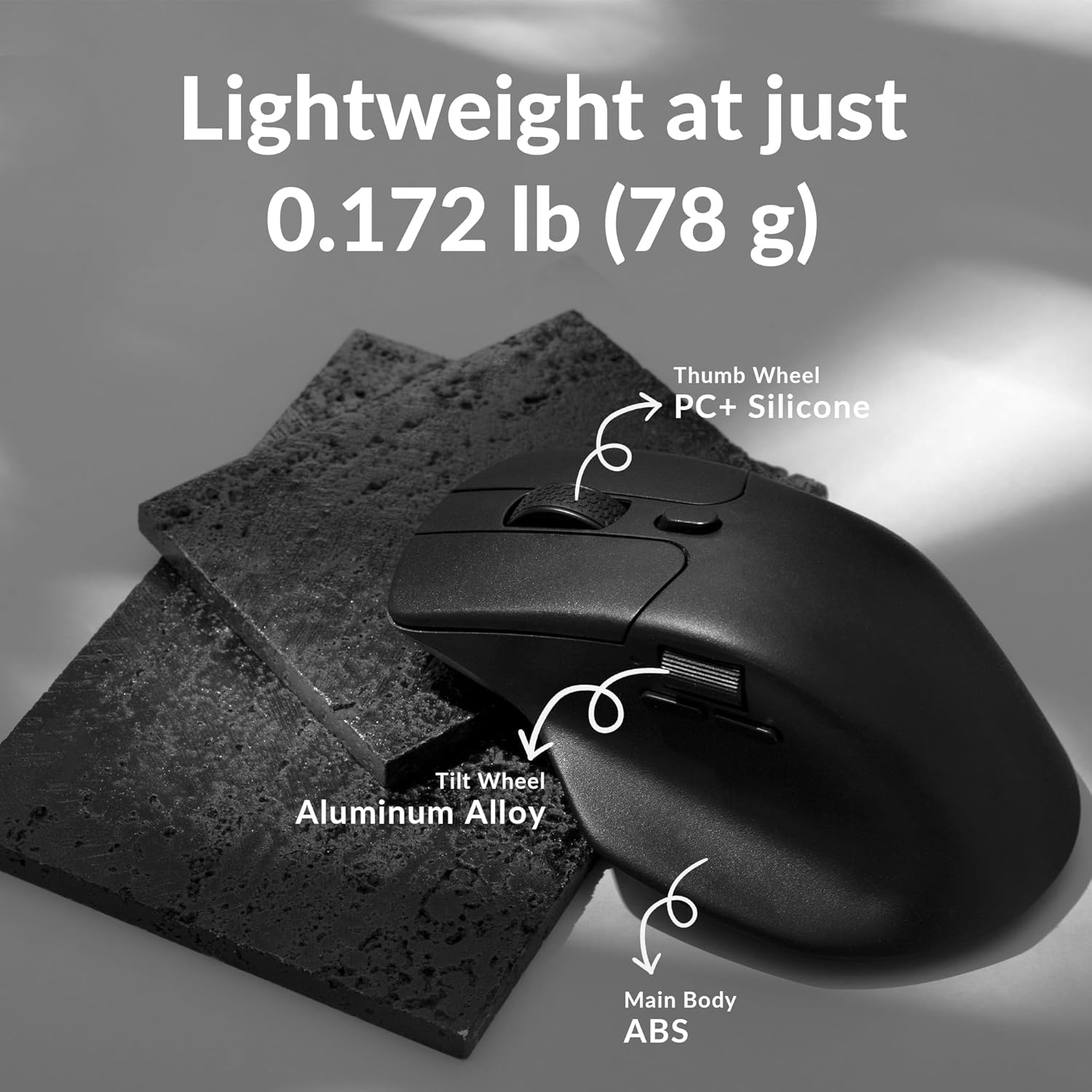
Figure 8: Keychron Engine Software for Customization
This image shows the user interface of the Keychron Engine software, demonstrating how users can customize buttons and settings for the Keychron M6 mouse on macOS and Windows operating systems.
6. 유지관리
Proper maintenance ensures the longevity and optimal performance of your Keychron M6 mouse.
- 청소: 부드럽고 마른 천을 사용하여 마우스 표면을 닦으세요. 잘 지워지지 않는 오염의 경우, 가볍게 두드리세요.amp천에 물이나 순한 세척액을 묻혀 닦으세요. 강한 화학 물질은 피하세요.
- 센서 관리: 마우스 바닥의 광학 센서를 깨끗하고 먼지나 이물질이 없도록 유지하세요. 필요한 경우 면봉이나 압축 공기를 사용하세요.
- 저장: 장시간 사용하지 않을 경우 마우스를 직사광선과 극한의 온도를 피해 시원하고 건조한 곳에 보관하세요.
- 배터리 수명: To preserve battery health, avoid fully discharging the battery frequently. Charge the mouse when the battery indicator is low.
7. 문제 해결
| 문제 | 가능한 원인 | 해결책 |
|---|---|---|
| 마우스가 응답하지 않음(무선) | 배터리 부족; 수신기가 연결되지 않음; 잘못된 모드 선택; 간섭. | Charge the mouse; Ensure 4K receiver is securely plugged in; Switch to 2.4G or Bluetooth mode; Move closer to receiver or reduce interference sources. |
| 마우스가 응답하지 않음(유선) | 케이블이 제대로 연결되지 않았습니다. USB 포트에 결함이 있습니다. | USB-C 케이블이 마우스와 컴퓨터에 제대로 연결되어 있는지 확인하십시오. 다른 USB 포트를 사용해 보십시오. |
| 지연 또는 불규칙적인 움직임 | Dirty sensor; Surface issues; Low battery; Wireless interference. | Clean the optical sensor; Use on a clean, non-reflective mouse pad; Charge the mouse; Minimize other wireless devices nearby. |
| 버튼이 예상대로 작동하지 않습니다 | Software settings; Driver issues. | Check Keychron Engine software settings for button assignments; Reinstall mouse drivers if necessary. |
| 블루투스로 연결할 수 없습니다 | Mouse not in pairing mode; Bluetooth on device is off; Already paired to another device. | Ensure mouse is in Bluetooth pairing mode; Enable Bluetooth on your device; Unpair from other devices or reset Bluetooth connection. |
8. 사양
| 특징 | 세부 사항 |
|---|---|
| 모델 번호 | M6-A1 |
| 연결성 | 2.4GHz 무선, 블루투스 5.1, USB 유선 |
| 감지기 | PixArt 3395 광학 센서 |
| DPI 범위 | 최대 26,000 DPI |
| IPS | 650 IPS |
| 폴링 속도 | 최대 4000Hz |
| 무게 | 약 78g (2.75온스) |
| 배터리 | 800 mAh (Up to 80 hours) |
| 치수 | 4.82 x 2.97 x 1.97인치(122.5 x 75.4 x 50mm) |
| 운영 체제 호환성 | 윈도우, 맥OS, 리눅스 |
9. 보증 및 지원
Keychron 제품에는 일반적으로 제한적 보증이 제공됩니다. 자세한 내용은 Keychron 공식 보증서를 참조하십시오. web구체적인 보증 약관 및 조건은 해당 사이트 또는 구매 문서를 참조하세요.
For technical support, driver downloads, or further assistance, please visit the official Keychron support page:
You can also find the official user guide PDF here: Keychron M6 User Guide (PDF)


