1. 서론
Thank you for choosing the MageGee Cloud98 Mechanical Keyboard. This manual provides detailed instructions for setting up, operating, and maintaining your keyboard. The Cloud98 features a 98-key layout, triple-mode connectivity (Bluetooth, 2.4GHz wireless, and USB-C wired), RGB backlighting, hot-swappable switches, and PBT keycaps for a premium typing experience.

Image 1.1: MageGee Cloud98 Mechanical Keyboard Overview
2. 패키지 내용
다음 품목이 패키지에 포함되어 있는지 확인하세요.
- MageGee Cloud98 Mechanical Keyboard
- USB-C 케이블
- 2.4GHz USB Receiver (typically stored in the keyboard's bottom compartment)
- 키캡 풀러(포함된 경우)
- 스위치 풀러(포함된 경우)
3. 제품 특징
- 98키 레이아웃: Compact yet functional, retaining essential keys.
- 트리플 모드 연결: 블루투스, 2.4GHz 무선 및 USB-C 유선 연결 간에 끊김 없이 전환할 수 있습니다.
- RGB 백라이트: Customizable full-key RGB backlighting with multiple effects and adjustable brightness.
- 개스킷 장착 설계: Enhances typing feel and sound by reducing vibrations and cavity noise.
- PBT Material Keycaps: Durable dual-injection molded keycaps with ASA height for clear legends and ergonomic comfort.
- 핫스왑 가능 스위치: Compatible with most 3-pin and 5-pin mechanical switches, allowing for easy customization without soldering.
- 4000mAh 배터리: Provides extended wireless usage, up to 200 hours with backlight off.
- N 키 롤오버: 빠른 타이핑이나 게임 중에도 모든 키 입력이 정확하게 등록되도록 보장합니다.
- 폭넓은 호환성: Supports Win2000, Win XP, Win ME, Vista, Win7, Win8, Win10, Android, Linux, and Mac operating systems.
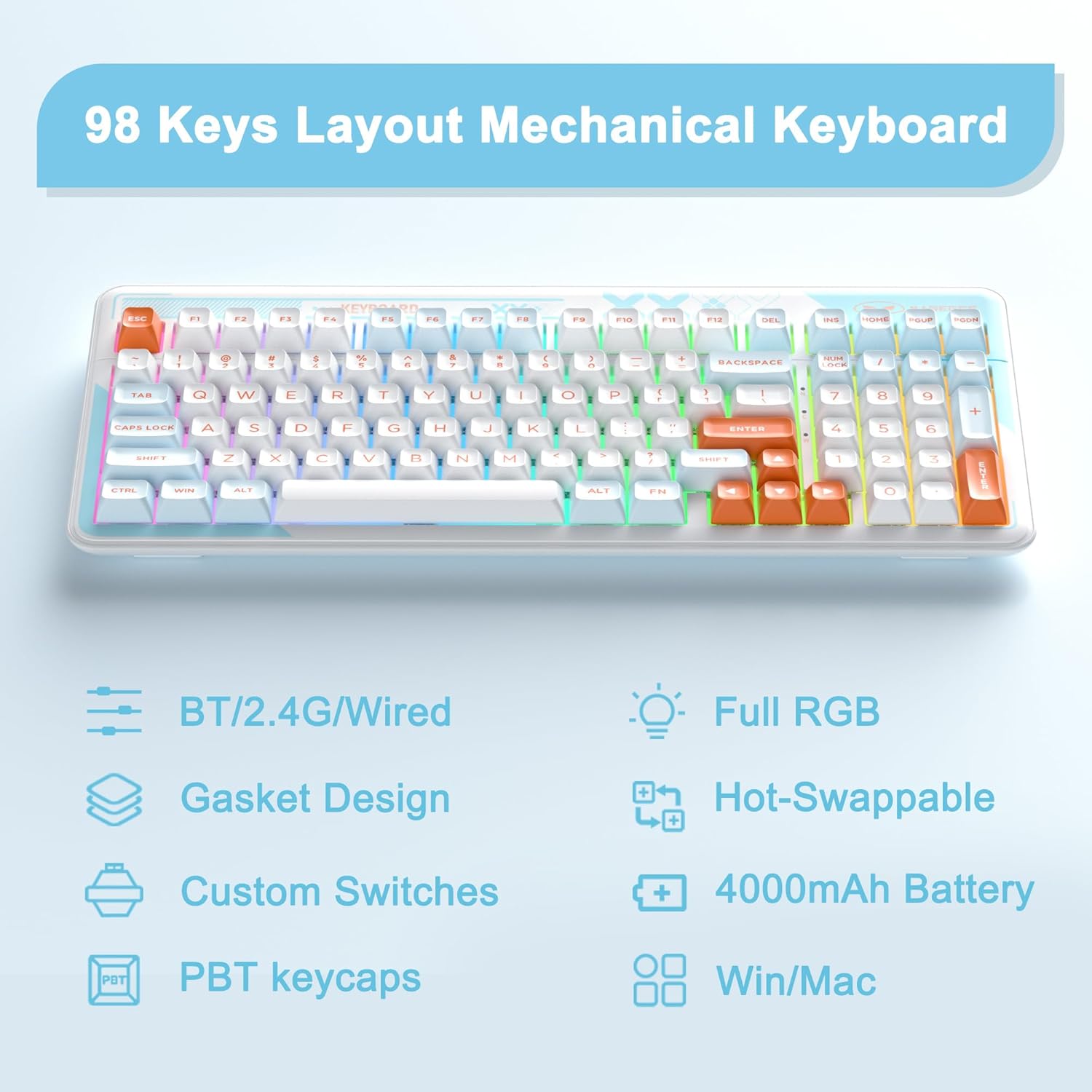
Image 3.1: Key features of the Cloud98 keyboard.

이미지 3.2: 폭발 view illustrating the gasket-mounted design and internal components.

이미지 3.3: 클로즈업 view of a Blue Whale mechanical switch.

Image 3.4: Detail of the dual-color injection PBT keycaps.
4. 설정 및 연결
4.1. 유선 모드(USB-C)
- 키보드에서 USB-C 포트를 찾으세요(일반적으로 상단 가장자리에 있습니다).
- 제공된 USB-C 케이블의 한쪽 끝을 키보드에 연결합니다.
- USB-C 케이블의 다른 쪽 끝을 컴퓨터의 사용 가능한 USB 포트에 연결합니다.
- 키보드가 자동으로 인식되어 사용할 준비가 됩니다.
- 누르다 Fn + 5 for 3 seconds to ensure the keyboard is in wired mode.

그림 4.1: USB-C 케이블을 키보드에 연결하는 모습.
4.2. 2.4GHz 무선 모드
- Locate the 2.4GHz USB receiver, usually stored in a compartment on the bottom of the keyboard.
- 2.4GHz USB 수신기를 컴퓨터의 사용 가능한 USB 포트에 연결합니다.
- Turn on the keyboard using the power switch (if present, typically on the back or side).
- 누르고 있으세요 Fn + 4 for 3 seconds to enter 2.4GHz pairing mode. The indicator light will flash.
- 연결되면 표시등이 깜박임을 멈추고 계속 켜져 있습니다.

Image 4.2: The 2.4GHz USB receiver.
4.3. 블루투스 모드
- 키보드의 전원이 켜져 있는지 확인하세요.
- 누르고 있으세요 Fn + 1, Fn + 2, 또는 Fn + 3 for 3 seconds to enter Bluetooth pairing mode for the respective profile. The indicator light will flash quickly.
- 기기(컴퓨터, 태블릿, 스마트폰)에서 Bluetooth를 활성화하고 새로운 기기를 검색하세요.
- Select "MageGee Cloud98" (or similar name) from the list of available devices to pair.
- Once paired, the indicator light will flash slowly when reconnecting, and then remain solid.
- 페어링된 블루투스 기기 간 전환하려면 짧게 누르세요. Fn + 1, Fn + 2, 또는 Fn + 3.

Image 4.3: Visual guide for triple mode connection.
5. 사용 설명서
5.1. RGB 백라이트 제어
The Cloud98 keyboard features full RGB backlighting with 19 RGB modes, 9 monochrome modes, and a custom mode. Use the following key combinations to control the lighting:
- Fn + ← (왼쪽 화살표): Switch backlight flowing direction.
- Fn + → (오른쪽 화살표): Switch backlight color (single color mode).
- Fn + - (Minus): Decrease backlight flowing speed.
- Fn + = (Equals): Increase backlight flowing speed.
- Fn + 델: 백라이트를 켜거나 끕니다.
- Fn + 스페이스바: Switch backlight color (RGB mode).
- Fn + 입력: Switch backlight modes.
- Fn + ↑ (위쪽 화살표): 백라이트 밝기를 높입니다.
- Fn + ↓ (아래쪽 화살표): 백라이트 밝기를 낮추세요.

Image 5.1: Keyboard layout showing RGB backlight control key combinations.
5.2. 핫스왑 가능 스위치
The Cloud98 keyboard supports hot-swappable switches, allowing you to change switches without soldering. This feature enables customization of typing feel and sound.
- 키캡 제거: 제공된 키캡 풀러를 사용하여 원하는 키캡을 조심스럽게 제거하세요.
- 스위치 제거: 제공된 스위치 풀러를 사용하여 스위치의 위쪽과 아래쪽 클립을 조심스럽게 잡고 위쪽으로 똑바로 당기십시오.
- 새 스위치 삽입: Align the pins of the new switch with the holes on the PCB. Ensure the pins are straight. Gently push the switch down until it clicks into place. Do not force it to avoid bending pins.
- 키캡 교체: 키캡을 새로운 스위치 스템에 눌러 넣습니다.
메모: Ensure the keyboard is disconnected or powered off before changing switches to prevent accidental input or damage.
5.3. WIN Key Lock Function
To prevent accidental presses of the Windows key during gaming, you can lock it. Press Fn + Win to toggle the WIN key lock function. An indicator light may illuminate when the WIN key is locked.
5.4. N-키 롤오버
The Cloud98 supports N-Key Rollover, meaning all keys pressed simultaneously will be registered. This is particularly beneficial for fast typists and gamers.

Image 5.2: Illustration of N-Key Rollover capability.
6. 배터리 및 충전
The Cloud98 keyboard is equipped with a 4000mAh battery, providing extended usage in wireless modes.
- 충전 중: Connect the keyboard to a USB power source using the provided USB-C cable. The charging indicator light will show the charging status.
- 배터리 수명: The keyboard can last up to 200 hours with the backlight off. Battery life will vary depending on backlight usage and connection mode.
- 배터리 부족 표시기: The keyboard may indicate low battery status through a flashing light or reduced functionality. Charge the keyboard promptly when this occurs.

Image 6.1: Information regarding the 4000mAh battery capacity.
7. 유지관리
적절한 유지관리는 키보드의 수명과 성능을 보장합니다.
- 키캡 청소: 키캡 제거 도구를 사용하여 키캡을 분리하세요. 순한 비눗물과 부드러운 천으로 키캡을 깨끗이 닦은 후 완전히 말린 다음 다시 장착하세요.
- 키보드 본체 청소: 부드럽고 마른 천을 사용하여 키보드 표면을 닦으세요. 잘 지워지지 않는 오염의 경우, 약간amp 천을 사용하면 키보드에 습기가 들어가지 않도록 할 수 있습니다.
- 먼지 제거: 압축 공기를 사용하여 키캡과 스위치 사이의 먼지와 이물질을 제거합니다.
- 저장: 키보드는 직사광선과 극한의 온도를 피해 시원하고 건조한 곳에 보관하세요.
8. 문제 해결
If you encounter issues with your MageGee Cloud98 keyboard, please refer to the following common solutions:
| 문제 | 해결책 |
|---|---|
| 유선 모드에서 키보드가 응답하지 않습니다. | Ensure the USB-C cable is securely connected to both the keyboard and the computer. Try a different USB port or cable. Confirm the keyboard is in wired mode (Fn + 5 for 3s). |
| 2.4GHz 무선 연결이 불안정하거나 연결되지 않습니다. | Ensure the 2.4GHz USB receiver is plugged in. Press and hold Fn + 4 for 3 seconds to re-pair. Move the receiver closer to the keyboard. Check for interference from other wireless devices. |
| 블루투스 연결 문제. | Ensure Bluetooth is enabled on your device. Press and hold Fn + 1/2/3 for 3 seconds to enter pairing mode. Remove previous pairings from your device and try again. Ensure the keyboard battery is charged. |
| 백라이트가 작동하지 않거나 멈춰 있습니다. | Press Fn + Del to toggle the backlight. Adjust brightness with Fn + ↑/↓. Try switching backlight modes with Fn + Ins. Ensure the keyboard battery is charged. |
| 특정 키가 작동하지 않습니다. | If hot-swappable, carefully remove the keycap and switch. Re-seat the switch firmly, ensuring pins are not bent. If the issue persists, try replacing the switch. |
| 키보드 연결이 무작위로 끊깁니다. | Ensure the battery is sufficiently charged. For wireless modes, ensure the receiver/device is within range and free from interference. Update drivers if available. |
9. 사양
| 특징 | 세부 사항 |
|---|---|
| 모델 번호 | Cloud98 |
| 연결성 | 블루투스, 2.4GHz 무선, USB-C 유선 |
| 키보드 유형 | 기계적 |
| 백라이트 | 풀 RGB |
| 키캡 재질 | PBT(폴리부틸렌테레프탈레이트) |
| 특징 | Ergonomic, Gasket Mounted, Hot-Swappable |
| 배터리 용량 | 4000mAh |
| 제품 치수 | 16.5 x 7.87 x 1.57인치(41.9 x 19.99 x 3.99cm) |
| 품목 무게 | 2.66파운드(1.21kg) |
| 호환 장치 | Laptop, PC, Android, Mac |
| 운영 체제 | Win2000, Win XP, Win ME, Vista, Win7, Win8, Win10, Android, Linux, Mac |
10. 보증 및 지원
MageGee products come with a standard warranty. For specific warranty details, please refer to the warranty card included with your product or visit the official MageGee website. If you encounter any issues not covered in this manual or require further assistance, please contact MageGee customer support through their official channels.
일반적으로 제조사 웹사이트에서 고객 지원 연락처 정보를 찾을 수 있습니다. web사이트 또는 제품 포장에 표시되어 있습니다.


