소개
This manual provides detailed instructions for the setup, operation, and maintenance of your SSK Powered USB 3.2 Hub (Model SC221). Please read this manual thoroughly before using the device to ensure proper functionality and to prevent damage.
제품 특징
- 7포트 연결: Equipped with two 10Gbps USB-A ports, two 10Gbps USB-C ports, dual 4K HDMI ports, and one 100W PD 3.0 charging port.
- Super-Fast Data Transfer: Four data ports (2x USB-A, 2x USB-C) support up to 10Gbps, allowing rapid transfer of large files.
- 100W 전력 공급: The dedicated USB-C PD 3.0 port provides efficient charging for compatible laptops and devices.
- Dual 4K HDMI Display: Supports dual monitor output at 4K@30Hz simultaneously, or a single monitor at up to 4K@60Hz.
- 폭넓은 호환성: Compatible with various operating systems including Windows, Mac OS, Linux, Android, and Chromebook, and devices such as MacBook Pro/Air, Dell XPS, ASUS laptops, HUAWEI MateBook, HP Spectre Notebook, LENOVO ThinkPad, iPad, iPhone 15, and more.

이미지: 이상view of the SSK 7-in-1 USB 3.2 Hub, highlighting its various ports including USB 3.2 Gen 2 Type-C, USB 3.2 Gen 2 Type-A, HDMI 1 (4K@60Hz), HDMI 2 (4K@30Hz), and Type-C PD (100W).
패키지 내용
- SSK Powered USB 3.2 Hub (Model SC221)
- 사용자 설명서
설치 지침
- 호스트 장치에 연결: Plug the integrated USB-C cable from the SSK Hub into a full-function USB-C port on your laptop, tablet, or smartphone. Ensure the host device's USB-C port supports Power Delivery, DisplayPort Alternate Mode, and Data transfer.
- 전원 어댑터 연결(선택 사항이지만 권장): For optimal performance, especially when using multiple peripherals or charging your host device, connect a USB-C PD power adapter (not included) to the hub's 100W PD charging port.
- 주변기기 연결: Connect your USB devices (flash drives, external hard drives, keyboards, mice, etc.) to the available USB-A and USB-C data ports.
- 디스플레이 연결: Connect your HDMI monitors to the HDMI 1 and HDMI 2 ports on the hub.
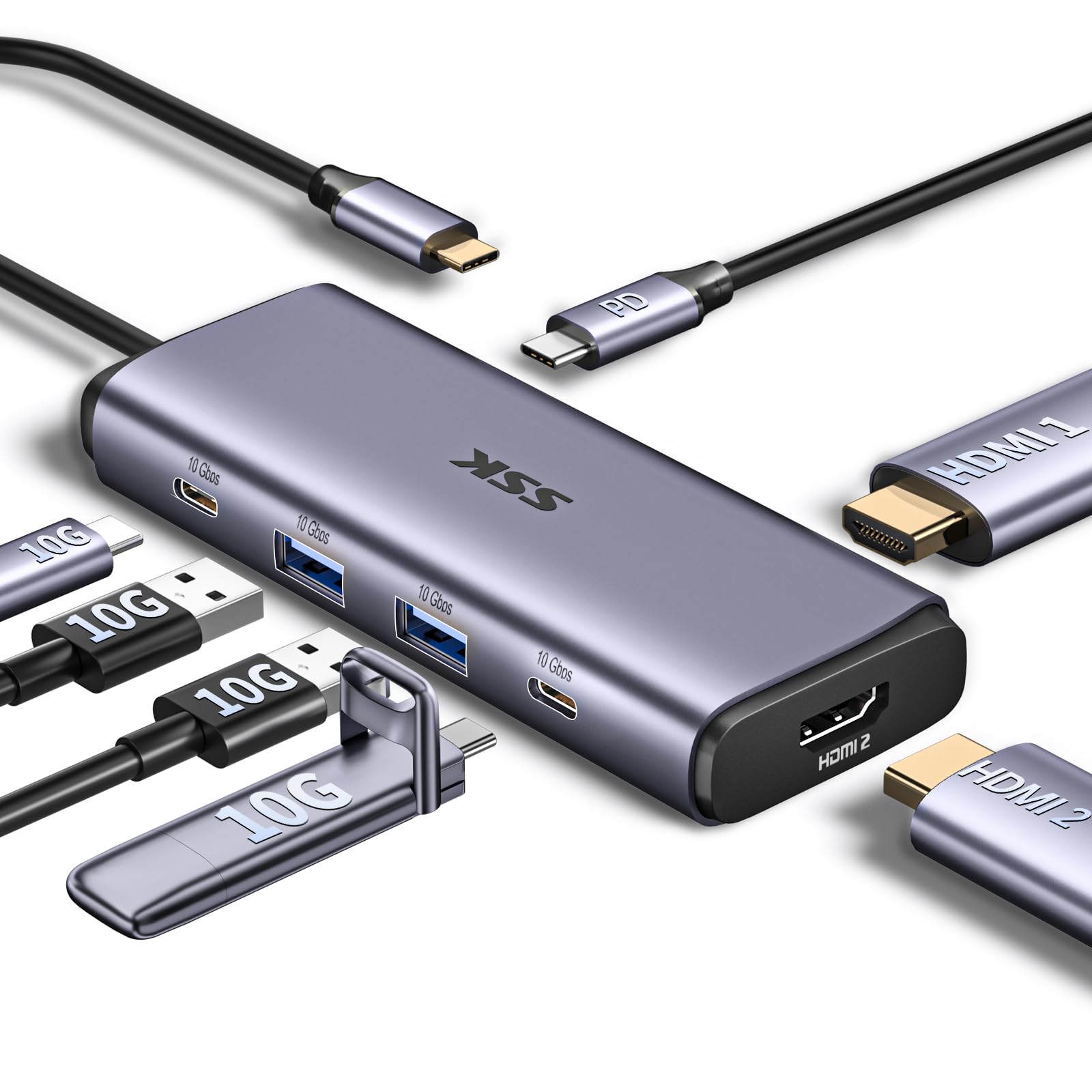
Image: The SSK USB 3.2 Hub connected to a laptop, demonstrating its compact size and how various cables can be attached.

Image: A diagram illustrating various USB-C port types on laptops, indicating which support full functionality (Power Delivery, DisplayPort, Data) and which only support data, charging, or data+charging. Ensure your laptop's USB-C port is full-function for optimal hub performance.
작동 지침
데이터 전송
The hub features two USB-A 3.2 Gen 2 ports and two USB-C 3.2 Gen 2 ports, each capable of data transfer speeds up to 10Gbps. Simply connect your compatible storage devices (e.g., flash drives, external SSDs) to these ports for high-speed data access.

Image: Illustration of the four 10Gbps USB-C and USB-A data ports, emphasizing their high-speed data transfer capabilities.
전력 공급(PD)
The dedicated USB-C PD port supports up to 100W power input. When a compatible USB-C PD charger is connected to this port, the hub can pass through power to charge your host laptop or device, while also powering connected peripherals. Note that a portion of the power is used by the hub itself.

Image: A visual representation of the 100W USB-C PD3.0 charging feature, showing power input to the hub and output to a MacBook Pro.
디스플레이 구성
The hub supports connecting up to two external monitors via its dual HDMI ports. The HDMI 1 port supports up to 4K@60Hz when used alone, while both HDMI 1 and HDMI 2 ports support up to 4K@30Hz when used simultaneously.
Windows OS :
- 확장 모드: Allows for an extended desktop across your laptop screen and two external monitors (A+B+C).
- 미러 모드: Displays the same content on all connected screens (A+A+A).
맥 OS :
- 확장 모드: Due to macOS limitations, extended monitors will display the same content (A+AA or A+BB). True MST (Multi-Stream Transport) for independent extended displays is not supported on macOS.
- 미러 모드: Displays the same content on all connected screens (A+A+A).

Image: A workstation setup demonstrating a laptop connected to two external monitors via the SSK Hub, enabling dual 4K HDMI high-definition display for multitasking.

Image: A detailed diagram showing the differences in multi-display modes (Extend and Mirror) between Mac OS and Windows when using the hub, specifically noting macOS limitations regarding MST.
호환성
The SSK USB 3.2 Hub is designed for broad compatibility with devices featuring a full-function USB-C port. This includes:
- 노트북: MacBook Pro, MacBook Air, Dell XPS, ASUS laptops, HUAWEI MateBook, HP Spectre Notebook, LENOVO ThinkPad, and other laptops with USB-C.
- 정제: iPad Pro, iPad Air, and other tablets with USB-C.
- 스마트폰: iPhone 15 series, HUAWEI P20/30, LG G5, HTC 10, and other smartphones with USB-C.
- 운영 체제: Windows, Mac OS, Linux, Android, Chromebook.
Note: Before purchasing, please verify that your laptop's USB-C interface supports Power Delivery, DisplayPort Alternate Mode, and Data transfer for full functionality.

Image: A visual guide to the universal compatibility of the SSK Hub, showing various devices (USB flash drives, laptops, tablets, smartphones, HDDs, TVs) and operating systems (Windows, Mac OS, iPad OS, Android) it supports.
유지
- 허브를 깨끗하게 유지하고 먼지가 쌓이지 않도록 하십시오. 부드럽고 마른 천으로 닦아주세요.
- 허브를 극한의 온도, 습도 또는 직사광선에 노출시키지 마세요.
- 기기를 직접 분해하거나 수리하지 마십시오. 보증이 무효화됩니다.
- Disconnect the hub from your host device and power source when not in use for extended periods.
문제 해결
| 문제 | 가능한 해결책 |
|---|---|
| No display output / Display flickering |
|
| USB devices not recognized or slow transfer speeds |
|
| Host device not charging via PD port |
|
| Hub feels warm during operation |
|
명세서
| 특징 | 세부 사항 |
|---|---|
| 모델 번호 | SC221 |
| 총 USB 포트 | 7 |
| USB 데이터 포트 | 2 x USB-A 3.2 Gen 2 (10Gbps), 2 x USB-C 3.2 Gen 2 (10Gbps) |
| HDMI 포트 | 2 x HDMI (HDMI 1: up to 4K@60Hz single, HDMI 2: up to 4K@30Hz dual) |
| 전원 공급 포트 | 1 x USB-C PD 3.0 (up to 100W input) |
| 하드웨어 인터페이스 | USB |
| 품목 무게 | 4.6 온스(130그램) |
| 패키지 크기 | 7.91 x 3.98 x 0.94 인치 |
| 호환 장치 | MacBook Pro, Dell XPS, ASUS laptops, HUAWEI MateBook, HP Spectre Notebook, LENOVO ThinkPad, HUAWEI P20/30, LG G5, HTC 10, etc. |
| 운영 체제 | Windows, Mac OS, Linux, Android, Chromebook |
보증 및 지원
SSK products are designed for reliability and performance. For warranty information or technical support, please refer to the official SSK web사이트를 방문하거나 고객 서비스에 직접 문의하세요. 보증 청구를 위해 구매 영수증을 보관하세요.