1. 서론
The AVMTON Wireless Gaming Mouse is designed for comfortable and efficient use with personal computers, laptops, and other compatible devices. Featuring a honeycomb shell for lightweight design, RGB backlighting, and a rechargeable battery, this mouse offers a responsive and ergonomic experience. It connects wirelessly via a 2.4GHz USB receiver, providing a stable connection for both office tasks and light gaming.

Image 1.1: The AVMTON Wireless Gaming Mouse shown alongside its 2.4GHz USB receiver. The mouse features a black honeycomb shell design and vibrant RGB lighting.
2. 설정
2.1 언박싱 및 구성품
상자를 뜯을 때 모든 구성품이 들어 있는지 확인하세요.
- AVMTON Wireless Gaming Mouse
- 2.4GHz USB Receiver (typically stored in the mouse's bottom compartment)
- USB Type-C 충전 케이블
2.2 마우스 연결
- 마우스 하단 수납 공간에 보관된 USB 수신기를 찾으십시오.
- 마우스에서 USB 수신기를 제거합니다.
- USB 수신기를 컴퓨터나 노트북의 사용 가능한 USB 포트에 연결합니다.
- Turn on the mouse using the power switch located on the bottom of the mouse. The mouse should automatically connect to the receiver.
2.3 초기 충전
The mouse comes with a built-in rechargeable battery. For optimal performance, it is recommended to fully charge the mouse before its first use. The mouse can be used while it is charging.

Image 2.1: The AVMTON Wireless Gaming Mouse connected to a laptop via its Type-C charging cable. The image highlights the convenience of charging while using the mouse.
3. 사용 설명서
3.1 Mouse Button Functions
The AVMTON Wireless Gaming Mouse features several buttons for enhanced functionality:
- 왼쪽 버튼: 표준 클릭 기능.
- 오른쪽 버튼: 표준 마우스 오른쪽 클릭 기능.
- 스크롤 휠: 콘텐츠를 위아래로 스크롤합니다. 마우스 가운데 버튼을 누르면 해당 기능이 실행됩니다.
- DPI 버튼: 마우스 감도(DPI)를 조절합니다.
- 앞으로 버튼: 앞으로 이동합니다 web 브라우저 또는 file 탐험가.
- 뒤로 버튼: 뒤로 탐색합니다 web 브라우저 또는 file 탐험가.
- 전원 스위치: 마우스를 켜거나 끕니다.
- 전등 스위치: Controls the RGB lighting.

Image 3.1: A detailed diagram illustrating the various buttons and components of the AVMTON Wireless Gaming Mouse, including the DPI button, scroll wheel, forward/backward buttons, and power/light switches.
3.2 DPI 조정
The mouse offers three adjustable DPI (Dots Per Inch) levels to control cursor speed and sensitivity. Press the DPI button (located behind the scroll wheel) to cycle through the settings: 800 DPI, 1200 DPI (default), and 1600 DPI. Choose the sensitivity that best suits your task, whether for precise work or faster movements in games.
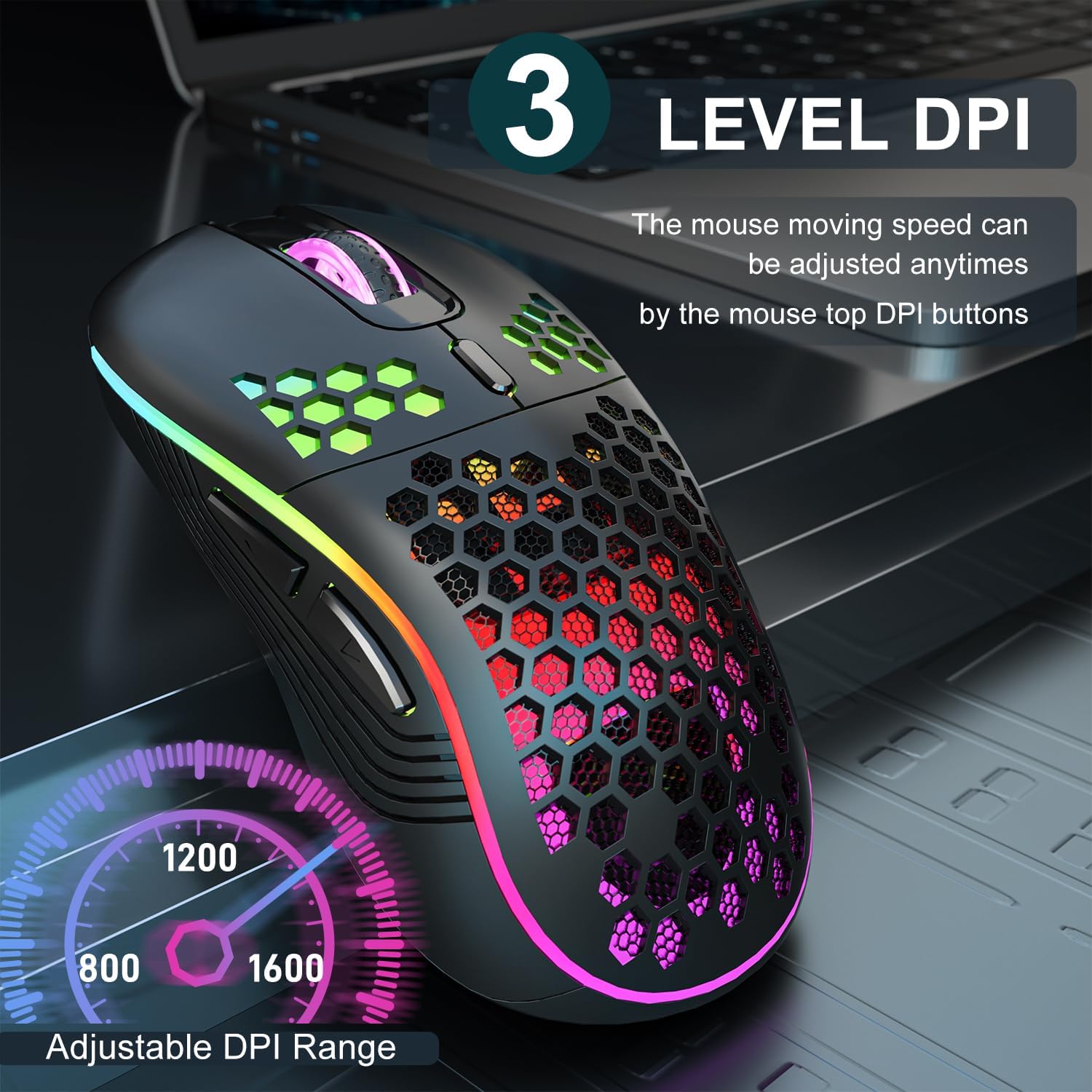
Image 3.2: The AVMTON Wireless Gaming Mouse with an overlay indicating the three adjustable DPI levels: 800, 1200, and 1600. This allows users to easily switch mouse sensitivity.
3.3 RGB 백라이트 제어
The mouse features customizable RGB lighting. Use the dedicated light switch on the bottom of the mouse to turn the RGB lighting on or off. Turning off the RGB lighting can help conserve battery life.
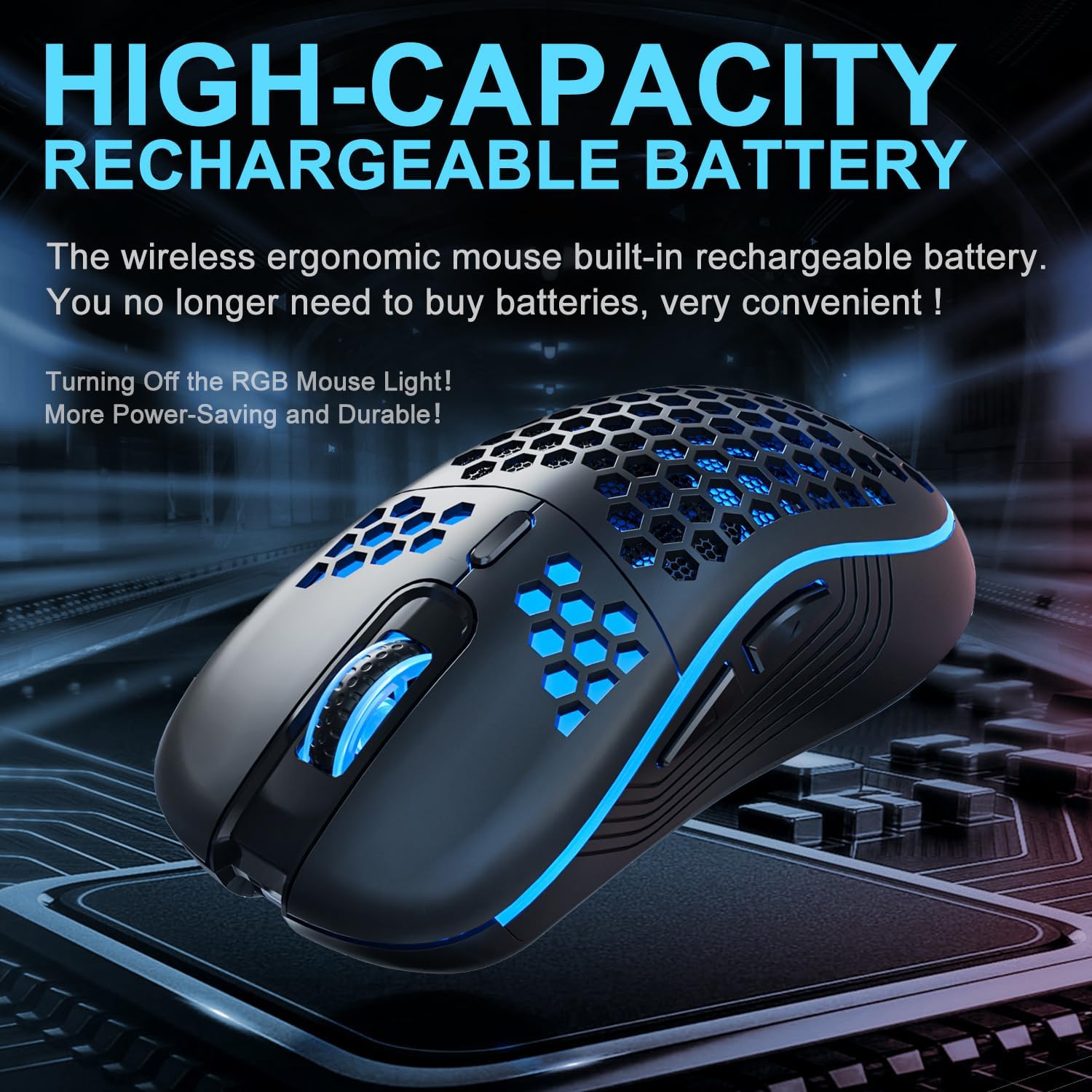
Image 3.3: The AVMTON Wireless Gaming Mouse illuminated with blue RGB lighting, highlighting its aesthetic features and rechargeable battery capacity.
3.4 절전 모드
To conserve battery, the mouse automatically enters a power-saving mode after a period of inactivity. To reactivate the mouse, simply move it or click any button.
3.5 호환성
The AVMTON Wireless Gaming Mouse is widely compatible with various operating systems, including Windows 2000, XP, Vista, 7, 8, 10, 11, Linux, and Mac OS. It is designed for use with personal computers and laptops.

Image 3.4: Visual representation of the mouse's wide compatibility with Windows, Linux, and Mac OS operating systems.
4. 유지관리
4.1 배터리 충전
When the mouse battery is low, connect the provided USB Type-C charging cable to the mouse's charging port and the other end to a USB power source (e.g., computer USB port, USB wall adapter). The mouse can be used normally while charging.
4.2 마우스 청소
To maintain optimal performance and appearance, clean the mouse regularly. Use a soft, dry cloth to wipe the surface. For stubborn dirt, a slightly damp 천을 사용하여 마우스에 액체가 들어가지 않도록 하십시오. 강한 화학 물질이나 연마재는 사용하지 마십시오.
5. 문제 해결
- 마우스가 응답하지 않습니다.
- USB 수신기가 작동하는 USB 포트에 제대로 꽂혀 있는지 확인하십시오.
- Verify that the mouse's power switch is in the 'ON' position.
- Check the battery level and charge the mouse if necessary. - 커서 움직임이 불규칙하거나 느립니다.
- Adjust the DPI setting using the DPI button.
- Ensure the mouse is used on a clean, non-reflective surface. A mouse pad is recommended.
- 배터리가 부족하면 마우스를 충전하세요. - RGB 조명이 작동하지 않습니다:
- Ensure the light switch on the bottom of the mouse is in the 'ON' position.
- The mouse may be in power-saving mode; move or click to wake it up. - Latency during large games:
- This mouse is primarily designed for office scenarios and small games. Large, graphically intensive games may experience some latency due to the wireless connection and mouse specifications.
6. 사양
| 상표 | AVMTON |
| 모델명 | 무선 마우스 |
| 연결 기술 | USB (2.4GHz 무선) |
| 움직임 감지 기술 | 광학 |
| DPI 레벨 | 800 / 1200 (기본값) / 1600 |
| 배터리 유형 | 충전식 리튬 폴리머 배터리(포함) |
| 배터리 평균 수명 | 약 6개월 |
| 충전 포트 | USB 타입-C |
| 특별 기능 | Honeycomb Design, RGB Backlight, Lightweight, 6 programmable Buttons |
| 손의 방향 | 양손잡이 |
| 재료 | 플라스틱 |
| 호환 OS | Windows 2000 / XP / Vista / 7 / 8 / 10 / 11, Linux, Mac OS |
| 소포 크기 | 13.7 x 8.7 x 4.9cm |
| 품목 무게 | 140g |
7. 보증 및 지원
Specific warranty details are not provided within this manual. For warranty information, technical support, or any inquiries regarding your AVMTON Wireless Gaming Mouse, please refer to the product packaging or contact AVMTON customer service directly through their official web제품을 구매한 사이트 또는 소매업체.


