소개
Welcome to the user manual for your MONOKEI Standard Keyboard. This mechanical keyboard is designed for versatility and a superior typing experience, featuring hot-swappable MX switches and durable PBT keycaps. It supports both wired and wireless connectivity, making it suitable for various devices and environments. This manual provides essential information for setup, operation, maintenance, and troubleshooting to ensure optimal performance and longevity of your keyboard.
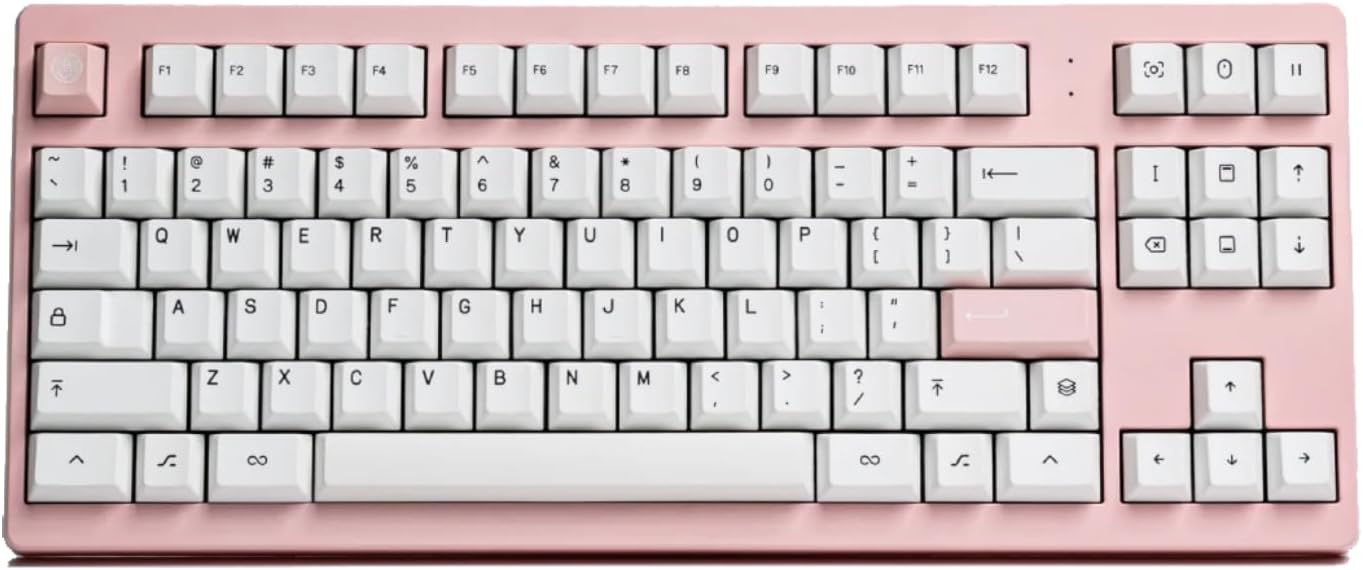
이미지: 위에서 아래로 view of the MONOKEI Standard Keyboard in Blush Pink with white keycaps.
상자 안에 무엇이 들어있나요?
Upon unboxing your MONOKEI Standard Keyboard, please verify that all the following components are present:
- MONOKEI Standard Keyboard
- 키캡 풀러
- USB 케이블 (USB-C-USB-A)

Image: The keyboard box open, showing the keyboard, keycap puller, and USB cable neatly arranged inside.
설정
초기 충전
Before first use, it is recommended to fully charge your MONOKEI Standard Keyboard.
- 제공된 USB-C 케이블을 키보드의 USB-C 포트에 연결합니다.
- Connect the other end of the USB cable to a powered USB port on your computer or a wall adapter.
- The keyboard's indicator light will show charging status (refer to LED indicator section for details).
연결 옵션
The MONOKEI Standard Keyboard offers both wireless (Bluetooth) and wired (USB-C) connectivity.
무선(블루투스) 연결
- 키보드가 충전되어 있는지 확인하세요.
- Locate the connectivity switch on the keyboard (usually on the back or side) and set it to Bluetooth mode.
- On your device (Laptop, PC, Smartphone, Tablet), navigate to Bluetooth settings.
- 검색 available devices and select "MONOKEI Standard" from the list.
- 화면의 지시에 따라 페어링 과정을 완료하세요.
- The keyboard can connect wirelessly to multiple devices, allowing quick switching.
Wired (USB-C) Connection
- 제공된 USB-C 케이블을 키보드의 USB-C 포트에 연결합니다.
- USB 케이블의 다른 쪽 끝을 컴퓨터의 USB 포트에 연결합니다.
- 키보드가 자동으로 인식되어 사용할 준비가 됩니다.

Image: The MONOKEI Standard Keyboard positioned next to a laptop, illustrating its use in a typical setup.
작동 지침
일반적인 사용
The MONOKEI Standard Keyboard is designed for intuitive use. Simply connect it via your preferred method (Bluetooth or USB-C) and begin typing. The keyboard features a standard 87-key layout, providing a familiar and efficient typing experience.
핫스왑 가능 스위치
One of the key features of your MONOKEI Standard Keyboard is its hot-swappable sockets, allowing you to change out mechanical switches without soldering. This enables customization of your typing feel.
- 스위치 제거: Use the provided switch puller tool. Gently grip the switch from the top and bottom (where the clips are located) and pull upwards with even pressure until the switch detaches from the PCB.
- 스위치 설치: Align the pins of the new switch with the holes on the PCB. Ensure the pins are straight to avoid bending. Gently push the switch down until it clicks into place. Do not force the switch if it doesn't go in easily; check pin alignment.

Image: A hand demonstrating the use of a switch puller tool to remove a mechanical switch from the keyboard.
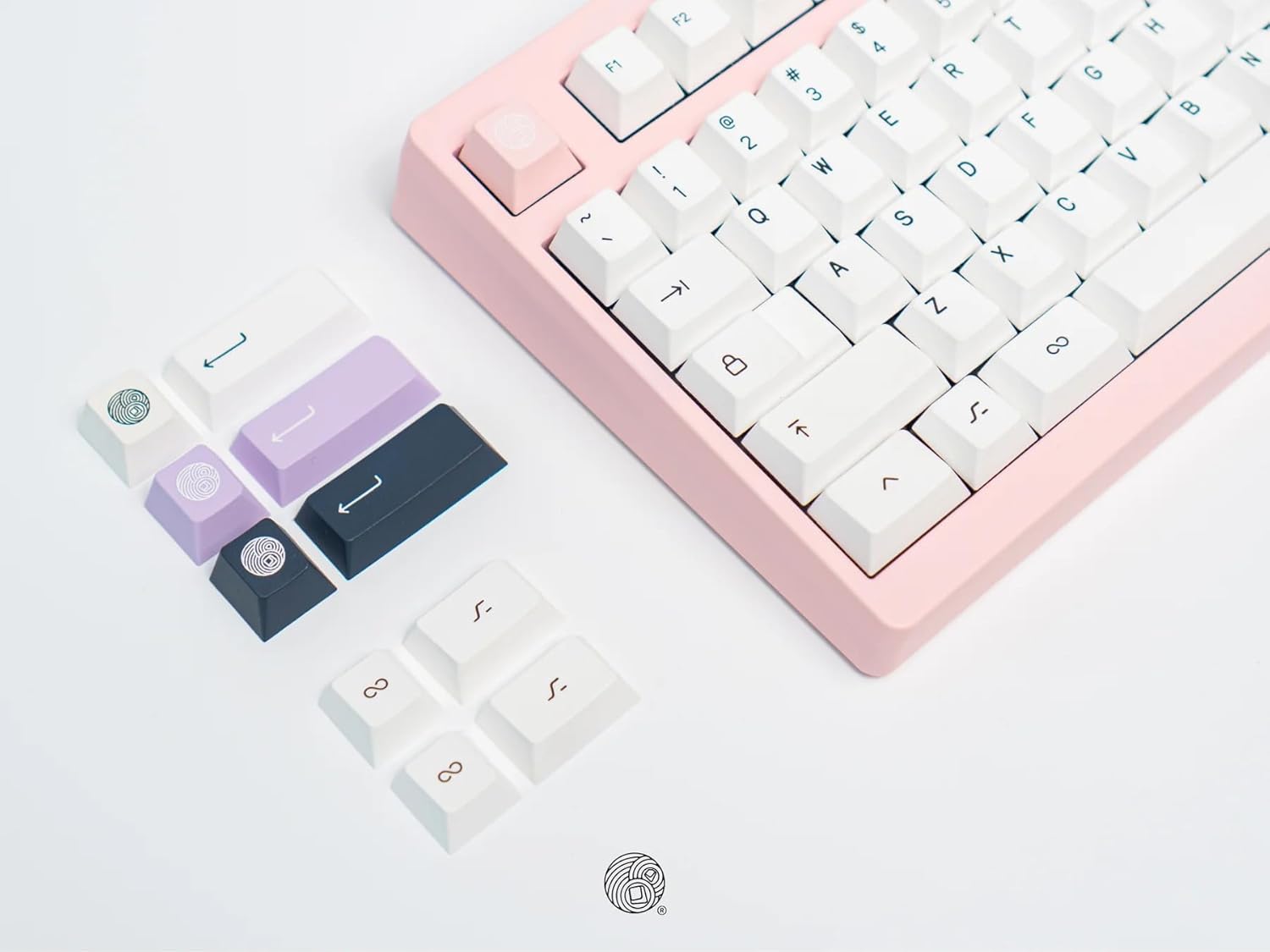
Image: A collection of different colored keycaps and a keycap puller tool, highlighting the customization options.
키캡 교체
The keyboard comes installed with Series 1 doubleshot PBT keycaps, known for their durability. You can replace them with other compatible keycaps.
- 키캡 제거하기: Use the provided keycap puller. Place the puller over the keycap, ensuring the wires hook under opposite sides of the keycap. Pull straight up with gentle, even force.
- 키캡 설치하기: Align the cross-shaped stem on the underside of the keycap with the stem on the switch. Press down firmly until the keycap is seated securely.
유지
키보드 청소
정기적인 청소는 키보드의 외관과 기능을 유지하는 데 도움이 됩니다.
- 키캡: For general cleaning, wipe keycaps with a soft, damp cloth. For deeper cleaning, keycaps can be removed (using the keycap puller) and washed with mild soap and water. Ensure they are completely dry before reattaching.
- 키보드 본체: 부드럽고 보푸라기가 없는 천을 사용하여 약간 damp키보드 본체는 물이나 순한 세척액으로 닦아주세요. 과도한 습기는 피하십시오.
- 키 사이: Use compressed air to blow out dust and debris from between the keycaps. A small brush can also be used to dislodge stubborn particles.
주의: Do not immerse the keyboard in water or any liquid. Avoid using harsh chemicals or abrasive materials for cleaning.
문제 해결
| 문제 | 가능한 원인 | 해결책 |
|---|---|---|
| 키보드가 응답하지 않음(유선) | USB 연결 불량, 케이블 불량, 드라이버 문제. |
|
| 키보드가 응답하지 않음(블루투스) | 키보드가 페어링되지 않았거나, 범위를 벗어났거나, 배터리가 부족하거나, 블루투스 간섭이 있습니다. |
|
| 키가 등록되지 않거나 두 번 입력됨 | Loose or faulty switch, debris under keycap/switch. |
|
| 배터리가 충전되지 않음 | Faulty USB cable, power source issue, keyboard defect. |
|
명세서
- 모델 번호: STND87
- 제품 크기: 14.3 x 5.9 x 1.5인치(36.32 x 14.99 x 3.81cm)
- 품목 무게: 2.1파운드(0.95kg)
- 제조업체: 모노케이
- 연결 기술 : Bluetooth BLE 5.1, USB-C
- 키보드 설명: 기계적
- 키의 개수: 87
- 특별 기능: Hot-Swappable, Long lasting PBT keycaps, Positive typing experience, Wired, Wireless, Bluetooth
- 호환 장치: Laptop, PC, Smartphone, Tablet (macOS / iOS / Windows / Android)
- 배터리 수명: Up to 30 days (based on 8 hours/day usage)
- 타이핑 각도: 5도

Image: A graphic displaying key specifications of the MONOKEI Standard Keyboard, including compatibility, connectivity, dimensions, weight, battery life, and typing angle.
보증 및 지원
For warranty information and customer support, please refer to the official MONOKEI web사이트를 방문하거나 고객 서비스에 직접 문의하세요. 보증 청구를 위해 구매 증빙 자료를 보관하세요.
방문할 수 있습니다 MONOKEI Store on Amazon 자세한 정보와 제품 업데이트를 확인하세요.

