1. 서론
Welcome to the user manual for your new SGIN E10P 10-inch Kids Tablet. This guide provides essential information on setting up, operating, maintaining, and troubleshooting your device. Please read this manual thoroughly to ensure proper use and to maximize your tablet's features.
상자 안에 무엇이 들어있나요?
포장을 풀 때 아래 나열된 품목이 모두 들어 있는지 확인하세요.
- SGIN E10P Kids Tablet (with protective case)
- 사용자 설명서
- USB Type-C 케이블
- 전원 어댑터(충전기)
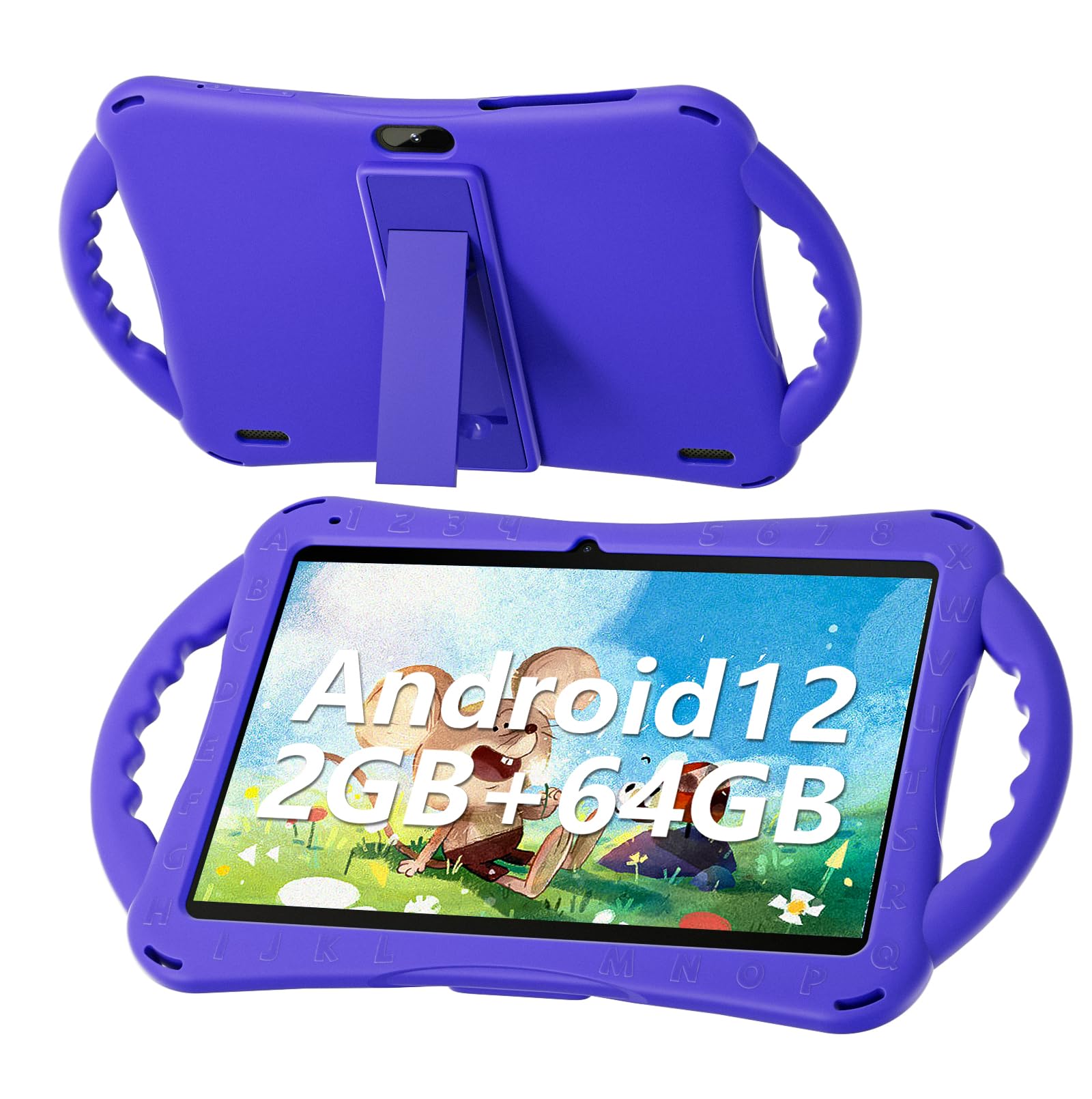
Figure 1: SGIN E10P Kids Tablet with its protective case.
2. 제품 오버view
Familiarize yourself with the physical components of your SGIN E10P Kids Tablet.

Figure 2: Labeled diagram of the SGIN E10P Kids Tablet components.
- 전면 카메라: 영상 통화와 셀카를 위해.
- 후방 카메라: 사진과 비디오를 촬영하기 위해.
- 스피커: 오디오 출력.
- C 형 포트 : 충전 및 데이터 전송용입니다.
- TF 카드 슬롯 : microSD 카드로 저장 공간을 확장합니다.
- 헤드폰 잭: 유선 헤드폰을 연결합니다.
- 볼륨 증가: Button to raise the audio level.
- 볼륨 줄이기: Button to lower the audio level.
- Bracket (Kickstand): 핸즈프리 사용을 위한 일체형 스탠드 view주고받음.
- Armrest (Handle): Ergonomic handles on the protective case for easy gripping.
3. 설정
3.1 태블릿 충전
Before first use, fully charge the tablet. Connect the USB Type-C cable to the tablet's Type-C port and the other end to the power adapter. Plug the power adapter into a wall outlet. The battery indicator on the screen will show charging status. A full charge typically takes several hours.
3.2 전원 켜기/끄기
- 전원을 켜려면: Press and hold the Power button (usually located on the side or top edge) until the SGIN logo appears on the screen.
- 전원을 끄려면: 전원 버튼을 길게 누르면 메뉴가 나타납니다. 메뉴에서 "전원 끄기"를 선택하세요.
- 재시작하기 위해: 전원 버튼을 길게 누르면 메뉴가 나타납니다. 옵션에서 "다시 시작"을 선택하세요.
3.3 초기 설정
The first time you power on the tablet, you will be guided through an initial setup process:
- 언어 선택: 선호하는 언어를 선택하십시오.
- Wi-Fi 연결: 와이파이 네트워크를 선택하고 비밀번호를 입력하여 인터넷에 연결하세요.
- 구글 계정: Sign in with an existing Google account or create a new one. This is necessary for downloading apps from the Google Play Store.
- 날짜 및 시간: 올바른 날짜와 시간을 설정하거나 네트워크에서 자동으로 설정하도록 하세요.
- 보호자 관리: Configure Google Kids Space or other parental control features to manage content and screen time for children.
4. 태블릿 작동
4.1 기본 탐색
The SGIN E10P tablet uses a touch-sensitive screen for navigation:
- 수도꼭지: 앱을 열거나, 항목을 선택하거나, 버튼을 누르려면 화면을 한 번 터치하세요.
- 길게 터치: 추가 옵션에 접근하거나 항목을 이동하려면 항목을 길게 누르세요.
- 강타: 화면을 가로질러 손가락을 끌어서 페이지나 목록을 스크롤하세요.
- 핀치 투 줌: 화면에 손가락 두 개를 대고 벌리면 확대되고, 모으면 축소됩니다.
4.2 Wi-Fi 연결
To connect or manage Wi-Fi networks:
- 이동하다 설정 > 네트워크 및 인터넷 > 와이파이.
- Wi-Fi 전환 On.
- 목록에서 원하는 네트워크를 선택하고 메시지가 표시되면 비밀번호를 입력하세요.

Figure 3: The tablet supports both 2.4GHz and 5GHz Wi-Fi for stable connections.
4.3 Applications and Content
The tablet runs on Android 12 and comes with access to the Google Play Store, allowing you to download a wide range of applications. It is pre-configured for children's use, supporting apps like YouTube Kids, educational games, and other child-friendly content.

Figure 4: The Android 12 interface with various pre-installed and downloadable kids' apps.
4.4 자녀 보호
Utilize the built-in parental control features to manage your child's tablet experience. This includes setting screen time limits, filtering content, and approving app downloads. Access these settings through the Google Family Link app or directly in the tablet's settings under "Digital Wellbeing & parental controls."
5. 유지관리
5.1 청소
- 화면: 전자제품용으로 특별히 제작된 부드럽고 보풀이 없는 천을 사용하세요. 잘 지워지지 않는 얼룩은 가볍게 닦아내세요.amp물이나 화면 세척액을 천에 적셔 사용하세요 (화면에 직접 분사하지 마세요).
- 사례: The silicone protective case can be wiped with a damp cloth and mild soap if necessary. Ensure it is completely dry before reattaching it to the tablet.
- 포트: Keep all ports (USB-C, headphone jack, TF card slot) free of dust and debris. Use a soft brush or compressed air if needed.
5.2 배터리 관리
The tablet is equipped with a 5000mAh battery, providing extended usage time.

Figure 5: The tablet features a 5000mAh battery for prolonged use.
- 극한의 온도는 배터리 수명을 단축시킬 수 있으므로 피하세요.
- 손상을 방지하기 위해 제공된 충전기와 케이블만 사용하십시오.
- 배터리 수명을 최적화하려면 배터리를 자주 완전히 방전시키거나 장시간 100% 충전 상태로 유지하는 것을 피하십시오.
5.3 보관
Store the tablet in a cool, dry place away from direct sunlight and moisture when not in use.
6. 문제 해결
This section addresses common issues you might encounter with your SGIN E10P tablet.
6.1 태블릿 전원이 켜지지 않음
- 태블릿이 충분히 충전되었는지 확인하십시오. 전원을 다시 켜기 전에 최소 30분 동안 충전기에 연결해 두세요.
- 전원 버튼을 10~15초간 길게 눌러 강제 재시작을 실행하세요.
6.2 Wi-Fi 연결 문제
- 태블릿 설정에서 Wi-Fi가 활성화되어 있는지 확인하세요.
- 와이파이 공유기가 제대로 작동하는지, 다른 기기들이 연결 가능한지 확인하세요.
- 태블릿의 Wi-Fi 설정에서 해당 네트워크를 삭제한 후 다시 연결하세요.
- Restart both the tablet and your Wi-Fi router.
6.3 앱 충돌 또는 정지
- 앱을 닫았다가 다시 엽니다.
- 앱의 캐시와 데이터를 지웁니다. 설정 > 앱 > [앱 이름] > 저장소 및 캐시.
- Ensure the app is updated to its latest version via the Google Play Store.
- 태블릿을 다시 시작하십시오.
6.4 느린 성능
- 불필요한 백그라운드 애플리케이션을 닫습니다.
- 앱과 시스템에서 캐시된 데이터를 지웁니다.
- Ensure there is sufficient storage space available. Delete unused apps or files.
- 공장 초기화는 최후의 수단으로 고려하십시오.메모: This will erase all data on the tablet. Back up important files 먼저).
7. 사양
Key technical specifications for the SGIN E10P Kids Tablet:
| 특징 | 사양 |
|---|---|
| 상표 | SGIN |
| 모델 번호 | E10P |
| 화면 크기 | 10 인치 |
| 화면 해상도 | 1280 x 800 |
| 프로세서 | 1.5 GHz Allwinner Quad-core A133 |
| 숫양 | 2GB (XNUMX기가바이트) |
| 저장 장치(ROM) | 64GB (XNUMX기가바이트) |
| 확장 가능한 스토리지 | TF Card Slot (for additional expansion) |
| 운영 체제 | 안드로이드 12 |
| 뒤쪽 Web캠 해상도 | 5 MP |
| 전면 카메라 | 2 MP |
| 배터리 용량 | 5000mAh |
| 연결성 | 2.4G/5G WiFi, Bluetooth 4.2 |
| 치수(길이x너비x높이) | 10.1 x 6 x 0.4 인치 |
| 품목 무게 | 2.27파운드 |
8. 보증 및 지원
SGIN provides a 1-year maintenance period from the date of purchase for this product. If you encounter any issues or require assistance, please contact SGIN customer support.
For further support, please refer to the contact information provided with your purchase documentation or visit the official SGIN web대지.


