1. 서론
Thank you for choosing the Imagebon 9-Inch Portable Car Display. This device integrates wireless Apple CarPlay and Android Auto, a 4K dash camera, and a 1080P backup camera, along with ADAS assistance and GPS navigation capabilities. This manual provides detailed instructions for setup, operation, maintenance, and troubleshooting to ensure optimal performance and a safe driving experience.
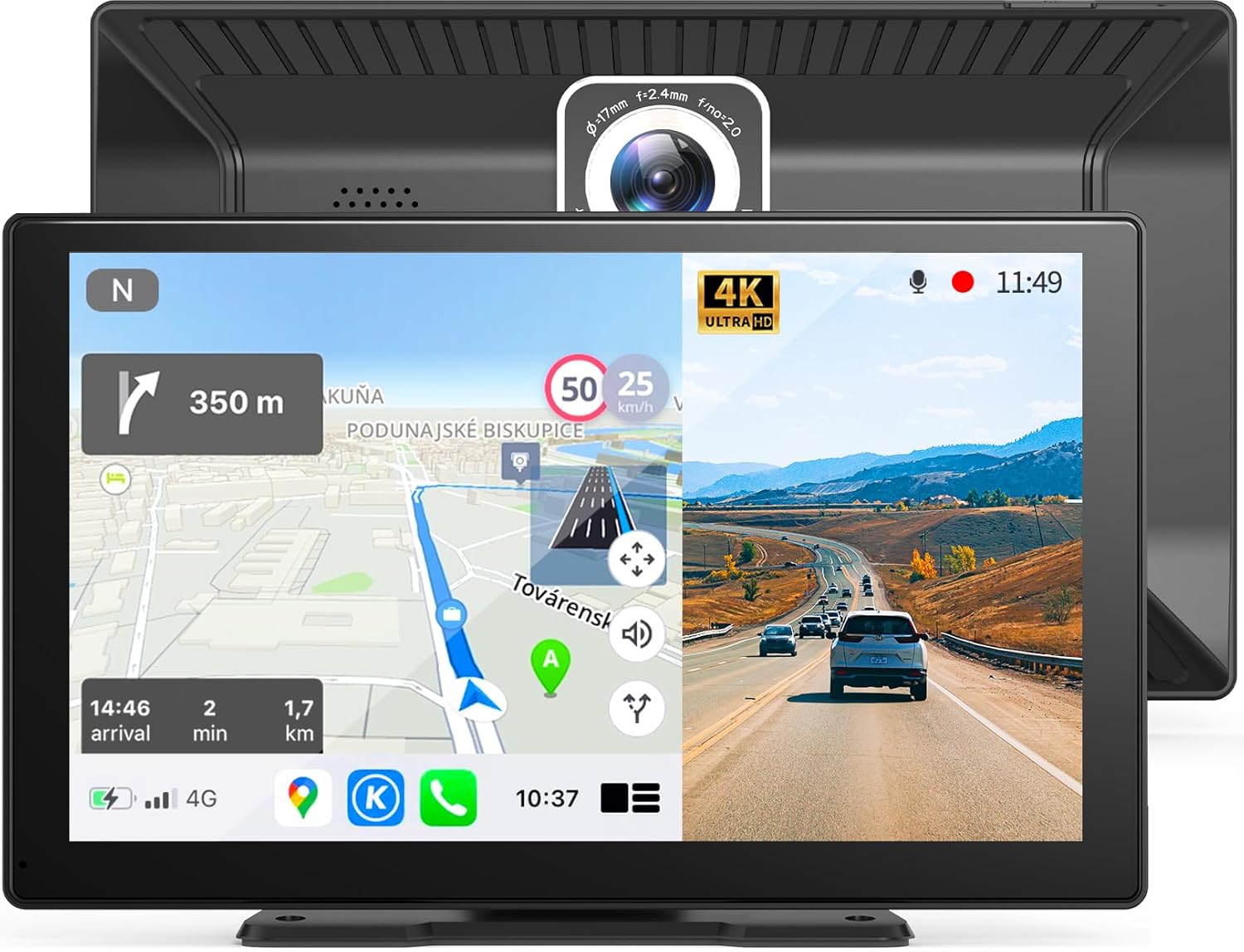
Figure 1.1: Imagebon 9-Inch Portable Car Display.
2. 상자 안에 무엇이 들어있나요?
패키지를 열면 다음 구성품이 모두 포함되어 있는지 확인하세요.
- Imagebon 9-Inch Portable Car Display Unit
- 64 GB TF Card (MicroSD Card)
- AUX 케이블
- 자동차 충전기
- 백업 카메라
- 사용자 설명서
- 3M 스티키 마운트
- 긴팔 흡착컵 마운트

그림 2.1: 제품 패키지에 포함된 구성 요소.
3. 제품 특징
- 무선 Apple CarPlay/Android Auto: Seamlessly connect your smartphone for navigation, calls, messages, and music via voice commands.
- 4K+1080P Dual Recording: Features an Ultra HD 4K (3840*2160P) front camera and a Full HD 1080P rear camera for comprehensive recording and backup assistance.
- 플러그 앤 플레이 설치: Simple setup by plugging into the cigarette lighter, allowing for quick integration into your vehicle.
- Phone Mirroring (AirPlay/Miracast): Project your mobile phone screen directly onto the car display.
- 향상된 오디오 경험: Offers four audio output modes: built-in speaker, CarPlay/Android Auto, FM transmission, and AUX connection for versatile sound options.
- 첨단 운전자 보조 시스템(ADAS): Includes features like front vehicle starting reminder, forward collision warning, and lane departure warning for enhanced safety. (Note: An additional GPS antenna may be required for full ADAS functionality.)
4. 설정 및 설치
The Imagebon Portable Car Display is designed for easy installation. Follow these steps to set up your device:
4.1 디스플레이 장착
Choose between the 3M sticky mount for a permanent fixture or the long-armed suction cup for flexible placement.
- 위치 선택: 대시보드나 앞유리에서 시야를 가리지 않는 적절한 위치를 선택하세요. view 또는 운전 제어를 방해합니다.
- 마운트 부착: Secure the chosen mount to the selected surface. For the suction cup, ensure the surface is clean and press firmly to create a strong seal. For the 3M sticky mount, clean the surface thoroughly before applying.
- 디스플레이 연결: Slide the display unit onto the mount until it clicks securely into place. Adjust the angle for optimal view주고받음.

Figure 4.1: Available mounting options for the display unit.
4.2 전원 연결
Connect the car charger to the display unit and plug the other end into your vehicle's cigarette lighter socket. The device will power on automatically.
4.3 후방카메라 설치
For the 1080P backup camera functionality, install the rear camera and connect it to the display unit. The red wire of the backup camera should be connected to your vehicle's reverse light for automatic activation when reversing.

Figure 4.2: Wiring diagram for the main unit and rear camera.
5. 사용 설명서
5.1 무선 Apple CarPlay / Android Auto
To connect your smartphone for wireless CarPlay or Android Auto:
- On the display unit, select the "CarPlay" or "Android Auto" icon.
- 스마트폰에서 Wi-Fi와 블루투스를 켜세요.
- 검색 기기의 블루투스 이름(예: "XXXX_XXXX")과 페어링 정보를 입력하세요.
- Confirm the connection on your phone. CarPlay or Android Auto will launch automatically.

그림 5.1: 무선 CarPlay 및 Android Auto 연결 단계.
Once connected, you can control navigation, make calls, send messages, and play music using voice commands or the touchscreen.
5.2 Phone Mirroring (AirPlay / Miracast)
To mirror your phone's screen to the display:
- On the display unit, select "AirPlay" or "Miracast".
- Turn on Wi-Fi on your smartphone and search for the device's Wi-Fi name (e.g., "XXXX_XXXX").
- Wi-Fi 네트워크에 연결합니다.
- On your phone, activate screen mirroring (e.g., "SmartScreen" or similar).

Figure 5.2: Phone mirroring via AirPlay or Miracast.
5.3 Dual Dash Cam Recording (4K Front + 1080P Rear)
이 장치는 음식을 지속적으로 기록합니다.tage from both front and rear cameras. The included 64GB MicroSD card provides ample storage. Footage is recorded in a seamless loop, overwriting the oldest files 카드가 가득 찼을 때.
영상 5.1: 공식 종료view of the Imagebon 9-inch Portable Carplay Screen with 4K Dash Cam, demonstrating key features and functionality.

Figure 5.3: Seamless loop recording for continuous coverage.

Figure 5.4: Dual camera recording views (Front + Rear, Front, Rear).
에게 view recorded videos or access settings, use the dedicated "Dash Cam" or "Files" application on the display. You can also connect to the device's Wi-Fi and use the RoadCam app on your smartphone for remote access and GPS tracking.
5.4 실시간 역방향 View
When the rear camera is properly connected to your vehicle's reverse light, the display will automatically switch to the real-time reverse view when you engage reverse gear. You can slide the screen to switch between front and rear camera views. Backup guide lines will automatically appear.

그림 5.5: 실시간 역방향 view 주차 보조선이 있습니다.
5.5 오디오 출력 모드
The display offers multiple ways to output audio to your car's sound system:
- 네이티브 오디오: Audio plays directly from the display's built-in speaker.
- 보조 오디오: Connect the provided AUX cable from the display to your car's AUX input for high-quality audio.
- FM 오디오: 특정 주파수에 맞춰 자동차의 FM 라디오로 오디오를 전송합니다.
- 블루투스 오디오 For CarPlay/Android Auto, ensure your phone is directly connected to your original car's Bluetooth for audio output.

그림 5.6: 사용 가능한 오디오 출력 옵션.
5.6 GPS 내비게이션
Simply connect the display to Wi-Fi or your phone's hotspot to access real-time navigation apps such as Google Maps and Waze through CarPlay or Android Auto.

Figure 5.7: GPS navigation with popular map applications.
5.7 첨단 운전자 보조 시스템(ADAS)
The integrated ADAS enhances driving safety with features like:
- 앞 차량 시동 알림: 앞 차량이 움직이기 시작하면 경고합니다.
- 전방 충돌 경고: Provides alerts to help prevent front-end collisions.
- 차선 이탈 경고: 방향지시등 없이 차선을 이탈할 경우 알려줍니다.
Note: An additional GPS antenna is required to activate some ADAS features.

그림 5.8: 향상된 운전 안전을 위한 ADAS 기능.
6. 유지관리
To ensure the longevity and optimal performance of your Imagebon Portable Car Display, follow these maintenance guidelines:
- 청소: 부드럽고 마른 천을 사용하여 화면과 외부를 닦으세요. 연마성 세척제나 용제는 사용하지 마세요.
- 온도: 장시간 극한의 온도(매우 뜨겁거나 매우 차가운 온도)에 기기를 노출시키지 마세요.
- 저장: 장기간 보관할 경우 전원을 차단하고 서늘하고 건조한 곳에 보관하십시오.
- 펌웨어 업데이트: 제조사 확인해보세요 web성능 향상 및 새로운 기능 추가를 위해 사용 가능한 펌웨어 업데이트가 있는지 정기적으로 사이트를 확인하십시오.
7. 문제 해결
| 문제 | 가능한 원인 | 해결책 |
|---|---|---|
| Device keeps shutting down/turning off sporadically. | Insufficient power supply or shared power outlet. | Ensure the device is connected to a dedicated power source in your car. Avoid sharing the cigarette lighter port with other high-power devices. Unplug and replug the device to reset. |
| CarPlay/Android Auto does not connect or lags. | Bluetooth/Wi-Fi interference, incorrect pairing, or phone not connected to device's Wi-Fi. | Ensure your phone's Wi-Fi and Bluetooth are on. Verify the device's Bluetooth name and connect. If issues persist, try forgetting the device on your phone and re-pairing. Ensure your phone is connected to the device's Wi-Fi for CarPlay/Android Auto. |
| Audio quality is poor or has static (FM mode). | FM frequency interference. | Try a different FM frequency on the display and your car radio. Consider using the AUX cable for a more stable audio connection. |
| Call audio is low or unclear for the other party. | Microphone sensitivity or environmental noise. | Adjust microphone settings if available. Ensure windows are closed to minimize external noise. Check for firmware updates that might address audio issues. |
| 후방 카메라가 표시되지 않습니다. | Incorrect wiring or camera malfunction. | Verify the red wire of the backup camera is correctly connected to the reverse light. Check all cable connections. |
8. 사양
| 상표 | 이미지본 |
| 모델 번호 | XN-LOAD-002 |
| 화면 크기 | 9 인치 (23cm) |
| 해결 | 1024 x 600 |
| 전면 카메라 해상도 | 4K(3840*2160P) |
| 후면 카메라 해상도 | 1080P(풀HD) |
| 연결 기술 | 블루투스, Wi-Fi |
| 장착 유형 | 대시보드 장착형, 패널 장착형 |
| 제품 치수 | 1 x 3.94 x 9.45 인치 |
| 품목 무게 | 2파운드 |
| 원산지 | 중국 |
9. 보증 및 지원
Imagebon is committed to providing high-quality products and excellent customer service. For any questions, concerns, or technical support, please contact us via email:
Our support team is available 24/7 to assist you and resolve any arising issues.


