1. 서론
This manual provides detailed instructions for the setup, operation, and maintenance of your Logitech POP Mouse. The POP Mouse is a compact, wireless mouse designed for multi-device use with customizable features.

Image: The Logitech POP Mouse in Graphite, showcasin컴팩트하고 인체공학적인 디자인입니다.
2. 패키지 내용
- Logitech POP Wireless Mouse
- 1x AA Battery (pre-installed)
- 사용자 설명서

Image: The Logitech POP Mouse and a single AA battery, representing the items included in the product package.
3. 설정 지침
3.1. 배터리 설치
- Gently remove the top cover of the mouse. The cover is magnetically attached.
- Insert the included AA battery, ensuring correct polarity (+/-).
- 윗덮개를 다시 덮고 딸깍 소리가 나면서 제자리에 단단히 고정되었는지 확인하십시오.
3.2. 블루투스로 연결하기
- 마우스 바닥에 있는 전원 스위치를 사용하여 마우스를 켭니다.
- Press and hold one of the Easy-Switch buttons (1, 2, or 3) on the bottom of the mouse until the LED indicator starts blinking rapidly. This indicates pairing mode.
- On your device (computer, tablet, or phone), open Bluetooth settings.
- Select "Logitech POP Mouse" from the list of available devices to complete the pairing process.
- The LED indicator will glow solid for a few seconds, then turn off, confirming a successful connection.

Image: The underside of the POP Mouse, highlighting the Easy-Switch buttons for multi-device pairing.
4. 사용 설명서
4.1. 기본 기능
- 좌 클릭: 1차 선택 및 상호작용.
- 마우스 오른쪽 버튼으로 클릭: 상황에 맞는 메뉴에 접근합니다.
- 스크롤 휠: 문서를 세로 방향으로 탐색합니다. web 페이지.
4.2. 사일런트터치 기술
The POP Mouse features SilentTouch Technology, which significantly reduces click noise, providing a quieter user experience without compromising tactile feedback.

Image: A hand operating the POP Mouse, illustrating the quiet operation provided by SilentTouch Technology.
4.3. 스마트휠 스크롤링
SmartWheel은 두 가지 모드 사이를 자동으로 전환합니다.
- 정밀 모드: For detailed, line-by-line navigation.
- Speed Scroll Mode: For rapid scrolling through long documents or web 페이지.

Image: A user's hand demonstrating the use of the SmartWheel for efficient navigation.
5. 사용자 정의
5.1. Customizable Top Button (Emoji Button)
The top button, located below the scroll wheel, is customizable. By default, it can be configured to open an emoji menu or assign other shortcuts.
- Download and install the Logitech Options+ Software from the official Logitech web사이트 (logitech.com/optionsplus).
- Open the Logitech Options+ Software.
- Select your POP Mouse from the detected devices.
- 버튼 사용자 지정 설정으로 이동합니다.
- Assign your desired function to the top button, such as an emoji shortcut, Snip Screen, Mic Mute, or Voice-to-Text.
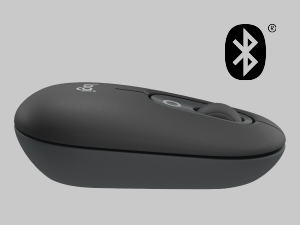
Image: A visual representation of the customizable top button on the POP Mouse, showing its function to access an emoji menu on a connected computer.
6. 다중 장치 연결
The Logitech POP Mouse can connect to up to three different devices simultaneously using Bluetooth. You can easily switch between these devices.
6.1. 스위칭 장치
To switch between paired devices, press the Easy-Switch button (1, 2, or 3) on the bottom of the mouse corresponding to the desired device. The LED indicator will briefly light up to confirm the selected channel.
6.2. Logitech FLOW (Advanced Feature)
For seamless control across multiple computers, install Logitech Options+ Software on all devices. With Logitech FLOW enabled, you can move your mouse cursor across screens as if they were a single desktop, even copying and pasting text, images, and file그들 사이에 있습니다.
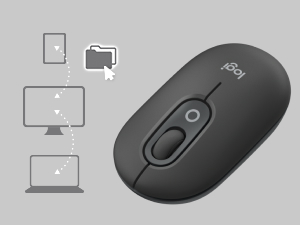
Image: A diagram showing how the POP Mouse can control multiple devices, illustrating the FLOW feature for cross-device interaction.
7. 유지관리
7.1. 배터리 교체
The POP Mouse operates on a single AA battery with an estimated life of up to 24 months. When the battery is low, the LED indicator on the bottom of the mouse may flash. Replace the battery by following the steps in Section 3.1.
7.2. 청소
마우스를 청소하려면 부드럽고 보풀이 없는 천을 사용하세요. 잘 지워지지 않는 오염의 경우, 가볍게 두드리세요.amp천에 물을 묻혀 닦으세요. 강한 화학 물질이나 연마재는 사용하지 마세요.
8. 문제 해결
| 문제 | 해결책 |
|---|---|
| Mouse does not turn on. | Ensure the power switch on the bottom of the mouse is in the 'ON' position. Check and replace the AA battery if necessary. |
| 마우스가 블루투스로 연결되지 않습니다. |
|
| 커서 이동이 불규칙적이거나 반응이 없습니다. |
|
| Custom button not working. | Ensure Logitech Options+ Software is installed and running on your computer, and the button is correctly configured. |
9. 사양
| 특징 | 세부 사항 |
|---|---|
| 모델 번호 | 910-007165 |
| 연결성 | 블루투스 5.1 |
| 무선 범위 | 최대 10미터(32.81피트) |
| 센서 기술 | Logitech High Precision Optical Tracking |
| 버튼의 수 | 4 (Left/Right click, Scroll wheel click, Top customizable button) |
| 배터리 유형 | AA 배터리 1개 |
| 배터리 수명 | 최대 24개월 (사용량에 따라 다를 수 있음) |
| 치수(길이x너비x높이) | 14.12 x 2.34 x 1.38인치(35.86 x 5.94 x 3.51cm) |
| 무게 | 2.89 ounces (82g with battery) |
| 운영 체제 호환성 | Windows 10 이상, macOS 10.15 이상, iPadOS, Chrome OS, Android |

Image: Technical drawing displaying the length, width, and height measurements of the Logitech POP Mouse.
10. 보증 및 지원
보증 정보 및 기술 지원은 로지텍 공식 지원 페이지를 방문하십시오. website or refer to the user documentation included in your product package.
- 온라인 지원: support.logi.com
- 제품 등록 : 제품을 등록하면 더 빠른 지원과 업데이트를 받을 수 있습니다.


