1. 서론
This manual provides detailed instructions for the setup, operation, and maintenance of your 8BitDo Retro Mechanical Keyboard (Fami Edition). Designed with a classic aesthetic, this keyboard offers versatile connectivity options and programmable features for an enhanced user experience on Windows and Android devices.

Image: The 8BitDo Retro Mechanical Keyboard (Fami Edition) set up on a wooden desk, surrounded by vintage computer peripherals, showcasin레트로 디자인이 특징입니다.
2. 패키지 내용
패키지에 모든 품목이 들어 있는지 확인하세요.
- 8BitDo Retro Mechanical Keyboard (Fami Edition)
- 8BitDo Dual Super Buttons (x1 set)
- USB-C 케이블
- 2.4G Wireless Receiver (stored within the keyboard)
- 사용 설명서(본 문서)
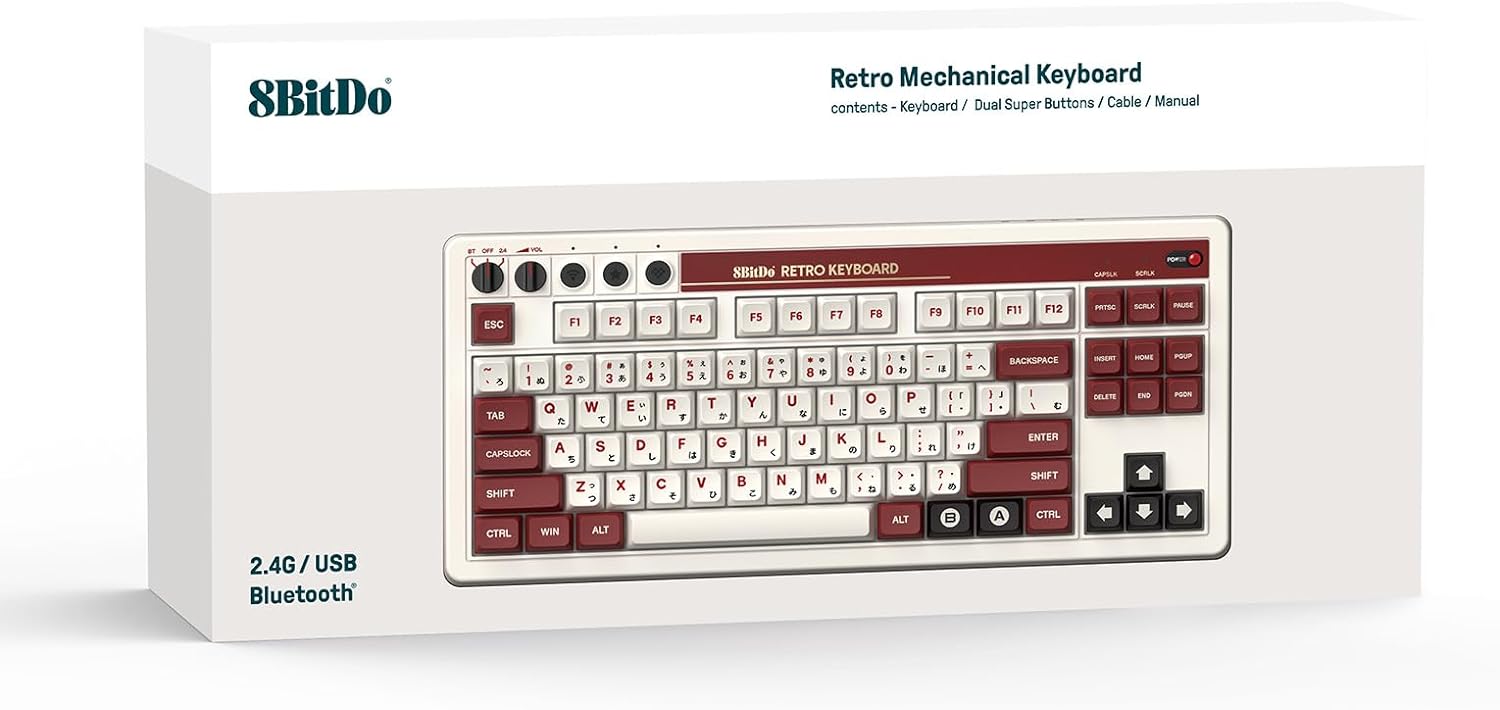
Image: The rear of the keyboard, highlighting the USB-C port and the integrated storage compartment for the 2.4G wireless receiver.
3. 설정
3.1 전원 켜기/끄기
To power on the keyboard, locate the power switch on the top right of the keyboard and slide it to the 'ON' position. A classic power status LED will illuminate. To power off, slide the switch to 'OFF'.

이미지: 자세한 view of the keyboard's independent control panel, showing the power switch, volume knobs, and connection mode selector.
3.2 연결 옵션
The 8BitDo Retro Mechanical Keyboard supports three connection modes: Bluetooth, 2.4G Wireless, and USB-C Wired.
3.2.1 2.4G 무선 연결
- Locate the 2.4G wireless receiver stored in the compartment on the back of the keyboard.
- Plug the receiver into an available USB port on your Windows PC or Android device.
- Set the keyboard's connection mode switch (located on the independent control panel) to '2.4G'.
- 키보드가 자동으로 연결되어야 합니다.

Image: A hand demonstrating the removal or insertion of the 2.4G USB wireless receiver from its dedicated storage slot on the keyboard.
3.2.2 블루투스 연결
- Set the keyboard's connection mode switch to 'BT' (Bluetooth).
- On your Windows PC (Windows 10 version 1903 or above) or Android device (Android 9.0 or above), navigate to Bluetooth settings.
- 사용 가능한 장치 목록에서 '8BitDo 레트로 기계식 키보드'를 선택하여 페어링하세요.
3.2.3 USB-C 유선 연결
- 제공된 USB-C 케이블의 한쪽 끝을 키보드의 USB-C 포트에 연결합니다.
- 케이블의 다른 쪽 끝을 기기의 사용 가능한 USB 포트에 연결하십시오.
- The keyboard will automatically switch to wired mode and begin charging if necessary.
4. 사용 설명서
4.1 키보드 레이아웃 및 기능
The keyboard features an 87-key layout with Kailh Box Switch V2 White switches and durable dye-sub PBT keycaps. It supports N-key rollover for precise input during gaming or fast typing.

이미지: 명확한 상향식 view of the 8BitDo Retro Mechanical Keyboard (Fami Edition), showcasing its 87-key layout and keycap design.
4.2 핫스왑 가능 PCB
The keyboard is equipped with a hot-swappable PCB, allowing users to easily change switches without soldering. This enables customization of typing feel and sound.

Image: A close-up shot illustrating the hot-swappable nature of the keyboard, with a keycap and switch removed to show the socket.
4.3 Dual Super Buttons
The included Dual Super Buttons offer large, programmable keys that can be mapped instantly without software. Up to 4 sets (1 set included) can be connected.
- Connect the Super Buttons to the designated 3.5mm audio jacks on the side of the keyboard.
- Use the 8BitDo Ultimate Software V2 (available September 2023) for advanced custom mapping and macro creation.
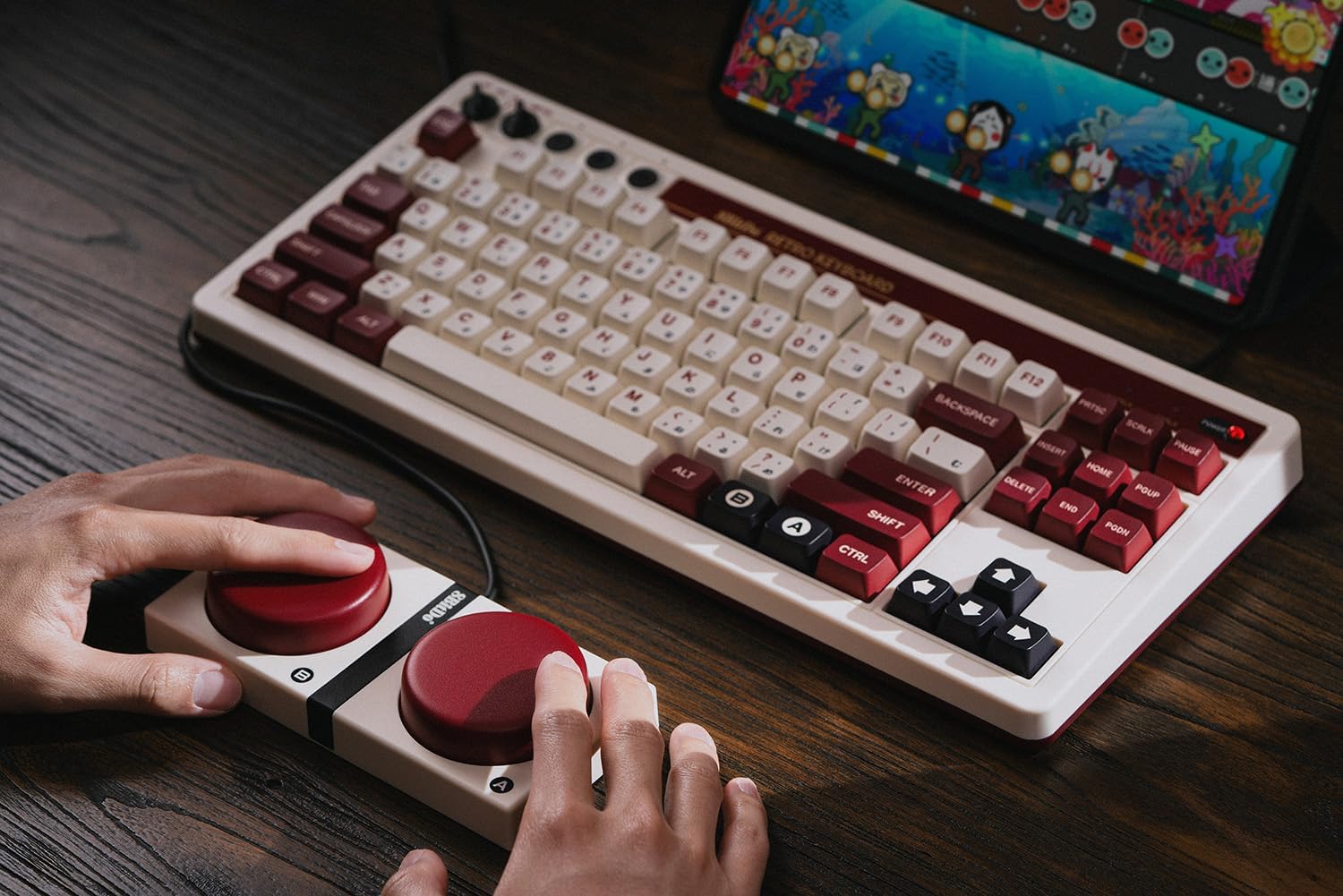
Image: A user's hands interacting with the 8BitDo Retro Mechanical Keyboard and the connected Dual Super Buttons, demonstrating their use.

Image: A close-up of a hand placing a custom sticker onto one of the large, red Dual Super Buttons, indicating customization options.

Image: A hand connecting the 3.5mm audio jack from the Dual Super Buttons into the corresponding port on the side of the keyboard.
4.4 독립형 제어 패널
The keyboard features an independent control panel with dedicated knobs for volume control and a switch for selecting between Bluetooth, Off, and 2.4G wireless modes.
4.5 8BitDo Ultimate 소프트웨어 V2
For advanced customization, including key remapping and macro creation, download the 8BitDo Ultimate Software V2. This software allows for personalized keyboard configurations to suit your workflow or gaming style. (Software release: September 2023)
Video: An official 8BitDo video demonstrating the features and functionality of the Retro Mechanical Keyboard, including its design and programmable elements.
5. 유지관리
To ensure the longevity and optimal performance of your 8BitDo Retro Mechanical Keyboard, follow these maintenance guidelines:
- 청소: Use a soft, dry cloth to wipe down the keyboard surface. For deeper cleaning, remove keycaps and use compressed air to clear debris.
- 키캡 및 스위치 교체: Due to the hot-swappable design, keycaps and switches can be replaced. Use a keycap puller and switch puller (not included) to carefully remove components. Ensure replacement switches are compatible (5-pin).
- 저장: 사용하지 않을 때는 키보드를 직사광선과 극한의 온도를 피해 서늘하고 건조한 곳에 보관하세요.
6. 문제 해결
키보드에 문제가 발생하면 다음의 일반적인 해결 방법을 참조하십시오.
- 키보드가 응답하지 않음:
- 키보드의 전원이 켜져 있는지 확인하세요.
- Check the connection mode switch (BT, 2.4G, or wired) matches your intended connection.
- 2.4G의 경우 수신기가 제대로 연결되어 있는지 확인하세요.
- Bluetooth의 경우, 키보드가 페어링되어 있고 범위 내에 있는지 확인하세요. 필요한 경우 다시 페어링해 보세요.
- Connect via USB-C cable to check if the issue is power-related or wireless connectivity.
- Super Buttons Not Working:
- Ensure the 3.5mm jacks are fully inserted into the keyboard ports.
- Verify button mappings using the 8BitDo Ultimate Software V2.
- 키가 등록되지 않음:
- Check for debris under the keycaps.
- If a specific key is not working, the switch might need to be reseated or replaced due to the hot-swappable design.
7. 사양
| 특징 | 세부 사항 |
|---|---|
| 상표 | 8 비트도 |
| 모델 번호 | 6922621504283 |
| 연결성 | 블루투스, 2.4G 무선, USB-C 유선 |
| 공들여 나열한 것 | 87키 |
| 스위치 | Kailh Box Switch V2 White (Hot-swappable) |
| 키캡 | 염료 승화 PBT |
| 호환성 | Windows 10 (1903 or above), Android 9.0 (or above) |
| 특별 기능 | N-key rollover, Dual Super Programmable Buttons, Independent Control Panel, 8BitDo Ultimate Software V2 support |
| 품목 무게 | 4.27파운드 |
| 배터리 | 1개의 리튬 폴리머 배터리(포함) |
8. 보증 및 지원
보증 정보 및 기술 지원에 대해서는 8Bitdo 공식 웹사이트를 참조하십시오. web해당 사이트를 방문하거나 고객 서비스에 문의하세요. 보증 청구를 위해 구매 증빙 자료를 보관하세요.
Online resources and software updates can be found at: www.8bitdo.com


