소개
Thank you for choosing the AVMTON Wireless Gaming Mouse. This manual provides detailed instructions on how to set up, operate, and maintain your new mouse, ensuring optimal performance and an enhanced gaming and work experience. Designed for comfort and precision, this ergonomic wireless mouse features adjustable DPI, customizable buttons, and vibrant RGB lighting.
제품 끝view
The AVMTON Wireless Gaming Mouse is engineered for both gaming and office use, offering a comfortable ergonomic design and responsive control. It features a honeycomb hollow design with RGB backlighting, providing both aesthetic appeal and lightweight performance.
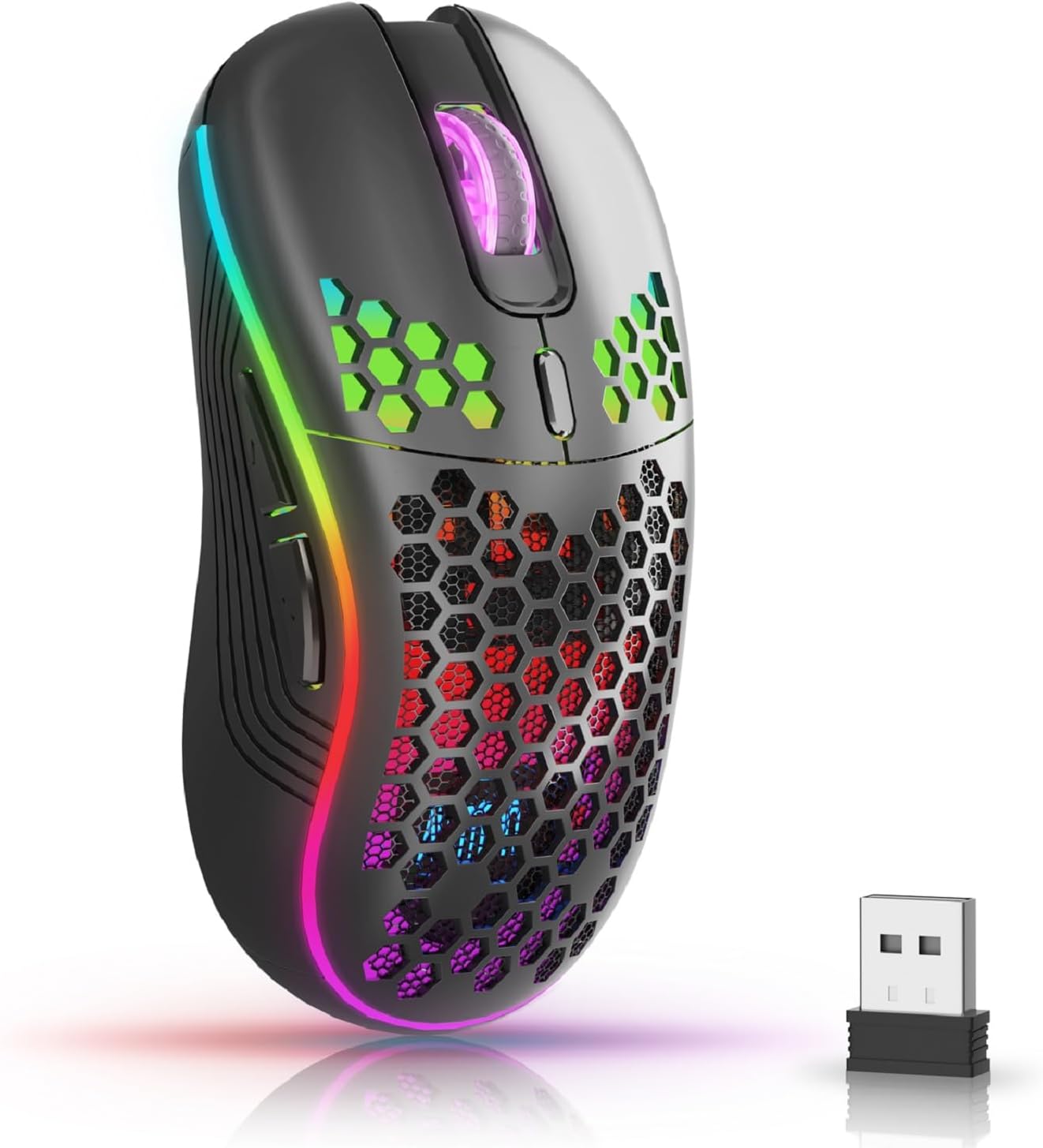
The AVMTON Wireless Gaming Mouse in black, featuring RGB lighting and a honeycomb design, shown alongside its compact USB receiver.

Illustration of the mouse's connectivity modes, including Type-C charging, 2.4G wireless receiver, and a 10m sensing range, suitable for home, gaming, and office environments.
주요 특징:
- 인체공학적 디자인: Shaped to fit the hand comfortably, reducing strain during extended use.
- 조정 가능한 DPI: Easily switch between 800/1200/1600/2400/4800 DPI settings for precise control.
- 6개의 프로그래밍 가능 버튼: Includes forward/backward, left/right click, scroll wheel, and DPI adjustment button.
- 충전식 배터리: Built-in lithium battery with USB-C charging, offering 15-20 days of use on a single charge.
- 조용한 클릭 디자인: Ideal for quiet environments like libraries or offices.
- 폭넓은 호환성: Supports Windows 2000/ME/XP/7/8/10/Vista/98, Mac OS, Linux, and compatible with laptops, PCs, desktops, and Macbooks.
- 내구성 있는 구조: Tested for over 5 million clicks, ensuring long-lasting performance.
설치 가이드
Follow these steps to set up your AVMTON Wireless Gaming Mouse:
- 마우스 충전: Before first use, fully charge the mouse using the provided USB-C charging cable. Connect the cable to the mouse's Type-C port and a USB power source (e.g., computer USB port, USB wall adapter). The charging indicator will show the charging status.
- USB 수신기를 찾으세요: The compact USB 2.4G wireless receiver is typically stored in a compartment on the underside of the mouse for safe keeping during transport.
- 수신기를 연결하십시오: Insert the USB receiver into an available USB port on your computer (laptop, PC, desktop, Macbook).
- 전원 켜기: 마우스 밑면에 있는 전원 스위치를 사용하여 마우스를 켭니다.
- 자동 연결: 마우스가 컴퓨터에 자동으로 연결됩니다. 기본 기능에는 일반적으로 추가 드라이버가 필요하지 않습니다.
작동 지침
Understanding the functions of your mouse buttons and settings will enhance your experience.
버튼 기능:
- 왼쪽 클릭 버튼: 표준 기본 클릭 기능.
- 오른쪽 클릭 버튼: 표준 보조 클릭 기능.
- 스크롤 휠: 문서를 위아래로 스크롤하고 web 페이지를 표시합니다. 마우스 가운데 버튼을 눌러 클릭 기능을 사용할 수도 있습니다.
- DPI 조정 버튼: Located near the scroll wheel. Press this button to cycle through available DPI settings (800/1200/1600/2400/4800). Each press changes the cursor speed and sensitivity.
- 앞으로 버튼: Typically located on the side of the mouse. Used for navigating forward in web 브라우저 또는 file 탐험가.
- 뒤로 버튼: Typically located on the side of the mouse. Used for navigating backward in web 브라우저 또는 file 탐험가.
RGB 백라이트 제어:
The mouse features dynamic RGB backlighting. If you prefer to turn off the backlight, refer to the specific instructions provided with your mouse or check the manufacturer's website for software utilities, if available. Some models allow toggling RGB with a combination of buttons (e.g., DPI button + another button).
유지
적절한 유지 관리는 마우스의 수명과 성능을 보장합니다.
- 충전 중: Recharge the mouse when the battery indicator shows low power. A full charge provides approximately 15-20 days of use. It is recommended to fully charge the mouse before extensive use.
- 청소: 부드럽고 마른 천으로 마우스 표면을 닦으세요. 잘 지워지지 않는 얼룩은 약간 거친 천으로 닦아내세요.amp 천을 사용할 수 있지만, 내부 부품에 습기가 들어가지 않도록 주의하세요. 강한 화학 물질이나 연마재는 사용하지 마세요.
- 저장: 장기간 사용하지 않을 때는 배터리 수명 절약을 위해 마우스를 끄십시오. 서늘하고 건조한 곳에 보관하십시오.
문제 해결
If you encounter issues with your AVMTON Wireless Gaming Mouse, try the following solutions:
- 마우스가 응답하지 않음:
- 마우스의 전원이 켜져 있는지 확인하세요.
- USB 수신기가 컴퓨터의 작동하는 USB 포트에 제대로 꽂혀 있는지 확인하십시오.
- Recharge the mouse. A low battery can cause unresponsiveness.
- USB 수신기를 다른 USB 포트에 연결해 보십시오.
- 컴퓨터를 다시 시작하세요.
- 지연 또는 간헐적 연결:
- Ensure the mouse is within the 10-meter sensing range of the USB receiver.
- Remove any large metallic objects or other wireless devices that might be causing interference between the mouse and the receiver.
- Try moving the USB receiver to a port closer to the mouse.
- DPI 조정이 작동하지 않습니다:
- Ensure you are pressing the dedicated DPI adjustment button.
- 문제가 지속되면 마우스와 컴퓨터를 다시 시작해 보세요.
- RGB 조명이 작동하지 않음:
- Check if the RGB backlight has been intentionally turned off (refer to "RGB Backlight Control" in Operating Instructions).
- 마우스의 배터리가 충분히 충전되어 있는지 확인하세요.
If these steps do not resolve the issue, please contact AVMTON customer support for further assistance.
명세서
| 특징 | 세부 사항 |
|---|---|
| 상표 | AVMTON |
| 모델 번호 | AV-DDMB-1 |
| 색상 | 검은색 |
| 연결 기술 | 2.4G 무선(USB 수신기) |
| DPI 설정 | 800 / 1200 / 1600 / 2400 / 4800 |
| 버튼의 수 | 6 |
| 손의 방향 | 오른쪽 |
| 배터리 수명 | Approx. 15-20 days (on a single charge) |
| 충전 포트 | USB 타입-C |
| 호환되는 운영 체제 | Windows 2000/ME/XP/7/8/10/Vista/98, Mac OS, Linux |
| 호환 장치 | 개인용 컴퓨터, 노트북 |
| 특별 기능 | Portable, Ergonomic, Rechargeable, RGB Backlight, Silent Click |
보증 및 지원
AVMTON offers a 12-month worry-free after-sales service for this product. If you encounter any problems with your wireless mouse, please do not hesitate to contact us. Our customer support team is ready to assist you.
For support, please visit the official AVMTON web사이트를 방문하거나 판매점에 문의하세요.


