1. 제품 오버view
The CUPEISI Android 15 Tablet YQ10S MAX is a versatile 10-inch device designed for both productivity and entertainment. Running on the latest Android 15.0 system with Google GMS certification, it offers a smooth and secure user experience. This 2-in-1 tablet comes equipped with a powerful quad-core processor, ample memory, and a high-definition IPS screen, making it ideal for various tasks from gaming and multimedia consumption to work and study.

Figure 1.1: CUPEISI Android 15 Tablet with included accessories.
주요 특징:
- 운영 체제: Android 15.0 with Google GMS certification for enhanced security and performance.
- 메모리 및 스토리지 : 18GB RAM (6GB + 12GB expansion) and 128GB ROM, expandable up to 2TB via microSD card (not included).
- 프로세서: New generation ultra-high performance and low power consumption 2.0GHz Quad-core CPU.
- 표시하다: 10.1-inch IPS HD screen with 1280x800 resolution, featuring a sensitive touchscreen and a comfortable "reading mode".
- 카메라: 8MP rear camera and 2MP front camera for capturing moments and video calls.
- 연결성: Supports 2.4G/5G Wi-Fi 6.0 and Bluetooth 5.0 for stable and fast wireless connections.
- 배터리: 6000mAh battery providing up to 10 hours of usage on a single charge.
- 2-in-1 기능: Transforms into a laptop-style device with the included Bluetooth keyboard, wireless mouse, and stylus.
2. 상자 안에 무엇이 들어있나요?
패키지 내용물을 확인하여 모든 품목이 들어 있는지 확인하세요.
- CUPEISI Android 15 Tablet (YQ10S MAX)
- 무선 키보드
- 블루투스 마우스
- Foldable Protective Cover
- 첨필
- C타입 케이블

그림 2.1: 패키지에 포함된 모든 구성품.
3. 설정 가이드
3.1 초기 충전
- Connect the provided Type-C cable to the tablet's charging port.
- 케이블의 다른 쪽 끝을 호환되는 USB 전원 어댑터(포함되지 않음)에 연결하고 전원 콘센트에 꽂습니다.
- 처음 사용하기 전에 태블릿을 완전히 충전하십시오. 화면의 배터리 표시등에 충전 상태가 표시됩니다.
3.2 전원 켜기/끄기
- 전원을 켜려면: 태블릿 측면에 있는 전원 버튼을 화면이 켜질 때까지 길게 누르세요.
- 전원을 끄려면: 전원 끄기 메뉴가 나타날 때까지 전원 버튼을 길게 누르세요. "전원 끄기"를 선택하여 기기를 종료하세요.
- 재시작하기 위해: 전원 끄기 메뉴에서 "다시 시작"을 선택하십시오.
3.3 액세서리 연결
The tablet comes with a Bluetooth keyboard, wireless mouse, and stylus for enhanced usability.

Figure 3.1: Tablet used with various accessories.
Connecting the Bluetooth Keyboard:
- 전원 스위치를 사용하여 키보드를 켭니다.
- Press the "Connect" button on the keyboard to enter pairing mode (indicator light will blink).
- 태블릿에서 다음으로 이동하세요. 설정 > 연결된 장치 > 블루투스.
- Ensure Bluetooth is enabled. The tablet will search for available devices.
- Select the keyboard from the list (e.g., "Bluetooth Keyboard") and follow any on-screen prompts to complete pairing.
Connecting the Wireless Mouse:
- Insert the necessary batteries into the wireless mouse (refer to mouse instructions for battery type and insertion).
- Locate the USB receiver for the mouse, usually found in a compartment on the mouse itself.
- Plug the USB receiver into the tablet's USB-C port using an appropriate adapter if necessary (adapter not included).
- The tablet should automatically detect and connect to the mouse.
스타일러스 사용:
The stylus does not require pairing. Simply use it to navigate the touchscreen, draw, or write as you would with your finger.
4. 사용 설명서
4.1 기본 탐색
- 만지다: 앱을 열거나 항목을 선택하려면 아이콘을 탭하세요.
- 강타: 손가락으로 화면을 드래그하여 페이지나 콘텐츠를 스크롤하세요.
- 핀치 투 줌: 두 손가락을 화면에 대고 벌리면 확대되고, 모으면 축소됩니다.
- 홈 화면: 홈 버튼(일반적으로 원이나 집 모양 아이콘)을 탭하면 메인 화면으로 돌아갑니다.
- 뒤쪽에: Tap the Back button (usually a triangle or arrow icon) to return to the previous screen.
- 최근 앱: 최근 앱 버튼(일반적으로 정사각형 아이콘)을 탭합니다. view 최근 사용한 애플리케이션 간에 전환합니다.
4.2 Wi-Fi 연결
The tablet supports both 2.4GHz and 5GHz Wi-Fi 6 for fast and stable internet access.

Figure 4.1: Tablet showing Wi-Fi connection capabilities.
- 이동하다 설정 > 네트워크 및 인터넷 > 와이파이.
- Toggle the Wi-Fi switch to the "On" position.
- 사용 가능한 네트워크 목록에서 원하는 Wi-Fi 네트워크를 선택하세요.
- 메시지가 표시되면 네트워크 암호를 입력하고 "연결"을 탭하세요.
4.3 멀티미디어 재생
Enjoy high-definition multimedia content with Widevine L1 support, ensuring a premium viewing experience for streaming services like Netflix and YouTube.
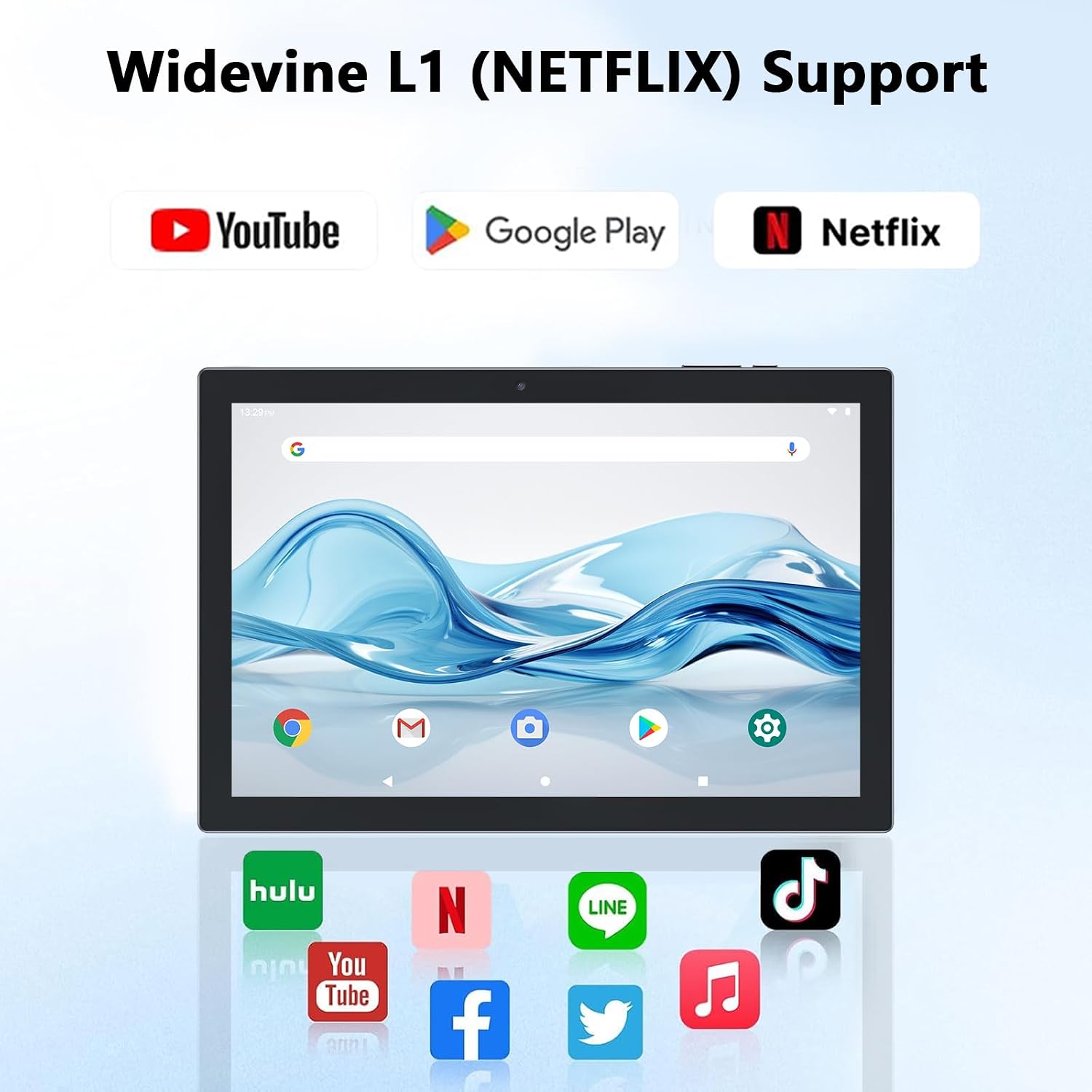
Figure 4.2: Widevine L1 support for popular streaming platforms.
The tablet's IPS HD screen provides vibrant colors and advanced visual effects. Utilize the pre-installed media players or download your preferred streaming apps from the Google Play Store.
비디오 4.1: 오버view of the YQ10SMAX Android 15 tablet's features and performance, demonstrating its capabilities for daily use and entertainment.
4.4 카메라 사용
이 태블릿은 8MP 후면 카메라와 2MP 전면 카메라를 탑재하고 있습니다.

Figure 4.3: Dual cameras for photos and video calls.
- 홈 화면이나 앱 서랍에서 "카메라" 앱을 엽니다.
- 전면 카메라와 후면 카메라를 전환하려면 카메라 아이콘을 탭하세요.
- 셔터 버튼을 탭하여 사진을 찍거나 비디오 녹화를 시작/중지하세요.
4.5 Storage and Expansion
The tablet comes with 128GB of internal storage and supports up to 2TB expansion via a microSD card.

Figure 4.4: Mass storage and easy expansion options.
- microSD 카드를 삽입하려면 태블릿 측면에 있는 카드 슬롯을 찾아 딸깍 소리가 날 때까지 카드를 살짝 밀어 넣으세요.
- 저장소를 관리하려면 다음으로 이동하세요. 설정 > 저장.
5. 유지관리
5.1 태블릿 청소
- 부드럽고 보푸라기가 없는 천을 사용하여 태블릿의 화면과 본체를 닦으세요.
- 완고한 얼룩의 경우 약간 damp천에 물이나 화면에 안전한 세척액을 묻혀 닦으세요.
- 강한 화학 물질, 연마재 또는 과도한 습기를 사용하지 마십시오.
5.2 배터리 관리
The tablet is equipped with a 6000mAh battery for long-lasting performance.

Figure 5.1: Large-capacity battery with long-lasting battery life.
- 태블릿을 정기적으로 충전하되, 완전히 충전된 후에는 장시간 충전기에 꽂아두지 마세요.
- 충전 시에는 제공된 Type-C 케이블만 사용하세요.
- Avoid exposing the tablet to extreme temperatures, as this can affect battery life.
5.3 소프트웨어 업데이트
Periodically check for system updates to ensure optimal performance and security.
- 이동하다 설정 > 체계 > 시스템 업데이트.
- 화면의 지시에 따라 사용 가능한 업데이트를 다운로드하고 설치하세요.
6. 문제 해결
If you encounter any issues with your tablet, please refer to the following common problems and solutions:
| 문제 | 가능한 원인 | 해결책 |
|---|---|---|
| 태블릿이 켜지지 않습니다 | 배터리 부족; 시스템 충돌 | 태블릿을 최소 30분 동안 충전하세요. 전원 버튼을 10~15초 동안 길게 눌러 강제로 다시 시작하세요. |
| Wi-Fi 연결 문제 | 잘못된 비밀번호, 라우터 문제, 범위를 벗어났습니다. | Verify Wi-Fi password. Restart your router. Move closer to the Wi-Fi router. |
| 느린 성능 | 실행 중인 앱이 너무 많음; 저장 공간 부족; 소프트웨어가 오래됨 | Close unnecessary apps. Clear cache/uninstall unused apps. Check for system updates. |
| 액세서리가 연결되지 않음 | Bluetooth off; Incorrect pairing; Low battery in accessory | Ensure Bluetooth is on. Re-pair the accessory. Check accessory batteries. |
| 화면이 응답하지 않습니다 | 일시적인 소프트웨어 오류 | 전원 버튼을 길게 눌러 태블릿을 강제로 재시작하세요. |
7. 사양
| 특징 | 세부 사항 |
|---|---|
| 상표 | 쿠페이시 |
| 모델명 | YQ10S MAX |
| 운영 체제 | 안드로이드 15 |
| 화면 크기 | 10.1 인치 |
| 화면 해상도 | 1280 x 800 pixels (IPS HD) |
| 프로세서 | 2.0GHz 쿼드코어 |
| 숫양 | 18GB(6GB + 12GB 확장) |
| 내부 저장소 | 128GB (XNUMX기가바이트) |
| 확장 가능한 스토리지 | Up to 2TB (microSD card not included) |
| 후방 카메라 | 8 MP |
| 전면 카메라 | 2 MP |
| 무선형 | 802.11ax (Wi-Fi 6), 2.4G/5G Dual-band |
| 블루투스 | 블루투스 5.0 |
| 배터리 용량 | 6000mAh 리튬 폴리머 |
| 평균 배터리 수명 | 최대 10시간 |
| 품목 무게 | 2.75파운드(약 1.25kg) |
| 제품 치수 | 9.45 x 5.91 x 0.39인치(약 24 x 15 x 1cm) |
8. 보증 및 지원
CUPEISI products are manufactured to the highest quality standards. This product is covered by a standard manufacturer's warranty against defects in materials and workmanship from the date of purchase. Please retain your proof of purchase for warranty claims.
For technical support, warranty inquiries, or any questions regarding your CUPEISI Android 15 Tablet, please contact our customer service team through the retailer's platform or visit the official CUPEISI web연락처 정보 사이트.
Please note that the warranty does not cover damage caused by misuse, accidents, unauthorized repairs, or normal wear and tear.


