소개
The Makeid L1 Label Maker Machine is a portable, wireless thermal printer designed for creating custom labels for home, school, and office use. It connects wirelessly to your smartphone via Bluetooth, allowing you to design and print labels with various fonts, templates, and icons using the dedicated MakeID-Life app. This manual provides comprehensive instructions for setting up, operating, and maintaining your L1 Label Maker.

Figure 1: Makeid L1 Label Maker Machine and examp라벨.
상자 안에 무엇이 들어있나요?
Upon unboxing your Makeid L1 Label Maker, please ensure all the following items are present:
- Makeid L1 Label Maker Machine (Beige, 203dpi model)
- One 4-meter roll of label tape
- USB 충전 케이블
- 사용 설명서 (본 문서)
설정
1. 장치 충전
Before first use, fully charge your Makeid L1 Label Maker. Connect the provided USB charging cable to the label maker and a compatible USB power source (e.g., computer USB port, wall adapter). The indicator light will show charging status.

Figure 2: Power on/off button and charging port location.
2. 라벨 테이프 적재
The Makeid L1 supports various label tape widths and types. To load tape:
- 라벨 프린터의 뚜껑을 여세요.
- Insert the label tape roll into the designated slot, ensuring the tape feeds out correctly.
- 뚜껑을 단단히 닫으세요.
Figure 3: Instructions for opening the lid and replacing tape.

그림 4: 예amples of compatible label tapes.
3. 앱 다운로드 및 블루투스 연결
The Makeid L1 operates via the "MakeID-Life" app. Follow these steps to connect:
- Download the "MakeID-Life" app from your smartphone's app store (Google Play for Android, App Store for iOS).
- 스마트폰에서 Bluetooth가 활성화되어 있는지 확인하세요.
- Open the MakeID-Life app and follow the on-screen prompts to connect to your L1 Label Maker. The app will typically detect the device automatically.

Figure 5: Steps for downloading the app and connecting via Bluetooth.
The app offers free access and does not require account registration. It complies with applicable data protection laws.
작동 지침
1. 라벨 디자인하기
The MakeID-Life app provides extensive customization options:
- 텍스트: Enter your desired text. You can choose from multiple font styles and adjust size.
- 아이콘 및 기호: Access a library of over 600 icons and symbols to enhance your labels.
- 템플릿: Utilize over 400 pre-designed templates for various purposes.
- 특수 기능: Create barcodes, QR codes, tables, dates, borders, and patterns. The app also supports drawing/doodling.

Figure 6: App features for label design.

Figure 7: Customizing labels with drawings in the app.
2. Printing Your Label
Once your design is complete:
- Review 인쇄 전view in the app to ensure the label appears as desired.
- Select the number of copies if needed.
- Tap the "Print" button in the app. The label maker will begin printing.

Figure 8: Workflow from app download to printing.
3. Cutting the Label
The Makeid L1 features a built-in cutter for clean and precise label separation. After printing, simply press the cutter button located on the side of the device to cut the label. No scissors or external blades are required.

Figure 9: Built-in cutter for professional and safe label cutting.
4. Label Types and Applications
The L1 supports both continuous and die-cut label tapes, offering versatility for various labeling needs. Labels are waterproof, oil-proof, friction resistant, light resistant, and do not fade, ensuring durability.

Figure 10: Continuous vs. Die-Cut label printing.

Figure 11: Durable and crisp print labels.
일반적인 응용 프로그램:
- 케이블 관리 : Organize charging cables, headphones, and other electronic wires.
- 사무실 조직: 상표 files, folders, shelves, and office supplies.
- 주방 보관: Label spice jars, food containers, and pantry items.
- Personal Items: Mark lunchboxes, water bottles, school supplies, and other personal belongings.
- Medical Reminders: Label pill organizers or medication bottles for clarity.
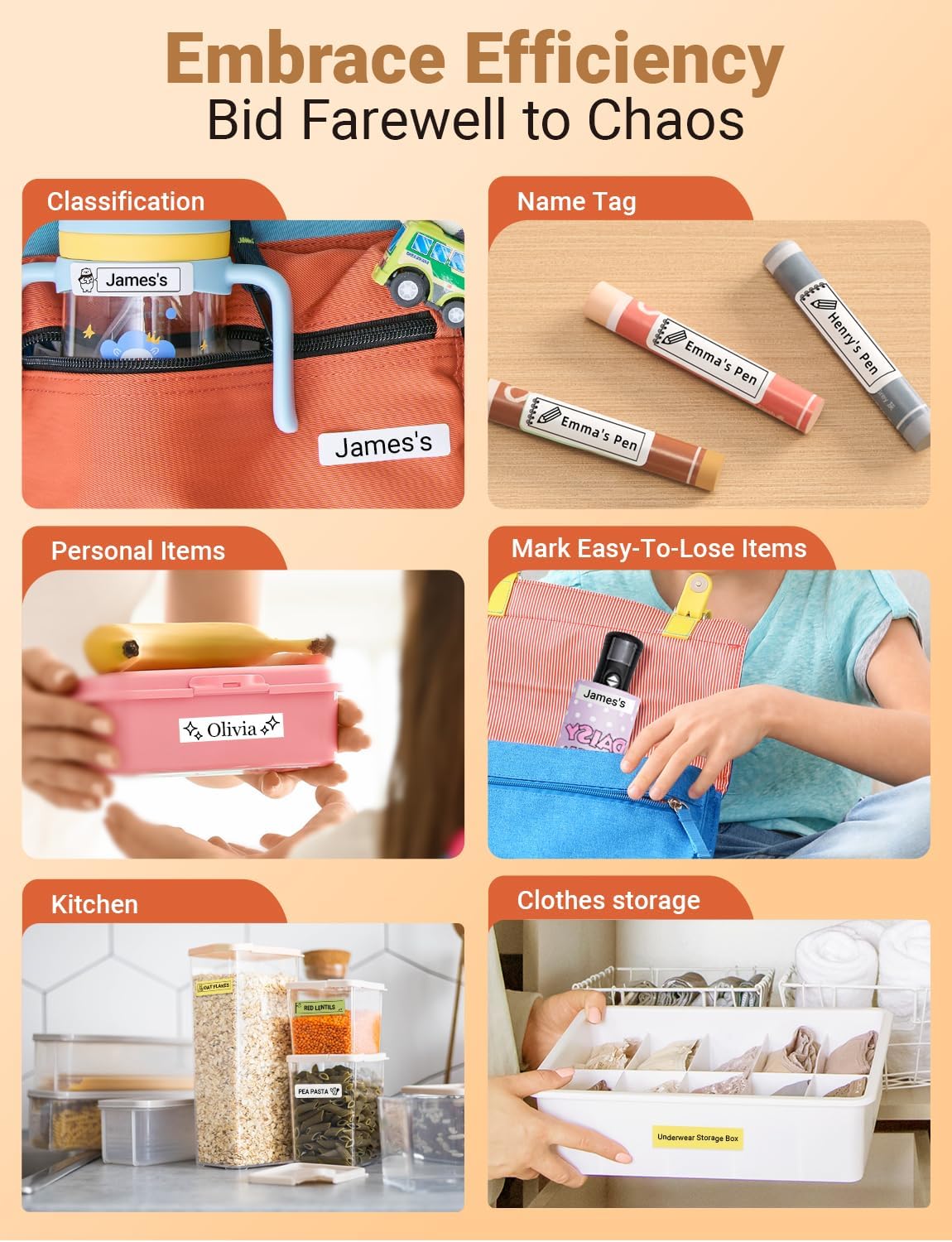
그림 12: 예amples of how the label maker can be used for organization.

Figure 13: Diverse applications for the Makeid L1 label maker.
5. 공식 제품 영상
Video 1: Official MakeID L1 Portable Bluetooth Thermal Label Maker overview. This video demonstrates the product's features, ease of use, and various applications for organization in different settings.
유지
To ensure the longevity and optimal performance of your Makeid L1 Label Maker:
- 청소: Regularly wipe the exterior of the device with a soft, dry cloth. For the print head, refer to the app's maintenance section or contact support for specific cleaning instructions to avoid damage.
- 배터리 관리 : Avoid completely draining the battery frequently. Charge the device when the battery is low. If storing for an extended period, charge it to about 50% and recharge every few months to preserve battery health.
- 저장: 라벨 프린터는 직사광선과 극한 온도 변화를 피해 서늘하고 건조한 곳에 보관하십시오.
문제 해결
If you encounter issues with your Makeid L1 Label Maker, try the following common troubleshooting steps:
| 문제 | 가능한 원인 | 해결책 |
|---|---|---|
| 장치가 켜지지 않음 | 배터리 부족; 전원 버튼을 제대로 누르지 않았습니다 | 기기를 완전히 충전하세요. 전원 버튼을 몇 초간 길게 누르세요. |
| 블루투스로 연결할 수 없습니다 | Bluetooth off; Device out of range; App issue | Ensure Bluetooth is on. Move device closer to phone. Restart app/phone. |
| 인쇄 품질이 좋지 않음 | Low battery; Dirty print head; Incorrect label type | Charge device. Clean print head (refer to manual/support). Ensure correct label tape is used. |
| Label not feeding/cutting | Tape jammed; Cutter obstructed | Open lid and check for tape jams. Clear any obstructions around the cutter. |
If these steps do not resolve the issue, please contact Makeid customer support for further assistance.
명세서
| 특징 | 세부 사항 |
|---|---|
| 상표 | 메이케이드 |
| 모델명 | L1 |
| 인쇄 기술 | 열의 |
| 해결 | 203 x 203 DPI (current model) |
| 연결 기술 | 블루투스 |
| 호환 장치 | 스마트폰(iOS 및 안드로이드) |
| 최대 미디어 크기 | 1.6인치 |
| 시트 크기 | 0.63인치 |
| 제품 치수 | 3.93 x 1.6 x 1.96 인치 |
| 품목 무게 | 4.4온스(126그램) |
| 배터리 | 1개의 리튬 이온 배터리(포함) |
| 특별 기능 | Continuous & Pre-cut Label Tapes, Waterproof, Oil-proof, Friction Resistant, Light Resistant, No Fading; Rich Font Icon Pattern, Portable, Inkless, Wireless, Rechargeable; Creative Print Functions: Barcode, Text, Picture, QR 2D Code, Table, Date, Border, Icon, Shape, Pattern, Template. |
보증 및 지원
The Makeid L1 Label Maker Machine comes with a 평생 보증.
For technical support, warranty claims, or additional product information, please visit the official Makeid web해당 웹사이트를 방문하거나 고객 서비스 센터에 문의하십시오. 더 자세한 정보와 연락처는 웹사이트에서 확인하실 수 있습니다. 아마존에서 Makeid 스토어를 만나보세요.


