1. 서론
The HP Smart Tank 5106 is a versatile multifunction inkjet printer designed for efficient printing, scanning, and copying. This printer features an integrated ink tank system for high-volume, low-cost printing. It supports wireless connectivity, allowing for convenient printing from various devices. This manual provides essential information for setting up, operating, maintaining, and troubleshooting your HP Smart Tank 5106 printer.
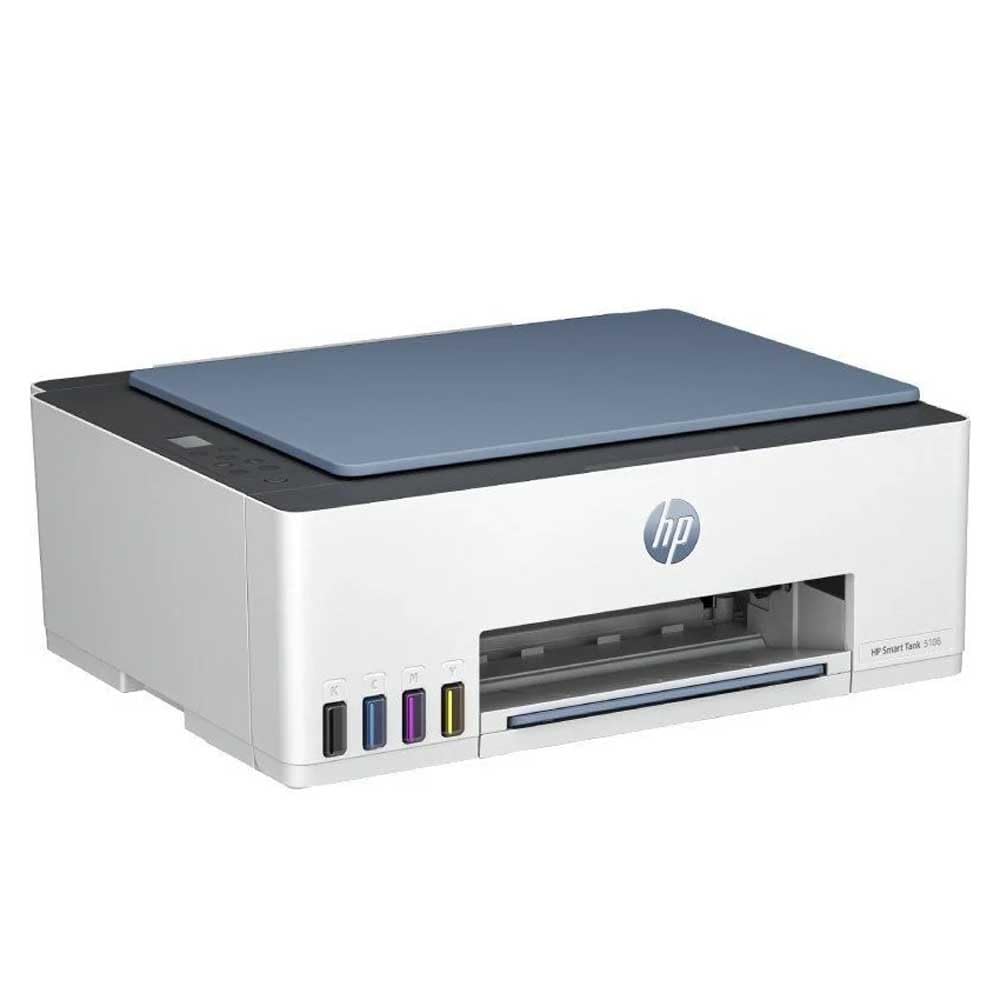
그림 1: 전면 view of the HP Smart Tank 5106 Multifunction Printer. This image shows the printer's overall design, including the output tray and the HP logo.
2. 설정
2.1 프린터 풀기
- 포장에서 프린터를 꺼냅니다.
- 프린터 외부와 내부의 모든 보호 테이프와 포장재를 제거하세요. 자세한 위치는 빠른 시작 안내서를 참조하세요.
- 프린터를 안정적이고 평평한 표면에 놓으세요.
2.2 잉크 탱크 채우기
The HP Smart Tank 5106 uses an integrated ink tank system. Follow these steps to fill the ink tanks:
- Open the ink tank cover located on the left side of the printer.
- Open the cap of the ink tank you wish to fill (Black, Cyan, Magenta, Yellow).
- Uncap the corresponding HP ink bottle and invert it over the tank's nozzle. The ink will flow automatically into the tank. Do not squeeze the bottle.
- Once the tank is full, remove the bottle and close the tank cap securely.
- Repeat for all other ink tanks.
- 잉크 탱크 덮개를 닫습니다.
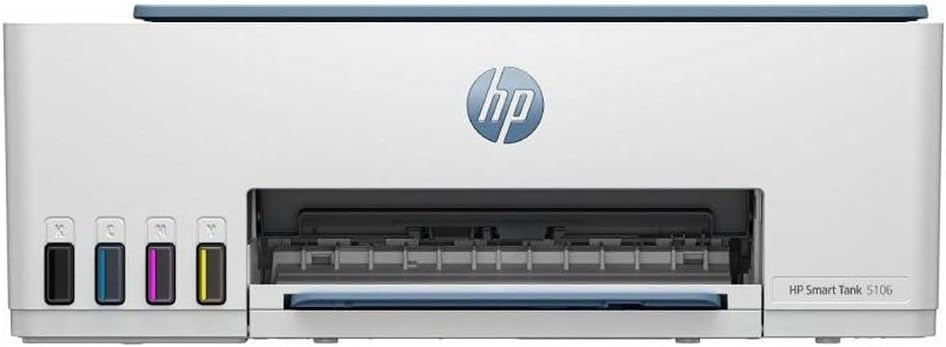
그림 2: 전면 view of the HP Smart Tank 5106, highlighting the visible ink tanks on the left side for easy monitoring and refilling.
2.3 전원 연결 및 초기 전원 켜기
- Connect the power cord to the printer's power port and then to an electrical outlet.
- 전원 버튼을 눌러 프린터를 켭니다.
- Follow the on-screen instructions on the printer's control panel for initial setup, including language selection and print head alignment.

그림 3: 후면 view of the HP Smart Tank 5106, showing the power input and USB port for connectivity.
2.4 소프트웨어 설치 및 네트워크 연결
- 다운로드 HP 스마트 앱 from your device's app store (iOS, Android) or from hpsmart.com for Windows/macOS.
- Open the HP Smart app and follow the prompts to add your printer.
- Select your Wi-Fi network and enter the password when prompted to connect the printer to your wireless network.
- Alternatively, connect the printer to your computer using a USB cable for a wired connection.
3. 사용 설명서
3.1 용지 적재
- Pull out the input tray and extend the paper guides.
- 인쇄면이 아래쪽을 향하도록 일반 흰색 용지를 용지함에 넣으십시오.
- Adjust the paper guides until they rest gently against the edges of the paper stack.
- 입력 용지함을 프린터로 다시 밀어 넣습니다.
3.2 문서 인쇄
- 컴퓨터나 모바일 기기에서 인쇄하려는 문서 또는 이미지를 엽니다.
- 선택하세요 인쇄 option (usually found under File menu or by pressing Ctrl+P/Cmd+P).
- Choose your HP Smart Tank 5106 printer from the list of available printers.
- Adjust print settings such as paper size, print quality, and number of copies. For duplex printing, select the two-sided printing option if available in your print dialog.
- 딸깍 하는 소리 인쇄.
3.3 문서 복사
- 문서를 스캐너 유리 위에 뒤집어 놓고 가이드에 맞춰 정렬합니다.
- 스캐너 덮개를 닫습니다.
- 프린터 제어판에서 다음을 선택하십시오. 복사 옵션.
- Choose the number of copies and whether you want a color or black-and-white copy.
- 를 누르세요 복사 시작 단추.
3.4 문서 스캔
- 문서를 스캐너 유리 위에 뒤집어서 올려놓습니다.
- 스캐너 덮개를 닫습니다.
- 컴퓨터 또는 모바일 기기에서 HP Smart 앱을 엽니다.
- 선택하세요 주사 옵션.
- 해상도, 색상 모드, 저장 폴더 등의 스캔 설정을 조정하세요.
- 딸깍 하는 소리 주사 to begin the process. The scanned document will be saved to your specified location.
4. 유지관리
4.1 Monitoring and Refilling Ink Levels
Regularly check the ink levels through the transparent ink tanks on the front of the printer or via the HP Smart app. Refill ink tanks as described in Section 2.2 when levels are low to prevent print quality issues.
4.2 프린트 헤드 청소
If you notice streaky or faded prints, the print heads may need cleaning. This can be done through the printer's control panel or the HP Smart app. Refer to the app's maintenance section for detailed instructions.
4.3 프린터 외부 및 스캐너 유리 청소
- 프린터 외부를 부드럽고 보풀 없는 천으로 닦으십시오.
- 스캐너 유리 부분은 부드러운 천으로 가볍게 닦아주세요.amp유리 세정제로 닦으세요. 유리에 세정제를 직접 뿌리지 마세요.
4.4 펌웨어 업데이트
Ensure your printer's firmware is up to date for optimal performance and security. Firmware updates can be managed through the HP Smart app.
5. 문제 해결
5.1 일반적인 문제 및 해결 방법
- 프린터가 응답하지 않음: Check power connections, ensure the printer is turned on, and verify network connectivity (Wi-Fi or USB). Restart both the printer and your computer/router.
- 용지 걸림: 모든 액세스 도어를 조심스럽게 열고 걸린 용지를 제거하세요. 용지가 제대로 적재되어 있고 너무 많이 적재되지 않았는지 확인하세요.
- 인쇄 품질 불량: Perform print head cleaning and alignment through the HP Smart app or printer control panel. Check ink levels and refill if necessary. Use appropriate paper type and quality settings.
- 연결 문제: Ensure your printer and device are on the same Wi-Fi network. Restart your router. If using USB, try a different port or cable.
5.2 오류 메시지
If an error message appears on the printer's display or in the HP Smart app, consult the HP support website or the app's help section for specific troubleshooting steps related to that error code.
5.3 프린터 재설정
In some cases, a factory reset may resolve persistent issues. Refer to the HP support documentation for your specific model for instructions on how to perform a factory reset, as this can vary and may clear network settings.
6. 사양
| 특징 | 사양 |
|---|---|
| 모델명 | 스마트 탱크 5106 |
| 제품 치수 | 50.3D x 125.7W x 121.4H 센티미터 |
| 무게 | 7.01 킬로그램 |
| 연결 기술 | USB, 와이파이 |
| 인쇄 기술 | 잉크젯 |
| 특징 | 터치스크린 |
| 최대 인쇄 속도(컬러) | 분당 15페이지 |
| 최대 인쇄 속도(흑백) | 분당 16페이지 |
| 최대 복사 속도(흑백) | 분당 16페이지 |
| 최대 용지 적재 용량 | 100 |
| 양면 인쇄 | 예 |
| 최대 미디어 크기 | Legal (216 x 356 mm) |
| 스캐너 유형 | 플랫베드 |
| 최대 컬러 인쇄 해상도 | 600dpi |
| 최대 흑백 인쇄 해상도 | 1200 x 1200dpi |
| 호환 장치 | Computers, Laptops, Tablets, Smartphones |
7. 보증 및 지원
7.1 제품 보증
Your HP Smart Tank 5106 printer comes with a standard manufacturer's warranty. Please refer to the warranty card included in your product packaging or visit the official HP website for detailed information regarding warranty terms, conditions, and duration in your region.
7.2 기술 지원
For technical assistance, troubleshooting beyond this manual, or to order replacement parts and supplies, please contact HP Customer Support. You can find contact information and online resources on the official HP support web대지:
- HP 지원 Web대지: 지원.hp.com
- HP 스마트 앱: The app provides access to troubleshooting tools, support articles, and direct contact options.
When contacting support, please have your printer's model number (Smart Tank 5106) and serial number ready. The serial number is typically located on a label on the back or bottom of the printer.