1. 서론
This manual provides comprehensive instructions for the installation, operation, and maintenance of the Planet GPN-100 GPON SFU ONT (Optical Network Terminal). The GPN-100 is designed to deliver high-speed fiber optic connectivity, offering efficient GPON solutions for FTTx and multi-service networks. Please read this manual thoroughly before using the device to ensure proper setup and optimal performance.
2. 패키지 내용
Verify that all items listed below are present in your package. If any item is missing or damaged, please contact your vendor.
- 1 x Planet GPN-100 GPON SFU Optical Network Terminal with 1 Gb Ethernet Port
- 1 x Power Adapter (specifics may vary by region)
- 1 x 빠른 설치 가이드
3. 제품 오버view
The Planet GPN-100 is a compact and efficient GPON SFU ONT. It features one GPON port for fiber optic connection and one Gigabit Ethernet RJ45 interface for local network connectivity. Its plug-and-play design simplifies installation and maintenance.
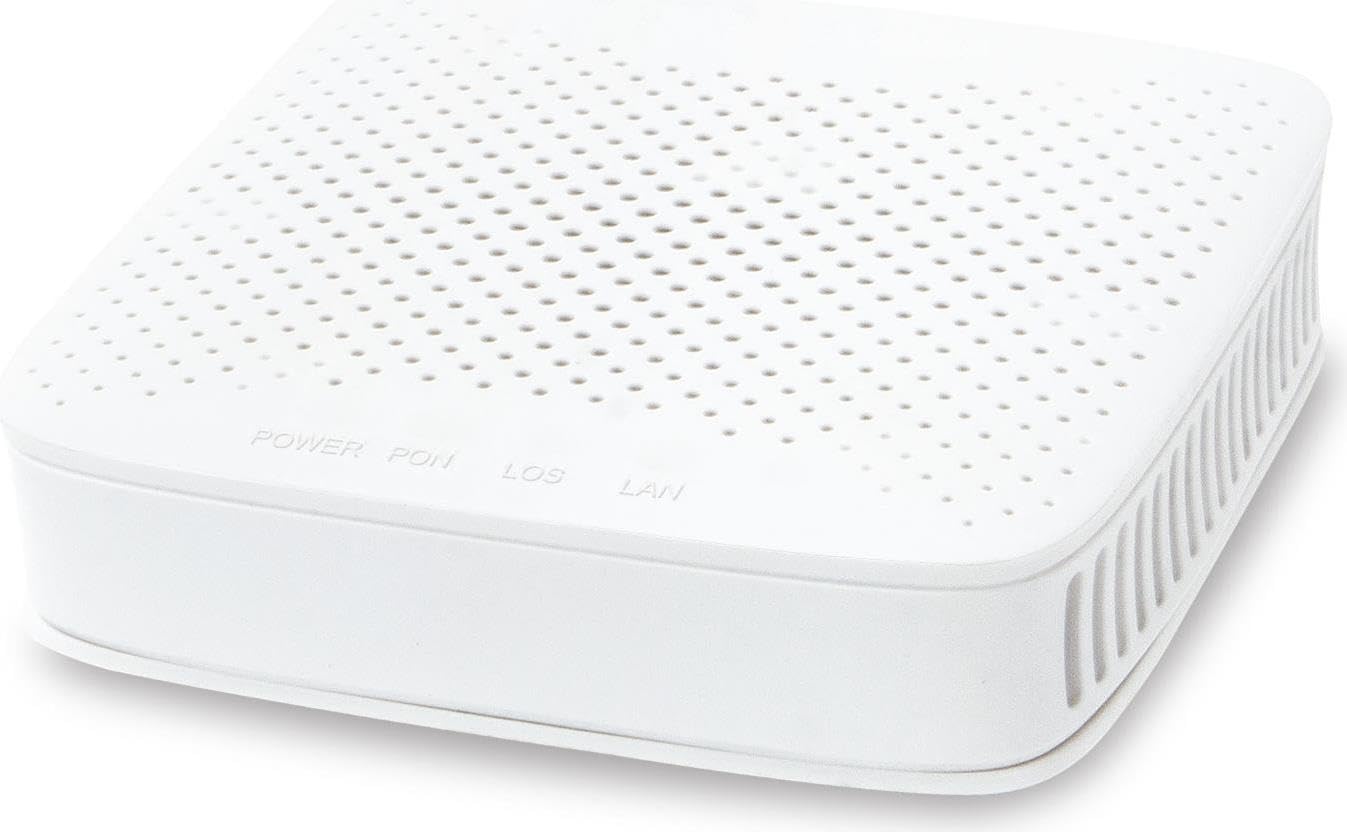
그림 1: 전면 view of the Planet GPN-100 GPON SFU ONT. This image shows the compact white casing of the device, typically featuring indicator lights and port labels.
주요 특징:
- Supports PON downstream rates of 2.5 Gbps and upstream rates of 1.25 Gbps.
- Equipped with one Gigabit Ethernet RJ45 port.
- Advanced DBA (Dynamic Bandwidth Allocation) for rate limit and accurate bandwidth control.
- Green networking technology for low power consumption.
- Cost-effective passive optical network solution.
LED 표시등:
The device features several LED indicators to show its operational status. Refer to the quick installation guide for a detailed description of each LED's function (e.g., Power, PON, LOS, LAN).
4. 설정
Follow these steps to set up your Planet GPN-100 GPON SFU ONT:
- 놓기: Choose a stable, flat surface for the device, away from direct sunlight, heat sources, and moisture. Ensure adequate ventilation.
- 광섬유 케이블 연결: Carefully connect the fiber optic cable from your GPON network to the GPON port on the GPN-100. Ensure the connector is clean and properly seated. (Caution: Do not look directly into the fiber optic port when the device is powered on, as it may emit invisible laser radiation.)
- 이더넷 케이블 연결: Connect one end of an Ethernet cable to the Gigabit Ethernet RJ45 port on the GPN-100 and the other end to your computer, router, or network switch.
- 전원 어댑터 연결: Plug the power adapter into the DC power input port on the GPN-100, then plug the other end into a standard electrical outlet.
- 전원 켜기: The device will automatically power on. Observe the LED indicators. The Power LED should illuminate, and the PON LED should eventually turn solid, indicating a successful connection to the OLT.
5. 사용 설명서
Once the GPN-100 is successfully set up and connected to the GPON network, it operates automatically. It acts as a bridge between the fiber optic network and your local Ethernet devices.
- 네트워크 연결성: Your connected devices (computer, router) should automatically obtain an IP address from your network provider's DHCP server via the GPN-100.
- 상태 모니터링: Monitor the LED indicators on the front panel to check the device's status. A solid PON LED indicates a stable GPON connection, and a blinking LAN LED indicates data activity.
- 전원 주기: If you experience network issues, a simple power cycle (unplugging the power adapter, waiting 10 seconds, and plugging it back in) can often resolve temporary problems.
6. 유지관리
To ensure the longevity and optimal performance of your GPN-100, follow these maintenance guidelines:
- 청소: 부드럽고 마른 천을 사용하여 기기 외부를 닦으세요. 액체나 에어로졸 세척제는 사용하지 마세요.
- 통풍: Ensure that the ventilation openings are not blocked. Do not place the device in an enclosed space without airflow.
- 케이블 관리 : Keep cables neatly organized and avoid bending fiber optic cables sharply, as this can damage them.
- 펌웨어 업데이트: Firmware updates are typically managed by your service provider. Do not attempt to update firmware yourself unless instructed by your provider.
7. 문제 해결
If you encounter issues with your GPN-100, refer to the following common problems and solutions:
| 문제 | 가능한 원인 | 해결책 |
|---|---|---|
| 전원 LED 없음 | 전원 어댑터가 연결되지 않았거나 결함이 있습니다. | Check power connections. Ensure the power outlet is functional. Try a different outlet. |
| LOS LED is ON (Red) | Loss of optical signal. Fiber optic cable disconnected or damaged. | Check the fiber optic cable connection. Ensure it is securely plugged into the GPON port. Do not attempt to repair damaged fiber optic cables; contact your service provider. |
| PON LED is OFF or Blinking | No connection to OLT or OLT registration issue. | Ensure the fiber optic cable is properly connected. Wait a few minutes for the device to register with the OLT. If the issue persists, contact your service provider. |
| No Internet/Network Access | LAN cable issue, IP address conflict, or service provider issue. | Check the Ethernet cable connection. Power cycle the GPN-100 and your connected router/computer. Verify your service provider's network status. |
If the problem persists after attempting these solutions, please contact your internet service provider or Planet technical support for further assistance.
8. 사양
| 특징 | 세부 사항 |
|---|---|
| 모델 번호 | GPN-100 |
| GPON 인터페이스 | 1 x SC/APC GPON Port |
| 이더넷 인터페이스 | 1 x Gigabit Ethernet (10/100/1000BASE-T) RJ45 Port |
| PON Downstream Rate | 2.5Gbps |
| PON Upstream Rate | 1.25Gbps |
| 치수(길이 x 너비 x 높이) | 3.15 x 2.95 x 0.94인치(80 x 75 x 24mm) |
| 무게 | 5.6 온스(158.76g) |
| 전원 공급 장치 | External DC Power Adapter (e.g., 12V/0.5A) |
| 작동 온도 | 0°C ~ 40°C(32°F ~ 104°F) |
| 보관 온도 | -40°C ~ 70°C (-40°F ~ 158°F) |
| 습기 | 10% ~ 90% 비응축 |
| 제조업체 | Planet Technology Corporation |
| 첫 번째 이용 가능 날짜 | 2년 2023월 XNUMX일 |
9. 보증 및 지원
보증 정보: This product comes with a standard manufacturer's warranty. Please refer to the warranty card included in your package or visit the official Planet web자세한 보증 약관은 해당 사이트를 참조하세요. 보증 청구를 위해 구매 증빙 자료로 구매 영수증을 보관하세요.
기술 지원: For technical assistance, product inquiries, or troubleshooting beyond the scope of this manual, please contact your internet service provider or Planet technical support. You can typically find support contact information on the Planet official web사이트나 제품 설명서에서 확인하세요.
온라인 리소스: 방문하세요 플래닛 테크놀로지 web대지 for the latest product information, drivers, and FAQs.


