1. 서론
This manual provides comprehensive instructions for the setup, operation, and maintenance of your Tibuta 15.6 Inch WiFi Digital Photo Frame. Please read this manual thoroughly before using the device to ensure proper functionality and to maximize your user experience.

Image 1.1: Tibuta 15.6 Inch WiFi Digital Photo Frame in use, showing its touchscreen capabilities and companion app integration.
2. 안전 정보
기기 손상이나 개인 상해를 예방하려면 다음 안전 예방 조치를 준수하세요.
- 기기를 물이나 과도한 습기에 노출시키지 마세요.
- 기기를 열원 근처나 장시간 직사광선에 노출시키지 마십시오.
- 제공된 전원 어댑터만 사용하세요.
- 기기를 직접 분해하거나 수리하려고 하지 마세요. 도움이 필요하면 고객 지원에 문의하세요.
- 기기를 어린이와 애완동물의 손이 닿지 않는 곳에 보관하세요.
3. 패키지 내용
패키지에 모든 품목이 들어 있는지 확인하세요.
- Tibuta 15.6 Inch WiFi Digital Photo Frame
- 전원 어댑터
- 사용 설명서 (본 문서)
- 서다
4. 제품 오버view
디지털 액자의 구성 요소를 숙지하세요.
4.1 정면 View

이미지 4.1: 앞면 view and key features of the Tibuta 15.6 Inch Digital Photo Frame.
- 15.6 Inch HD Touch Screen: High-definition display with 1280x800 resolution and IPS technology for wide view각도를 나타냅니다.
- 터치스크린 인터페이스: Allows for direct interaction with the frame's menus and settings.
4.2 후면 View 및 포트

이미지 4.2: 후면 view of the Tibuta Digital Photo Frame with labeled ports and features.
- 전원 스위치: 장치를 켜거나 끕니다.
- 잘 고정된: Mounting points for wall installation.
- Amp리퍼: 오디오 재생용 내장 스피커.
- 마이크로 SD 카드 슬롯: Supports Micro SD cards up to 128GB for expanded storage.
- 헤드폰 잭: 외부 오디오 장치를 연결합니다.
- Type-A USB Port: USB 드라이브나 다른 주변 장치를 연결하는 데 사용됩니다.
- 미니 USB 포트: For data transfer (if applicable).
- DC 전원 포트: 전원 어댑터에 연결합니다.
- 서다: Attachable stand for desktop placement.
5. 설정
5.1 초기 전원 켜기
- Attach the stand to the back of the photo frame for stable placement on a flat surface.
- Connect the power adapter to the DC Power Port on the back of the frame.
- 전원 어댑터를 벽면 콘센트에 꽂으세요.
- Press the Power Switch to turn on the device.
- Follow the on-screen prompts to select your language, time zone, and connect to a Wi-Fi network.
5.2 Wi-Fi에 연결하기
- From the main menu, navigate to "Settings" and then "Wi-Fi".
- 목록에서 원하는 Wi-Fi 네트워크를 선택하세요.
- 화면 키보드를 사용하여 Wi-Fi 비밀번호를 입력하세요.
- Tap "Connect". Once connected, a Wi-Fi icon will appear on the screen.
5.3 컴패니언 앱 설치
To share photos and videos remotely, download the dedicated companion app.

Image 5.1: Download the Uhale App from Google Play or the App Store.
- On your smartphone or tablet, open the 구글 플레이 스토어 (안드로이드 기기의 경우) 또는 애플 앱스토어 (iOS 기기용).
- 검색 "Uhale App" (or the specified app name in your frame's instructions).
- 앱을 다운로드하고 설치하세요.
- Follow the in-app instructions to pair your device with the digital photo frame. This typically involves entering a unique code displayed on your photo frame.
6. 사용 설명서
6.1 Sharing Photos and Videos via App
Once the frame is connected to Wi-Fi and paired with the app:
- 스마트폰에서 동반 앱을 엽니다.
- Select the photos or videos you wish to share.
- Tap the "Send" or "Share" button within the app.
- The selected media will be transferred to your digital photo frame and displayed.
The frame supports various display modes, including timing, zooming, and cropping, which can often be adjusted via the app or directly on the frame's settings.
6.2 Using External Storage (Micro SD Card)
The frame has 16GB of built-in storage and supports Micro SD cards up to 128GB.
- Insert a Micro SD card into the designated slot on the back of the frame.
- The frame will automatically detect the card.
- Navigate to the "Gallery" or "Files" section on the frame to access content from the Micro SD card.
- 복사할 수 있습니다 files from the Micro SD card to the internal storage or play them directly.
6.3 Automatic Rotation (Gravity Sensing)
The frame features gravity sensing for automatic rotation, adjusting the display orientation based on how the frame is positioned (landscape or portrait).
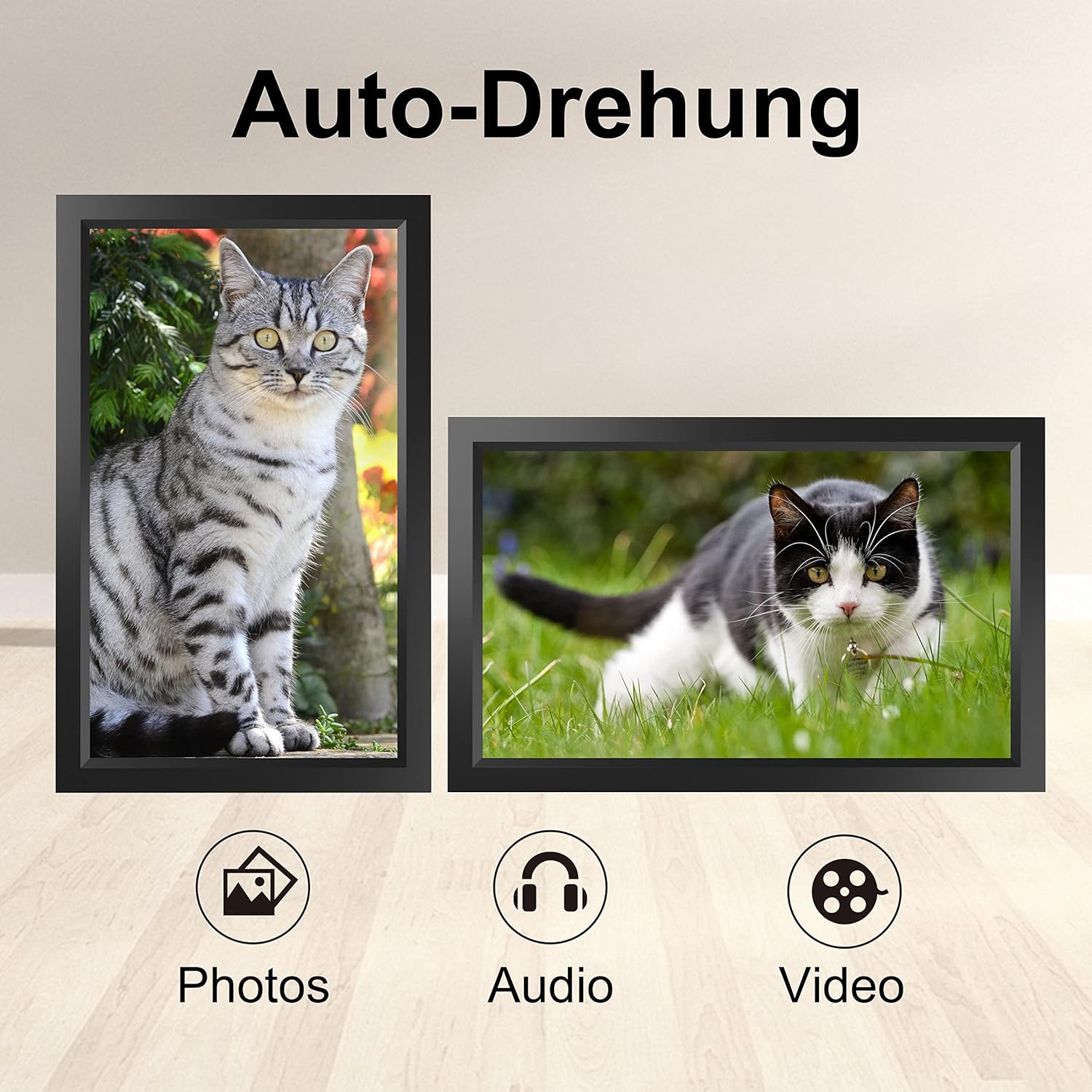
Image 6.1: Automatic display rotation based on frame orientation.
Ensure the gravity sensing feature is enabled in the frame's settings if you wish to utilize this functionality.
6.4 디스플레이 설정
사용자 정의 viewing experience through the frame's settings menu:
- 슬라이드쇼 간격: 각 사진이 표시되는 시간을 조정하세요.
- 전환 효과: Choose different effects between photos.
- 명도: 화면 밝기를 조정합니다.
- 수면 모드/타이머: Set schedules for the frame to turn on/off automatically.
- Zoom/Crop: Options to adjust how photos fit the screen.
7. 유지관리
7.1 화면 청소
터치스크린을 청소하려면 부드럽고 보풀 없는 천으로 살살 닦아주세요. 잘 지워지지 않는 얼룩은 살짝 두드려 닦아내세요.amp천에 물이나 화면 세척액을 묻혀 닦아주세요. 강한 화학 물질이나 연마재는 사용하지 마세요.
7.2 일반 관리
- Keep the frame in a dry environment.
- Protect it from dust by occasionally wiping the frame's body with a soft cloth.
- 장치를 떨어뜨리거나 강한 충격을 가하지 마십시오.
8. 문제 해결
| 문제 | 가능한 원인 | 해결책 |
|---|---|---|
| 프레임의 전원이 켜지지 않습니다. | 전원 어댑터가 연결되지 않았거나 결함이 있습니다. | 전원 어댑터가 프레임과 작동하는 전원 콘센트에 단단히 연결되어 있는지 확인하세요. 다른 콘센트를 사용해 보세요. |
| Wi-Fi에 연결할 수 없습니다. | 비밀번호가 잘못되었거나, 범위를 벗어났거나, 네트워크 문제입니다. | 와이파이 비밀번호를 확인하세요. 액자를 공유기 가까이로 옮기세요. 공유기를 재시작하세요. |
| Photos/videos not appearing. | App not paired, incorrect file format, or storage issue. | Ensure the app is correctly paired. Check if the media files are in a supported format. Verify sufficient storage space on the frame or SD card. |
| 터치스크린이 반응하지 않습니다. | 일시적인 소프트웨어 오류입니다. | Restart the frame by holding the power button or unplugging and replugging the power adapter. |
| Automatic rotation not working. | Feature disabled or sensor issue. | Check the frame's settings to ensure gravity sensing/auto-rotation is enabled. |
9. 사양
| 특징 | 세부 사항 |
|---|---|
| 모델 번호 | 티아이디15.6 |
| 화면 크기 | 15.6 인치 |
| 디스플레이 유형 | IPS 터치 스크린 |
| 해결 | 1280x800 |
| 내부 저장소 | 16GB (약 20,000만 장의 사진) |
| 외부 저장소 | 128GB까지 마이크로 SD 카드 |
| 연결성 | 와이파이 |
| 특별 기능 | Gravity Sensing Automatic Rotation, Touchscreen |
| 치수(길이 x 너비 x 높이) | 39.12 x 24.64 x 2.51cm |
| 무게 | 1.48kg |
| 전원 | Battery Powered (includes 1 Lithium Ion battery) |
참고: 사양은 사전 통지 없이 변경될 수 있습니다.
10. 보증 및 지원
10.1 제품 보증
The Tibuta Digital Photo Frame comes with a one-year product warranty. This warranty covers manufacturing defects and operational issues arising from normal use. If any issues arise during this period, please contact our after-sales support team for assistance.
10.2 고객 지원
For technical support, warranty claims, or any other inquiries, please refer to the contact information provided on the Tibuta official website or your purchase documentation. When contacting support, please have your model number (TID15.6) and purchase date available.


