Aigo ICE 400 CPU Cooler User Manual
Active Cooling System (Heatsink + 120mm Fan)
1. 서론
Thank you for choosing the Aigo ICE 400 CPU Cooler. This active cooling system is designed to efficiently dissipate heat from your Central Processing Unit (CPU), ensuring stable performance and longevity for your computer or laptop. This manual provides detailed instructions for installation, operation, maintenance, and troubleshooting to help you get the most out of your product.
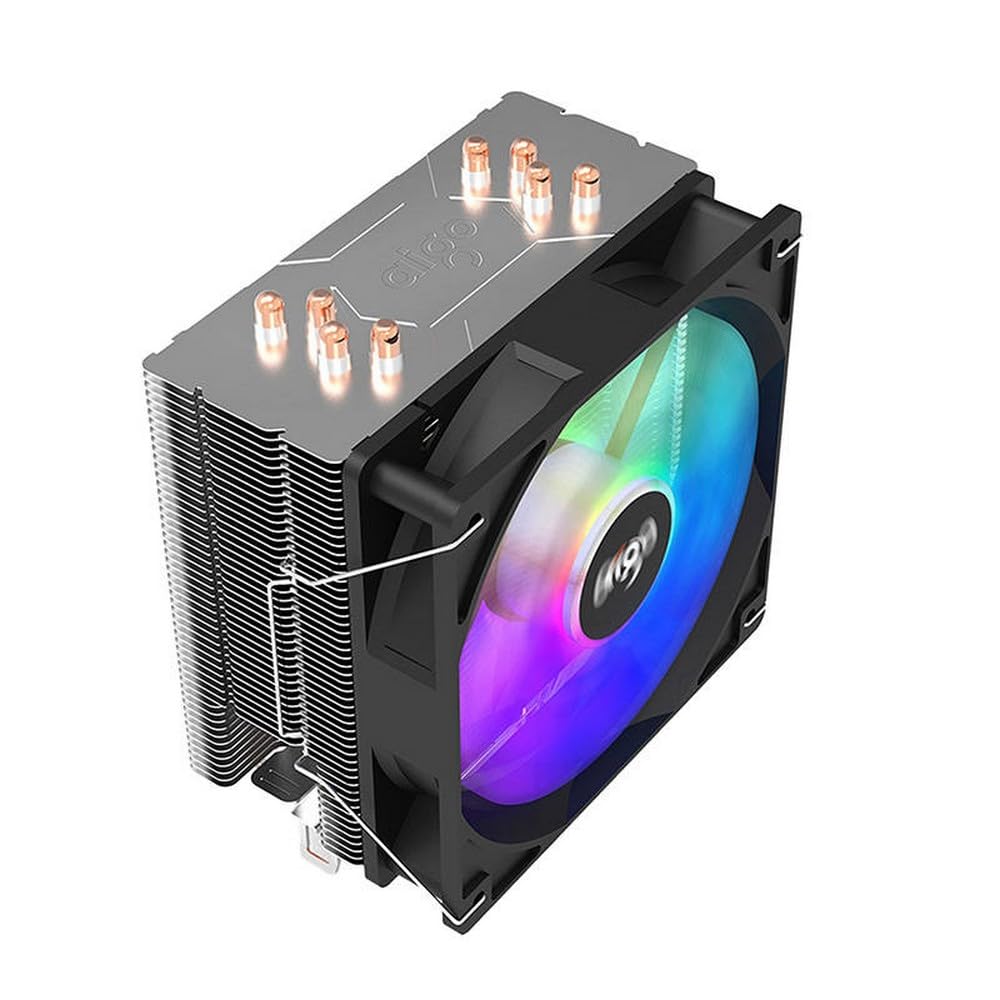
Image 1.1: The Aigo ICE 400 CPU Cooler, showing the heatsink and attached 120mm fan.
2. 안전 지침
Please read and follow these safety instructions carefully before installing or operating the Aigo ICE 400 CPU Cooler:
- Ensure your computer is powered off and unplugged from the wall outlet before installation to prevent electric shock or damage to components.
- Handle the cooler and other components with care to avoid physical damage.
- 제품을 물, 습기, 극한의 온도로부터 멀리 보관하세요.
- Do not attempt to modify or disassemble the cooler. This may void your warranty and pose a safety risk.
- 어린이의 손이 닿지 않는 곳에 보관하세요.
3. 패키지 내용
패키지에 모든 품목이 들어 있는지 확인하세요.
- Aigo ICE 400 CPU Heatsink
- 120mm 냉각 팬
- Mounting Brackets (for various CPU sockets)
- 써멀 페이스트(미리 도포된 형태 또는 튜브형)
- 설치 나사 및 액세서리
- 사용 설명서 (본 문서)
4. 설정 및 설치
Follow these steps to properly install your Aigo ICE 400 CPU Cooler. Refer to your motherboard's manual for specific CPU socket details if needed.
4.1. 준비
- 전원 끄기 : 컴퓨터를 완전히 끄고 벽면 콘센트에서 전원 케이블을 뽑으세요.
- 열린 사건: 컴퓨터 케이스를 열어 마더보드와 CPU 영역에 접근하세요.
- 기존 쿨러를 제거하세요: If replacing an existing cooler, carefully remove it. Clean any old thermal paste from the CPU's Integrated Heat Spreader (IHS) using isopropyl alcohol and a lint-free cloth.
- Identify Socket: Determine your CPU socket type (e.g., Intel LGA 1700/1200/115X, AMD AM5/AM4) and select the appropriate mounting brackets from the package.
Image 4.1: Illustration showing the CPU socket and the process of cleaning old thermal paste.
4.2. 마운팅 브라켓 설치
- 뒷판: For most Intel sockets and some AMD sockets, install the provided backplate behind the motherboard, aligning the holes with the CPU socket mounting holes.
- Stand-offs: Secure the stand-offs (spacers) onto the backplate or directly into the motherboard's mounting holes, depending on your socket type.
- 장착 암: Attach the appropriate mounting arms to the stand-offs using the provided screws.
Image 4.2: Diagram illustrating the installation of the backplate and stand-offs for a typical CPU socket.
4.3. Thermal Paste Application
If thermal paste is not pre-applied to the cooler's base:
- Apply a small, pea-sized dot of thermal paste to the center of the CPU's IHS.
- Do not spread the paste manually. The pressure from the heatsink will spread it evenly.
Image 4.3: Visual guide for applying a pea-sized amount of thermal paste to the CPU.
4.4. 방열판 및 팬 설치
- 방열판 위치: Carefully place the heatsink onto the CPU, aligning the mounting holes on the heatsink with the mounting arms/screws.
- 안전한 방열판: Tighten the screws in a diagonal pattern (e.g., top-left, bottom-right, top-right, bottom-left) until snug. Do not overtighten.
- 팬 부착: If the fan is not pre-attached, use the provided fan clips or screws to secure the 120mm fan to the heatsink. Ensure the fan is oriented to blow air through the heatsink fins towards the rear or top of the case.
- 팬 케이블을 연결하세요: Plug the fan's 3-pin power connector into the "CPU_FAN" header on your motherboard. Refer to your motherboard manual for the exact location.
Image 4.4: Step-by-step visual of placing the heatsink, securing it, and attaching the fan to the heatsink.
4.5. 최종 점검
- Ensure the cooler is firmly seated and does not wobble.
- Verify that the fan cable is securely connected to the CPU_FAN header.
- Check for any obstructions that might prevent the fan from spinning freely.
- 컴퓨터 케이스를 닫습니다.
5. 사용 설명서
The Aigo ICE 400 CPU Cooler operates automatically once installed correctly. Its primary function is to maintain optimal CPU temperatures by dissipating heat.
- 전원 켜기: Plug in your computer's power cable and power on the system.
- 팬 작동 : The 120mm fan will start spinning as soon as the system powers on. Its speed will typically be controlled by the motherboard's BIOS/UEFI settings based on CPU temperature.
- 온도 모니터링: It is recommended to monitor your CPU temperatures using motherboard monitoring software or third-party utilities (e.g., HWMonitor, Core Temp) to ensure the cooler is functioning effectively. Ideal CPU temperatures vary but generally should remain below 80°C under load.
6. 유지관리
Regular maintenance helps ensure the longevity and optimal performance of your Aigo ICE 400 CPU Cooler.
- Dust Cleaning (Every 3-6 Months):
- 컴퓨터 전원을 끄고 전원 코드를 뽑으세요.
- 컴퓨터 케이스를 엽니다.
- Use compressed air to blow dust out of the heatsink fins and fan blades. Hold the fan blades gently to prevent over-spinning while cleaning.
- Alternatively, use a soft brush or microfiber cloth to carefully remove dust.
- Thermal Paste Replacement (Every 2-3 Years or if temperatures rise):
- If CPU temperatures significantly increase over time, the thermal paste may have dried out.
- Carefully remove the heatsink from the CPU.
- Clean off all old thermal paste from both the CPU IHS and the cooler's base using isopropyl alcohol and a lint-free cloth.
- Apply new thermal paste as described in Section 4.3 and re-install the cooler.
Image 6.1: Visual guide on using compressed air to clean dust from the heatsink and fan.
7. 문제 해결
If you encounter issues with your Aigo ICE 400 CPU Cooler, refer to the following common problems and solutions:
7.1. 높은 CPU 온도
- 팬 연결 상태를 확인하세요: Ensure the fan is securely plugged into the "CPU_FAN" header on the motherboard.
- Verify Fan Spin: Confirm that the fan is spinning when the computer is on. If not, check the connection or consider a faulty fan.
- 방열판 접점: Ensure the heatsink is making firm, even contact with the CPU. Re-tighten mounting screws in a diagonal pattern if necessary.
- 열전도 페이스트: Insufficient or improperly applied thermal paste can cause high temperatures. Reapply thermal paste if needed (refer to Section 4.3).
- 먼지 축적: Clean any dust from the heatsink fins and fan blades (refer to Section 6).
- 케이스 공기 흐름: Ensure your computer case has adequate airflow with proper intake and exhaust fans.
7.2. 선풍기가 회전하지 않음
- 전원 연결: Double-check that the fan's 3-pin connector is fully inserted into the motherboard's "CPU_FAN" header.
- BIOS 설정 : Enter your motherboard's BIOS/UEFI settings and ensure the CPU fan control is enabled and not set to a "silent" or "off" mode at low temperatures.
- 방해: Check for any cables or debris obstructing the fan blades.
- Faulty Fan: If all else fails, the fan itself might be faulty and require replacement.
7.3. 과도한 팬 소음
- 먼지 축적: Clean the fan blades and heatsink thoroughly. Dust can cause imbalance and noise.
- 느슨한 장착: Ensure the fan is securely attached to the heatsink and the heatsink is securely mounted to the motherboard. Vibrations from loose components can cause noise.
- 팬 속도: Adjust fan speed settings in your motherboard's BIOS/UEFI. A higher fan speed will naturally produce more noise.
- 베어링 소음: If the noise is a grinding or rattling sound, the fan bearings may be failing. Consider replacing the fan.
8. 사양
| 특징 | 세부 사항 |
|---|---|
| 상표 | Aigo 사와 |
| 모델 | 아이스 400 |
| 냉각 방식 | 강제 공기 |
| 전원 커넥터 유형 | 3핀 |
| 호환 장치 | 컴퓨터, 노트북 |
| 항목 수 | 1 (Cooler unit) |
| 팬 크기 | 120mm x 120mm (implied from product title) |
| 제조업체 | 아이고 |
9. 보증 정보
Aigo products are manufactured to the highest quality standards. This product is covered by a limited warranty against defects in materials and workmanship from the date of purchase. Please retain your proof of purchase for warranty claims. The warranty does not cover damage caused by improper installation, accident, abuse, misuse, natural disaster, or unauthorized modification.
For specific warranty terms and conditions, please refer to the warranty card included with your product or visit the official Aigo web대지.
10. 고객 지원
If you have any questions, require technical assistance, or need to report an issue that is not covered in this manual, please contact Aigo customer support:
- Web대지: Visit the official Aigo webFAQ, 드라이버, 지원 리소스를 제공하는 사이트입니다.
- 이메일: 제품 포장이나 공식 설명서를 참조하세요. web고객 지원 이메일 주소 사이트입니다.
- 핸드폰: Check the official Aigo web지역 고객 서비스 전화번호를 알려주는 사이트입니다.
When contacting support, please have your product model (Aigo ICE 400) and proof of purchase ready.


