1. 서론
Thank you for choosing the CUPEISI CP20 Android 15 Tablet. This manual provides essential information for setting up, operating, and maintaining your device. Please read it thoroughly to ensure optimal performance and longevity of your tablet.
2. 상자 안에 무엇이 들어있나요?
패키지에 모든 품목이 들어 있는지 확인하세요.
- CUPEISI CP20 Android 15 Tablet
- 무선 키보드
- Foldable Protective Cover
- 블루투스 마우스
- 첨필
- C타입 케이블
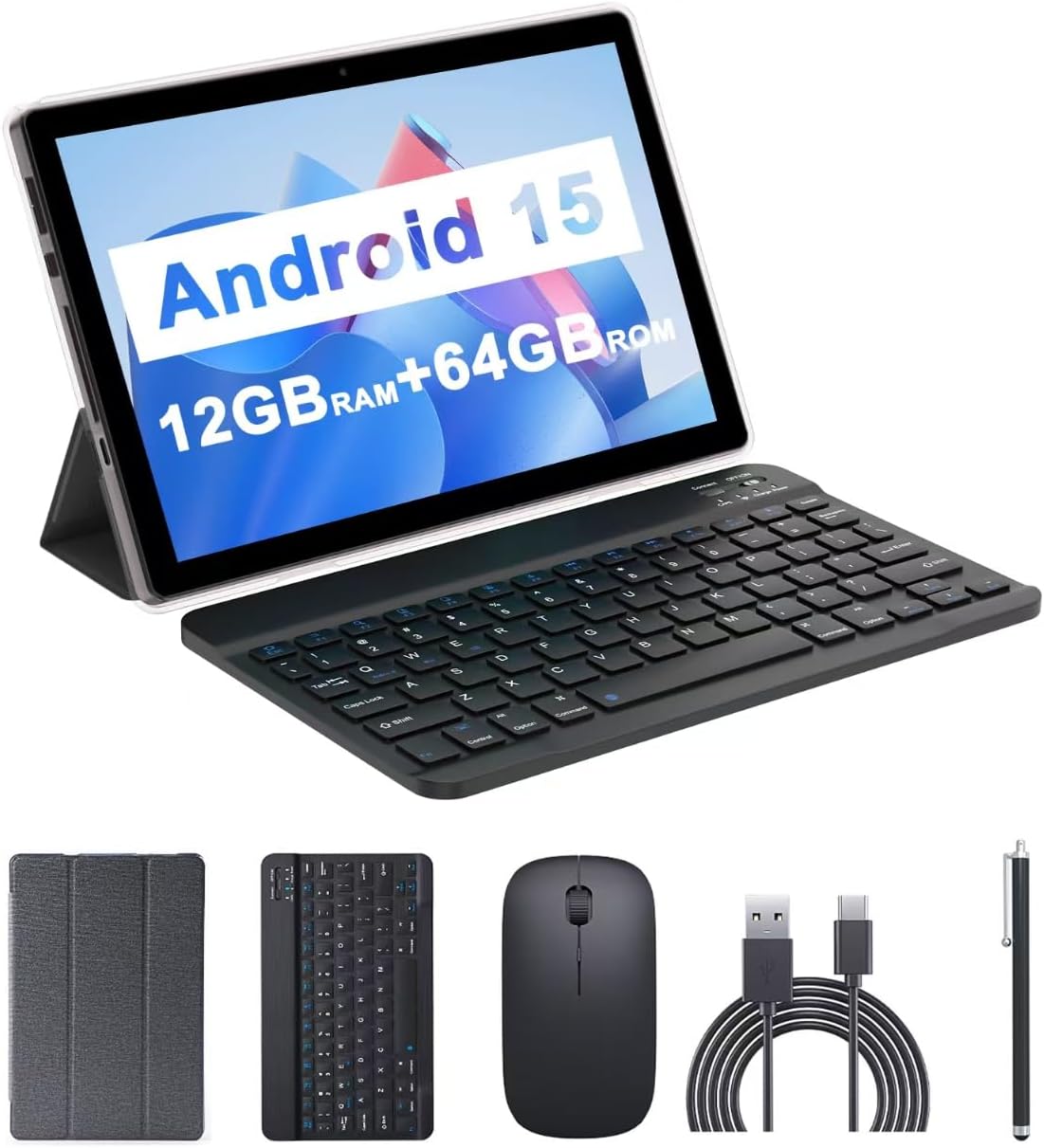
Image: The CUPEISI CP20 Tablet alongside its accessories, including the wireless keyboard, Bluetooth mouse, stylus, and foldable protective cover.
3. 제품 특징 및 구성품
The CUPEISI CP20 Tablet is designed for versatility and performance, offering a seamless user experience for both work and entertainment.
3.1 주요 특징
- 운영 체제: Stable Android 15.0 system.
- 프로세서: Built-in 1.8GHz Quad-core CPU for efficient multitasking.
- 메모리 및 스토리지 : 12GB RAM (4GB+8GB expansion) and 64GB ROM, expandable up to 1TB via microSD card.
- 표시하다: Stunning 10.1-inch 1280x800 IPS HD touch screen for immersive visuals and eye protection.
- 배터리: Powered by a 6000mAh battery, providing approximately 6 hours of regular operation and up to 12 hours of standby time. Charges via 5V2A Type-C port.
- 카메라: 8MP rear camera with auto-focus and flash, and a 2MP front camera for clear video calls and photos.
- 연결성: Supports 5G WiFi 6 and Bluetooth 5.0.
- 2-in-1 기능: Transforms into a laptop or computer mode with the included Bluetooth keyboard, wireless mouse, and foldable protective case.

이미지: 이상view of the tablet's core specifications and features.
3.2 물리적 구성 요소
Familiarize yourself with the tablet's physical layout:
- 전원 버튼: 측면에 위치하며 태블릿을 켜거나 끄거나 화면을 켜거나 끄는 데 사용됩니다.
- 볼륨 버튼: 오디오 레벨을 조정합니다.
- C 형 포트 : 충전 및 데이터 전송용입니다.
- TF/SIM 카드 슬롯: 저장 공간을 확장하려면 microSD 카드를 삽입하세요.
- 전면 카메라: 영상 통화와 셀카를 위해.
- Rear Camera & Flash: 고품질의 사진과 비디오를 위해.
- 스피커: Two speakers for audio output.

Image: Labeled diagram of the tablet's ports and buttons.
4. 설정 가이드
4.1 초기 충전
Before first use, fully charge your tablet. Connect the Type-C cable to the tablet's charging port and the other end to a compatible power adapter (5V2A recommended). The battery indicator will show charging status.
4.2 전원 켜기/끄기
- 전원을 켜려면: 화면이 켜질 때까지 전원 버튼을 길게 누르세요.
- 전원을 끄려면: Press and hold the Power Button, then select 'Power off' from the options that appear on the screen.
- 재시작하기 위해: Press and hold the Power Button, then select 'Restart'.
4.3 Wi-Fi에 연결하기
- 이동하다 설정 > 네트워크 및 인터넷 > 와이파이.
- Wi-Fi를 켜세요.
- 목록에서 원하는 Wi-Fi 네트워크를 선택하세요.
- 메시지가 표시되면 비밀번호를 입력한 다음 탭하세요. 연결하다.
4.4 Pairing Bluetooth Accessories
To use the wireless keyboard and Bluetooth mouse, they must be paired with your tablet.
- 키보드와 마우스가 충전되어 있고 전원이 켜져 있는지 확인하세요.
- 태블릿에서 다음으로 이동하세요. 설정 > 연결된 장치 > 블루투스.
- 블루투스를 켜세요.
- The tablet will scan for available devices. Select the keyboard or mouse from the list.
- 화면의 지시에 따라 페어링 과정을 완료하세요.

Image: Instructions for connecting the wireless keyboard and mouse via Bluetooth.
4.5 MicroSD 카드 삽입
To expand storage, insert a microSD card (up to 1TB) into the TF/SIM card slot. Ensure the tablet is powered off before inserting or removing the card.
5. 태블릿 작동
5.1 기본 탐색
Navigate the Android interface using touch gestures:
- 수도꼭지: 항목을 선택하거나 앱을 엽니다.
- 강타: 페이지나 목록을 스크롤합니다.
- 핀치 투 줌: 콘텐츠를 확대하거나 축소합니다.
- 길게 누르기: 상황에 맞는 메뉴에 접근하거나 아이콘을 이동합니다.
5.2 Using Keyboard and Mouse
Once paired, the keyboard and mouse function similarly to a laptop. The keyboard allows for efficient typing, while the mouse provides precise cursor control, enhancing productivity.

Image: The tablet in laptop mode, demonstrating its use for productivity tasks.
5.3 카메라 사용
Open the Camera app to capture photos and videos. Switch between the 2MP front camera and the 8MP rear camera as needed. The rear camera features auto-focus and flash for improved image quality.

Image: Demonstrating the tablet's front and rear camera functionality for video calls and photography.
5.4 앱 설치 및 관리
Download and install applications from the Google Play Store. To manage installed apps, go to 설정 > 앱.

Image: The tablet running Android 15 OS, showing popular applications like YouTube, Google Play, and Netflix.
6. 유지관리
6.1 청소
부드럽고 보풀 없는 천으로 태블릿의 화면과 본체를 닦으세요. 강한 화학 약품이나 연마성 재질은 사용하지 마세요. 잘 지워지지 않는 얼룩은 약간 부드러운 천으로 닦아내세요.amp천에 물을 묻히거나 전자제품용 화면 세정제를 묻힙니다.
6.2 소프트웨어 업데이트
태블릿에 최신 기능, 보안 패치 및 성능 향상이 적용되도록 정기적으로 소프트웨어 업데이트를 확인하고 설치하세요. 자세한 내용은 다음 링크를 참조하세요. 설정 > 체계 > 시스템 업데이트.
6.3 스토리지 관리
최적의 성능을 유지하려면 주기적으로 재설정하십시오.view 태블릿의 저장 공간을 관리하세요. 불필요한 파일을 삭제하세요. files, 사용하지 않는 앱을 제거하고 대용량 미디어를 이동합니다. files to external storage (microSD card) if applicable. Go to 설정 > 저장 에게 view 사용량을 줄이고 공간을 확보하세요.
7. 문제 해결
This section addresses common issues you might encounter with your CUPEISI CP20 Tablet.
7.1 태블릿 전원이 켜지지 않음
- 태블릿이 충분히 충전되었는지 확인하세요. 최소 30분 동안 충전기에 연결해 두세요.
- Perform a forced restart by pressing and holding the Power Button for 10-15 seconds.
7.2 느린 성능
- 백그라운드에서 실행 중인 사용하지 않는 애플리케이션을 닫습니다.
- Clear cached data for apps (Settings > Apps > [App Name] > Storage & cache > Clear cache).
- 충분한 여유 저장 공간을 확보하세요.
- 태블릿을 주기적으로 다시 시작하세요.
7.3 Wi-Fi 연결 문제
- 설정에서 Wi-Fi를 켜고 끕니다.
- Wi-Fi 라우터를 다시 시작하세요.
- Forget the network and reconnect (Settings > Network & internet > Wi-Fi > [Network Name] > Forget).
7.4 배터리 급속 소모
- 화면 밝기를 낮추세요.
- 사용하지 않을 때는 Wi-Fi, 블루투스, GPS를 비활성화하세요.
- 백그라운드 앱 새로고침을 제한합니다.
- 설정 > 배터리에서 배터리 사용량을 확인하여 전력을 많이 소모하는 앱을 파악하세요.
8. 사양
| 특징 | 사양 |
|---|---|
| 상표 | 쿠페이시 |
| 모델명 | CP20 |
| 운영 체제 | 안드로이드 15 |
| 화면 크기 | 10 인치 |
| 화면 해상도 | 1280 x 800 pixels (IPS HD) |
| 프로세서 | 1.8GHz 쿼드코어 |
| 숫양 | 12 GB (4GB+8GB expansion) |
| 플래시 메모리 크기 | 64GB (XNUMX기가바이트) |
| 확장 가능한 스토리지 | 최대 1TB(microSD) |
| 뒤쪽 Web캠 해상도 | 8 MP |
| 전면 카메라 해상도 | 2 MP |
| 무선형 | 802.11ax (5G WiFi 6) |
| 블루투스 | 블루투스 5.0 |
| 배터리 용량 | 6000mAh 리튬 폴리머 |
| 평균 배터리 수명 | 8시간 |
| 품목 무게 | 1파운드 |
| 제품 치수 | 9.7 x 6.5 x 0.3 인치 |
9. 보증 및 지원
For warranty information and technical support, please refer to the documentation included with your purchase or visit the official CUPEISI web사이트. 보증 청구를 위해 구매 증빙 자료를 보관하세요.
If you encounter issues not covered in this manual, please contact CUPEISI customer service for assistance.


