1. 서론
The MAONO GamerWave DGM20 is a versatile USB condenser microphone designed for gaming, streaming, podcasting, and online communication. It features one-key noise cancellation, stunning RGB lighting, one-click mute with LED indicator, mic gain control, and zero-latency monitoring to enhance your audio experience.
2. 패키지 내용
다음 항목에 대한 상자를 체크해 주세요.
- USB Gaming Microphone x1
- 스탠드 x1
- 팝 필터 x1
- 쇼크 마운트 x1
- USB-C to USB-A/USB-C 2-in-1 케이블 x1
- 사용 설명서 x1
- Arm Stand Adapter x1

Image: MAONO GamerWave DGM20 microphone and its included accessories.
3. 설정
The MAONO GamerWave DGM20 microphone is designed for plug-and-play convenience. No additional drivers or software are required for basic functionality.
3.1 마이크 연결
- Attach the microphone to the included stand or an arm stand using the provided adapter. Ensure the pop filter is positioned correctly in front of the microphone.
- Connect the USB-C end of the 2-in-1 cable to the microphone.
- Connect the USB-A or USB-C end of the cable to your computer, laptop, Mac, or Android phone.
- The microphone will be automatically recognized by your device.
Note: This microphone is not compatible with XBOX consoles.
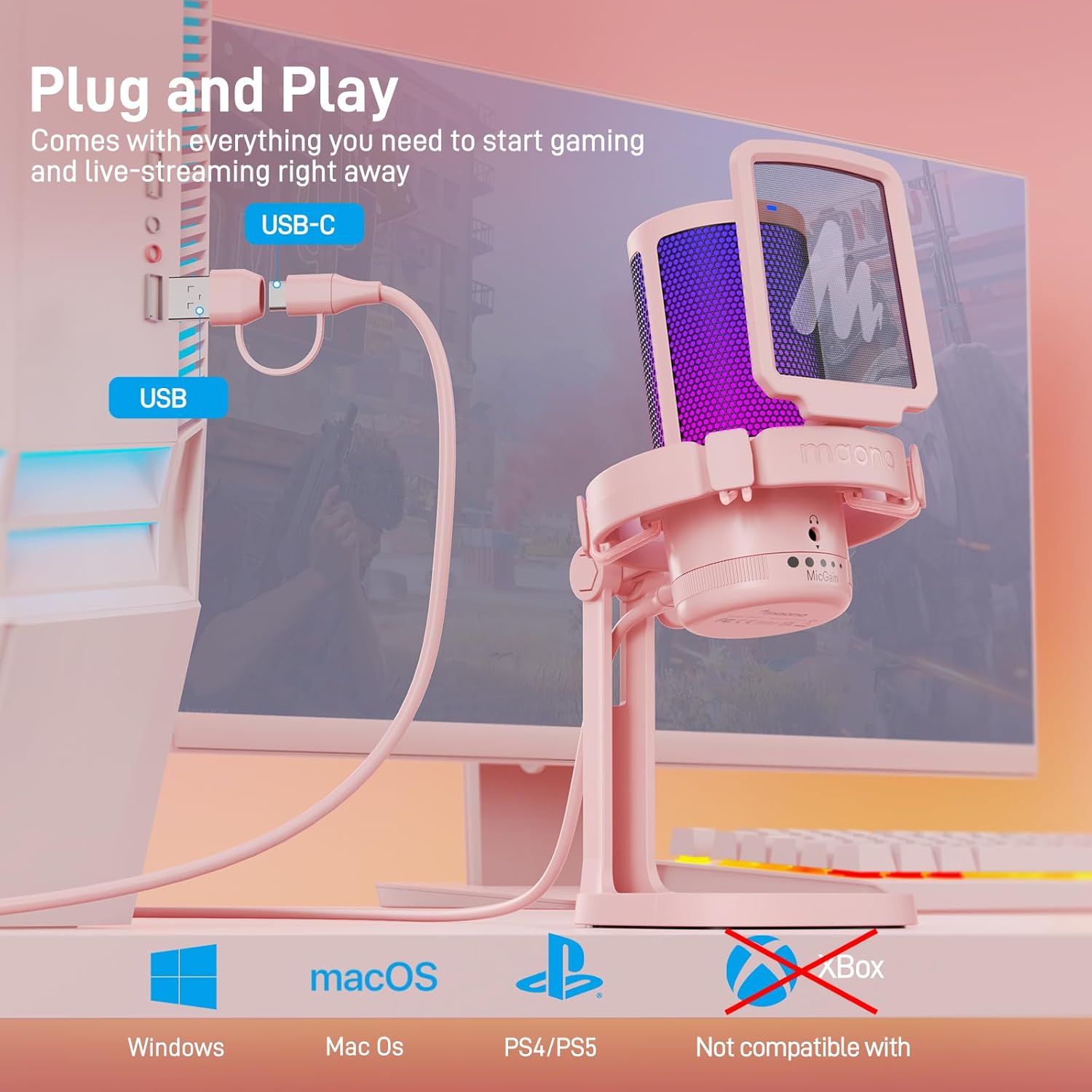
Image: The MAONO GamerWave DGM20 microphone connected to a computer, illustrating its plug-and-play setup.

Image: The MAONO GamerWave DGM20 microphone connected to various devices, including a PC and laptop, highlighting its broad compatibility.
4. 사용 설명서
4.1 One-Key Noise Cancellation
The microphone features a one-key noise cancellation function to suppress background noise, ensuring clear voice pickup. Long press the dedicated button on the microphone to activate or deactivate this feature. A blue LED light indicates that noise cancellation is active.

Image: The MAONO GamerWave DGM20 microphone with its one-key noise cancellation feature, showing the difference in audio clarity before and after activation.
Video: A short demonstration of the MAONO GamerWave DGM20 microphone's noise cancellation feature.
4.2 Stunning RGB Lighting
The microphone features customizable RGB lighting with various modes including static solid colors, breathing light, and dynamic multicolor gradients. Tap the light button on the microphone to cycle through the modes. Long press the button to turn off the RGB lights.

Image: The MAONO GamerWave DGM20 microphone showcasing its controllable RGB lighting with static, breathing, and gradient modes.
Video: A demonstration of the MAONO GamerWave DGM20 USB RGB gaming microphone's lighting effects.
4.3 One-Click Mute with LED Indicator
Instantly mute or unmute the microphone with a single tap on the mute button. A green LED light indicates the microphone is active, while a red light signifies it is muted.
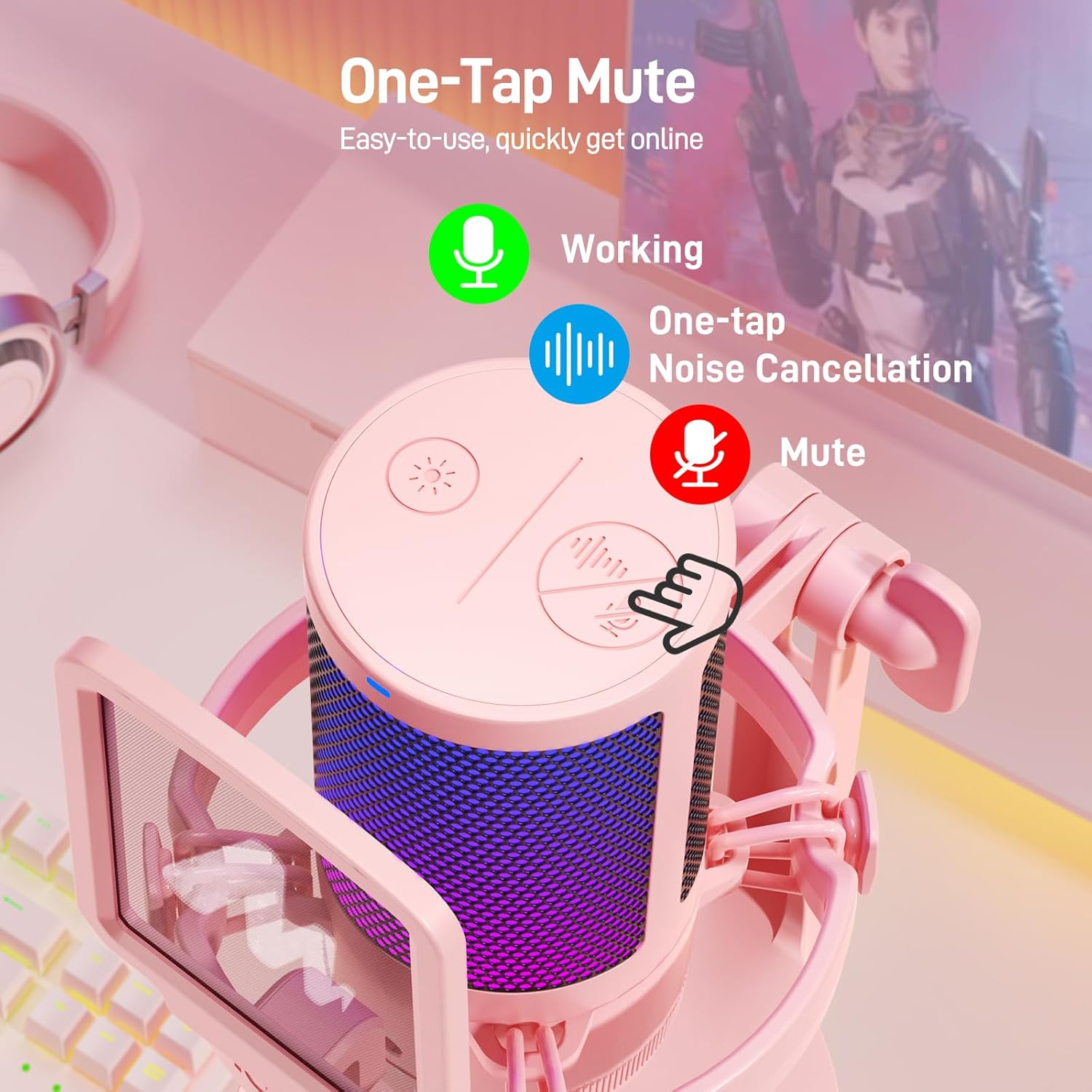
Image: The MAONO GamerWave DGM20 microphone showing the one-tap mute function and its corresponding LED indicator (green for active, red for muted).
4.4 Mic Gain Control and Monitoring
Adjust the microphone's sensitivity using the gain control knob located at the bottom. Turn the knob to increase or decrease the gain to suit your environment and desired audio level. For real-time audio monitoring without latency, plug your headphones into the 3.5mm jack on the microphone.
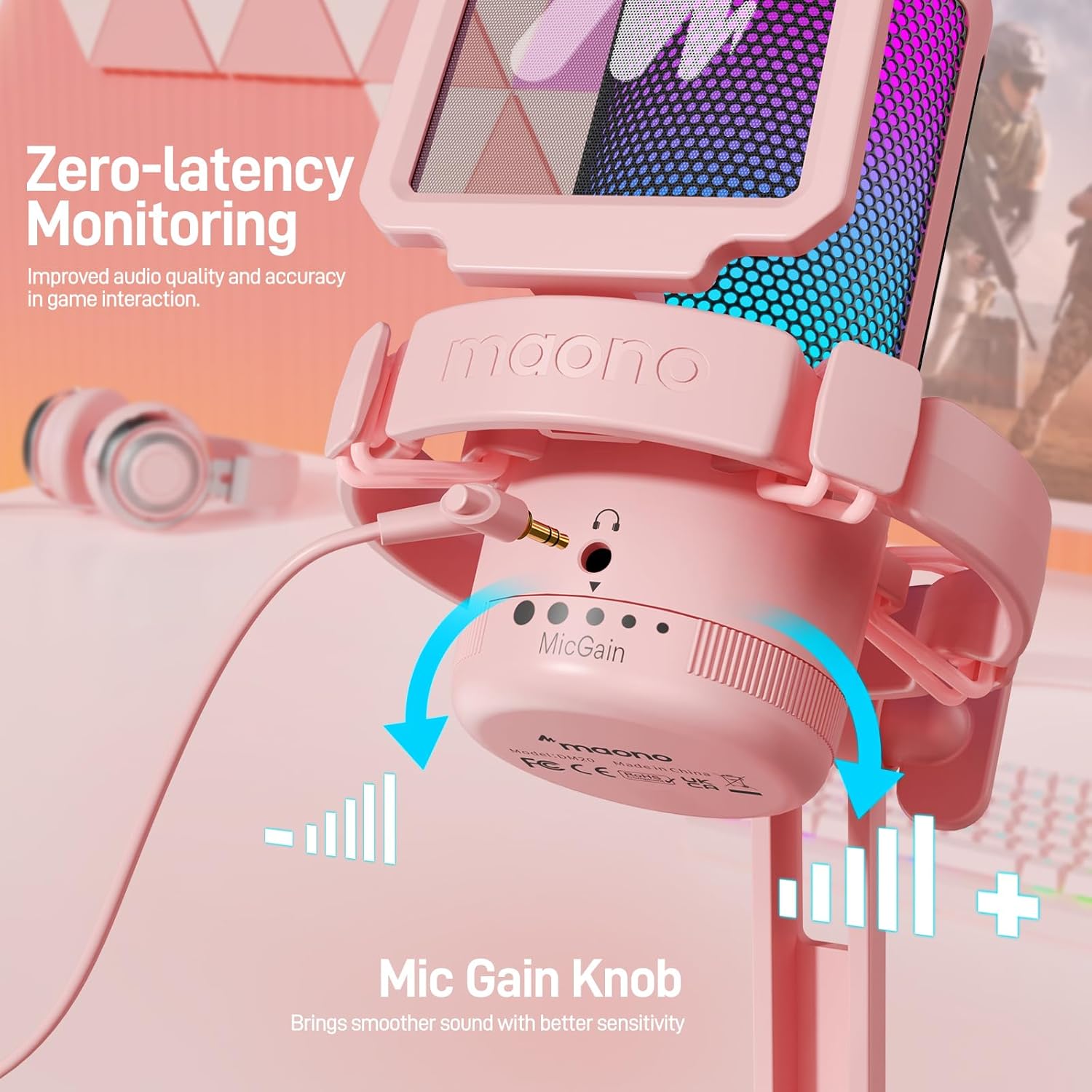
Image: The MAONO GamerWave DGM20 microphone highlighting the mic gain control knob and the 3.5mm jack for zero-latency monitoring.
4.5 극성 패턴
The GamerWave DGM20 features a cardioid polar pattern, which means it primarily picks up sound from directly in front of the microphone. This design helps to isolate your voice and minimize unwanted background noise, making it ideal for single-speaker applications like streaming and podcasting.
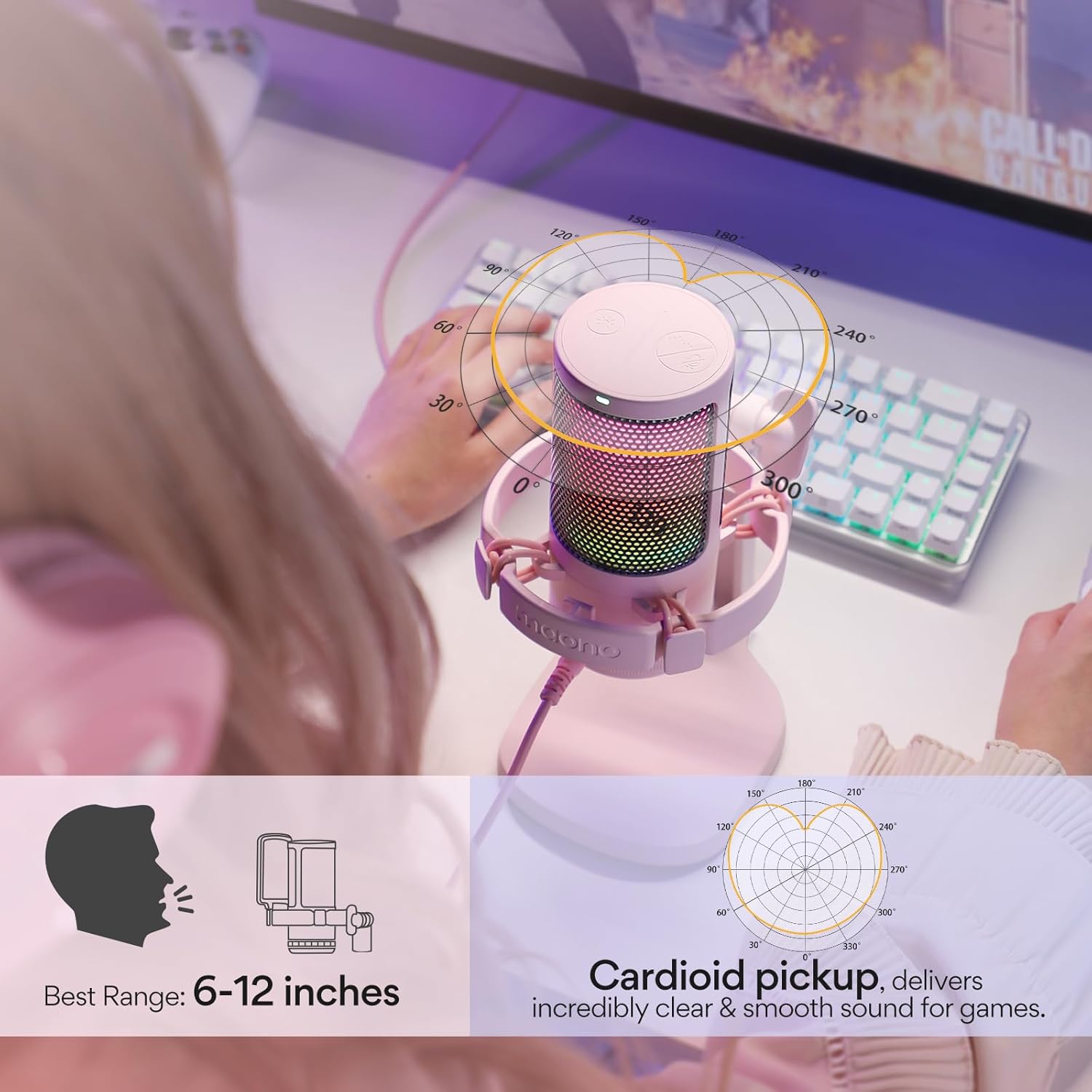
Image: The MAONO GamerWave DGM20 microphone with a diagram illustrating its cardioid pickup pattern, focusing on sound from the front.
5. 호환성
The MAONO GamerWave DGM20 is compatible with a wide range of devices:
- Computers (PC, Laptop, Desktop)
- Mac OS devices
- 플레이스테이션 4(PS4)
- 플레이스테이션 5(PS5)
- 안드로이드 폰
Note: This microphone is not compatible with XBOX consoles.
6. 유지관리
To ensure the longevity and optimal performance of your MAONO GamerWave DGM20 microphone, follow these maintenance guidelines:
- 청소: 마이크 외부를 닦을 때는 부드럽고 마른 천을 사용하십시오. 액체 세척제나 용제는 마감재나 내부 부품을 손상시킬 수 있으므로 사용하지 마십시오.
- 저장: 사용하지 않을 때는 마이크를 깨끗하고 건조한 곳에 보관하고, 극한 온도, 습도 및 직사광선을 피하십시오.
- 손질: 마이크를 조심스럽게 다루십시오. 떨어뜨리거나 강한 충격을 주지 마십시오. 성능에 영향을 미칠 수 있습니다.
- 케이블 관리: USB 케이블을 과도하게 구부리거나 꺾지 마십시오. 손상을 방지하기 위해 깔끔하게 보관하십시오.
7. 문제 해결
If you encounter issues with your MAONO GamerWave DGM20 microphone, try the following troubleshooting steps:
- 소리가 나지 않거나 마이크가 감지되지 않음:
- USB 케이블이 마이크와 장치에 모두 단단히 연결되어 있는지 확인하세요.
- 마이크를 기기의 다른 USB 포트에 연결해 보세요.
- Verify that the microphone is selected as the input device in your operating system's sound settings and any recording software you are using.
- 컴퓨터나 기기를 다시 시작하세요.
- 음질 불량/왜곡:
- Adjust the mic gain knob to an appropriate level. Too high gain can cause distortion, while too low can result in faint audio.
- Ensure you are speaking directly into the front of the microphone (where the MAONO logo is visible) due to its cardioid polar pattern.
- Activate the one-key noise cancellation feature if background noise is an issue.
- Check for any obstructions between your mouth and the microphone.
- RGB 조명이 작동하지 않음:
- Tap the RGB light button on the microphone to cycle through modes.
- 마이크가 USB 연결을 통해 제대로 전원이 공급되는지 확인하십시오.
- Monitoring Audio Issues:
- Ensure your headphones are securely plugged into the 3.5mm jack on the microphone.
- Check your headphone volume.
8. 사양
| 특징 | 세부 사항 |
|---|---|
| 마이크 폼 팩터 | 핸드헬드 |
| 치수(길이 x 너비 x 높이) | 3.94 x 3.54 x 7.09 인치 |
| 품목 무게 | 15.5 온스 |
| 전원 | 코드식 전기 |
| 재료 | 금속, 플라스틱 |
| 신호 대 잡음 비율 | 73 |
| 하드웨어 플랫폼 | 컴퓨터, PC, 노트북, 데스크톱, Mac OS, PS4, PS5 |
| 채널 수 | 1 |
| 모델명 | GamerWave DGM20 Gaming Mic |
| 연결 기술 | USB |
| 커넥터 유형 | USB, USB 타입-C |
| 특별 기능 | Controllable RGB Lights, One-key Noise Cancellation, One-tap Mute, Mic Gain Control, Zero Latency Monitoring, Plug and Play |
| 색상 | 분홍색 |
| 극성 패턴 | 단방향 (카디오이드) |
9. 보증 및 지원
보증 정보 및 기술 지원은 MAONO 공식 웹사이트를 방문하십시오. website or contact MAONO customer service. You can also visit the Amazon의 MAONO 스토어 자세한 제품 정보와 지원 리소스를 확인하세요.


