1. 서론
Thank you for choosing the DELTACO Gaming PM80 Wireless Optical Gaming Mouse. This manual provides essential information for setting up, operating, and maintaining your new gaming mouse. Please read these instructions carefully before use to ensure optimal performance and longevity of your device.
2. 패키지 내용
- DELTACO Gaming PM80 Wireless Optical Gaming Mouse
- USB 무선 수신기
- USB 충전 케이블
- 사용자 설명서
3. 제품 오버view
The DELTACO Gaming PM80 is a high-performance wireless optical gaming mouse designed for precision and comfort. It features 7 programmable buttons, adjustable DPI up to 4800, and customizable illumination. The mouse is rechargeable, ensuring uninterrupted gaming sessions.
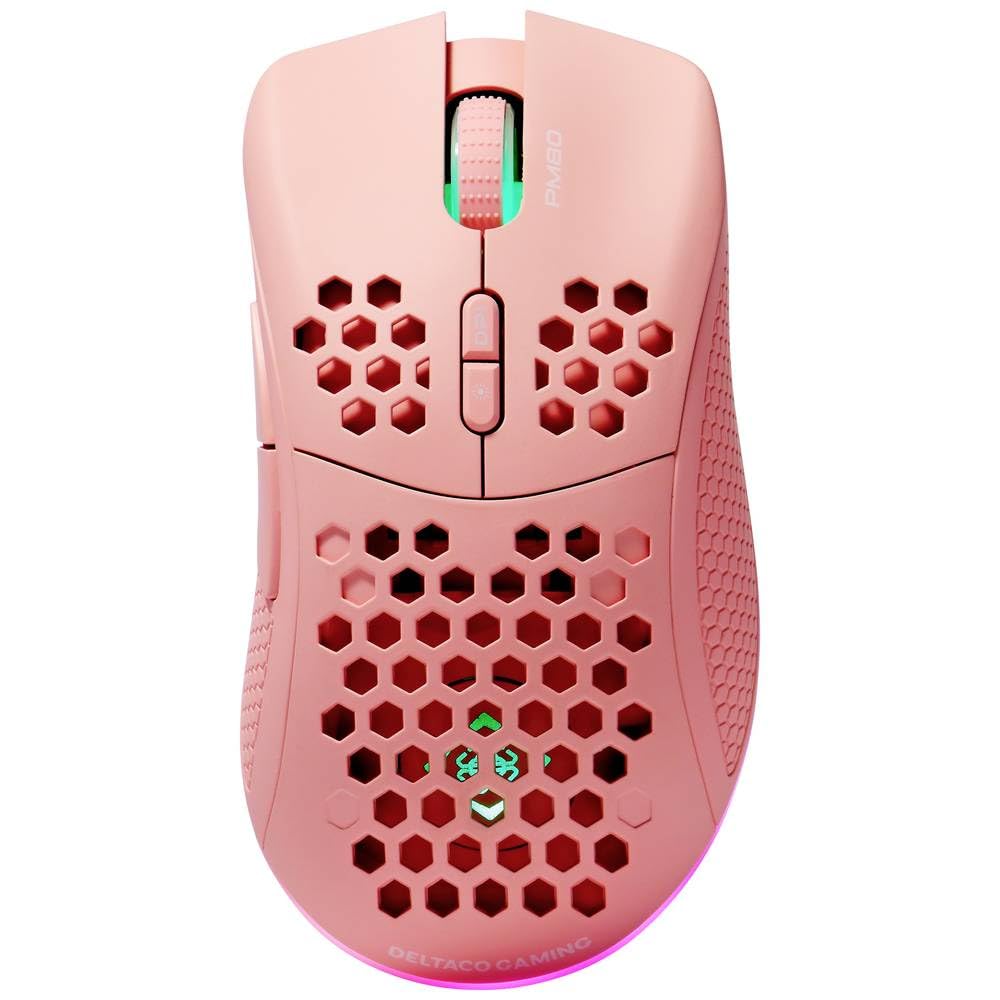
Image: DELTACO Gaming PM80 Wireless Optical Gaming Mouse. This image displays the mouse from a top-down perspective, highlighting its ergonomic design, the central scroll wheel, and the arrangement of its seven buttons.
버튼 기능:
- 왼쪽 클릭 버튼: 표준 기본 클릭 기능.
- 오른쪽 클릭 버튼: 표준 보조 클릭 기능.
- 스크롤 휠: 스크롤 기능을 하며, 마우스 가운데 버튼처럼 작동합니다.
- DPI 사이클 버튼: Changes the mouse's sensitivity (DPI).
- 앞으로 버튼: 앞으로 이동합니다 web 브라우저 또는 file 탐험가.
- 뒤로 버튼: 뒤로 탐색합니다 web 브라우저 또는 file 탐험가.
- Illumination Mode Button: Cycles through different lighting effects or turns illumination on/off.
4. 설정
4.1. 마우스 충전
- USB 충전 케이블의 작은 끝을 마우스 앞면의 충전 포트에 연결합니다.
- Connect the larger end of the USB charging cable to an available USB port on your computer or a USB wall adapter.
- The mouse's illumination will indicate charging status (e.g., breathing effect, specific color). A full charge typically takes 2-3 hours.
- Once fully charged, the illumination may change or turn off. Disconnect the charging cable.
4.2. USB 무선 수신기 연결하기
- 일반적으로 마우스 밑면의 수납 공간에 보관되어 있는 USB 무선 수신기를 찾으십시오.
- 수신기를 보관 슬롯에서 꺼내십시오.
- USB 무선 수신기를 컴퓨터의 사용 가능한 USB 포트에 꽂으세요.
- 컴퓨터가 필요한 드라이버를 자동으로 감지하여 설치합니다. 이 작업에는 몇 분 정도 걸릴 수 있습니다.
4.3. 전원 켜기 / 끄기
- 마우스 밑면에서 전원 스위치를 찾으세요.
- Slide the switch to the 'ON' position to power on the mouse. The illumination will light up.
- To conserve battery life, slide the switch to the 'OFF' position when the mouse is not in use for extended periods.
5. 사용 설명서
5.1. 기본 사용법
Once connected and powered on, the mouse is ready for use. Move the mouse on a flat surface to control the cursor on your screen. Use the left and right click buttons for primary and secondary actions, and the scroll wheel for navigation.
5.2. DPI 조정
The DPI (Dots Per Inch) setting determines the sensitivity of your mouse. The DELTACO Gaming PM80 offers multiple DPI levels up to 4800 DPI. To adjust the DPI:
- 를 누르세요 DPI 주기 버튼 (typically located behind the scroll wheel).
- Each press will cycle through the available DPI settings. The mouse's illumination may change color or flash to indicate the current DPI level.
- Select the DPI setting that best suits your preference for gaming or general use.
5.3. 조명 제어
The DELTACO Gaming PM80 features customizable illumination. To change the lighting effects:
- 를 누르세요 Illumination Mode Button (제품 설명 참조)view 위치).
- Each press will cycle through different lighting modes, such as static colors, breathing effects, or off.
6. 유지관리
6.1. 청소
- 청소하기 전에 마우스의 전원이 꺼져 있는지 확인하세요.
- 부드럽고 건조하며 보푸라기가 없는 천을 사용하여 마우스 표면을 닦으세요.
- 완고한 먼지에는 약간 damp천에 물이나 순하고 연마성이 없는 세제를 묻혀 닦아주세요. 과도한 습기는 피하세요.
- 독한 화학 물질, 용제 또는 연마제를 사용하지 마십시오. 이러한 것들은 마우스의 마감을 손상시킬 수 있습니다.
- 면봉이나 압축 공기를 사용하여 스크롤 휠과 버튼 틈새 주변을 청소하십시오.
6.2. 보관
When not in use for extended periods, store the mouse in a cool, dry place away from direct sunlight and extreme temperatures. Ensure the power switch is in the 'OFF' position to preserve battery life.
7. 문제 해결
- 마우스가 응답하지 않습니다.
- 마우스의 전원이 켜져 있는지 확인하세요.
- Check if the USB wireless receiver is securely plugged into a working USB port.
- Verify the mouse battery is charged. Connect the charging cable and try again.
- 수신기를 다른 USB 포트에 꽂아보세요.
- 컴퓨터를 다시 시작하세요.
- 지연 또는 간헐적 연결:
- Ensure the mouse is within close proximity to the USB receiver (ideally within 10 meters).
- 수신기를 다른 무선 장치나 간섭 발생원(예: Wi-Fi 라우터, 무선 전화기) 근처에 두지 마십시오.
- 마우스가 완전히 충전되었는지 확인하세요.
- 커서 움직임이 불규칙하거나 부정확합니다.
- 부드럽고 마른 천으로 마우스 밑면의 광학 센서를 닦으세요.
- 마우스를 적절한 표면(예: 마우스 패드)에서 사용하고 있는지 확인하세요. 반사율이 높거나 투명한 표면은 피하세요.
- 커서 속도가 너무 빠르면 DPI 설정을 더 낮은 감도로 조정하세요.
- Illumination not working:
- 마우스의 전원이 켜져 있는지 확인하세요.
- Press the Illumination Mode Button to cycle through modes, ensuring it's not set to 'off'.
- Check battery level; low battery might disable illumination.
8. 사양
| 특징 | 세부 사항 |
|---|---|
| 상표 | 델타코 게임 |
| 모델 번호 | 감-120-P |
| 연결성 | 무선(USB 수신기) |
| 센서 유형 | 광학 |
| 디피에이 | 최대 4800 DPI (조절 가능) |
| 버튼의 수 | 7 |
| 손의 방향 | 오른쪽 |
| 조명 | 예 |
| 충전식 | 예 |
| 필요한 배터리 | No (Internal Rechargeable) |
9. 보증 및 지원
For warranty information and technical support, please refer to the warranty card included with your product or visit the official DELTACO Gaming web사이트. 보증 청구를 위해 구매 증빙 자료를 보관하세요.


