소개
This manual provides detailed instructions for the setup, operation, and maintenance of your Taiahiro ML-981 Retro Mechanical Keyboard. Please read this guide thoroughly to ensure proper use and to maximize your keyboard's functionality.
패키지 내용
아래 나열된 모든 품목이 패키지에 포함되어 있는지 확인하세요.
- Taiahiro ML-981 Retro Mechanical Keyboard
- 사용자 설명서
- 키캡 풀러
- Spare Mechanical Blue Switches
- USB-C 전원 케이블
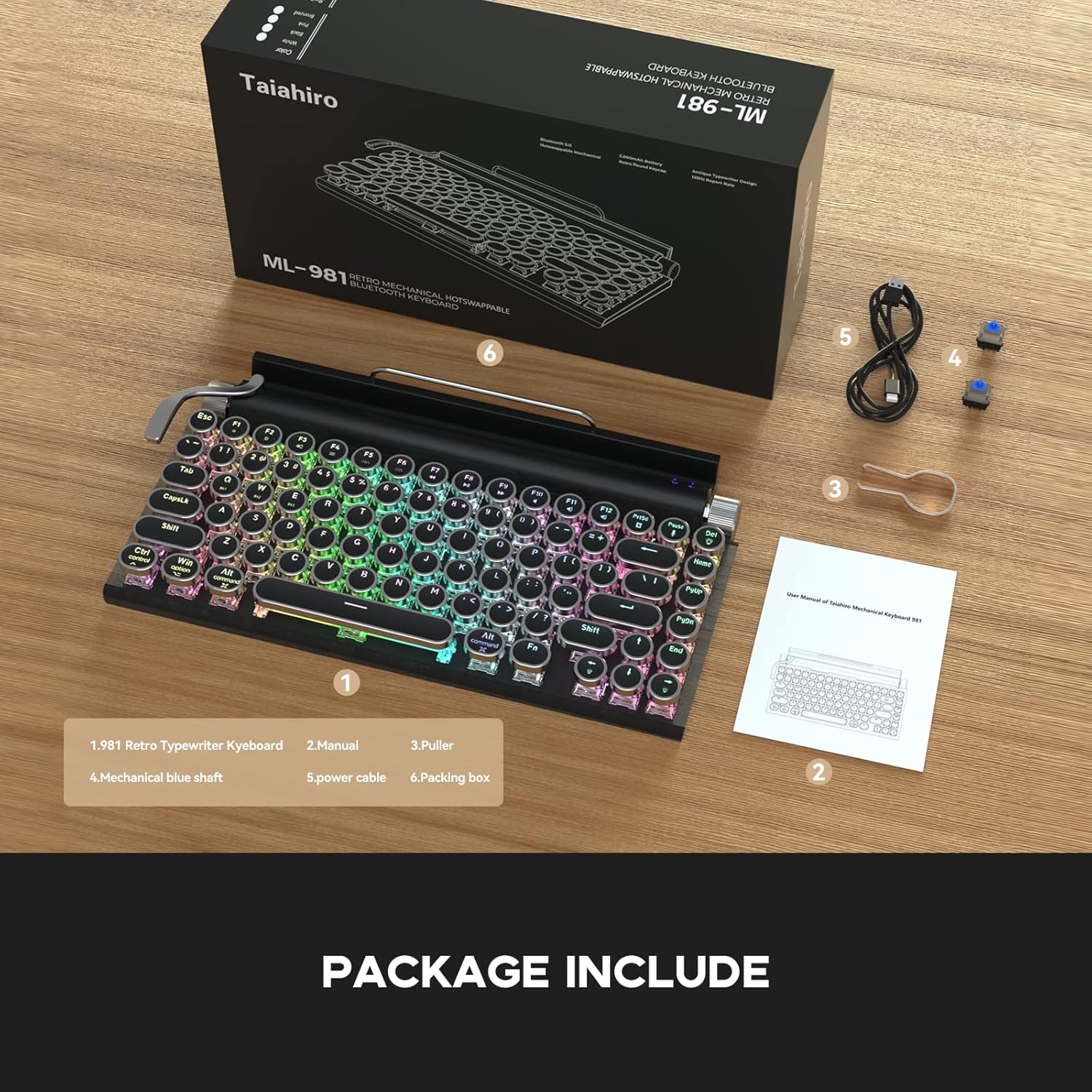
The image displays the Taiahiro ML-981 keyboard along with its accessories, including the user manual, keycap puller, spare mechanical blue switches, and USB-C charging cable.
제품 끝view
The Taiahiro ML-981 keyboard features a retro design with modern functionality, offering multiple connectivity options and customizable backlighting.
주요 특징:
- Dual-mode connectivity: USB-C wired and Bluetooth 5.0.
- Multi-device support: Connects up to 3 Bluetooth devices simultaneously.
- Integrated bracket for holding smartphones or tablets.
- Mechanical blue switches for tactile feedback.
- Adjustable RGB backlight with multiple lighting modes.
- Dedicated knobs for brightness and volume control.
- Compatibility with Windows, macOS, and Android operating systems.

This image illustrates the main features of the keyboard, such as its dual connectivity, multi-device pairing, and integrated stand.
키보드 구성 요소:
- 밝기 손잡이: Located on the right side, used to adjust backlight brightness.
- 볼륨 노브: Located on the right side, used to adjust audio volume.
- Backlight Lever: Located on the left side, used to cycle through backlight modes.
- 일체형 브래킷: Located at the top, designed to hold mobile devices.
- Wired Mode/Charging Port: 유선 연결 및 충전을 위한 USB-C 포트.
- System Switch Button: 윈도우 레이아웃과 맥 레이아웃 사이를 전환합니다.
- Power and Connection Switch Button: Controls power and switches between connection modes.

자세한 view of the keyboard's physical controls and ports, including the knobs, lever, and switches.
설정 및 연결
키보드 충전:
Connect the provided USB-C cable to the charging port on the keyboard and to a USB power source. The keyboard can be used while charging.
전원 켜기/끄기:
Locate the Power and Connection Switch Button on the side of the keyboard. Slide it to the 'ON' position to power on the device. Slide to 'OFF' to power off.
System Compatibility Switch:
Use the System Switch Button to select the appropriate operating system mode (Windows or Mac) for optimal key mapping.
유선 연결:
키보드의 USB-C 케이블을 컴퓨터의 USB 포트에 연결하세요. 키보드가 자동으로 유선 모드로 전환됩니다.
Bluetooth 5.0 연결:
The keyboard supports connecting up to three devices via Bluetooth. To pair a device:
- Ensure the keyboard is powered on and in Bluetooth mode (indicated by the Power and Connection Switch Button).
- On your device (PC, laptop, tablet, or phone), enable Bluetooth and search for available devices.
- Select 'Taiahiro Keyboard' from the list of devices.
- 화면의 지시에 따라 페어링 과정을 완료하세요.
To switch between paired Bluetooth devices, use the designated function keys (refer to the keyboard layout for specific key combinations, often Fn + 1/2/3).

This image demonstrates the keyboard's dual-mode connectivity, showing both wired USB-C and wireless Bluetooth 5.0 connections.

The image highlights the keyboard's ability to pair with multiple devices, such as a tablet and a smartphone, for seamless switching.
작동 지침
백라이트 제어:
The keyboard features multiple LED backlight modes. To adjust:
- 모드 변경: Pull the backlight lever (located on the left side) to cycle through different lighting effects.
- 밝기/속도 조정: Rotate the brightness knob (located on the right side) to increase or decrease the backlight intensity or animation speed.

This image displays the keyboard's vibrant LED backlighting, highlighting the various lighting modes available.
볼륨 조절:
Rotate the volume knob (located on the right side) to adjust the audio output volume of your connected device.
Using the Integrated Bracket:
The keyboard includes an integrated bracket at the top, designed to securely hold your smartphone or tablet while you type.
This video demonstrates the Taiahiro Retro Typewriter Keyboard in use, showcasing its typing experience and how it functions with a tablet and smartphone in the integrated holder.
유지
청소:
To clean your keyboard, power it off and disconnect it from any devices. Use a soft, dry cloth to wipe down the surface. For deeper cleaning, a slightly damp cloth can be used, ensuring no moisture enters the key switches or internal components. Avoid harsh chemicals.
스위치 교체:
The Taiahiro ML-981 keyboard features hot-swappable mechanical switches, allowing for easy replacement without soldering. Use the provided keycap puller to remove the keycap, then use the switch puller to carefully extract the switch. Align the pins of the new switch with the sockets and press firmly until it clicks into place. Replace the keycap.

This image illustrates the process of replacing a mechanical switch on the keyboard using the provided tools.
문제 해결
- 키보드가 Bluetooth를 통해 연결되지 않음:
Ensure the keyboard is charged and powered on. Verify that the Power and Connection Switch Button is in the correct Bluetooth mode. On your device, turn Bluetooth off and on again, then attempt to re-pair. Ensure no other devices are interfering with the connection. - 키가 응답하지 않음:
Check if the keyboard is properly connected (wired or Bluetooth). If using Bluetooth, ensure it's paired and selected. If wired, ensure the USB-C cable is securely connected. Try restarting the keyboard. - 백라이트가 작동하지 않거나 멈춤:
Ensure the keyboard is powered on. Try pulling the backlight lever to cycle through modes. Adjust the brightness knob. If the issue persists, power cycle the keyboard. - Incorrect key output (e.g., 'Z' types 'Y'):
Verify that the System Switch Button is set to the correct operating system (Windows or Mac) for your connected device.
명세서
| 제품 치수 | 12.6 x 7 x 1.5 인치 |
| 품목 무게 | 2.23파운드 |
| 제조업체 | 타이아히로 |
| 배터리 | 1개의 리튬 폴리머 배터리(포함) |
| 연결 기술 | 블루투스 5.0, USB-C 유선 |
| 키보드 설명 | 기계적 |
| 호환 장치 | 노트북, PC, 스마트폰, 태블릿 |
| 특별 기능 | Backlit, Integrated Stand, Round Key, Hot-swappable Switches |
| 색상 | 광택 있는 검은색 |
| 키보드 백라이팅 | RGB |
| 스타일 | 레트로 |
| 재료 | 금속 |
보증 및 지원
For warranty information and technical support, please refer to the contact details provided on the product packaging or the official Taiahiro web대지. 보증 청구를 위해 구매 영수증을 보관하십시오.


