1. 서론
This manual provides comprehensive instructions for the safe and efficient use of your MARKLIFE P50 Portable Bluetooth Thermal Label Printer. Please read this manual thoroughly before operating the device and retain it for future reference.
2. 안전 정보
- 기기를 분해, 수리, 개조하지 마세요.
- 기기를 물, 습기, 고온에 노출시키지 마세요.
- Use only MARKLIFE approved labels and accessories.
- 인쇄 직후에는 프린트 헤드가 뜨거울 수 있으므로 만지지 마십시오.
- 어린이의 손이 닿지 않는 곳에 보관하세요.
3. 패키지 내용
패키지에 모든 품목이 들어 있는지 확인하세요.
- MARKLIFE P50 라벨 프린터
- 3 Rolls of Labels (2x 1.57"x1.18" white gap labels, 1x 2"x2" circle gap label)
- USB-C 충전 케이블
- 사용 설명서 (본 문서)
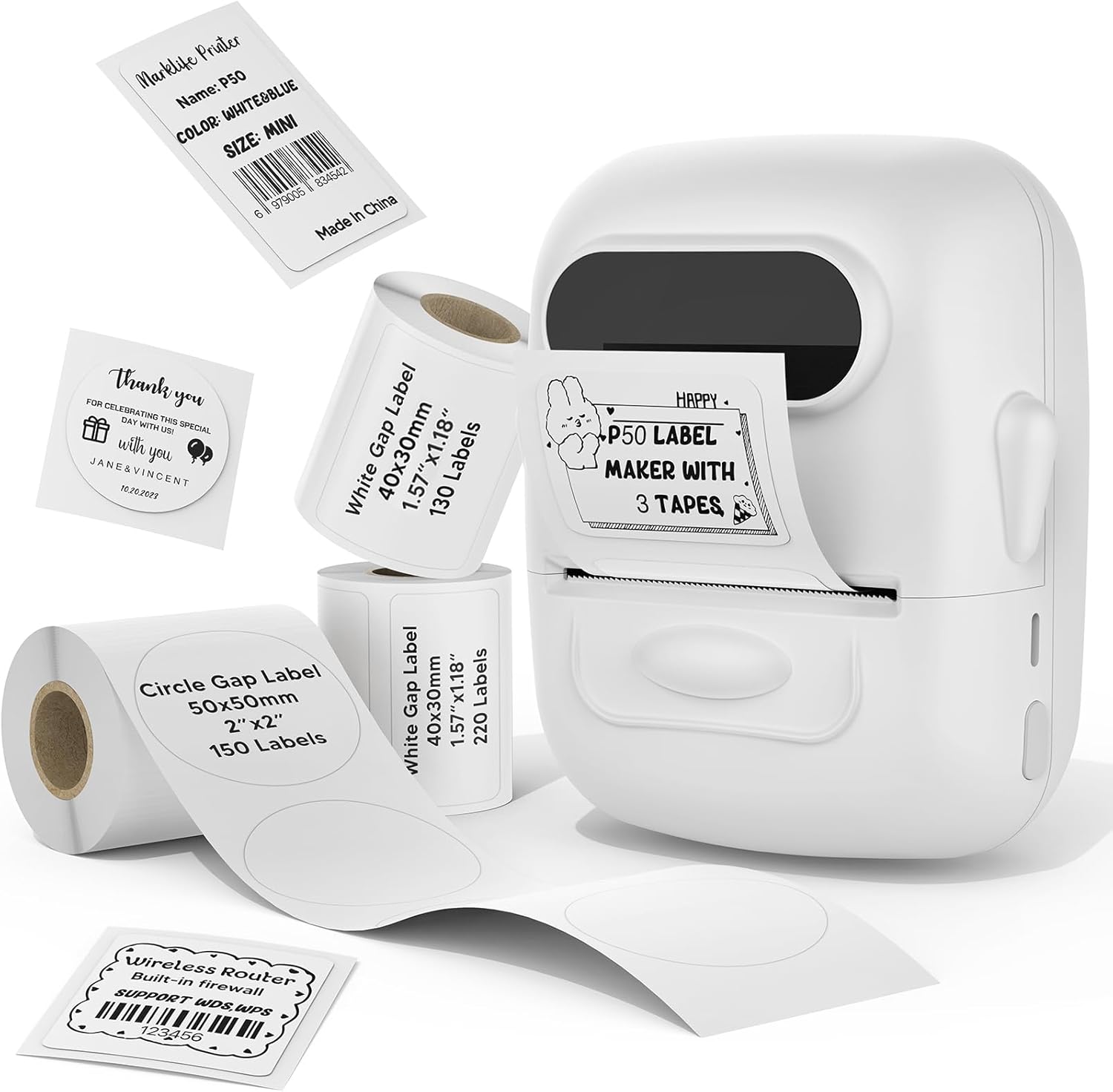
Image: MARKLIFE P50 Label Printer and various label rolls included in the package.
4. 제품 오버view
The MARKLIFE P50 is a compact, portable thermal label printer designed for various labeling needs. It connects wirelessly via Bluetooth to your smartphone or tablet and can also connect to a Windows PC via USB. It utilizes thermal printing technology, requiring no ink, and supports black and white printing only.

Image: The MARKLIFE P50 printer being placed into a handbag, highlighting its portable design and built-in 1200mAh battery with Type-C charging.
5. 설정
5.1 장치 충전
Before first use, fully charge the printer using the provided USB-C cable and a compatible power adapter (not included). The charging indicator light will show the charging status.
5.2 라벨 로딩
- 라벨 칸 덮개를 여세요.
- Insert the label roll with the printing surface facing upwards.
- Ensure the label edge is aligned and extends slightly out of the printer slot.
- Close the cover firmly. The printer will automatically detect the label type and size.

Image: Illustration of label loading and compatible label widths (0.59 to 2.24 inches) for the P50 printer.
5.3 App Installation and Bluetooth Pairing (for Mobile Devices)
- Download the "Marklife" app from your device's app store (iOS or Android).
- Turn on the P50 printer.
- 스마트폰이나 태블릿에서 블루투스를 활성화하세요.
- Open the Marklife app and follow the on-screen instructions to connect to your P50 printer. The app will typically detect the printer automatically.
5.4 PC Connection (for Windows)
For Windows PC connectivity, download the official software from the MARKLIFE website. Connect the printer to your PC using the USB-C cable. The software will guide you through the printing process.

Image: The P50 label printer connected to both a laptop and a smartphone, illustrating its support for mobile and PC devices.
6. 운영
6.1 Basic Printing (via App)
- Ensure the printer is powered on and connected to the Marklife app.
- Select a template or create a new label design within the app.
- 원하는 텍스트를 입력하고 이미지, 바코드 또는 QR 코드를 추가하세요.
- Adjust print settings (e.g., quantity, density) as needed.
- 앱에서 "인쇄" 버튼을 탭하여 인쇄를 시작하세요.

Image: Various label applications, such as clothing tags with barcodes, handmade soap labels, and price tags for baked goods, demonstrating the printer's versatility.
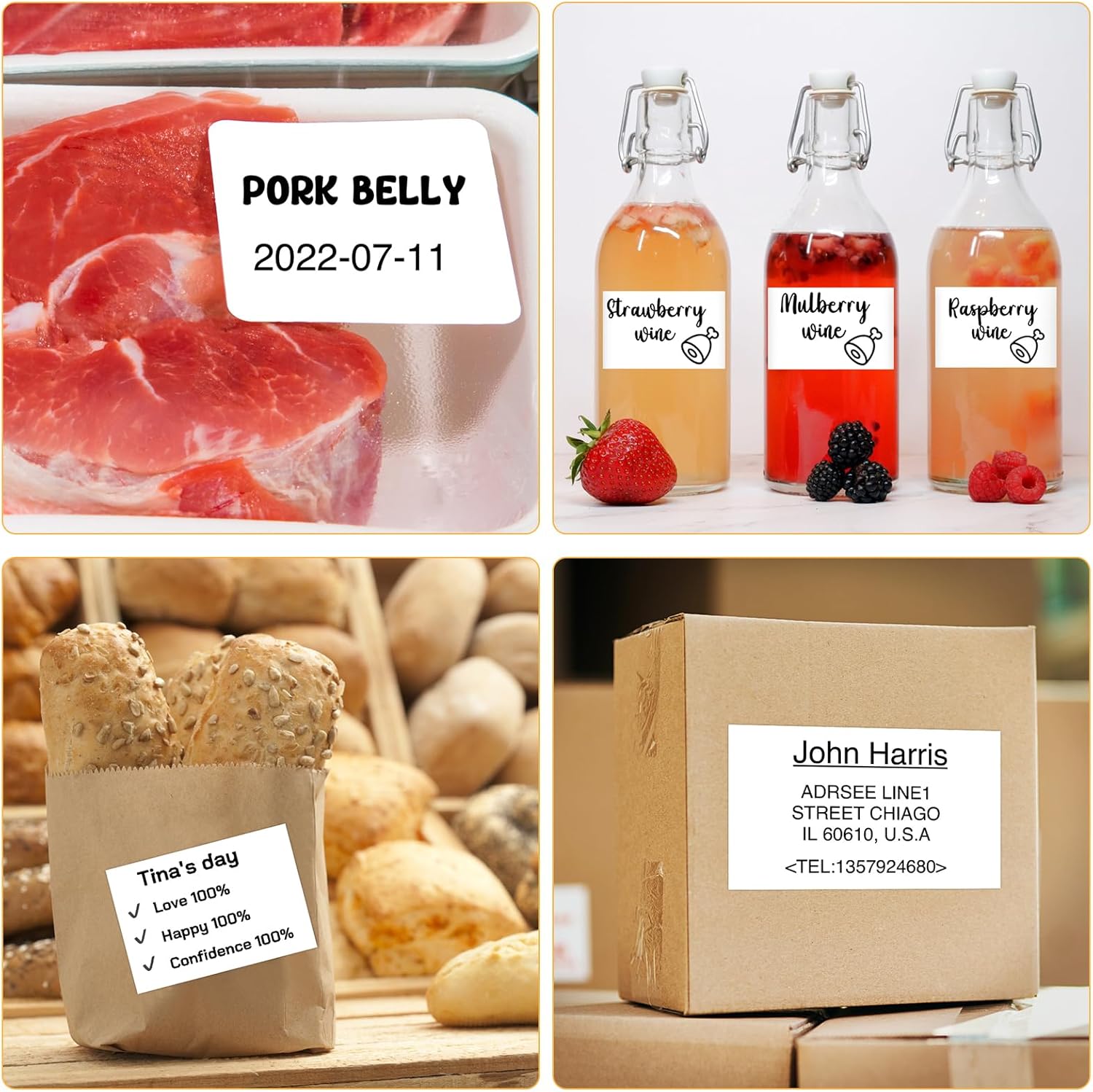
이미지: 전amples of labels for food items (pork belly, beverages) and a shipping address label, showcasing different label content possibilities.
6.2 일괄 인쇄
The Marklife app supports batch printing for multiple copies of the same label or sequential labels. Refer to the app's specific instructions for detailed steps on batch printing functionality.

Image: The MARKLIFE P50 printer actively printing multiple barcode labels in a batch, demonstrating stable printing over a long duration.
7. 유지관리
- 프린트 헤드 청소: 부드럽고 보풀이 없는 천을 살짝 사용하십시오. dampened with alcohol to gently wipe the print head. Ensure the printer is off and cooled down before cleaning.
- 외부 청소: Wipe the printer's exterior with a soft, dry cloth. Do not use harsh chemicals.
- 라벨 보관: Store label rolls in a cool, dry place away from direct sunlight to preserve their quality.
8. 문제 해결
| 문제 | 가능한 원인 | 해결책 |
|---|---|---|
| 프린터가 켜지지 않습니다 | 배터리 부족 또는 전원 문제 | Charge the printer using the USB-C cable. |
| 블루투스로 연결할 수 없습니다 | 블루투스가 꺼져 있거나, 앱에 문제가 있거나, 프린터를 찾을 수 없는 경우 | Ensure Bluetooth is enabled on your device. Restart the printer and the app. Try re-pairing. |
| 인쇄 품질이 좋지 않음 | Dirty print head, incorrect label loading, or low print density setting | Clean the print head. Re-load labels correctly. Adjust print density in the app. |
| 라벨이 제대로 공급되지 않음 | Improper label loading or label jam | Open the cover, re-seat the label roll, ensuring it's aligned. Clear any jammed labels. |
9. 사양
| 특징 | 세부 사항 |
|---|---|
| 모델 | 피50 |
| 인쇄 기술 | 열의 |
| 연결성 | 블루투스, USB |
| 호환 장치 | Android, iOS, Windows PC |
| 최대 미디어 크기 | 2인치(57mm) |
| Print Width Range | 0.59인치 - 2.24인치 (15mm - 57mm) |
| 프린터 출력 | 흑백 (모노크롬) |
| 배터리 | Built-in 1200mAh (rechargeable) |
| 충전 포트 | USB-C |
| 제품 치수 | 4"D x 3"W x 2"H (대략) |
| 품목 무게 | 6 온스(대략) |
10. 보증 및 지원
The MARKLIFE P50 Label Printer comes with a limited warranty. For warranty details, technical support, or customer service inquiries, please refer to the official MARKLIFE web사이트를 방문하거나 고객 지원팀에 직접 문의하세요. 구매 증빙 자료로 구매 영수증을 보관하세요.
제조업체: 마크라이프


