1. 서론
Thank you for choosing the Cherry KW 9100 Slim Wireless Rechargeable Keyboard. This extra-slim, low-profile keyboard is designed for Mac computers, offering versatile connectivity options and a comfortable typing experience. This manual provides essential information for setting up, operating, maintaining, and troubleshooting your new keyboard.
The keyboard features dual wireless connectivity (Bluetooth and 2.4 GHz wireless USB receiver), allowing you to easily switch between devices. It incorporates high-quality CHERRY SC scissor technology for quiet and precise keystrokes, and includes AES-128 encryption for secure data transmission. The integrated rechargeable battery provides weeks of use on a single charge, and the keyboard can be charged while in use via the included USB-A to USB-C cable.

Image 1.1: The Cherry KW 9100 Slim Wireless Rechargeable Keyboard, showcasin전체 레이아웃과 슬림 프로file.
2. 안전 정보
- Do not expose the keyboard to liquids, excessive moisture, or extreme temperatures.
- 키보드를 떨어뜨리거나 강한 충격을 주지 마세요.
- 키보드를 강한 자기장으로부터 멀리 두십시오.
- 키보드를 분해하거나 개조하지 마십시오. 그렇게 할 경우 보증이 무효화됩니다.
- 충전 시에는 제공된 USB-A-USB-C 케이블만 사용하십시오.
3. 패키지 내용
패키지에 모든 품목이 들어 있는지 확인하세요.
- Cherry KW 9100 Slim Wireless Rechargeable Keyboard
- USB-A to USB-C 케이블
- 2.4GHz 무선 USB 수신기
- Magnetic Strip (for angle adjustment)
- 사용 설명서 (본 문서)
4. 설정
4.1. 키보드 충전
Before first use, or when the battery indicator shows low power, connect the keyboard to a USB power source (e.g., computer USB port, USB wall adapter) using the provided USB-A to USB-C cable. The keyboard can be used while charging.
4.2. Connecting via 2.4 GHz Wireless USB Receiver
- Locate the 2.4 GHz wireless USB receiver.
- Insert the USB receiver into an available USB-A port on your Mac computer.
- On the keyboard, slide the connectivity switch (located on the side) to the 'RF' position.
- 키보드가 자동으로 컴퓨터에 연결됩니다.
4.3. 블루투스로 연결하기
Ensure your Mac computer has Bluetooth 4.0 or higher.
- On the keyboard, slide the connectivity switch (located on the side) to the 'BT' position.
- Mac에서 다음으로 이동하십시오. 시스템 설정 (또는 시스템 환경 설정) > 블루투스.
- 블루투스가 켜져 있는지 확인합니다.
- The keyboard should appear in the list of discoverable devices (e.g., "CHERRY KW 9100"). Select it to pair.
- 화면의 지시에 따라 페어링 과정을 완료하세요.

이미지 4.1: 측면 view of the keyboard, highlighting the RF/BT connectivity switch and the USB-C charging port.
4.4. 키보드 각도 조절
The keyboard includes a removable magnetic strip that can be attached to the underside to adjust the typing angle for improved ergonomics. Simply attach the strip to the designated area on the bottom of the keyboard.
5. 키보드 작동
5.1. Switching Between Connectivity Modes
Use the slide switch on the side of the keyboard to toggle between 'RF' (2.4 GHz wireless) and 'BT' (Bluetooth) modes. This allows you to seamlessly switch between two connected devices, for example, a laptop via Bluetooth and a desktop PC via the USB receiver.
5.2. Key Functions and Mac Layout
The keyboard features a Mac-specific layout, including Command, Option, and Control keys. The function keys (F1-F15) provide quick access to various system functions such as brightness, media control, and volume. Some function keys may require pressing the 'Fn' key simultaneously depending on your Mac's system settings.
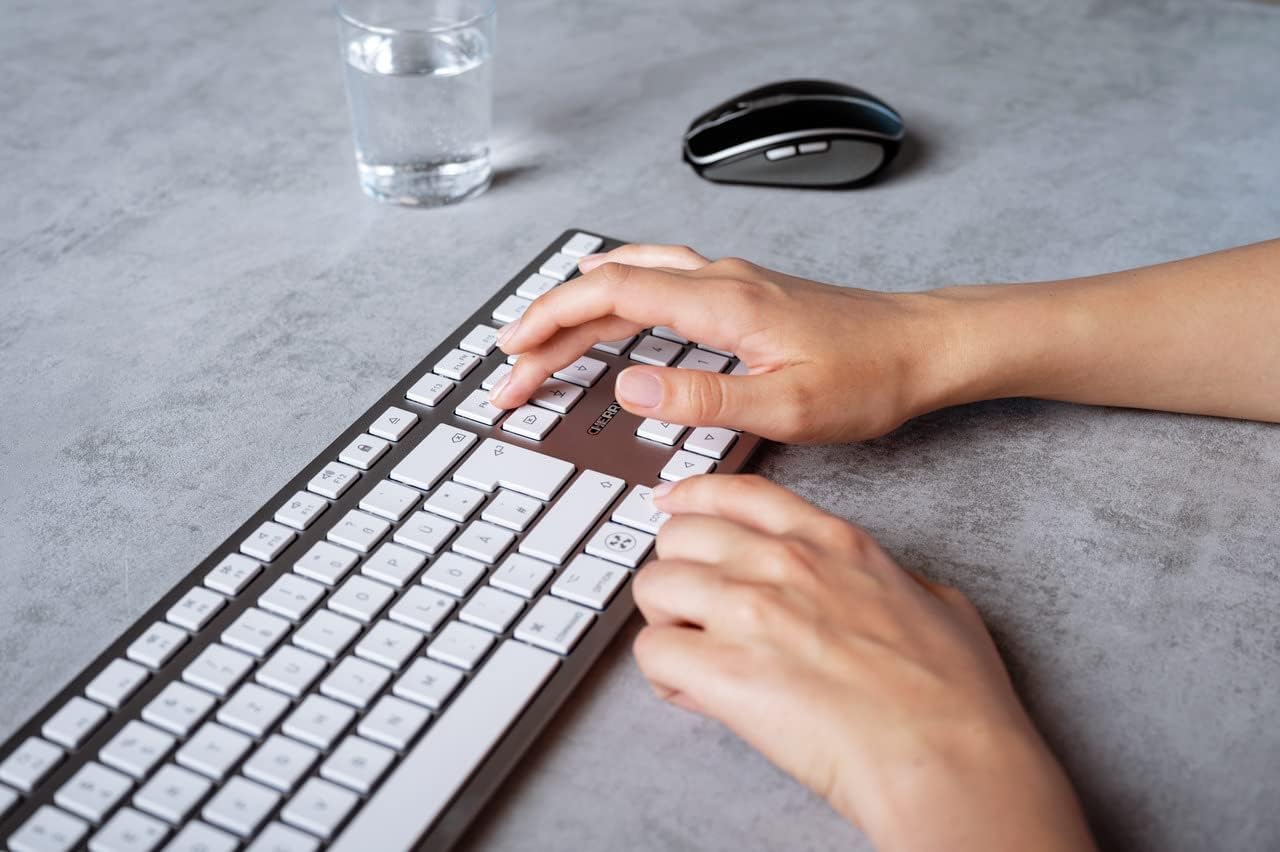
Image 5.1: A user typing on the Cherry KW 9100 keyboard, demonstrating its ergonomic design and key spacing.
5.3. 전원 관리
To conserve battery life, the keyboard will enter a sleep mode after a period of inactivity. To wake it up, simply press any key. The keyboard will reconnect automatically to the last active device.
6. 유지관리
6.1. 청소
키보드를 청소하려면 부드럽고 보풀 없는 천으로 표면을 살살 닦아주세요. 잘 지워지지 않는 얼룩은 살짝 두드려 닦아내세요.ampen the cloth with water or a mild, non-abrasive cleaning solution. Ensure no liquid enters the keyboard. Do not use harsh chemicals or abrasive materials.
6.2. 보관
When not in use for extended periods, store the keyboard in a dry, cool place. It is recommended to fully charge the battery before long-term storage.
7. 문제 해결
| 문제 | 가능한 원인 | 해결책 |
|---|---|---|
| Keyboard not connecting via 2.4 GHz. | USB receiver not properly inserted; keyboard switch in 'BT' mode; low battery. | Ensure receiver is fully inserted. Slide keyboard switch to 'RF'. Charge the keyboard. Try a different USB port. |
| 키보드가 Bluetooth로 연결되지 않습니다. | Keyboard switch in 'RF' mode; Bluetooth off on Mac; low battery; pairing issue. | Slide keyboard switch to 'BT'. Ensure Bluetooth is enabled on your Mac. Charge the keyboard. Remove and re-pair the keyboard in Mac's Bluetooth settings. |
| 키가 반응하지 않거나 반응이 느립니다. | Low battery; interference; keyboard in sleep mode. | Charge the keyboard. Move closer to the receiver/Mac. Press any key to wake the keyboard. |
| 기능 키(F1-F15)가 예상대로 작동하지 않습니다. | System settings; 'Fn' key usage. | Check your Mac's Keyboard settings (System Settings > Keyboard) for function key behavior. Try pressing the 'Fn' key simultaneously with the desired function key. |
| 배터리가 빨리 소모됩니다. | Frequent use; keyboard not entering sleep mode. | Ensure the keyboard is allowed to enter sleep mode when idle. Fully charge the keyboard. |
8. 사양
| 특징 | 세부 사항 |
|---|---|
| 모델 번호 | JK-9110US-1 |
| 상표 | 벚나무 |
| 연결 기술 | Bluetooth, USB-A (for receiver), USB-C (for charging) |
| 호환 장치 | Mac computers with Bluetooth 4.0 or higher and USB-A connections |
| 키보드 설명 | 로우프로file, extra-slim, wireless, scissor-switch keyboard with adjustable angle and rechargeable battery |
| 특징 | Magnetic (for angle adjustment), Travel |
| 색상 | 은 |
| 재료 | 금속, 플라스틱 |
| 제품 치수 | 17.32 x 5.12 x 0.59인치(44 x 13 x 1.5cm) |
| 품목 무게 | 1.94파운드(0.88kg) |
| 제조업체 | 벚나무 |
9. 보증 및 지원
Your Cherry KW 9100 Slim Wireless Rechargeable Keyboard is covered by a manufacturer's warranty. For detailed warranty information, technical support, or service inquiries, please visit the official Cherry web사이트를 방문하거나 고객 지원팀에 직접 문의하세요. 보증 청구를 위해 구매 증빙 자료를 보관하세요.
온라인 지원: www.cherry.de


