1. 서론
Thank you for choosing the Cherry KW 9100 Slim Wireless Keyboard. This manual provides essential information for setting up, operating, and maintaining your new keyboard. The KW 9100 Slim is designed for both work and home office environments, offering flexible connectivity options and a comfortable typing experience with its silent SX Scissor Mechanism.

그림 1.1: 상향식 view of the Cherry KW 9100 Slim Wireless Keyboard, showcasin전체 레이아웃과 세련된 디자인이 돋보입니다.
2. 패키지 내용
패키지에 모든 품목이 들어 있는지 확인하세요.
- Cherry KW 9100 Slim Wireless Keyboard
- USB 케이블(USB-A~USB-C)
- USB Receiver (2.4 GHz RF dongle)
- 사용 설명서(본 문서)
- Magnetic Support Bar (pre-attached or separate)
3. 주요 특징
- 이중 연결: Seamlessly switch between wireless RF (2.4 GHz) and Bluetooth transmission modes.
- 충전식 배터리: Built-in lithium rechargeable battery with USB-C connection for convenient charging.
- SX Scissor Mechanism: Cherry's proprietary low-profile scissor technology ensures a quiet and precise typing experience.
- Slim and Stable Design: 얇은 프로를 특징으로 합니다file with a built-in metal plate for maximum stability and rigidity.
- 조절 가능한 타이핑 각도: Includes a removable magnetic support bar for a steeper typing angle preference.
- 상태 LED: Integrated LEDs for CAPS LOCK, NUM, and SCROLL keys.
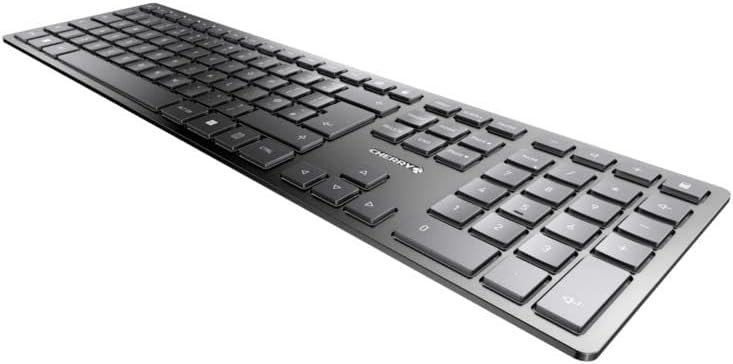
그림 3.1: 각도 view 슬림한 프로를 강조하다file and key layout of the keyboard.

그림 3.2: 클로즈업 view of the keys, illustrating the low-profile design and quiet SX Scissor Mechanism.
4. 설정 및 연결
4.1 키보드 충전
Before first use, it is recommended to fully charge the keyboard.
- Connect the supplied USB-A to USB-C cable to the USB-C port on the keyboard.
- Connect the other end of the cable to a USB-A port on your computer or a compatible USB power adapter.
- The charging indicator LED will illuminate. The keyboard can be used while charging.

Figure 4.1: Location of the USB-C charging port on the Cherry KW 9100 Slim keyboard.
4.2 Connecting via 2.4 GHz RF Wireless
For a stable and fast wireless connection, use the included USB receiver.
- Locate the USB receiver (dongle) in the package.
- USB 수신기를 컴퓨터의 사용 가능한 USB-A 포트에 꽂습니다.
- On the keyboard, locate the connectivity switch (usually on the back or side) and set it to the "RF" or 2.4 GHz icon position.
- 키보드가 자동으로 컴퓨터에 연결됩니다.
4.3 블루투스를 통한 연결
The keyboard supports Bluetooth connectivity for devices with Bluetooth capabilities.
- On the keyboard, set the connectivity switch to the "Bluetooth" icon position.
- The Bluetooth indicator LED on the keyboard will start blinking, indicating it's in pairing mode.
- 컴퓨터나 기기에서 Bluetooth 설정을 엽니다.
- 검색 new devices and select "Cherry KW 9100 Slim" from the list.
- 화면의 지시에 따라 페어링 과정을 완료하세요.
4.4 Attaching the Magnetic Support Bar
The keyboard comes with a magnetic support bar that can be attached to adjust the typing angle.
- Locate the magnetic support bar.
- Align the bar with the magnetic strip on the underside of the keyboard.
- The magnets will snap the bar into place, providing an elevated typing angle.
- To remove, simply pull the bar away from the keyboard.

그림 4.2: 측면 view of the keyboard demonstrating the elevated angle with the magnetic support bar attached.

Figure 4.3: Illustration of how the magnetic support bar attaches to the keyboard's underside.
5. 운영
5.1 기본 사용법
Once connected, the Cherry KW 9100 Slim functions as a standard keyboard. Type as you normally would.

Figure 5.1: A user demonstrating typing on the Cherry KW 9100 Slim keyboard in an office setting.
5.2 Function Keys (F-Keys)
The F-keys (F1-F12) on the top row may have secondary functions accessible by pressing the Fn key simultaneously. Refer to the keycap legends for specific functions such as media control, volume adjustment, or brightness control.
5.3 상태 LED
The keyboard features indicator LEDs for:
- 대문자 잠금: Caps Lock 키가 활성화되면 불이 켜집니다.
- NUM: Num Lock이 활성화되면 불이 켜집니다.
- 스크롤: Scroll Lock 키가 활성화되면 불이 켜집니다.
- Battery/Charging: 충전 상태 또는 배터리 부족을 나타냅니다.
6. 유지관리
6.1 키보드 청소
키보드의 외관과 기능을 유지하려면:
- 청소하기 전에 키보드를 컴퓨터에서 분리하세요.
- 부드럽고 털이 없는 천을 살짝 사용하세요.amp물 또는 순한 세척액으로 세척하십시오.
- 과도한 습기를 피하고 키보드에 세척제를 직접 분사하지 마십시오.
- 키 사이의 먼지와 이물질을 제거하려면 압축 공기를 사용하세요.
6.2 배터리 관리
The built-in rechargeable battery is designed for long life.
- Recharge the keyboard when the battery indicator shows low power.
- 배터리 수명을 연장하려면 배터리를 자주 완전히 방전시키지 마세요.
- 장기간 사용하지 않을 경우 키보드를 서늘하고 건조한 곳에 보관하십시오.
7. 문제 해결
| 문제 | 가능한 원인 | 해결책 |
|---|---|---|
| Keyboard not responding (RF) | USB receiver not plugged in; keyboard not in RF mode; low battery. | Ensure USB receiver is securely plugged in. Set keyboard switch to RF mode. Charge the keyboard. Try a different USB port. |
| 키보드가 응답하지 않음(블루투스) | Keyboard not in Bluetooth mode; not paired; out of range; low battery. | Set keyboard switch to Bluetooth mode. Ensure keyboard is paired with the device. Move keyboard closer to the device. Charge the keyboard. |
| 키가 눌리거나 반응하지 않습니다. | Debris under keys; liquid spill. | Clean the keyboard using compressed air. If liquid spill, disconnect immediately and allow to dry completely before use. Do not attempt to disassemble. |
| 배터리가 충전되지 않음 | Faulty USB cable or port; power source issue. | Try a different USB cable and/or USB port. Ensure the power source is active. |
8. 사양
| 특징 | 세부 사항 |
|---|---|
| 모델 번호 | JK-9100US-2 |
| 연결성 | Bluetooth, 2.4 GHz RF (with USB receiver), USB-C (for charging) |
| 키보드 설명 | Wireless, Full-size |
| 주요 메커니즘 | SX Scissor Mechanism |
| 키의 개수 | 108 |
| 색상 | 검은색 |
| 재료 | Metal (built-in plate) |
| 품목 무게 | 1.49파운드(약 676그램) |
| 패키지 크기 | 18.19 x 6.69 x 1.26 인치 |
| 제조업체 | 벚나무 |
| 호환 장치 | PC |
| 추천 용도 | Gaming, Office, Work |
9. 보증 및 지원
보증 정보 및 기술 지원에 대해서는 체리 공식 웹사이트를 참조하십시오. website or contact Cherry customer service. Keep your proof of purchase for warranty claims.
Official Cherry Web대지: www.cherry.de/en/
고객 서비스: 공식 연락처 섹션을 참조하세요. web지역 지원에 대한 자세한 내용은 사이트를 참조하세요.


