1. 서론
The SUPVAN E10 Label Maker is a compact and portable thermal label printer designed for various labeling needs in homes, offices, schools, and businesses. It connects wirelessly via Bluetooth to your smartphone or tablet, allowing you to design and print custom labels using the intuitive Katasymbol application. This manual provides detailed instructions on setting up, operating, maintaining, and troubleshooting your E10 Label Maker.
Key features include inkless thermal printing, automatic label size recognition, an integrated cutter, and a long-lasting rechargeable battery. The Katasymbol app offers a wide range of fonts, borders, templates, and icons to personalize your labels.
2. 설정 가이드
Follow these steps to set up your SUPVAN E10 Label Maker for first use.
2.1 언박싱 및 초기 검사
모든 구성품을 포장에서 조심스럽게 꺼내세요. 다음 품목이 모두 있는지 확인하세요.
- SUPVAN E10 Label Maker
- One label roll (pre-installed or included separately)
- USB 충전 케이블
- 사용 설명서 (본 문서)
Inspect the device for any visible damage. If any components are missing or damaged, please contact customer support.
2.2 장치 충전
Before first use, fully charge the label maker. Connect the provided USB cable to the charging port on the device and to a standard USB power adapter (not included) or a computer USB port. The charging indicator light will show the charging status.

Figure 2.1: The SUPVAN E10 Label Maker in use, demonstrating its compact size and the label printing process, alongside the companion mobile application.
The E10 features a built-in rechargeable lithium-ion battery, eliminating the need for disposable AA batteries found in older label makers.

Figure 2.2: Size and weight comparison of the SUPVAN E10 (left) against a traditional label maker (right), emphasizing its portability and the convenience of a rechargeable battery.
2.3 라벨 롤 설치
Open the label compartment cover. Insert the label roll with the adhesive side facing down and the leading edge of the label tape extending slightly out of the printer slot. Ensure the roll is seated correctly. Close the cover firmly.

그림 2.3: 내부 view of the label maker, illustrating the thermal printing technology, the precise integrated cutter, and the rechargeable battery, all contributing to its efficient operation.
2.4 앱 다운로드 및 연결
The SUPVAN E10 operates via the Katasymbol app. Download it from your device's app store:
- For iOS devices, search "Katasymbol" on the Apple App Store.
- For Android devices, search "Katasymbol" on the Google Play Store.
Once installed, open the app and enable Bluetooth on your smartphone. The app will guide you through connecting to your E10 Label Maker. Select "E10" from the list of available devices to pair.

Figure 2.4: The Katasymbol app on a smartphone, demonstrating the seamless Bluetooth connectivity with the SUPVAN E10 Label Maker for quick and intuitive label creation.

Figure 2.5: Step-by-step guide for app usage: 1. Download Katasymbol app, 2. Connect via Bluetooth, 3. Utilize diverse editing features, 4. Print your label.
3. 사용 설명서
The Katasymbol app provides a comprehensive interface for designing and printing labels.
3.1 Designing Your Label
Within the Katasymbol app, you can:
- 텍스트 입력 : 원하는 텍스트를 입력하세요.
- 글꼴: Choose from over 40 fonts to customize your text style.
- 테두리 및 프레임: Select from over 50 borders and frames to enhance your label's appearance.
- 아이콘 및 기호: Access over 700 icons and symbols for visual representation.
- 템플릿: Utilize over 150 pre-designed templates for quick label creation.
- QR & Barcodes: Generate QR codes and barcodes directly from the app.
- Continuous or Fixed Length: Define labels with continuous length or fixed sizes, depending on your needs.
- 일괄 인쇄 : 여러 개의 라벨을 효율적으로 인쇄하세요.

Figure 3.1: The Katasymbol app's rich editing features, including a wide selection of fonts, QR code generation, numerous symbols, and customizable frames, enabling diverse label designs.
3.2 Printing Your Label
Once your design is complete, tap the print button in the app. The E10 Label Maker will automatically recognize the label size and print your design using thermal technology, which means no ink or toner is required.
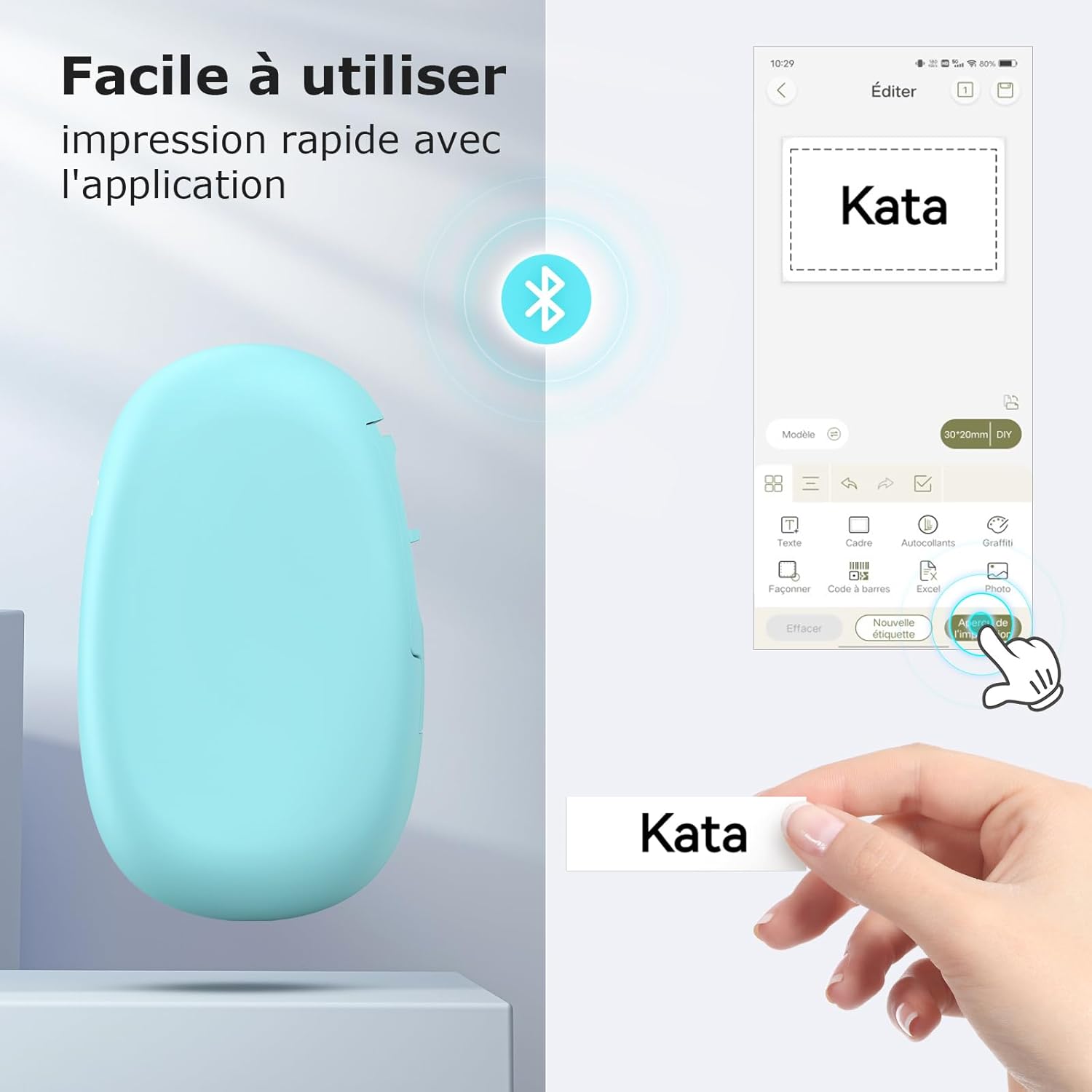
Figure 3.2: Comparison highlighting SUPVAN's continuous label roll (15mm x 6m) that allows for any length and cut, versus fixed-size labels offered by other brands.
3.3 Label Applications
The SUPVAN E10 is versatile and suitable for a wide range of applications:
- 홈 정리: Label storage boxes, pantry items, spice jars, and personal belongings.
- 주방: Organize food containers, ingredients, and meal prep items.
- School & Office: 상표 files, folders, school supplies, and personal items.
- DIY & Crafts: Perfect for creative projects and organizing craft supplies.
- 원예: Label plants and garden tools.
- 사업: 가격 생성 tags, address labels, product labels, and labels with company logos.
- 특별한 행사: Design personalized labels for gifts and festive events.

그림 3.3: 예amples of label usage in the kitchen and for home organization, including labeling bottles, storage boxes, food containers, and spice jars.

Figure 3.4: Diverse applications of the label maker, including organizing cables, personalizing school bags, labeling office files, and creating labels for envelopes and stationery.

Figure 3.5: Additional label applications for daily life, such as organizing medication, personalizing phone cases, labeling light switches, and tidying cosmetic products.

Figure 3.6: Specialized label uses, including school name tags, food expiration dates, supplement reminders, and custom designs for festive occasions.
4. 유지관리
Proper maintenance ensures the longevity and optimal performance of your SUPVAN E10 Label Maker.
4.1 프린트 헤드 청소
The E10 uses thermal printing technology, which means no ink cartridges are needed. However, dust or adhesive residue can accumulate on the print head over time, affecting print quality. To clean the print head:
- 장치를 끄세요.
- 라벨 칸 덮개를 여세요.
- 면봉으로 프린트 헤드를 부드럽게 닦아주세요.amp이소프로필 알코올로 소독함.
- Allow it to dry completely before closing the cover and turning on the device.
4.2 배터리 관리
The built-in lithium-ion battery provides long-lasting power, with up to one month of standby time. To maximize battery life:
- 특히 장기간 보관할 경우 기기를 정기적으로 충전하세요.
- 배터리를 자주 완전히 방전시키지 마세요.
- 극한의 온도를 피해 서늘하고 건조한 곳에 보관하세요.
4.3 Label Durability
SUPVAN labels are designed for durability. They are:
- Waterproof and Oil-resistant: Suitable for use in kitchens and other environments where exposure to liquids is possible.
- 강력한 접착력: Ensures labels stay in place.
- No Residue: Labels can be removed without leaving sticky residue.
- Fade-resistant: Designed to maintain legibility over time.

Figure 4.1: The SUPVAN E10 labels are waterproof, as demonstrated by a label remaining intact on a glass being washed.

Figure 4.2: Key durability features of SUPVAN labels: resistant to water and oil, easy to remove, leaves no sticky residue, and anti-scratch.

Figure 4.3: A comparison showing the clear, professional appearance of a printed label versus the potential smudging of a handwritten label.
5. 문제 해결
If you encounter issues with your SUPVAN E10 Label Maker, refer to the following common problems and solutions.
5.1 연결 문제
- 장치가 Bluetooth를 통해 연결되지 않음:
- 스마트폰/태블릿에서 블루투스가 활성화되어 있는지 확인하십시오.
- Make sure the label maker is turned on and within range (typically 10 meters).
- Restart both the label maker and your smartphone/tablet.
- Forget the device in your phone's Bluetooth settings and try pairing again through the Katasymbol app.
- Ensure the Katasymbol app has Bluetooth permissions enabled in your phone's settings.
5.2 인쇄 품질 문제
- Faint or incomplete printing:
- Check if the label roll is installed correctly and not running out.
- Clean the print head as described in the Maintenance section (4.1).
- Ensure the device battery is sufficiently charged. Low battery can affect print quality.
- Verify print density settings in the Katasymbol app, if available.
- Blank labels being printed:
- Ensure the label roll is inserted with the correct side facing the print head (thermal side up).
- Check if there is any text or design entered in the Katasymbol app before printing.
5.3 Label Feeding Issues
- Labels not feeding or jamming:
- Open the label compartment and ensure the label roll is properly seated and not tangled.
- Remove any loose label pieces or debris from the feeding path.
- Ensure you are using compatible SUPVAN label rolls (15mm width).
If the issue persists after trying these steps, please contact SUPVAN customer support.
6. 사양
| 특징 | 사양 |
|---|---|
| 모델 번호 | E10 |
| 치수(길이 x 너비 x 높이) | 4 x 11 x 17cm |
| 무게 | 167그램 |
| 연결 기술 | 블루투스, USB |
| 호환 장치 | Android, iOS Smartphones |
| 인쇄 기술 | 열의 |
| 최대 미디어 크기 | 15mm x 6m |
| 최대 인쇄 해상도(흑백) | 203dpi |
| 최대 인쇄 속도(흑백) | 60 Pages per minute (equivalent) |
| 전력 소비 | 5와트 |
| 배터리 유형 | 리튬이온 |
| 포함된 구성 요소 | 라벨 |
| 특별 기능 | Portable, Inkless Printing, Integrated Cutter |
7. 보증 및 지원
7.1 제조업체 보증
The SUPVAN E10 Label Maker comes with a 2년 제조사 보증. 본 보증은 정상적인 사용 환경에서 발생하는 재료 및 제조상의 결함에 적용됩니다. 보증 청구를 위해 구매 증빙 서류를 보관해 주십시오.
For detailed warranty terms and conditions, please refer to the warranty card included with your product or visit the official SUPVAN web대지.
7.2 고객 지원
If you have any questions, require technical assistance, or need to report an issue, please contact SUPVAN customer support. Responsive customer service and video tutorials are available to assist you.
You can typically find contact information on the SUPVAN official website or through the Katasymbol app's help section.
For more information and to explore other SUPVAN products, visit the SUPVAN Brand Store.


