소개
This manual provides essential information for setting up, operating, maintaining, and troubleshooting your HP 17.3-inch laptop. This device is designed for business and educational use, offering robust performance and connectivity.

Figure 1: HP 17.3-inch Laptop Overview. This image displays the laptop open, revealing the large screen and full-size keyboard with a numeric keypad.
상자 안에 무엇이 들어있나요?
모든 품목이 포장에 들어 있는지 확인하세요.
- HP 17.3-inch Laptop
- 전원 어댑터 및 케이블
- 빠른 시작 가이드(별도로 포함될 수 있음)
설정
- 전원 연결: Plug the power adapter into the laptop's power port and then into a wall outlet. Allow the battery to charge for at least 30 minutes before first use.
- 전원 켜기: 노트북 덮개를 열고 일반적으로 키보드 데크에 있는 전원 버튼을 누릅니다.
- 초기 Windows 설정: 화면의 안내에 따라 언어, 지역, 네트워크 연결 및 사용자 계정 생성 등 Windows 10 Pro 설정을 완료하십시오.
- Wi-Fi에 연결: During setup or afterward, select your Wi-Fi network from the available list and enter the password. The laptop supports Wi-Fi 5 (802.11ac).
- 지문 인식기 설정: If desired, configure the fingerprint reader for secure login through Windows Settings.
- 주변기기 연결: Use the available ports to connect external devices such as a mouse, keyboard, external display, or USB storage.

Figure 2: Left Side Ports. This image shows the left side of the laptop, featuring a USB 3.0 Type-A port, an HDMI port, a USB 3.0 Type-C port, and a headphone/microphone combo jack.

Figure 3: Right Side Ports. This image displays the right side of the laptop, including a USB 3.0 Type-A port, the power input, and various status indicator LEDs.
노트북 작동하기
전원 관리
- 전원 켜기/끄기: Press the power button to turn the laptop on. To turn off, go to the Start Menu in Windows and select Power > Shut down.
- 수면 모드 : Close the lid or select Power > Sleep from the Start Menu to put the laptop into a low-power state.
- 다시 시작: Select Power > Restart from the Start Menu to reboot the system.
키보드 및 터치패드
- 이 노트북은 숫자 키패드가 포함된 풀사이즈 키보드를 갖추고 있습니다.
- 터치패드는 탐색을 위한 멀티터치 제스처를 지원합니다. 사용자 지정 방법은 Windows 설정을 참조하십시오.
디스플레이 및 그래픽
- The 17.3-inch Full HD (1920 x 1080) IPS anti-glare display provides wide view각도를 나타냅니다.
- Adjust display settings (brightness, resolution) through Windows Display Settings.
- The integrated AMD Radeon graphics handle visual processing.
연결성
- 와이파이: Connect to wireless networks via Wi-Fi 5 (802.11ac). Manage connections through the network icon in the taskbar.
- 블루투스: Pair Bluetooth devices (e.g., headphones, mouse) via Windows Bluetooth settings.
- USB 포트: Utilize the USB 3.0 Type-C and Type-A ports for data transfer and connecting peripherals.
- HDMI : HDMI 포트를 사용하여 외부 모니터 또는 프로젝터를 연결하십시오.
- 오디오 잭 : Use the headphone/microphone combo jack for audio output and input.
Web캠 및 오디오
- The TrueVision HD Camera is suitable for video calls and online meetings.
- Tuned stereo speakers provide audio output. Adjust volume via the taskbar icon or keyboard function keys.
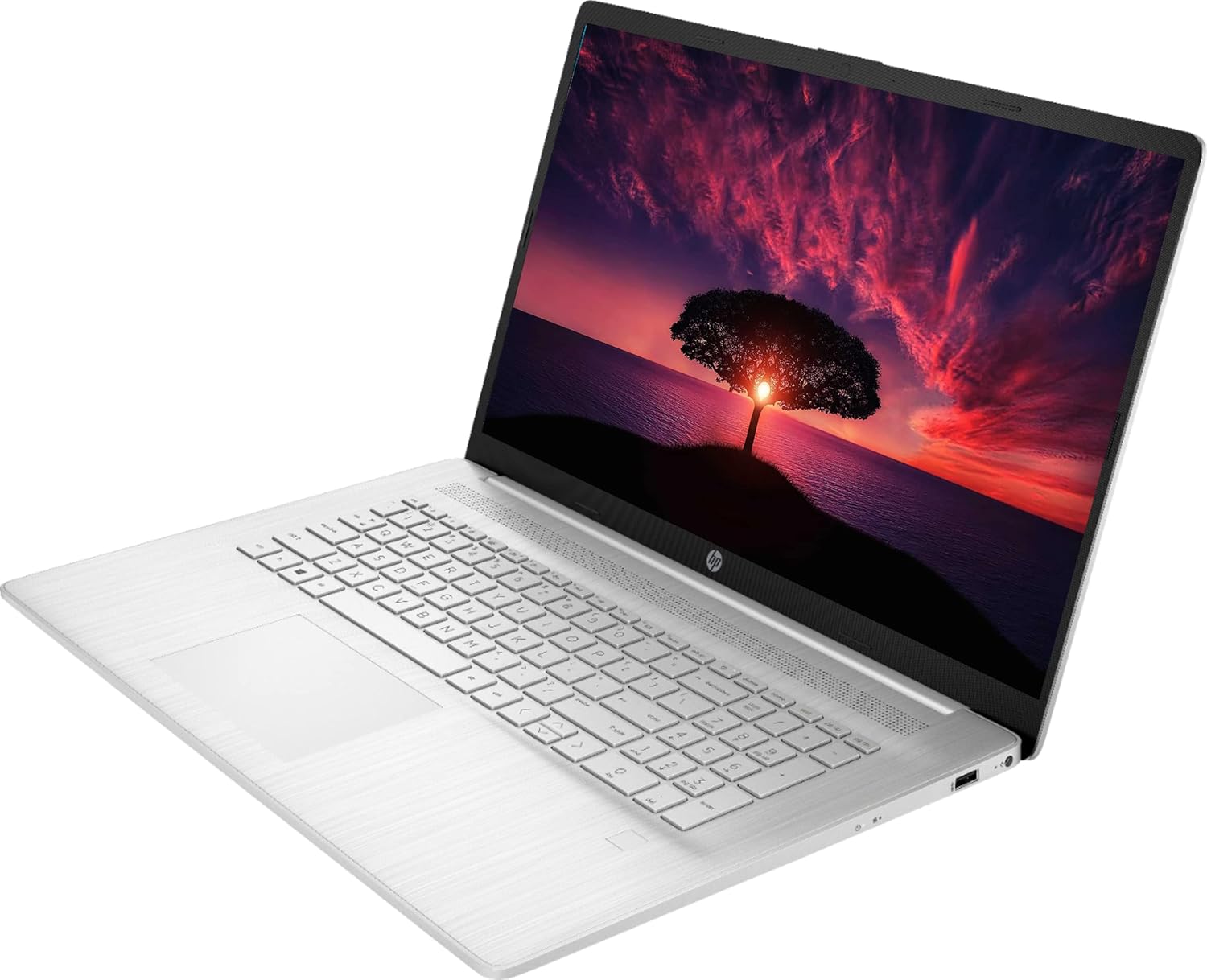
Figure 4: Laptop in Use. This image shows the HP laptop open at an angle, highlighting the display and the keyboard layout during operation.
유지
청소
- 화면: 부드럽고 보풀이 없는 천을 살짝 사용하십시오. damp물이나 화면 세척제로 닦아주세요. 화면에 직접 액체를 분사하지 마세요.
- 키보드 및 섀시: 부드럽고 마른 천을 사용하세요. 잘 지워지지 않는 오염의 경우, 약간amp 순한 비누 용액을 묻힌 천을 사용하여 액체가 구멍으로 들어가지 않도록 하세요.
- 연마성 세척제나 용매는 피하세요.
배터리 관리
- 배터리 수명을 연장하려면 극한의 온도를 피하세요.
- 노트북을 장시간 100% 충전 상태로 계속 충전기에 꽂아두지 마십시오.
- 배터리를 주기적으로 약 20% 정도까지 방전시킨 후 충전하십시오.
소프트웨어 업데이트
- Regularly check for and install Windows updates via Windows Settings > Update & Security.
- Ensure drivers are up-to-date. HP provides driver updates through its support website or pre-installed utility software.
스토리지 관리
- 주기적으로 불필요한 것들을 정리하세요 files and applications to maintain optimal performance of the 1TB SSD.
- Consider external storage for large backups.
문제 해결
| 문제 | 가능한 해결책 |
|---|---|
| 노트북의 전원이 켜지지 않습니다. | 전원 어댑터가 노트북과 작동하는 콘센트에 제대로 연결되어 있는지 확인하십시오. 콘센트가 제대로 작동하는지 확인하고, 다른 콘센트에 연결해 보십시오. |
| 화면에 아무것도 표시되지 않습니다. | Check if the laptop is powered on. Adjust screen brightness using function keys. If an external monitor is connected, ensure it's properly connected and selected as the output. |
| Wi-Fi 연결 문제. | Verify Wi-Fi is enabled in Windows settings. Restart your router and modem. Ensure you are within range of the Wi-Fi signal. Re-enter the Wi-Fi password. |
| 오디오가 작동하지 않습니다. | Check volume levels in Windows and on any connected external speakers/headphones. Ensure correct audio output device is selected in Sound settings. Update audio drivers. |
| Laptop is slow or unresponsive. | Close unnecessary applications. Check Task Manager for high CPU/RAM usage. Ensure Windows and drivers are up to date. Run a system scan for malware. Consider restarting the laptop. |
| 지문 인식기가 작동하지 않습니다. | Ensure your finger is clean and dry. Re-enroll your fingerprint in Windows Settings > Accounts > Sign-in options. Update fingerprint reader drivers. |
명세서
| 모델명 | HP 17 |
| 프로세서 | AMD Ryzen 5 5500U (4 GHz, 6 Cores) |
| 숫양 | 32GB DDR4 |
| 저장 | 1TB SSD |
| 표시하다 | 17.3인치 FHD(1920 x 1080) IPS 눈부심 방지 디스플레이 |
| 제도법 | 통합 AMD Radeon 그래픽 |
| 운영 체제 | 윈도우 10 프로 |
| 무선 연결 | Wi-Fi 5(802.11ac), 블루투스 4.2 |
| 포트 | 2 x USB 3.0 Type-C, 1 x USB 3.0 Type-A, 1 x HDMI, 1 x Headphone/Microphone Combo Jack |
| Web캠 | TrueVision HD Camera |
| 특별 기능 | 지문 판독기 |
| 배터리 수명(평균) | 최대 8.13시간 |
| 치수(길이x너비x높이) | 15.78 x 0.78 x 10.15 인치 |
| 무게 | 7.58파운드 |
보증 및 지원
Your HP 17.3-inch laptop comes with a 1년 제조사 보증보증 청구, 기술 지원 또는 추가 지원이 필요하시면 HP 공식 지원 페이지를 방문하십시오. web사이트를 방문하거나 HP 고객 서비스에 문의하세요.
HP 지원 Web대지: 지원.hp.com
Please have your product's serial number ready when contacting support. The serial number is typically located on a sticker on the bottom of the laptop or can be found in the system information within Windows.