1. 서론
This manual provides comprehensive instructions for the PANTUM M6500NW Multifunction Laser Printer. It covers setup, operation, maintenance, and troubleshooting to ensure optimal performance of your device. The PANTUM M6500NW is designed for small home offices, offering print, copy, and scan functionalities with Ethernet, Wi-Fi, and USB 2.0 connectivity.

Image: The PANTUM M6500NW Multifunction Laser Printer, a compact black device with an open scanner lid, control panel, and paper tray.
2. 설정
2.1 언박싱 및 초기 준비
Carefully unpack the printer and all accessories from the box. Remove all protective packaging materials, including tapes and foam inserts, from the exterior and interior of the printer.
Video: This video demonstrates the unboxing process, removal of protective materials, and initial setup steps for the PANTUM M6500 Series printer.
2.2 토너 카트리지 설치
- 프린터의 앞면 덮개를 엽니다.
- Locate the toner cartridge slot.
- 새 토너 카트리지를 수평으로 5~6회 부드럽게 흔들어 토너가 고르게 분산되도록 하십시오.
- Remove the protective seal and any orange protective covers from the toner cartridge.
- 토너 카트리지를 프린터에 딸깍 소리가 날 때까지 삽입합니다.
- 앞면 덮개를 닫습니다.

Image: A PANTUM PA-210 toner cartridge next to printed documents, illustrating print quality and toner compatibility.
2.3 용지 넣기
- Open the paper tray located at the bottom front of the printer.
- 적재하려는 용지 크기에 맞게 용지 가이드를 조정하세요.
- Fan the paper stack to prevent jams.
- Load the paper into the tray, ensuring it is aligned with the guides.
- 용지함을 닫습니다.
2.4 드라이버 설치
To use your PANTUM M6500NW printer, you need to install the appropriate drivers on your computer. There are two primary methods:
- Using the included CD-ROM: Insert the driver CD into your computer's CD drive and follow the on-screen instructions.
- Downloading from the official PANTUM web대지: 방문하다 global.pantum.com/support/download/driver/, search for "M6500NW", and download the latest driver for your operating system.

Image: Visual guide for installing the printer driver on a PC, showing options for USB connection, wired network, and Wi-Fi.
2.5 연결 옵션
The PANTUM M6500NW offers versatile connectivity:
- USB 2.0: USB 케이블을 사용하여 프린터를 컴퓨터에 직접 연결하세요.
- 이더넷: 프린터를 이더넷 케이블을 사용하여 네트워크 라우터에 연결하면 네트워크를 공유할 수 있습니다.
- 와이파이: Connect wirelessly to your network for convenient printing from multiple devices.

Image: Diagram illustrating USB, Ethernet, and Wi-Fi connectivity options for the PANTUM M6500NW printer.
2.6 Mobile App Setup (Wi-Fi)
For mobile printing, download the Pantum APP from your device's app store or the official Pantum website. Follow these steps to connect via Wi-Fi:
- 프린터 전원이 켜져 있는지 확인하십시오.
- Open the Pantum APP on your mobile device.
- Select "Add a printer" and follow the on-screen prompts to connect to the printer's Wi-Fi hotspot (e.g., "DIRECT-bc-Pantum M6500NW Series").
- Enter the default password if prompted (check printer's network configuration report for details).
- Once connected to the printer's hotspot, the app will guide you to connect the printer to your home Wi-Fi router.
- After successful connection, you can print directly from your mobile device.

Image: Steps for connecting the PANTUM M6500NW printer to a Wi-Fi router via the mobile app.
3. 사용 설명서
3.1 인쇄
- 컴퓨터에서: After driver installation, select the PANTUM M6500NW from your printer list in any application and choose your desired print settings.
- 모바일 기기에서: Use the Pantum APP to select documents or images for printing. Ensure your device is connected to the same Wi-Fi network as the printer.
- The printer supports monochrome printing at speeds up to 22 pages per minute.
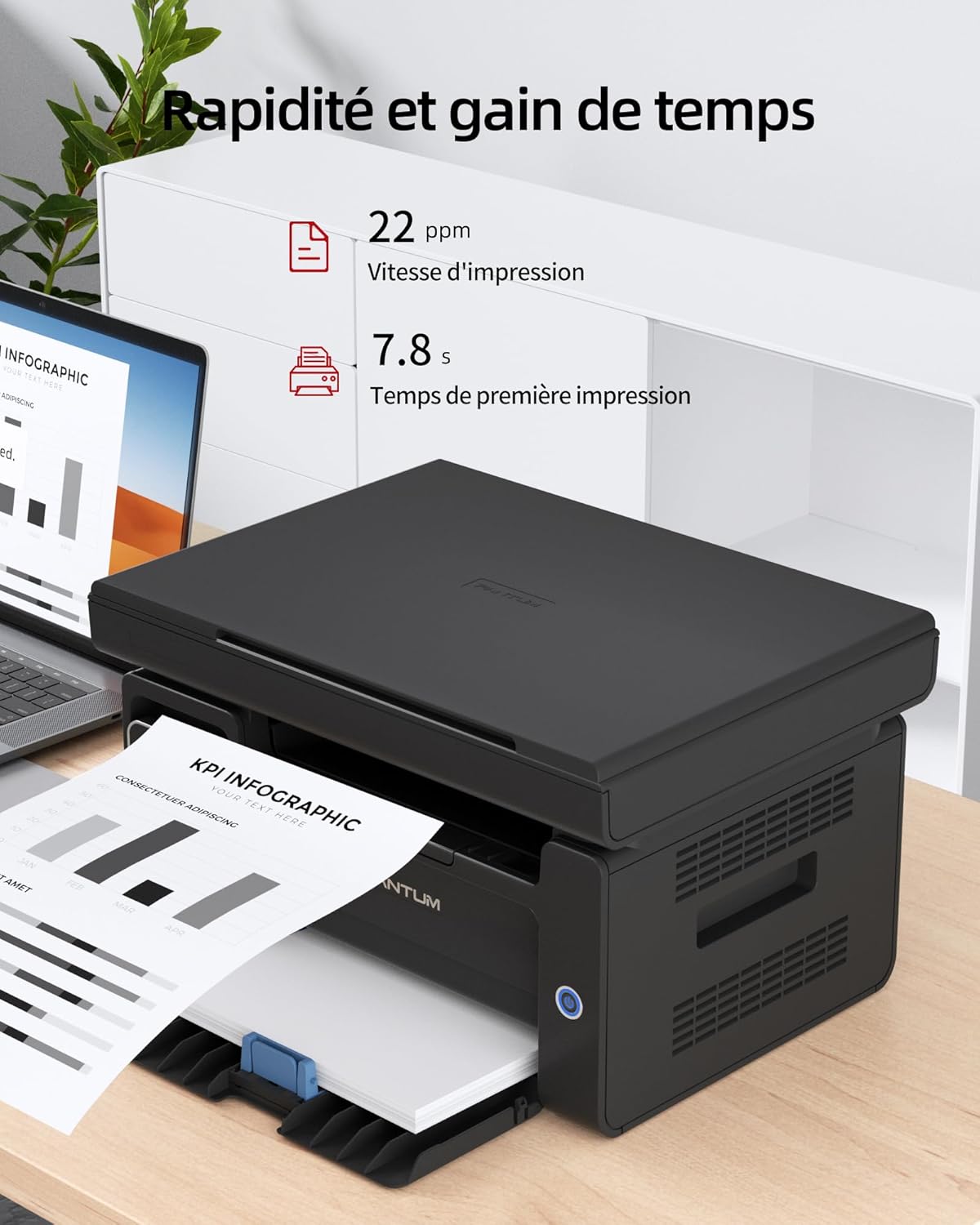
Image: Illustration highlighting the printer's speed, with 22 ppm print speed and 7.8 seconds first page out time.
3.2 복사
사본을 만들려면:
- Place the document face-down on the scanner glass or face-up in the Automatic Document Feeder (ADF) if available.
- Use the control panel to select the number of copies and other settings (e.g., lighten/darken).
- Press the "Copy" button to start the process.

Image: A person placing a document on the scanner glass of the PANTUM M6500NW for copying or scanning.
3.3 스캔
문서를 스캔하려면:
- 문서를 스캐너 유리 위에 뒤집어서 올려놓습니다.
- From your computer, open the scanning software (usually installed with the printer driver) or use the Pantum APP on your mobile device.
- Select scan settings such as resolution, color mode (monochrome), and destination.
- 스캔을 시작하세요. 스캔한 문서는 지정한 위치에 저장됩니다.
3.4 수동 양면 인쇄
The PANTUM M6500NW supports manual duplex (two-sided) printing. To use this feature:
- 인쇄 설정에서 수동 양면 인쇄 옵션을 선택하세요.
- 홀수 페이지부터 인쇄하세요.
- When prompted, reload the printed pages into the paper tray according to the on-screen instructions to print the even-numbered pages on the reverse side.
4. 유지관리
4.1 토너 카트리지 교체
When the toner is low or depleted, the printer will indicate this. Replace the toner cartridge with a genuine PANTUM PA-210 (1,600 pages) or compatible cartridge. Follow the installation steps outlined in Section 2.2.
메모: Using non-original consumables may void your warranty and affect print quality.
4.2 프린터 청소
정기적으로 청소하면 인쇄 품질을 유지하고 프린터의 수명을 연장하는 데 도움이 됩니다.
- 외부: 프린터 외부를 부드럽고 보풀 없는 천으로 닦으십시오.
- 스캐너 유리: 부드러운 천을 사용하세요amp스캐너 유리를 닦을 때는 유리 세정제를 사용하십시오. 세정제를 유리 표면에 직접 분사하지 마십시오.
- 내부: Refer to the detailed cleaning instructions in the full user manual for internal components.
5. 문제 해결
If you encounter issues with your PANTUM M6500NW printer, consider the following common solutions:
- 프린터가 응답하지 않음:
- 전원 연결을 확인하고 프린터가 켜져 있는지 확인하세요.
- USB 또는 네트워크 케이블 연결 상태를 확인하십시오.
- For Wi-Fi, ensure the printer is connected to the correct network and your device is also connected.
- 프린터와 컴퓨터/모바일 기기를 다시 시작하세요.
- 용지 걸림:
- Open all covers and carefully remove any jammed paper.
- 용지가 올바르게 적재되어 있고 너무 많이 채워지지 않았는지 확인하세요.
- 인쇄 품질 불량:
- 토너 잔량을 확인하고 부족하면 카트리지를 교체하십시오.
- 인쇄 작업에 적합한 용지를 사용하고 있는지 확인하세요.
- Clean the printer's internal components as per the full user manual.
- 드라이버 문제:
- Reinstall the printer drivers from the official PANTUM web대지.
- 운영 체제가 최신 상태인지 확인하세요.
For more detailed troubleshooting, refer to the comprehensive user manual available on the PANTUM support web대지.
6. 사양
| 특징 | 사양 |
|---|---|
| 모델명 | M6500NW |
| 기술을 인쇄 | 원자 램프 |
| 기능 | 인쇄, 복사, 스캔 |
| 인쇄 속도(흑백) | 최대 22ppm |
| 최대 인쇄 해상도 | 1200 x 600dpi |
| 연결성 | 이더넷, USB 2.0, Wi-Fi |
| 양면 인쇄 | 수동 |
| 최대 미디어 크기 | A4 |
| 용지 투입 용량 | 150장 |
| 호환 토너 | PA-210 (1,600 pages) |
| 제품 크기(D x W x H) | 30.5 x 41.7 x 24.4cm |
| 품목 무게 | 4.8 킬로그램 |
| 운영 체제 | Android, iOS (for mobile app) |

Image: The PANTUM M6500NW printer showcasing its compact design and dimensions (24.4cm H x 30.5cm D x 41.7cm W).
7. 보증 및 지원
The PANTUM M6500NW Multifunction Laser Printer comes with a standard one-year warranty against manufacturing defects from the date of purchase. A manufacturer's warranty of 2 years is also mentioned in the specifications.
For customer service and technical support, please visit the official PANTUM website or contact their online customer service. Information regarding spare parts availability and software updates is not readily available in the provided product details.


