소개
This manual provides comprehensive instructions for the installation, operation, and maintenance of your Kensington SD4839P USB-C Triple Video Dock. Please read this manual thoroughly before using the product to ensure proper functionality and to prevent damage.
안전 정보
- 기기를 물이나 과도한 습기에 노출시키지 마세요.
- 기기를 분해하거나 개조하지 마십시오. 보증이 무효화되고 손상이 발생할 수 있습니다.
- Use only the power adapter supplied with the dock.
- 과열을 방지하기 위해 부두 주변의 환기가 제대로 되는지 확인하세요.
- 어린이의 손이 닿지 않는 곳에 보관하세요.
패키지 내용
패키지에 모든 품목이 들어 있는지 확인하세요.
- Kensington SD4839P USB-C Triple Video Dock
- USB-C to USB-C 케이블
- 전원 어댑터
- 빠른 시작 가이드(이 디지털 매뉴얼에는 포함되지 않음)
제품 끝view
The Kensington SD4839P is a USB-C triple video docking station designed to expand the connectivity of your laptop. It provides multiple video outputs, USB ports, and power delivery through a single USB-C connection.
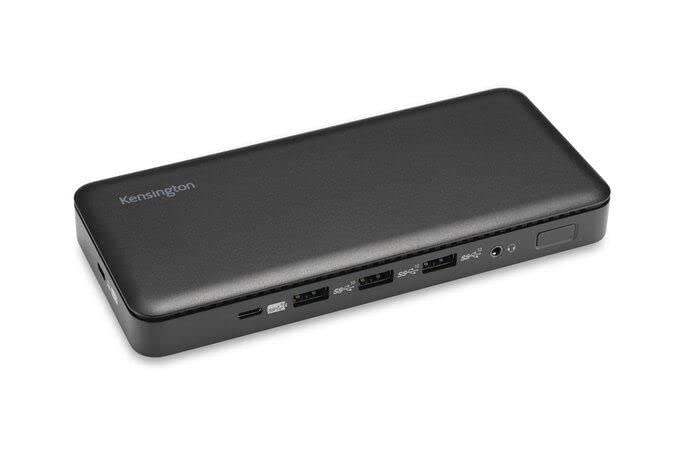
이미지 1: 앞쪽 view of the Kensington SD4839P USB-C Triple Video Dock. This image displays the compact design of the docking station, highlighting its various ports for connecting peripherals and displays.
포트 레이아웃:
- 앞쪽: USB-A ports, USB-C data port.
- 뒤쪽: Power input, USB-C host port (with power delivery), DisplayPort outputs, HDMI output, USB-A ports, Ethernet port, Audio jack.
설정
- 전원 연결: Connect the included power adapter to the DC-in port on the back of the dock, then plug the adapter into a power outlet.
- 호스트 장치에 연결: Connect one end of the supplied USB-C to USB-C cable to the USB-C host port on the back of the dock and the other end to a compatible USB-C port on your laptop. Ensure your laptop's USB-C port supports DisplayPort Alternate Mode and Power Delivery for full functionality.
- 디스플레이 연결:
- Connect your monitors to the available DisplayPort and/or HDMI ports on the dock using appropriate cables.
- The dock supports up to three external displays, depending on your host device's capabilities and operating system.
- 주변기기 연결: Connect your USB devices (keyboard, mouse, external drives, etc.) to the USB-A and USB-C data ports on the dock.
- 네트워크 연결(선택 사항): For a wired network connection, connect an Ethernet cable from your router or network switch to the Ethernet port on the dock.
운영
초기 연결:
Upon initial connection, your operating system (Windows, macOS, Chrome OS) should automatically detect the dock and connected devices. The SD4839P is designed to be driverless for most basic functions.
디스플레이 구성 :
- 윈도우: Right-click on the desktop and select "Display settings" to arrange your monitors, change resolution, and set display modes (extend, duplicate, second screen only).
- 맥 OS : 이동하다 시스템 설정 (또는 시스템 환경 설정) > 디스플레이 to configure your external monitors.
전력 공급 :
The dock provides power delivery to your connected laptop through the USB-C host cable, charging it while you work. The wattage provided is listed in the specifications section.
유지
- 청소: Disconnect the dock from power and all devices before cleaning. Use a soft, dry, lint-free cloth to wipe the exterior. Do not use liquid cleaners or aerosols.
- 저장: Store the dock in a cool, dry place away from direct sunlight and extreme temperatures when not in use for extended periods.
- 케이블 관리 : 케이블 손상을 방지하기 위해 케이블을 급격하게 구부리거나 꺾지 마십시오.
문제 해결
| 문제 | 가능한 해결책 |
|---|---|
| No power to the dock or laptop. |
|
| 외부 모니터에 아무것도 표시되지 않습니다. |
|
| USB 장치가 인식되지 않습니다. |
|
| 네트워크 연결 문제. |
|
명세서
- 모델 번호: K33480EU
- 제품 크기: 19.69 x 19.69 x 11.02 인치
- 품목 무게: 2.29파운드(1.04킬로그램)
- 상표: 켄싱턴
- 하드웨어 인터페이스: USB 타입 C
- 총 USB 포트: 3 (plus 1 USB-C data port)
- 포트 수 : 5 (referring to primary functional ports)
- 총 HDMI 포트: 1
- DisplayPort 출력: 2 (for triple video output capability)
- 왓tage (Power Delivery): 85 와트
- 호환 장치: Dell Precision 5510, Google Pixelbook, HP EliteBook Folio 9470m, MacBook Air, MacBook Pro, Microsoft Surface series, iPad, iPhone series, iPod series (See product page for full list)
보증 및 지원
Kensington products are designed for reliability and performance. For warranty information, technical support, or to register your product, please visit the official Kensington web사이트를 방문하거나 고객 지원팀에 직접 문의하세요. 보증 청구를 위해 구매 증빙 자료를 보관하세요.
켄싱턴 공식 웹사이트 Web대지: www.kensington.com


