1. 서론
피파인 AmpliGame A8 is a versatile USB RGB condenser microphone designed for high-quality audio capture in various applications, including live streaming, online meetings, podcasting, and video creation. Its plug-and-play functionality ensures easy setup across multiple platforms, providing clear and crisp audio for effective communication and engaging content.
주요 특징:
- Handy Control: Integrated 3.5mm headphone jack for real-time monitoring, gain knob for volume adjustment, and a tap-to-mute button with LED indicator.
- Optional RGB Lighting: Features 3 modes of controllable RGB lights (static, dynamic, gradient) to enhance your setup's aesthetic.
- Smooth Communication: Condenser microphone capsule delivers clear voice, complemented by a cardioid polar pattern that reduces background noise.
- 쉬운 시작: Plug-and-play USB connectivity for quick setup with computers (MAC OS/Windows) and gaming consoles (PS4/PS5).
- 외부 액세서리: Includes a metal anti-plosive pop filter and an integrated shock mount to minimize unwanted noise from vibrations and plosives.
2. 상자 안에 무엇이 들어있나요?
Upon opening your FIFINE AmpliGame A8 package, you will find the following components:
- USB Microphone (with based stand and shock mount)
- 나사 어댑터
- USB Cable (6.5ft USB-C to USB-A)
- 사용자 설명서
- 팝 필터

이미지: FIFINE에 포함된 모든 구성 요소 AmpliGame A8 패키지.
3. 설정
피파인 AmpliGame A8 microphone is designed for quick and easy setup, allowing you to start recording or communicating without complex installations.
3.1 Physical Assembly:
- Attach the microphone to its desktop stand. The stand is designed for stability and to reduce vibrations.
- Install the included pop filter onto the microphone to minimize plosive sounds (P, B, T, K sounds).
- If using a boom arm (not included), unscrew the microphone from the desktop stand and use the provided screw adapter to attach it to your boom arm.
3.2 Connecting to Your Device:
- Connect the USB-C end of the provided 6.5ft cable to the USB-C port at the bottom of the microphone.
- Connect the USB-A end of the cable to an available USB port on your computer (Windows/MAC OS) or gaming console (PS4/PS5).
- 이 마이크는 플러그 앤 플레이 방식이므로 운영 체제에서 자동으로 인식됩니다. 일반적으로 추가 드라이버는 필요하지 않습니다.

이미지: 더 피파인 AmpliGame A8 microphone ready for use with a computer.
3.3 Initial Audio Settings:
- 윈도우: Go to Sound Settings > Input > Select 'FIFINE AmpliGame A8' as your input device. Adjust the input volume as needed.
- 맥 OS: Go to System Preferences > Sound > Input > Select 'FIFINE AmpliGame A8'. Adjust the input volume as needed.
- PS4/PS5: Navigate to Sound/Audio Devices in the system settings and select 'FIFINE AmpliGame A8' as the input device.
Video: An official seller video demonstrating the FIFINE AmpliGame A8 microphone's RGB lighting and features, including its use in a gaming setup.
4. 사용 설명서
Familiarize yourself with the microphone's controls to optimize your audio experience.
4.1 Headphone Monitoring:
The 3.5mm headphone jack located at the bottom of the microphone allows for real-time audio monitoring. Plug your headphones into this jack to hear your voice and device audio directly, ensuring optimal sound levels during recording or streaming.

Image: The headphone jack for direct audio monitoring.
4.2 Gain Control:
The gain knob on the microphone allows you to adjust the microphone's sensitivity. Turn the knob to increase or decrease the input volume to prevent audio clipping or to pick up softer sounds. Adjust based on your environment and desired vocal presence.

Image: Adjusting the microphone gain for optimal sound input.
4.3 Tap-to-Mute Function:
The top of the microphone features a touch-sensitive tap-to-mute button. Tap once to mute or unmute the microphone. An LED indicator will change color (e.g., green for active, red for muted) to clearly show the microphone's status.

Image: The tap-to-mute button with visual status indicator.
4.4 RGB Lighting Control:
The microphone features controllable RGB lighting with three distinct modes: static, dynamic, and gradient. Use the dedicated RGB control button (often located near the gain knob or on the base) to cycle through different colors and lighting effects to match your setup or mood.
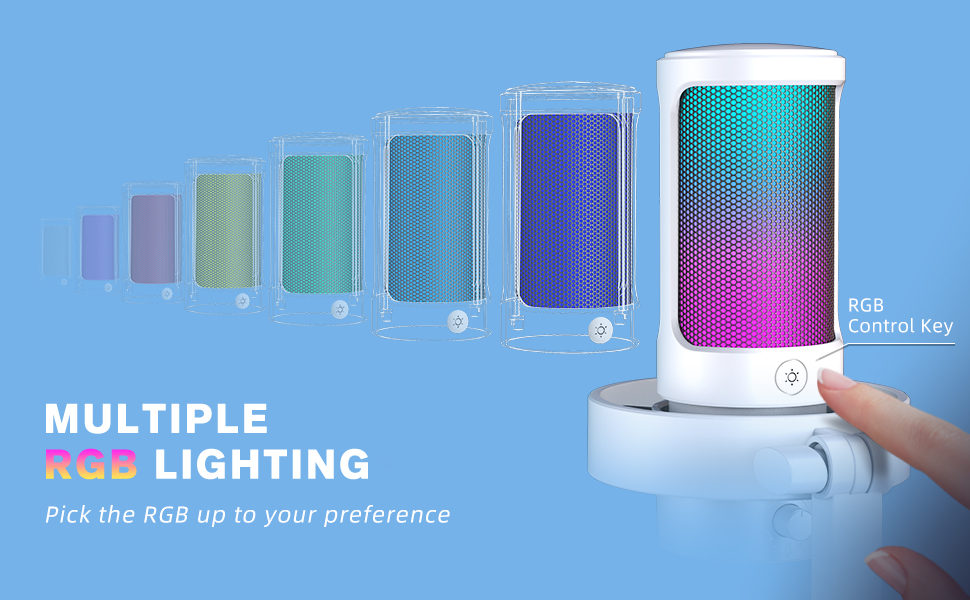
Image: Demonstrating multiple RGB lighting options on the microphone.
4.5 Cardioid Polar Pattern:
The microphone utilizes a cardioid polar pattern, which primarily picks up sound from the front, reducing unwanted noise from the sides and rear. Position the microphone with the FIFINE logo facing you for optimal voice capture and background noise rejection.
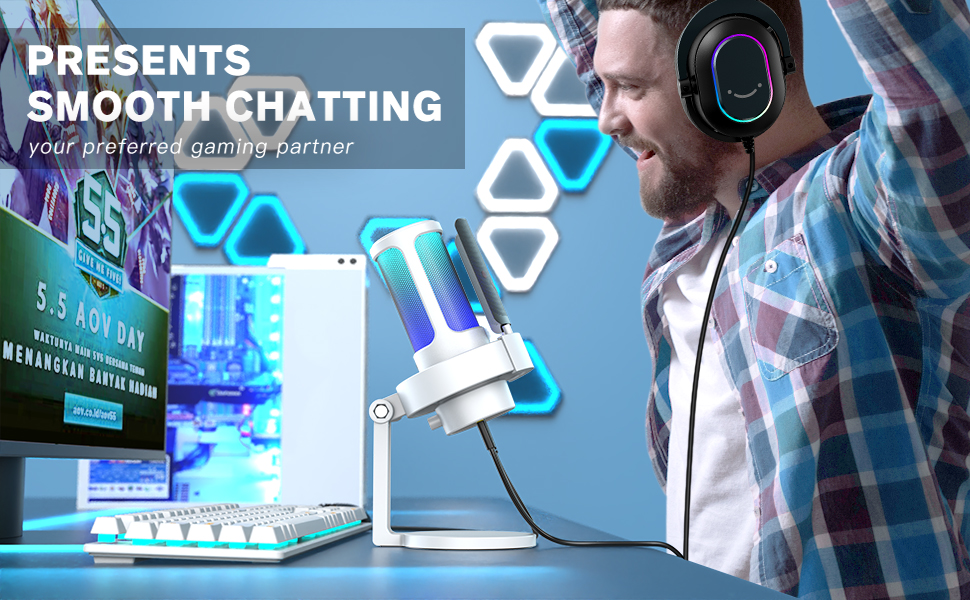
Image: The microphone positioned for clear voice capture in a gaming environment.
5. 유지관리
Proper maintenance ensures the longevity and optimal performance of your FIFINE AmpliGame A8 마이크.
5.1 청소:
- Gently wipe the microphone body with a soft, dry cloth to remove dust and fingerprints.
- Do not use liquid cleaners or abrasive materials, as these can damage the microphone's finish or internal components.
- The pop filter can be carefully removed and cleaned with a soft brush if necessary.
5.2 보관:
- 마이크는 직사광선과 극한의 온도를 피해 시원하고 건조한 곳에 보관하세요.
- When not in use, ensure the microphone is disconnected from your device to prevent accidental power draw.
6. 문제 해결
FIFINE 사용 중 문제가 발생하면 AmpliGame A8 microphone, refer to the following common solutions:
6.1 No Sound/Low Volume:
- 연결 확인: USB 케이블이 마이크와 장치에 모두 단단히 연결되어 있는지 확인하세요.
- Verify Device Settings: Confirm that 'FIFINE AmpliGame A8' is selected as the input device in your computer's or console's sound settings.
- Adjust Gain Knob: Rotate the gain knob on the microphone clockwise to increase the input volume.
- 마이크 음소거 해제: Tap the mute button on top of the microphone to ensure it is not muted (LED should be green).
6.2 Distorted/Peaking Audio:
- 이득 감소: Rotate the gain knob counter-clockwise to decrease the input volume.
- 거리 조정: Move further away from the microphone. Optimal distance is typically 6-12 inches.
- 팝 필터 사용: 파열음을 줄이려면 팝 필터가 올바르게 설치되었는지 확인하십시오.
6.3 Background Noise:
- Optimize Environment: Record in a quiet environment, away from fans, air conditioners, or other noise sources.
- Software Noise Reduction: Utilize noise reduction features available in your recording software or communication applications.
- 접지 문제: If experiencing persistent hums or static, try plugging your computer into a different wall outlet or using a different USB port.
6.4 RGB Lights Not Working:
- 전원 확인: 마이크가 제대로 연결되어 있고 전원이 공급되고 있는지 확인하십시오.
- 사이클 모드: Press the RGB control button to cycle through the lighting modes.
- 재설정 : USB 케이블을 분리했다가 다시 연결하십시오.
7. 사양
| 특징 | 세부 사항 |
|---|---|
| 모델명 | Amp리게임 A8 |
| 품목 모델 번호 | A8W |
| 상표 | 피파인 |
| 연결 기술 | USB |
| 커넥터 유형 | USB 타입 A |
| 극성 패턴 | 단방향 (카디오이드) |
| 마이크 폼 팩터 | 경계 |
| 호환 장치 | Laptop, Macbook, PS4/5, Personal Computer |
| 추천 용도 | 게임, 스트리밍, 녹화, 영상 제작, 팟캐스팅 |
| 색상 | 하얀색 |
| 재료 | 아크릴로니트릴 부타디엔 스티렌, 금속 |
| 품목 무게 | 1.32파운드(600그램) |
| 제품 치수 | 4.53 x 6.46 x 9.33 인치 |
| 신호 대 잡음 비율 | 80데시벨 |
| 채널 수 | 1 |
| 전원 | 코드식 전기 |
| 특별 기능 | Controllable RGB, RGB Control Button, Tap-to-Mute, Gain Knob, 6.5ft Detachable USB-C Cable, Plug and Play, Desktop Mic |
8. 보증 및 지원
For warranty information, technical support, or any product-related inquiries, please refer to the official FIFINE web사이트를 방문하거나 고객 서비스에 직접 문의하세요. 보증 청구를 위해 구매 증빙 자료로 구매 영수증을 보관하세요.
온라인 리소스:
- 방문하세요 FIFINE 스토어 아마존에서 만나보세요 추가 제품 및 지원에 대해서는.