소개
This manual provides detailed instructions for the setup, operation, and maintenance of your UrbanX KBM030 Rechargeable Bluetooth Keyboard and Mouse Combo. This combo is designed for broad compatibility across various operating systems and devices, offering a cable-free experience with ergonomic design and long-lasting rechargeable batteries.
패키지 내용
패키지에 모든 품목이 들어 있는지 확인하세요.
- UrbanX KB030 Bluetooth Keyboard
- UrbanX M030 Bluetooth Mouse
- USB 충전 케이블
- 환영 가이드
설치 지침
1. 키보드 설정
- 키보드를 충전하세요: Connect the provided USB charging cable to the keyboard's charging port and a USB power source. The 'Charge Power' indicator light will illuminate during charging.
- 전원 켜기: Locate the ON/OFF switch on the top right side of the keyboard and slide it to the 'ON' position. The 'Power' indicator light will briefly turn on.
- 페어링 모드 시작: Press the 'Connect' button, usually located near the ON/OFF switch. The 'Connect' indicator light will start blinking, indicating the keyboard is ready for pairing.
- 장치와 페어링: On your device (computer, tablet, smartphone), enable Bluetooth and search for available devices. Select 'UrbanX Keyboard' or a similar name from the list. Follow any on-screen prompts to complete the pairing process.
- 운영 체제 모드를 선택하십시오. The keyboard supports multiple operating systems. After pairing, press the appropriate function key combination for your device's OS:
- iOS용: 누르세요 Fn + E
- Android의 경우: 누르세요 Fn + Q
- Windows의 경우: 누르세요 Fn + W

Image: UrbanX Bluetooth Keyboard showing the ON/OFF switch, Connect button, and indicator lights (CAPS, Charge Power). The image also illustrates the keyboard's dimensions.
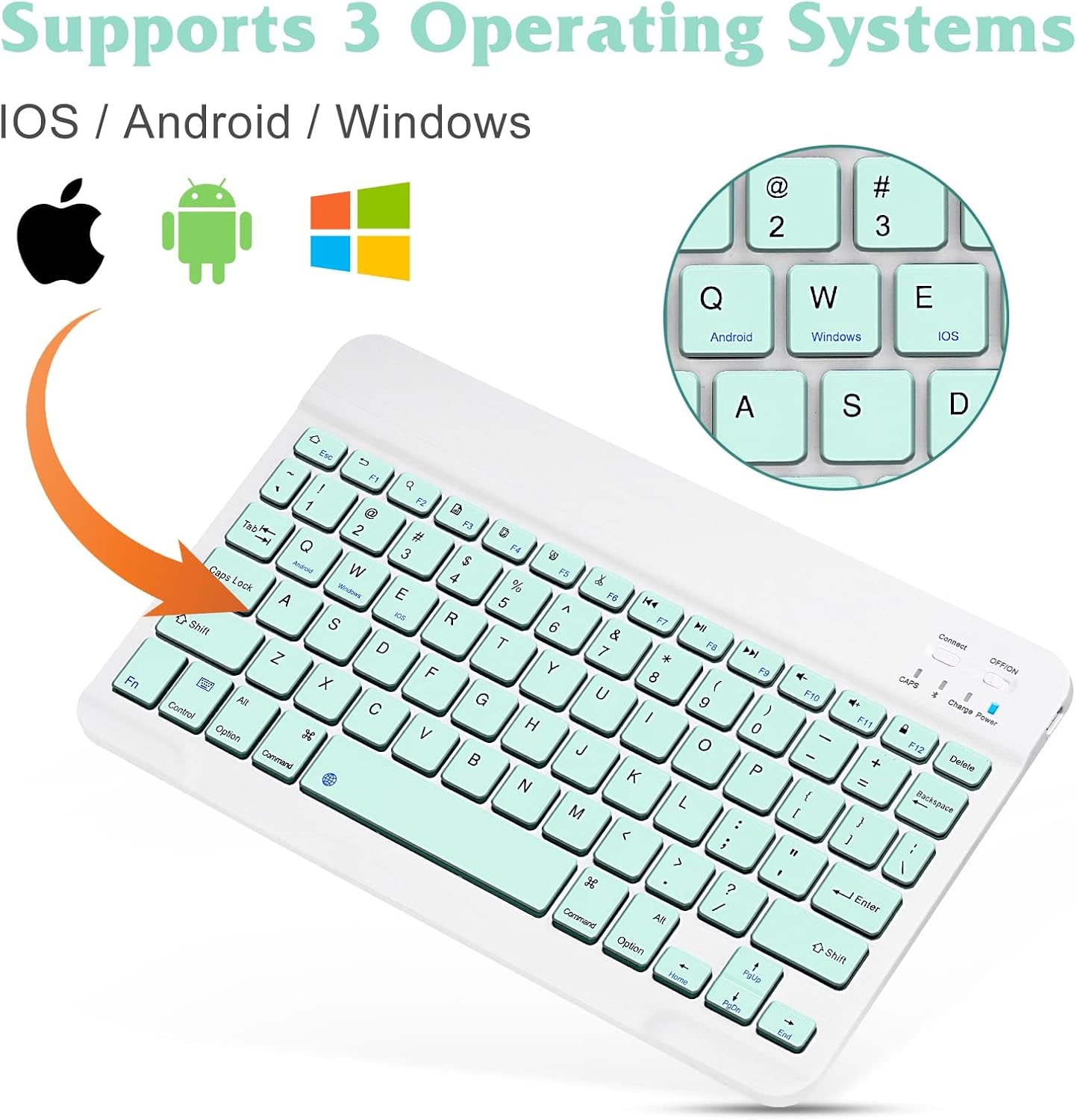
Image: UrbanX Bluetooth Keyboard highlighting its compatibility with iOS, Android, and Windows operating systems, indicated by respective logos.
2. 마우스 설정
- 마우스 충전: Connect the provided USB charging cable to the mouse's charging port and a USB power source.
- 전원 켜기: 마우스 하단에 있는 전원 스위치를 찾아 '켜짐' 위치로 밀어주세요.
- 페어링 모드 시작: The mouse typically enters pairing mode automatically when powered on for the first time or if it loses connection. If not, press the pairing button (often located near the ON/OFF switch on the bottom) until the indicator light blinks.
- 장치와 페어링: On your device, enable Bluetooth and search for available devices. Select 'UrbanX Mouse' or a similar name from the list. Follow any on-screen prompts to complete the pairing process.
작동 지침
키보드 기능
- 조용한 타이핑: 로우 프로file keys are designed for comfortable and quiet typing.
- 기능 키: The keyboard features system-specific function keys for quick access to common functions such as volume control, media playback, and copy/paste operations. These functions are typically accessed by pressing the Fn 해당 F 키와 함께 키를 누릅니다.
- 작동 범위: The keyboard operates wirelessly via Bluetooth up to a distance of 30 feet (approximately 10 meters) from your paired device.

이미지: 클로즈업 view of the UrbanX Bluetooth Keyboard, illustrating the X-structure key mechanism designed for comfortable keystrokes.
마우스 기능
- 인체공학적 디자인: The mouse is designed to reduce stress during prolonged use.
- 조정 가능한 DPI: The mouse features a DPI switch button, allowing you to cycle through three sensitivity levels: 800 DPI, 1200 DPI, and 1600 DPI. Press the button to adjust the cursor speed to your preference.

Image: Diagram illustrating the DPI switch on the UrbanX Bluetooth Mouse and the three adjustable sensitivity levels: 800, 1200, and 1600 DPI.
충전 지침
Both the keyboard and mouse are equipped with built-in rechargeable Li-polymer batteries.
- 충전 프로세스: Use the provided USB charging cable to connect the keyboard or mouse to a standard USB power source (e.g., computer USB port, USB wall adapter).
- 충전 표시기: For the keyboard, the 'Charge Power' indicator light will be on during charging and turn off when fully charged. For the mouse, an indicator light (often red) will show charging status and turn off when complete.
- 배터리 수명: A single full charge provides approximately 6 months of use for the keyboard and 4 months for the mouse (based on 2 hours of non-stop use per day).
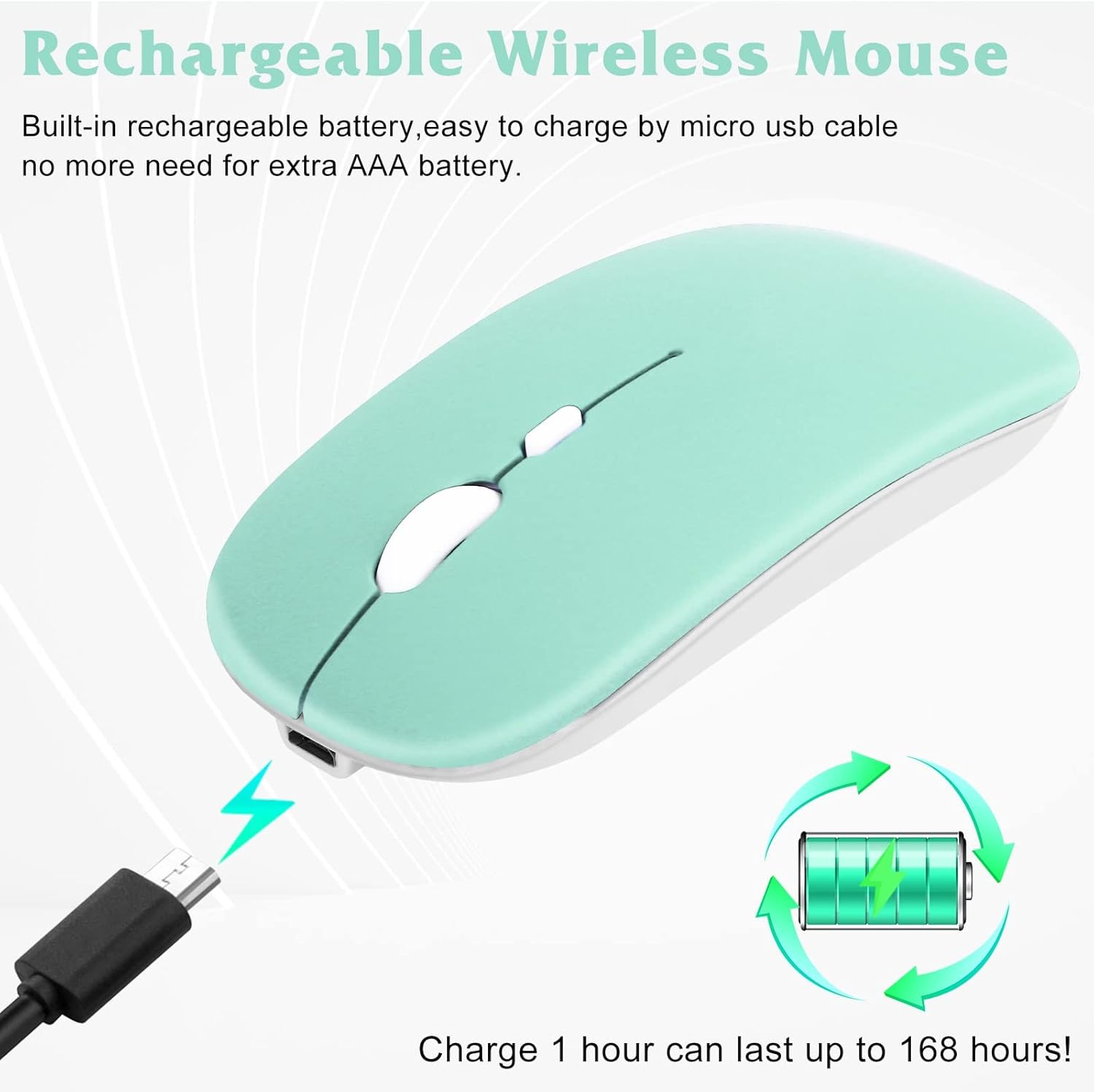
Image: UrbanX Bluetooth Mouse being charged via a Micro USB cable, with an illustration of a rechargeable battery indicating long-lasting power.
유지
- 청소: 부드럽고 마른 천을 사용하여 키보드와 마우스 표면을 닦으세요. 잘 지워지지 않는 먼지의 경우, 약간amp 천을 사용하여 기기 내부로 습기가 들어가지 않도록 하십시오. 강한 화학 물질이나 연마성 세척제 사용은 피하십시오.
- 배터리 관리 : To prolong battery life, avoid exposing the devices to extreme temperatures. Charge the devices regularly, even if not in constant use, to prevent deep discharge.
- 저장: 장기간 사용하지 않을 때는 키보드와 마우스를 서늘하고 건조한 곳에 보관하십시오.
문제 해결
- 장치가 연결되지 않음:
- 키보드와 마우스가 모두 켜져 있고 완전히 충전되어 있는지 확인하세요.
- Verify that Bluetooth is enabled on your host device.
- Make sure the devices are within the 30-foot (10-meter) operating range.
- Try re-entering pairing mode on the keyboard/mouse and re-pairing with your device.
- 기기의 블루투스 설정에서 이전에 연결했던 기기를 모두 삭제한 후 다시 연결해 보세요.
- Keyboard Not Typing:
- 키보드가 블루투스로 연결되어 있는지 확인하세요.
- Ensure the correct operating system mode (Fn+E/Q/W) is selected.
- 배터리 잔량을 확인하세요.
- 마우스 커서가 움직이지 않음:
- Check if the mouse is connected via Bluetooth.
- 배터리 잔량을 확인하세요.
- Ensure the mouse sensor is clean and unobstructed.
- DPI 설정을 조정해 보세요.
명세서
| 특징 | 세부 사항 |
|---|---|
| 모델 번호 | KBM030 |
| 제품 크기 (키보드 포함) | 15.16 x 5.47 x 1.3 인치 |
| 품목 무게 (조합) | 10 온스 |
| 배터리 | 리튬 이온 배터리 2개(포함) |
| 상표 | 어반엑스 |
| 연결 기술 | 블루투스 |
| 특별 기능 | 인체공학적, 충전식 |
| 호환 장치 | Laptop, Mobile Phone, Smartphone, T-Mobile REVVL V+ 5G, Tablet |
보증 및 지원
Your UrbanX KBM030 Rechargeable Bluetooth Keyboard and Mouse Combo comes with a 90일 보증. For any product inquiries, technical support, or warranty claims, please contact UrbanX customer service. Refer to the included Welcome Guide for specific contact information or visit the official UrbanX web대지.

