1. 서론
This manual provides comprehensive instructions for the setup, operation, and maintenance of your Tera 9200-Wired Omnidirectional Desktop Barcode Scanner. This device is designed for efficient and hands-free scanning of 1D, 2D, and QR barcodes in various environments such as retail stores, warehouses, and offices.
2. 제품 오버view
The Tera 9200-Wired scanner is a high-performance, plug-and-play device engineered for reliability and ease of use. Its omnidirectional scanning capability allows for quick and accurate barcode reading from various angles.
2.1 주요 특징
- 플러그 앤 플레이: No driver or software installation required. Simply connect the USB cable to your computer, POS system, or cash register.
- 핸즈프리 스캔: Designed as a desktop platform scanner, it allows for convenient, hands-free operation, improving efficiency for both cashiers and customers.
- 안정적인 디자인: Equipped with four small non-slip pads on the bottom and an internal iron slab, ensuring stability during operation.
- 폭넓은 호환성: Compatible with various operating systems including Windows XP, Windows 7, Windows 8, Windows 10, Android, and Linux. Works with PCs, laptops, iPads, and smartphones.
- 다국어 키보드 지원: Supports keyboard layouts for US, UK, German, French, Italian, Spanish, Japanese, and more.
- Powerful Decoding Ability: Capable of reading a wide range of 1D and 2D barcodes, including those that are reflective, smudged, damaged, or fuzzy.
2.2 패키지 내용
- Tera 9200-Wired Desktop Barcode Scanner
- USB 2.0 Data Cable (integrated)
- 사용 설명서(본 문서)
2.3 제품 다이어그램

그림 2.3.1: 전면 view of the Tera 9200-Wired Desktop Barcode Scanner, showing its compact, black and white design with the scanning window.
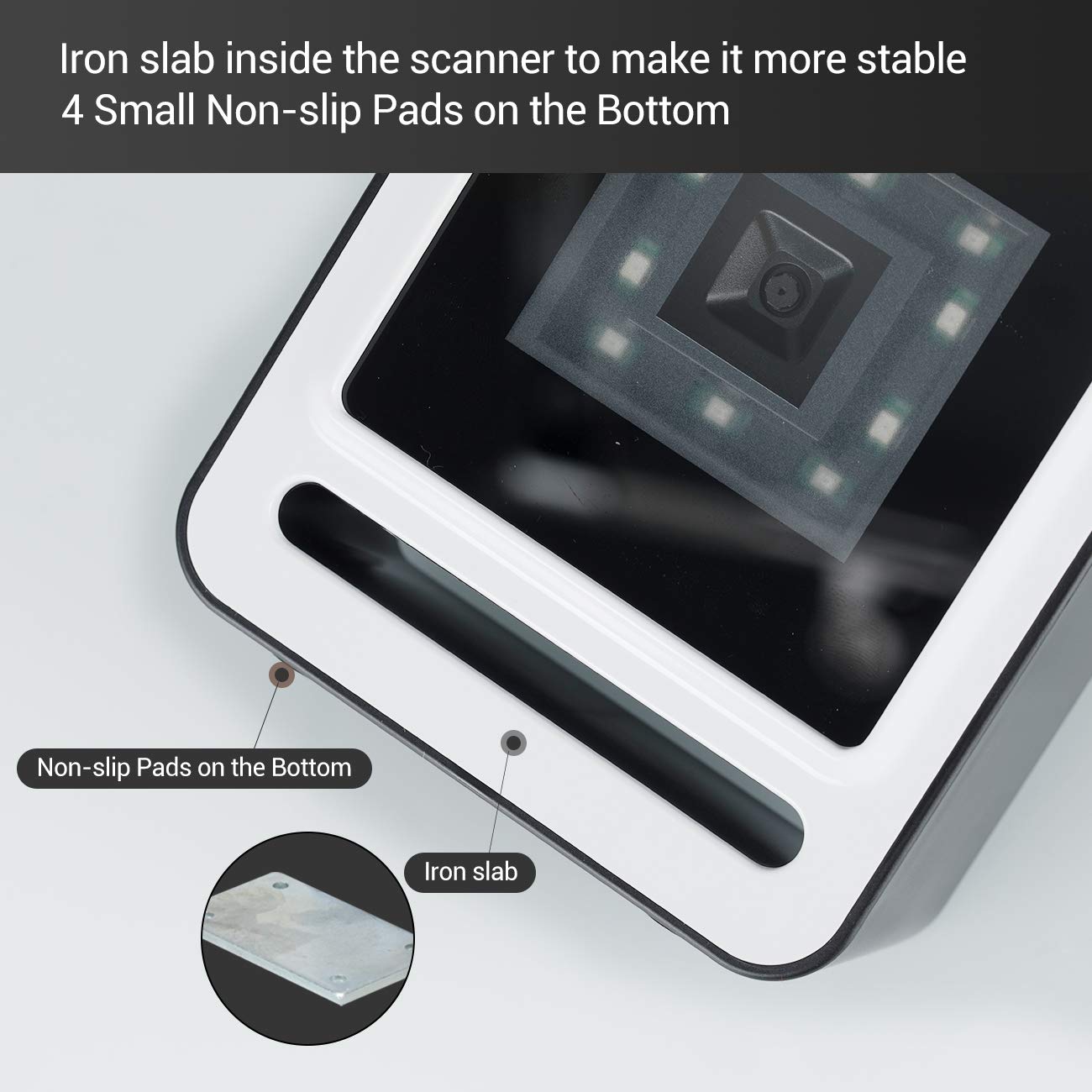
그림 2.3.2: 클로즈업 view of the scanner's base, highlighting the four non-slip pads and the internal iron slab designed for enhanced stability.
3. 설정
The Tera 9200-Wired barcode scanner is designed for quick and easy setup, requiring no special drivers or software installation.
- 스캐너 풀기: 스캐너를 포장에서 조심스럽게 꺼내세요.
- USB 케이블 연결: Insert the integrated USB 2.0 data cable into an available USB port on your computer, POS system, or cash register.
- 시스템 인식: The operating system will automatically detect and configure the scanner. This process typically takes a few seconds.
- 사용 준비: Once recognized, the scanner is ready for immediate use.

Figure 3.1: The scanner connected via USB to a laptop, demonstrating its plug-and-play functionality and compatibility with Windows, Android, and Linux systems, as well as PCs, laptops, iPads, and phones.
4. 사용 설명서
The Tera 9200-Wired scanner offers hands-free operation for efficient barcode reading.
4.1 기본 스캐닝
- 제품을 배치하세요: Place the barcode of the item directly in front of the scanner's window.
- 자동 스캔: The scanner will automatically detect the barcode and emit a successful scan indication (e.g., a beep or light change).
- 데이터 전송: The scanned data will be transmitted to your connected device (computer, POS system) as if typed via a keyboard.

Figure 4.1: A smartphone displaying a QR code being scanned by the Tera 9200-Wired scanner, illustrating its hands-free capability for digital barcodes.
4.2 지원되는 바코드 유형
이 스캐너는 다양한 1D 및 2D 바코드 심볼을 지원합니다.
- 1D 디코딩 기능: 코다바, 코드 11, 코드 93, MSI, 코드 128, UCC/EAN-128, 코드 39, EAN-8, EAN-13, UPC-A, ISBN, 산업용 25, 인터리브드 25, 표준 25, 2/5 매트릭스.
- 2D 디코딩 기능: QR Code, PDF417, Data Matrix, Aztec code, Maxi Code.

Figure 4.2: Visual representation of the scanner's advanced decoding capabilities, showing its ability to read challenging barcodes such as reflective, smudged, damaged, and fuzzy ones.
4.3 Advanced Settings (via Configuration Codes)
The scanner can be configured for various settings by scanning specific configuration barcodes (not provided in this manual, refer to a separate programming guide if available from manufacturer). These settings may include:
- 키보드 언어: Adjust the output keyboard language to match your system (e.g., US, UK, German, French, Italian, Spanish, Japanese).
- 가상 COM 포트: Enable virtual COM port mode for specific software applications.
- 접두사/접미사: 스캔한 데이터 앞이나 뒤에 사용자 정의 문자를 추가합니다.
- 문자 숨기기: Configure the scanner to hide certain characters from the output.
- 볼륨 설정 : Adjust the volume of the scan confirmation beep.

Figure 4.3: The scanner illustrating its support for multiple keyboard languages, including English, Spanish, German, Japanese, French, and Italian, allowing for versatile international use.
5. 유지관리
적절한 유지관리는 바코드 스캐너의 수명과 최적의 성능을 보장합니다.
- 스캔 창 정리: 스캔 창은 부드럽고 보풀 없는 천으로 정기적으로 닦아주세요. 잘 지워지지 않는 얼룩은 살짝 두드려 닦아주세요.amp천에 물이나 순하고 연마성이 없는 세제를 묻혀 닦아주세요. 강한 화학 물질이나 연마재는 사용하지 마세요.
- 일반 청소: 스캐너 외부를 마른 천이나 약간 젖은 천으로 닦으십시오.amp 먼지와 흙을 제거하는 천.
- 극한의 환경을 피하세요: Do not expose the scanner to extreme temperatures, humidity, or direct sunlight for prolonged periods.
- 조심스럽게 다루십시오: 스캐너를 떨어뜨리거나 강한 충격을 가하지 마십시오.
6. 문제 해결
If you encounter issues with your Tera 9200-Wired scanner, refer to the following common problems and solutions:
| 문제 | 가능한 원인 | 해결책 |
|---|---|---|
| 스캐너의 전원이 켜지지 않습니다. | USB 케이블이 제대로 연결되지 않았거나 USB 포트에 결함이 있습니다. | USB 케이블이 스캐너와 컴퓨터에 단단히 꽂혀 있는지 확인하세요. 다른 USB 포트에 연결해 보세요. |
| 스캐너가 바코드를 읽지 못합니다. | Barcode is damaged, smudged, or poorly printed. Scanner window is dirty. Incorrect barcode symbology enabled. | Try scanning a different, known-good barcode. Clean the scanning window. Ensure the barcode type is supported and enabled (if configurable). |
| 스캔한 데이터가 잘못되었거나 불완전합니다. | Keyboard language mismatch. Data format settings incorrect. | Verify your computer's keyboard language matches the scanner's setting. Check for any prefix/suffix settings. |
| 스캐너에서 신호음은 나지만 데이터는 전송되지 않습니다. | Application not in focus or not accepting input. | Ensure the cursor is in the correct input field of your application (e.g., notepad, word processor, POS software). |
7. 사양
| 특징 | 세부 사항 |
|---|---|
| 상표 | 테라 |
| 모델 | 9200-와이어드 |
| 유형 | 1D 2D QR Omnidirectional Desktop Barcode Scanner |
| 연결성 | 유선 USB 2.0 |
| 디코딩 기능(1D) | 코다바, 코드 11, 코드 93, MSI, 코드 128, UCC/EAN-128, 코드 39, EAN-8, EAN-13, UPC-A, ISBN, 인더스트리얼 25, 인터리브드 25, 스탠다드 25, 2/5 매트릭스 |
| 디코딩 기능(2D) | QR Code, PDF417, Data Matrix, Aztec code, Maxi Code |
| 호환성 | Windows XP/7/8/10, Android, Linux (PC, Laptops, iPad, Phone) |
| 키보드 언어 | US, UK, German, French, Italian, Spanish, Japanese, etc. |
| 패키지 크기 | 18.21 x 12.29 x 8.61cm |
| 품목 무게 | 449g |
| 필요한 배터리 | 아니요 |
8. 보증 및 지원
For warranty information and technical support, please refer to the documentation provided with your purchase or contact Tera customer service directly. Keep your purchase receipt as proof of purchase for warranty claims.
For the most up-to-date support resources, visit the official Tera web대지.