1. 서론
This manual provides detailed instructions for the installation, operation, and maintenance of your PANTUM P3018DW Wireless Duplex Laser Printer. Please read this manual thoroughly before using the printer to ensure proper and safe operation. Keep this manual for future reference.
2. 안전 정보
화재, 감전, 부상의 위험을 줄이기 위해 이 제품을 사용할 때는 항상 기본적인 안전 예방 조치를 따르세요.
- 프린터를 불안정한 카트, 스탠드 또는 테이블 위에 올려놓지 마십시오.
- Do not block or cover the slots and openings in the printer.
- Use only the type of power source indicated on the printer's label.
- Unplug the printer from the wall outlet before cleaning.
- 프린터를 직접 수리하려고 하지 마십시오. 모든 수리는 자격을 갖춘 서비스 담당자에게 맡기십시오.
3. 패키지 내용
모든 품목이 패키지에 포함되어 있는지 확인하세요.
- PANTUM P3018DW Laser Printer
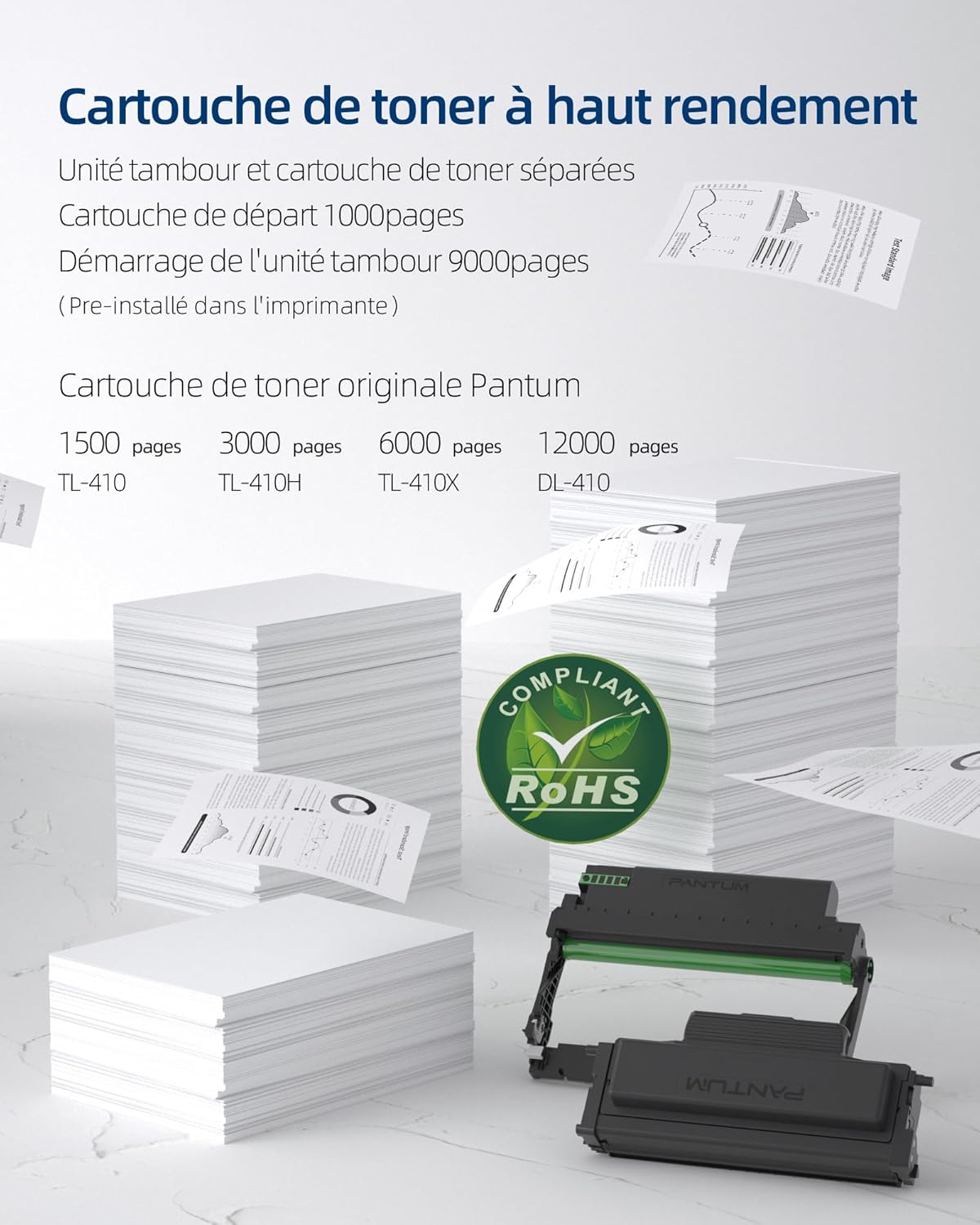
- Starter Toner Cartridge (1000 pages yield)
- Starter Drum Unit (9000 pages yield)
- USB 케이블
- 전원 코드
- 사용 설명서 (본 문서)
4. 제품 오버view
The PANTUM P3018DW is a monochrome laser printer designed for efficient printing with automatic duplex capability and wireless connectivity.


5. 설정
5.1 풀기
- 포장에서 프린터를 꺼냅니다.
- 프린터의 외부와 내부에 있는 모든 보호 테이프와 포장재를 제거하십시오.
5.2 토너 카트리지 및 드럼 유닛 설치
The PANTUM P3018DW uses a separate toner cartridge and drum unit system.
- 프린터의 앞면 덮개를 엽니다.
- 드럼 유닛을 딸깍 소리가 나면서 제자리에 고정될 때까지 프린터에 조심스럽게 삽입하십시오.
- Unpack the toner cartridge and gently shake it horizontally several times.
- 토너 카트리지를 드럼 유닛에 딸깍 소리가 나면서 제대로 고정될 때까지 삽입하십시오.
- 앞면 덮개를 닫습니다.
5.3 전원 연결
- 전원 코드를 프린터에 연결한 다음 접지된 전기 콘센트에 연결하세요.
- 전원 버튼을 눌러 프린터를 켭니다.
5.4 드라이버 설치
The PANTUM P3018DW features a one-step driver installation process.
- 제공된 USB 케이블을 사용하여 프린터를 컴퓨터에 연결합니다.
- The operating system should automatically detect the printer and initiate driver installation. Follow the on-screen prompts.
- Alternatively, download the latest drivers from the official PANTUM web대지.
5.5 Wi-Fi 설정
The printer supports easy Wi-Fi configuration for convenient wireless printing.

- 프린터 전원이 켜져 있는지 확인하십시오.
- Access the printer's control panel or use the PANTUM mobile application for Wi-Fi setup.
- Follow the instructions to connect the printer to your wireless network.
- For Wi-Fi Direct printing, connect your device directly to the printer's Wi-Fi hotspot (SSID and password typically found on a label or the printer's display).
6. 사용 설명서
6.1 용지 적재
- 용지함을 엽니다.
- 적재하려는 용지 크기에 맞게 용지 가이드를 조정하세요.
- Load paper into the tray, ensuring it is flat and not exceeding the maximum fill line. The maximum sheet capacity is 250 sheets.
- 용지함을 닫습니다.
6.2 인쇄
The PANTUM P3018DW offers fast monochrome printing at up to 30 pages per minute (A4) or 32 pages per minute (Letter), with a first print out time of less than 7.8 seconds.

Standard Printing
- 컴퓨터나 모바일 기기에서 인쇄하려는 문서를 여세요.
- 애플리케이션 메뉴에서 '인쇄'를 선택하세요.
- Choose the PANTUM P3018DW from the list of available printers.
- 필요에 따라 인쇄 설정을 조정하십시오(예: 복사 매수, 용지 크기).
- '인쇄'를 클릭하세요.
자동 양면 인쇄
The printer supports automatic two-sided printing.

- When printing, select the 'Print on both sides' or 'Duplex Printing' option in your printer settings.
- The printer will automatically flip the paper to print on both sides.
Mobile Printing (PANTUM APP)
Print directly from your smartphone or tablet using the PANTUM APP.


- Download and install the PANTUM APP from your device's app store.
- Ensure your mobile device is connected to the same Wi-Fi network as the printer, or directly to the printer's Wi-Fi hotspot.
- Open the PANTUM APP and select the document or image you wish to print.
- Follow the app's instructions to send the print job to the printer.
7. 유지관리
7.1 Replacing Toner Cartridge and Drum Unit
When the toner is low or the drum unit reaches its end of life, the printer will indicate a replacement is needed. Refer to section 5.2 for installation steps.
Compatible Toner Cartridges:
- TL-410 (1,500 pages)
- TL-410H (3,000 pages)
- TL-410X (6,000 pages)
Compatible Drum Unit:
- DL-410 (12,000 pages)
7.2 프린터 청소
정기적으로 청소하면 인쇄 품질을 유지하고 프린터의 수명을 연장하는 데 도움이 됩니다.
- 프린터 전원을 끄고 전원 콘센트에서 플러그를 뽑으세요.
- 부드럽고 보풀이 없는 천을 사용하십시오. damp프린터 외부를 닦기 위해 물로 적셨습니다.
- 연마성 세척제나 용제를 사용하지 마십시오.
- For internal cleaning, consult the detailed cleaning instructions on the PANTUM web사이트 또는 지원팀에 문의하세요.
8. 문제 해결
This section provides solutions to common printer issues.
8.1 프린터가 응답하지 않음
- Ensure the printer is powered on and properly connected to the power outlet.
- Check the USB cable connection to the computer or verify Wi-Fi connectivity.
- 프린터와 컴퓨터/모바일 기기를 다시 시작하세요.
- Check the printer's control panel for any error messages.
8.2 인쇄 품질이 좋지 않음
- 토너 카트리지 레벨을 확인하고 부족하면 교체하세요.
- Ensure the drum unit is properly installed and not damaged.
- Clean the printer's internal components as per maintenance guidelines.
- Use recommended paper types and ensure they are not damp 또는 curl편집.
8.3 용지 걸림
- 프린터를 끄고 플러그를 뽑으세요.
- Carefully open all covers and remove any jammed paper, pulling in the direction of the paper path.
- Ensure paper is loaded correctly in the tray and not overfilled.
- 프린터 사양에 맞는 용지를 사용하세요.
9. 사양
| 특징 | 사양 |
|---|---|
| 모델명 | P3018DW |
| 기술을 인쇄 | 원자 램프 |
| 인쇄 출력 | 단색화 |
| 최대 인쇄 속도(흑백) | 30 PPM (A4) / 32 PPM (Letter) |
| 첫 번째 인쇄 시간 | < 7.8초 |
| 최대 인쇄 해상도 | 1200dpi |
| 양면 인쇄 | 오토매틱 |
| 연결성 | USB, 와이파이 |
| 호환 장치 | 노트북, PC, 스마트폰, 태블릿 |
| 호환되는 운영 체제 | Android, Chrome OS (and others via driver) |
| 최대 미디어 크기 | 8.5 x 11인치 (A4) |
| 시트 크기 | A4 |
| 최대 용지 적재 용량 | 250장 |
| 치수(D x W x H) | 40.8cm x 43.3cm x 29.5cm |
| 품목 무게 | 6.8 킬로그램 |
| 특별 기능 | Automatic Duplexing, Automatic Sleep Mode, Two-line LCD Control Panel, NFC Touch Print, Silent Printing, Ethernet Network, Optional High-Capacity Cartridges, Low Paper Jam Design |
10. 보증 및 지원
10.1 보증 정보
The PANTUM P3018DW printer comes with a standard one-year warranty against manufacturing defects from the date of purchase. Please retain your proof of purchase for warranty claims.
10.2 고객 지원
For technical assistance, troubleshooting, or warranty inquiries, please visit the official PANTUM website or contact PANTUM Online Customer Service. Support resources, including driver downloads and FAQs, are available online.


