소개
The Intel NUC 10 Performance NUC10i3FNHN is a compact barebone system designed for versatility. It features a customizable board and chassis, allowing users to integrate their preferred memory, storage, and operating systems. This mini PC is suitable for a wide range of applications, including business, education, and DIY projects, offering a powerful computing solution in a small form factor.
패키지 내용
Upon opening your Intel NUC 10 Performance kit, please verify that all components are present:
- Intel NUC 10 Performance kit - NUC10i3FNHN Barebone System
- 미국 전원 코드
Note: Memory, storage, and operating system are not included and must be purchased separately. Ensure the power cord provided is compatible with your region's electrical outlets.
설정
Follow these steps to set up your Intel NUC system:
- 메모리(RAM) 설치:
Locate the DDR4 SDRAM compatible slots inside the NUC chassis. Carefully insert the memory modules into the slots until they click into place. Ensure proper alignment to prevent damage.
- 스토리지를 설치하세요:
The NUC supports various storage options, including M.2 SSDs and 2.5-inch SATA drives. Connect your chosen storage device to the appropriate Serial ATA/600 interface or M.2 slot. Secure the drive with the provided screws if necessary.
- 주변기기 연결:
Connect your monitor to one of the available video output ports (e.g., HDMI, USB-C/Thunderbolt). Connect your keyboard, mouse, and other USB-compatible devices to the available USB ports. The NUC features 7 USB ports for extensive connectivity.
- 네트워크 연결 :
For wired network access, connect an Ethernet cable to the Gigabit Ethernet port. For wireless connectivity, ensure your NUC has a Wi-Fi module installed (if not integrated) and configure it after OS installation.
- 전원 연결:
Connect the provided US power cord to the NUC's power input and then to a wall outlet. Ensure the connection is secure.
- Initial Boot and OS Installation:
Press the power button to turn on the NUC. Follow the on-screen prompts to install your preferred operating system (e.g., Windows 10, Linux distribution). You may need to create a bootable USB drive with the OS installer.

그림 1: 전면 view of the Intel NUC 10 Performance NUC10i3FNHN, showing the power button, USB ports, and SD card slot.
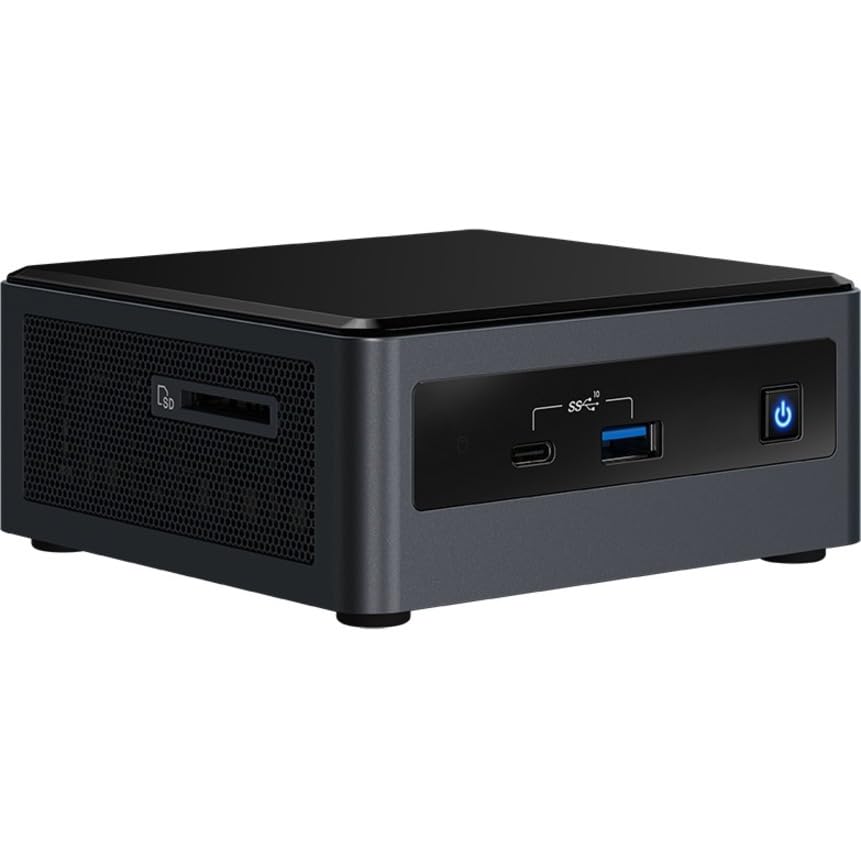
그림 2: 측면 view of the Intel NUC 10 Performance NUC10i3FNHN, highlighting the ventilation and additional ports.
작동 지침
Once your Intel NUC is set up and the operating system is installed, you can begin using it for various tasks.
- 전원 켜기/끄기: Press the power button located on the front panel to turn the system on or off. For a controlled shutdown, use the operating system's shutdown function.
- USB 장치 연결: Utilize the multiple USB ports (including USB 2.0 and USB 3.0/3.1) to connect external hard drives, flash drives, printers, and other peripherals.
- 네트워크 사용량: The Gigabit Ethernet port provides high-speed wired network connectivity, ideal for large file transfers and stable internet access. Wireless connectivity (if equipped) allows for flexible network access.
- 디스플레이 출력: Connect to displays using the available HDMI or USB-C/Thunderbolt ports. The NUC supports high resolutions, including 3840x2160 and 4096x2304, for a clear visual experience.
- 오디오: Connect speakers or headphones to the audio jack for sound output.
유지
정기적인 유지 관리는 인텔 NUC의 수명 연장과 최적의 성능을 보장하는 데 도움이 됩니다.
- 먼지 제거: Periodically clean the exterior of the NUC with a soft, dry cloth. Use compressed air to gently clear dust from ventilation grilles to maintain proper airflow and prevent overheating. Ensure the system is powered off before cleaning.
- 소프트웨어 업데이트: Regularly update your operating system, drivers, and BIOS/firmware. Visit the Intel support website for the latest drivers specific to your NUC model.
- 케이블 관리 : Ensure all cables connected to the NUC are neatly organized and not obstructing ventilation.
- 환경 조건: NUC는 직사광선, 열원 및 과도한 습기를 피해 통풍이 잘 되는 곳에서 작동하십시오.
문제 해결
이 섹션에서는 일반적으로 발생할 수 있는 문제에 대한 해결책을 제공합니다.
- 전원이 켜지지 않음/시스템이 켜지지 않음:
Ensure the power cord is securely connected to both the NUC and a working electrical outlet. Verify that the power outlet is active. If you are using an international power adapter, ensure it is compatible with your region's voltage and plug type. Some users have reported receiving power cords incompatible with their region; a replacement may be necessary.
- 디스플레이 출력 없음:
Check that the monitor is powered on and the video cable (HDMI, USB-C) is securely connected to both the NUC and the monitor. Try a different video port or cable if available. Ensure the monitor input source is correctly selected.
- System Not Booting After RAM/Storage Installation:
Verify that the RAM modules and storage devices are correctly seated in their respective slots. Refer to the installation steps in the Setup section. Ensure the storage device contains a valid operating system.
- 느린 성능:
Ensure you have installed sufficient RAM (up to 64 GB DDR4) and a fast storage solution (e.g., NVMe SSD). Close unnecessary applications. Check for background processes consuming resources. Ensure drivers are up to date.
- 네트워크 연결 문제:
For wired connections, check the Ethernet cable and router/modem. For wireless, ensure the Wi-Fi module is enabled and drivers are installed. Verify network settings in your operating system.
명세서
Detailed technical specifications for the Intel NUC 10 Performance NUC10i3FNHN Barebone System:
| 특징 | 세부 사항 |
|---|---|
| 모델 번호 | NUC10i3FNHN |
| 프로세서 | Intel Core i3 10th Gen i3-10110U Dual-core (2 Core) |
| 프로세서 속도 | 1.9GHz |
| RAM (Max Supported) | 64GB DDR4 SDRAM |
| 메모리 속도 | 2666MHz |
| 그래픽 코프로세서 | Intel UHD 그래픽(통합) |
| 최대 화면 해상도 | 4096x2304 |
| 하드 드라이브 인터페이스 | Serial ATA/600, Solid State (M.2) |
| USB 포트 | 7 (including USB 2.0, USB 3.0/3.1, USB-C) |
| 회로망 | Gigabit Ethernet, Bluetooth (Wireless Type) |
| 운영 체제(호환 가능) | Windows 10 (Barebone system, OS not included) |
| 품목 무게 | 1.25파운드 |
| 제품 크기(LxWxH) | 6.1 x 5 x 4.8 인치 |
| 색상 | 검은색 |
보증 및 지원
자세한 보증 정보 및 기술 지원은 인텔 공식 웹사이트를 참조하십시오. web해당 웹사이트를 방문하거나 인텔 고객 서비스에 문의하십시오. 보증 청구를 위해 구매 증빙 자료를 보관하십시오.
온라인 리소스:
Note: Warranty terms may vary by region and retailer. Always consult the official Intel warranty policy for the most accurate information.