소개
This manual provides detailed instructions for the setup, operation, and maintenance of your Pantum M6550NW/M6552NW Monochrome Multifunction Laser Printer. Please read this manual thoroughly before using the printer to ensure proper and safe operation.

이미지: 앞면 view of the Pantum M6550NW/M6552NW Monochrome Multifunction Laser Printer.
제품 끝view
The Pantum M6550NW/M6552NW is a versatile monochrome laser printer designed for efficient printing, copying, and scanning. It features wireless and Ethernet networking capabilities, a compact design, and an intuitive LCD control panel.
주요 특징
- Print, Copy, Scan functionality
- USB, Network, and Wireless connectivity
- 20,000-page monthly duty cycle
- 150 sheets input tray capacity
- Up to 23 letter pages per minute print speed
- 자동 문서 공급기(ADF)
- LCD Control Panel for easy operation
- One-step driver installation
- 모바일 인쇄 지원

Image: Diagram showing key components of the printer, including the All-in-One Toner Cartridge slot, Paper Input Tray, Auto Document Feeder, LCD Control Panel, and highlighting its small footprint and networking capabilities.
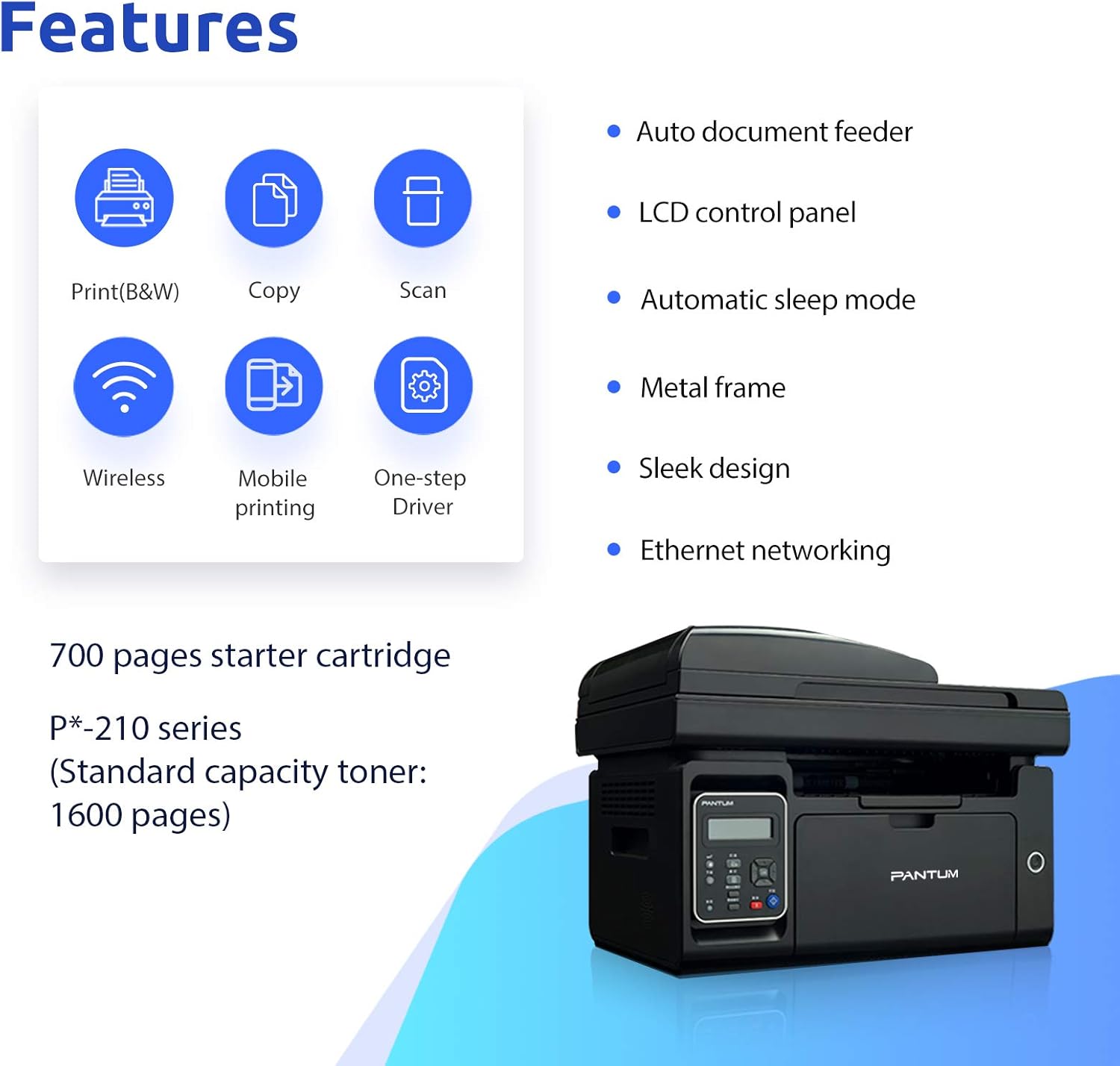
Image: Visual representation of the printer's core features: Print (B&W), Copy, Scan, Wireless, Mobile printing, and One-step Driver installation. Also notes the 700-page starter cartridge and P*-210 series standard capacity toner (1600 pages).
설정
Follow these steps for the initial setup of your printer.
1. 포장해체 및 구성품 확인
Carefully remove the printer from its packaging. Verify that all included components are present:
- Pantum M6550NW/M6552NW Printer
- 전원 코드
- USB 인터페이스 케이블
- 스타터 토너 카트리지
- 빠른 설정 가이드
- CD-ROM (for drivers and software)

Image: Contents typically found in the printer box, including the printer, power cord, USB cable, starter cartridge, quick setup guide, and CD-ROM.
2. 토너 카트리지 설치
Before first use, install the toner cartridge. Refer to the quick setup guide for specific instructions, but generally, this involves:
- 프린터의 앞면 덮개를 엽니다.
- Carefully unpackage the toner cartridge.
- Remove any protective seals or tapes from the cartridge.
- 카트리지를 지정된 슬롯에 딸깍 소리가 날 때까지 삽입합니다.
- 앞면 덮개를 닫습니다.

Image: Step-by-step visual guide for installing the toner cartridge: 1) Take out the cartridge, 2) Remove the seal, 3) Install the cartridge.
3. 전원 연결
전원 코드를 프린터에 연결한 다음 접지된 전기 콘센트에 연결하세요.
4. Driver Installation and Connectivity
Install the printer drivers from the included CD-ROM or download the latest drivers from the official Pantum website. You can connect the printer via USB, Wi-Fi, or wired network.
- USB 연결: 제공된 USB 케이블을 사용하여 프린터를 컴퓨터에 연결합니다.
- Wi-Fi 연결: Follow the on-screen instructions on the printer's LCD panel or use the setup wizard on your computer to connect to your wireless network. The printer supports Wi-Fi Hotspot direct connection.
- 유선 네트워크 연결: 프린터와 네트워크 라우터 또는 스위치를 이더넷 케이블로 연결하십시오.

Image: Illustrations demonstrating the three easy driver installation and connection methods: USB, Wi-Fi, and wired network.
작동 지침
Using the LCD Control Panel
The LCD control panel allows you to navigate printer functions, view status, and configure settings. Use the arrow keys and OK button to make selections.

이미지: 클로즈업 view of the printer's LCD control panel, showing buttons for navigation, status, copy functions, and start/cancel.
인쇄
문서를 인쇄하려면:
- 프린터의 전원이 켜져 있고 장치에 연결되어 있는지 확인하세요.
- 입력 용지함에 용지를 넣습니다.
- 컴퓨터나 모바일 기기에서 인쇄하려는 문서를 여세요.
- Select the print option (usually File > 인쇄).
- Choose the Pantum M6550NW/M6552NW from the list of available printers.
- 필요에 따라 인쇄 설정(예: 복사 매수, 용지 크기, 품질)을 조정하십시오.
- "인쇄"를 클릭하세요.
For mobile printing, download the Pantum app. It supports direct printing from your smartphone or tablet via Wi-Fi.

Image: Screenshot of the Pantum mobile application interface, demonstrating its capabilities for printing documents (Word, PDF, PPT, Excel, TXT) and scanning, highlighting easy wireless and mobile printing.
사자
사본을 만들려면:
- 스캐너 유리에 문서를 앞면이 아래로 향하게 놓거나 자동 문서 공급기(ADF)에 앞면이 위로 향하게 놓습니다.
- 제어판에서 "복사" 기능을 선택하십시오.
- Adjust settings such as number of copies, copy quality, or enlargement/reduction if available.
- "시작" 버튼을 눌러 복사를 시작하세요.
스캐닝
문서를 스캔하려면:
- 스캐너 유리에는 문서를 앞면이 아래로 향하게 놓거나, 자동 문서 공급기(ADF)에는 앞면이 위로 향하게 놓으십시오.
- From your computer, open the scanning software (usually installed with the printer drivers) or use the Pantum app on your mobile device.
- Select the "Scan" function.
- 해상도, 색상 모드, 저장 폴더 등의 스캔 설정을 선택하세요.
- 스캔을 시작하려면 "스캔"을 클릭하세요.
유지
정기적인 유지보수는 최적의 성능을 보장하고 프린터의 수명을 연장시켜 줍니다.
프린터 청소
- 프린터 외부를 부드러운 천으로 닦으세요.amp, 보푸라기 없는 천.
- Periodically clean the scanner glass with a glass cleaner applied to a cloth (not directly to the glass).
- 연마성 세척제나 용제를 사용하지 마십시오.
토너 카트리지 교체
When the toner is low or empty, the printer's LCD panel will display a message. Replace the cartridge as follows:
- 프린터 전원이 켜져 있는지 확인하세요.
- 앞면 덮개를 엽니다.
- 오래된 토너 카트리지를 조심스럽게 제거하세요.
- Unpack the new Pantum P*-210 series toner cartridge and remove all protective materials.
- 새 카트리지를 딸깍 소리가 나면서 제자리에 고정될 때까지 단단히 삽입하십시오.
- 앞면 덮개를 닫습니다.
사용한 토너 카트리지는 지역 규정에 따라 폐기하십시오.
문제 해결
이 섹션에서는 일반적으로 발생할 수 있는 문제에 대해 설명합니다.
프린터가 응답하지 않음
- 프린터의 전원이 켜져 있고 전원 코드가 제대로 연결되어 있는지 확인하세요.
- Verify the USB cable is properly connected to both the printer and the computer, or that the Wi-Fi/Ethernet connection is active.
- 프린터와 컴퓨터/장치를 다시 시작하세요.
- Ensure the correct printer driver is installed and selected as the default printer.
인쇄 품질 불량
- 토너 잔량을 확인하고 부족하면 카트리지를 교체하십시오.
- 레이저 인쇄에 적합한 용지를 사용하고 있는지 확인하세요.
- Clean the printer's internal components as per the maintenance section if streaks or smudges appear.
Connectivity Issues (Wi-Fi/Network)
- 프린터가 무선 라우터 범위 내에 있는지 확인하세요.
- 입력한 와이파이 비밀번호가 올바른지 확인하세요.
- 라우터와 프린터를 재시작하세요.
- Check your network settings on both the printer and your computer.
- 유선 연결을 사용하는 경우 이더넷 케이블이 제대로 연결되어 있는지 확인하십시오.
명세서
| 특징 | 세부 사항 |
|---|---|
| 모델 | M6550NW/M6552NW |
| 기능 | 인쇄, 복사, 스캔 |
| 인쇄 기술 | 레이저(단색) |
| 최대 인쇄 속도(흑백) | 23ppm(레터) |
| 최대 인쇄 해상도 | 1200 x 1200 DPI |
| 스캐너 유형 | 매엽 |
| 스캐너 해상도 | 1200 x 1200 DPI |
| 연결성 | USB 2.0, Wi-Fi, Ethernet |
| 입력 용지함 용량 | 150장 |
| 호환 장치 | 스마트폰(안드로이드, iOS) |
| 제품 치수 | 16.42 x 12.01 x 11.85cm |
| 품목 무게 | 9.02kg |
| 포함된 구성 요소 | USB cable, Starter Toner Cartridge |
보증 및 지원
For warranty information and technical support, please refer to the documentation included with your printer or visit the official PANTUM web사이트. 보증 청구를 위해 구매 증빙 자료로 구매 영수증을 보관하세요.


