소개
This user manual provides comprehensive instructions for the TERIOS Wireless Controller, designed for an enhanced gaming experience. This controller is compatible with PlayStation 4, PS4 Pro, and PS4 Slim consoles.

이미지: 앞면 view of the green TERIOS Wireless Controller, showcasin인체공학적 디자인과 버튼 레이아웃이 특징입니다.
상자 안에 무엇이 들어있나요?
패키지를 열 때 다음 품목이 모두 들어 있는지 확인하세요.
- 1 x TERIOS Wireless Controller
- 1 x USB 충전 케이블
- 1 x Controller User Manual (this document)

Image: The TERIOS Wireless Controller, USB charging cable, and user manual laid out, representing the package contents.
제품 특징
The TERIOS Wireless Controller is equipped with several features designed to enhance your gaming experience:
- 무선 연결 : Connects wirelessly to your PS4 console via Bluetooth 4.2 for a stable connection up to 8 meters.
- Built-in Speaker & Headset Jack: Features an integrated speaker and a 3.5mm stereo headset jack for immersive audio.
- Multitouch Pad: A central multitouch pad expands gaming possibilities and interaction.
- 공유 버튼: Allows for live-streaming and sharing gameplay moments without interrupting your session.
- 듀얼 아날로그 스틱: Provides pinpoint accuracy and enhanced sensitivity for precise control.
- Double Shock Vibration: Integrated motors provide haptic feedback for an immersive gaming experience.
- 터보 기능: Enables rapid-fire functionality for certain in-game actions.
- 충전식 배터리: Equipped with a 1000mAh lithium battery, offering 10-12 hours of continuous use on a single charge.
- 인체공학적 디자인: Conforms to the palm structure for comfortable extended gaming sessions.

이미지: 클로즈업 views highlighting the built-in speaker, share button, and multitouch pad functionalities of the controller.

Image: Visuals illustrating the Bluetooth 4.2 connection, ergonomic design for comfortable grip, and the placement of advanced gaming buttons.

Image: The controller with a visual emphasis on its dual analog sticks, indicating their role in providing a better gaming experience.
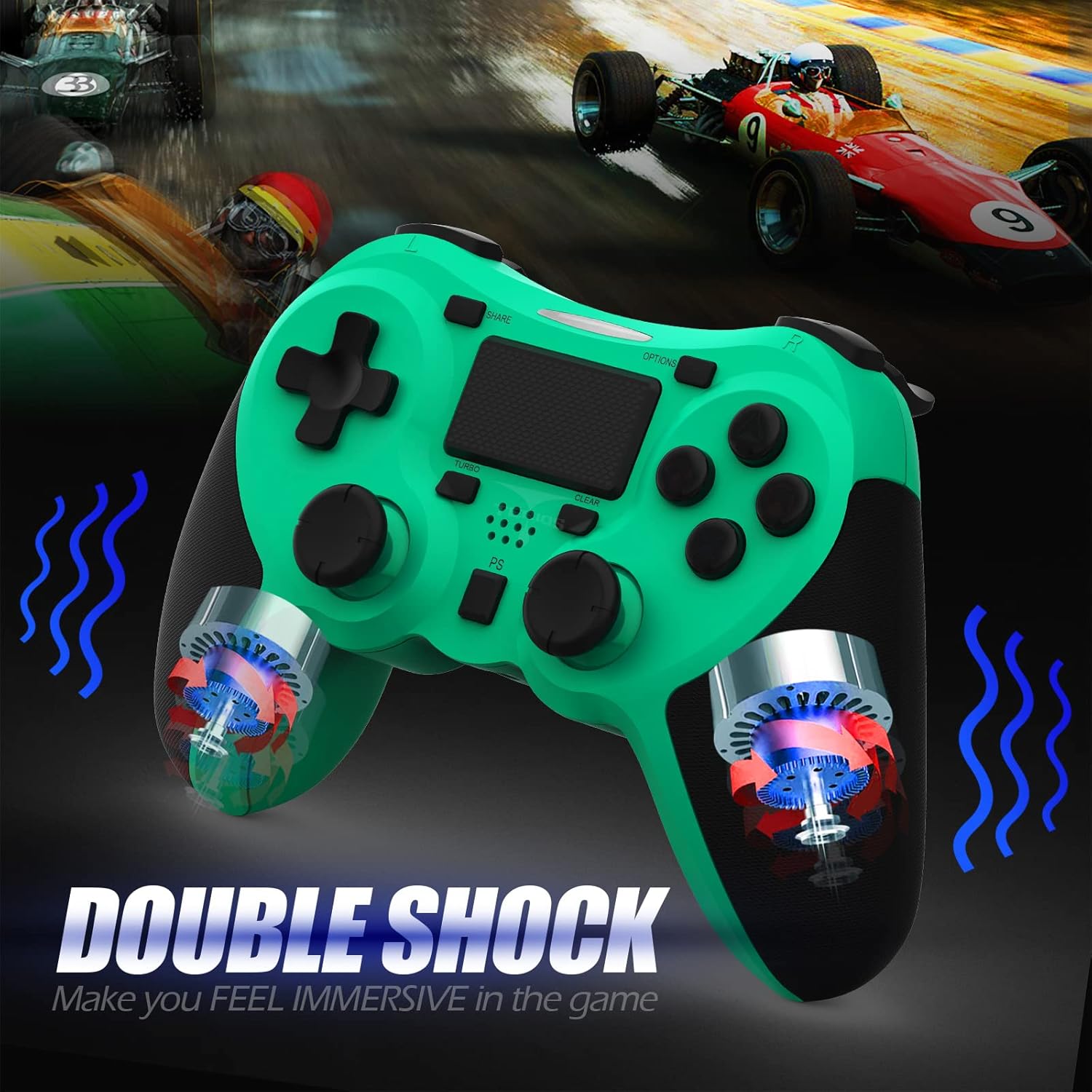
이미지: 내부 view of the controller highlighting the double shock vibration motors, designed to provide immersive haptic feedback.
설치 가이드
1. 초기 충전
Before first use, fully charge the controller. Connect the supplied USB charging cable to the controller's micro USB port and the other end to a USB port on your PlayStation 4 console or a compatible USB wall adapter.
- 충전 시간: 완충까지 약 2~3시간이 걸립니다.
- Battery Life: Up to 10-12 hours of continuous gameplay.
- 대기 시간: 최대 30일.
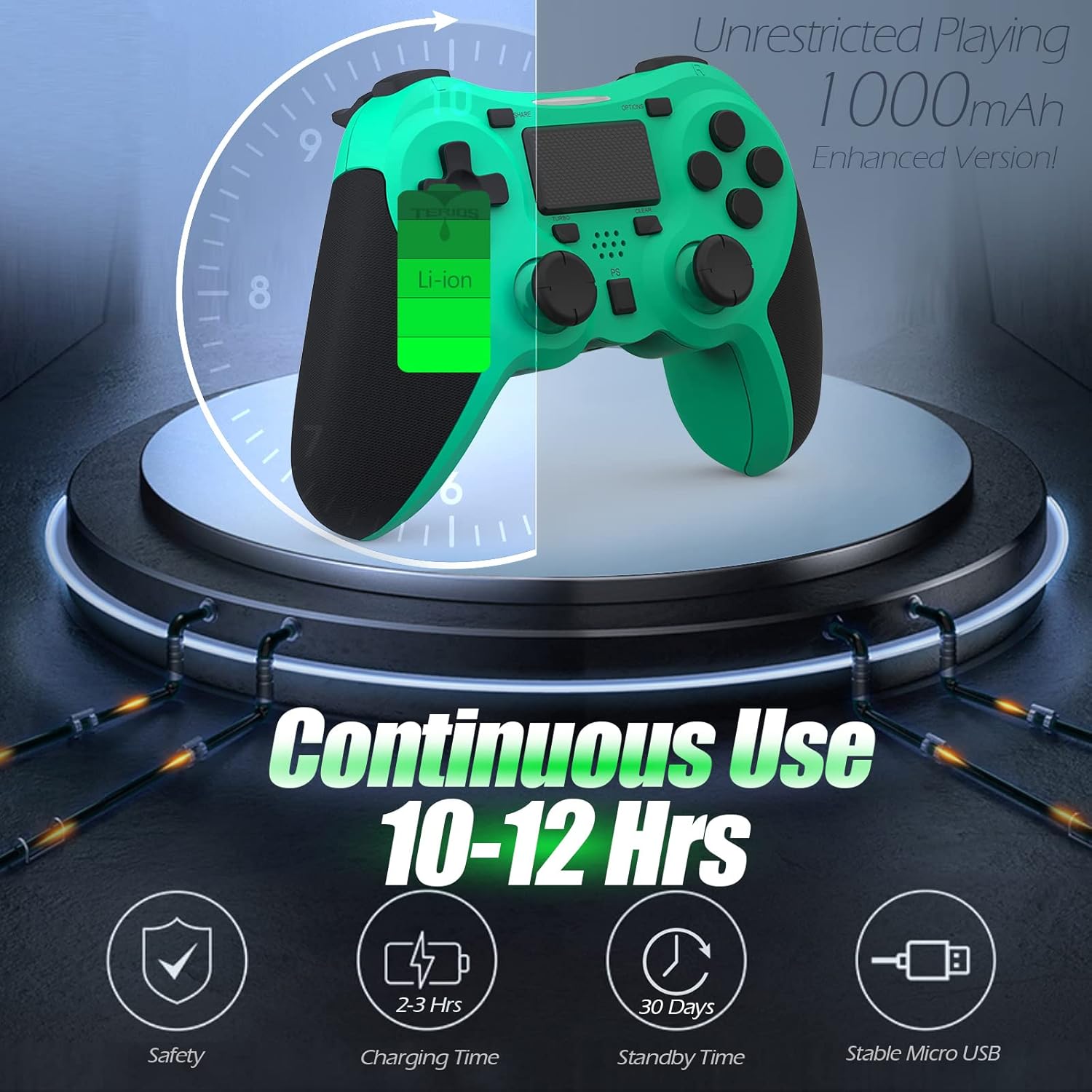
Image: A visual representation of the controller's 1000mAh battery, indicating 10-12 hours of continuous use, 2-3 hours charging time, and 30 days standby time.
2. PlayStation 4와의 페어링
PS4 콘솔과 컨트롤러를 페어링하려면:
- PS4 콘솔 전원이 켜져 있는지 확인하세요.
- USB 충전 케이블을 사용하여 컨트롤러를 PS4 콘솔에 연결합니다.
- 를 누르세요 PS 버튼 (located in the center of the controller). The light bar on the controller will flash, then glow a solid color, indicating successful pairing.
- 페어링이 완료되면 USB 케이블을 분리하여 무선으로 게임을 즐길 수 있습니다.
메모: If the controller does not pair, ensure it is charged and try connecting it to a different USB port on the console. For persistent issues, refer to the Troubleshooting section.
작동 지침
기본 제어
| 요소 | 기능 |
|---|---|
| PS 버튼 | Powers on the controller, accesses the PS4 home screen, switches users, or turns off the console (long press). |
| 공유 버튼 | Accesses the Share menu to capture screenshots, record video clips, or broadcast gameplay. |
| 옵션 버튼 | Pauses games, accesses in-game menus, or confirms selections. |
| Directional Buttons (D-Pad) | Navigates menus and provides directional input in games. |
| 액션 버튼(삼각형, 원, 십자가, 사각형) | Performs in-game actions, confirms, or cancels selections. |
| Left/Right Sticks (L3/R3) | Controls character movement, camera, or other analog inputs. Pressing down on the sticks activates L3/R3 buttons. |
| L1/R1 버튼 | Trigger various in-game actions, often for aiming or secondary functions. |
| L2/R2 트리거 | Analog triggers for actions like accelerating, braking, or firing weapons. |
| Multitouch Pad | Provides touch input for specific game interactions or navigation. |
| 3.5mm 헤드셋 잭 | Connects compatible headsets for game audio and voice chat. |
특수 기능
터보 기능
The Turbo feature allows for rapid, continuous input of a button press, useful for actions like rapid firing in games.
- 를 누르고 계세요 터보 버튼 (located below the touchpad).
- While holding TURBO, press the action button you wish to apply the rapid-fire function to (e.g., Square, Cross, Circle, Triangle, L1, R1, L2, R2).
- Release both buttons. The selected action button will now continuously register presses as long as it is held down.
- To disable Turbo for a specific button, repeat the process: hold TURBO and press the button again.
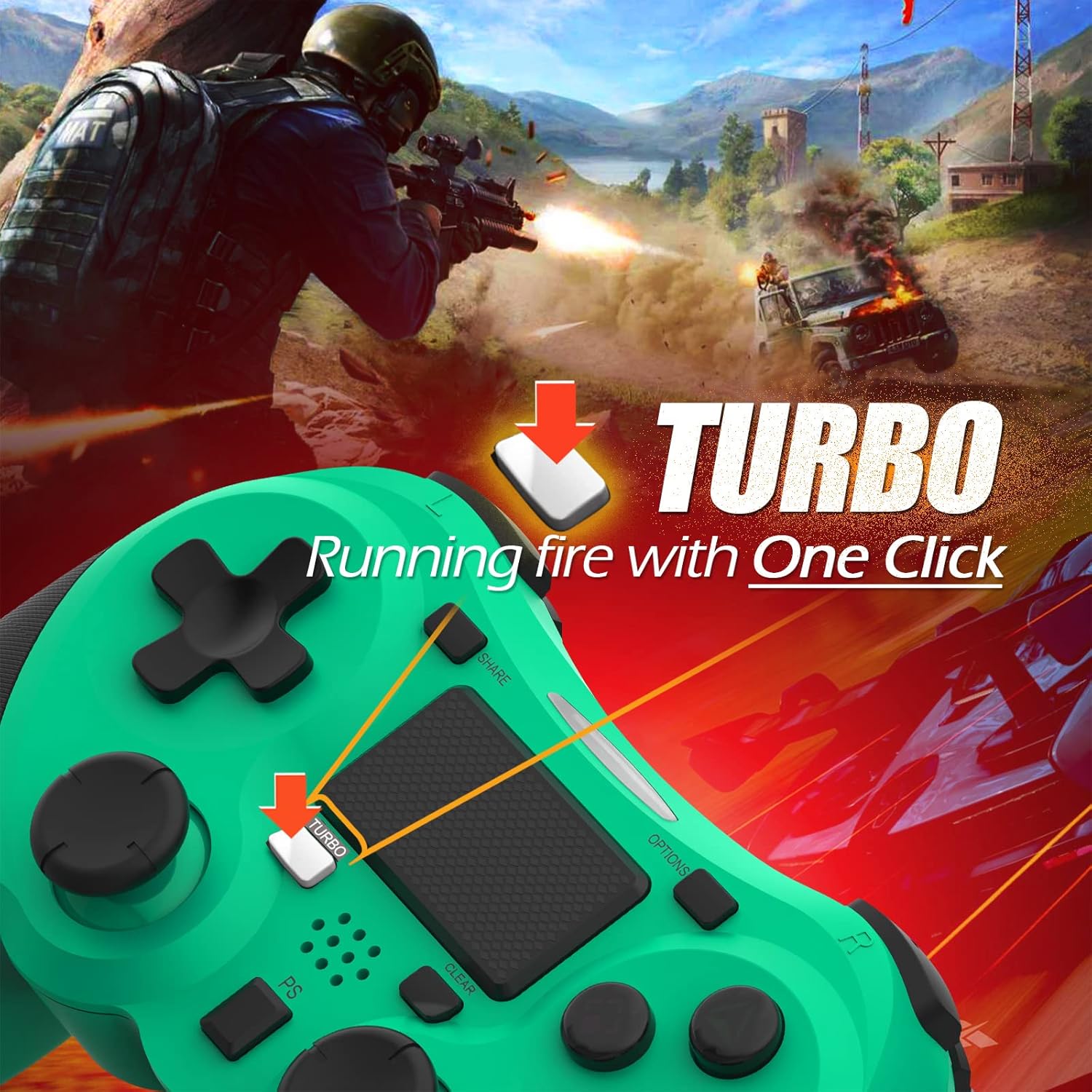
Image: A visual guide demonstrating how to activate the Turbo feature on the controller for rapid-fire actions.
Share Button Functionality
The SHARE button provides quick access to PS4's sharing features:
- 싱글 프레스: Opens the Share menu, allowing you to save a screenshot, save a video clip, or start a broadcast.
- 길게 누르기 : Takes a screenshot directly.
- 두 번 누르기 : 비디오 녹화를 시작/중지합니다.
유지
Proper maintenance ensures the longevity and optimal performance of your TERIOS Wireless Controller.
청소
- 부드럽고 마른 천으로 컨트롤러 표면을 닦아주세요.
- 완고한 먼지에는 약간 damp천에 물이나 순하고 연마성이 없는 세제를 묻혀 닦아주세요. 과도한 습기는 피하세요.
- Do not use harsh chemicals, solvents, or abrasive materials, as these can damage the controller's finish and internal components.
저장
- 컨트롤러는 직사광선, 극한 온도 및 높은 습도를 피해 서늘하고 건조한 곳에 보관하십시오.
- Avoid placing heavy objects on the controller to prevent damage to buttons or analog sticks.
배터리 관리
- To preserve battery life, avoid fully discharging the controller frequently.
- 장기간 보관할 경우, 보관하기 전에 배터리를 약 50%까지 충전하세요.
- Recharge the controller at least once every three months if not in use to prevent deep discharge.
문제 해결
If you encounter issues with your TERIOS Wireless Controller, please refer to the following common solutions:
컨트롤러가 연결/페어링되지 않습니다
- 배터리 확인: Ensure the controller is sufficiently charged. Connect it to the PS4 via USB cable to charge.
- 수리하다: Connect the controller to the PS4 with the USB cable and press the PS button to re-establish the connection.
- 컨트롤러 재설정: Locate the small reset button hole on the underside of the controller (near the L2 button). Use a straightened paperclip or a similar thin object to press and hold the button for 3-5 seconds. This will reset the controller. After resetting, attempt to re-pair it with the PS4.
- 간섭: Move closer to the PS4 console to rule out wireless interference.
Buttons or Sticks Unresponsive/Lagging
- 컨트롤러 재설정: 위에 설명한 대로 하드 리셋을 수행합니다.
- 깨끗한: Ensure no debris is lodged around the buttons or sticks. Clean the controller as per the Maintenance section.
- 펌웨어: Ensure your PS4 system software is up to date.
과도한 진동
- 컨트롤러 재설정: A reset can often resolve unexpected vibration issues.
- 게임 설정: Check in-game settings for vibration intensity.
명세서
| 기인하다 | 세부 사항 |
|---|---|
| 모델 | TERIOS 5S |
| ASIN | B09KLR5DCZ |
| 호환성 | PlayStation 4, PS4 Pro, PS4 Slim |
| 연결성 | Wireless (Bluetooth 4.2), USB |
| 배터리 유형 | 리튬폴리머(1개 포함) |
| 배터리 용량 | 1000mAh |
| 연속 사용 시간 | 10-12시간 |
| 충전 시간 | 2-3시간 |
| 대기 시간 | 최대 30일 |
| 품목 무게 | 10.8 온스(약 306그램) |
| 패키지 크기 | 6.69 x 5.24 x 2.72 인치 |
| 제조업체 | 테리오스 |
| 첫 번째 이용 가능 날짜 | 28년 2021월 XNUMX일 |
보증 및 지원
TERIOS stands behind the quality of its products. This controller comes with a 1년 보증 구매일로부터 제조상의 결함에 대한 보증을 제공합니다.
For customer support, technical assistance, or warranty claims, please contact TERIOS customer service through the platform where you purchased the product or visit the official TERIOS store page for contact information.
We are committed to providing premium customer support and ensuring your satisfaction with our products.


