1. 서론
This manual provides essential information for the proper use and maintenance of your Gateway 15.6-inch FHD Ultra Slim Laptop, Model GTW15G. This device is equipped with an AMD Ryzen 5 3450U Mobile Processor, 8GB of DDR4 RAM, and a 256GB Solid State Drive (SSD). It features a 15.6-inch Full HD (1920x1080) IPS display, a built-in fingerprint scanner, and runs on Windows 10, with an available free upgrade to Windows 11.
Please read this manual thoroughly before operating your laptop to ensure optimal performance and longevity.
2. 설정
2.1 포장 풀기 및 초기 검사
Carefully remove the laptop and all accessories from the packaging. Verify that all components are present and undamaged. The package should include the laptop, power adapter, and this user manual.
2.2 전원 어댑터 연결
Before first use, connect the power adapter to the laptop's charging port and then to a power outlet. Allow the battery to charge for at least 30 minutes before powering on for the first time.

Figure 2.1: Gateway 15.6-inch Ultra Slim Laptop overview.
2.3 첫 번째 전원 켜기 및 Windows 설치
Press the power button located on the keyboard. The laptop will boot up and guide you through the Windows 10 initial setup process. Follow the on-screen instructions to configure your region, language, network connection, and user account.
2.4 Fingerprint Scanner Setup (Windows Hello)
During or after the initial Windows setup, you can configure the built-in fingerprint scanner for secure login using Windows Hello. Navigate to 설정 > 계정 > 로그인 옵션 and follow the prompts to set up your fingerprint.
3. 사용 설명서
3.1 전원 켜기/끄기 및 절전 모드
- 전원 켜기: 전원 버튼을 누르세요.
- 종료: 클릭하세요 시작 버튼을 누른 다음 전원 > 종료.
- 수면 모드 : 뚜껑을 닫거나 클릭하세요 시작 버튼을 누른 다음 전원 > 절전.
3.2 Using the Precision Touchpad
The laptop features a precision touchpad for navigation. It supports multi-touch gestures for scrolling, zooming, and other functions. Refer to Windows settings for customizing touchpad gestures.
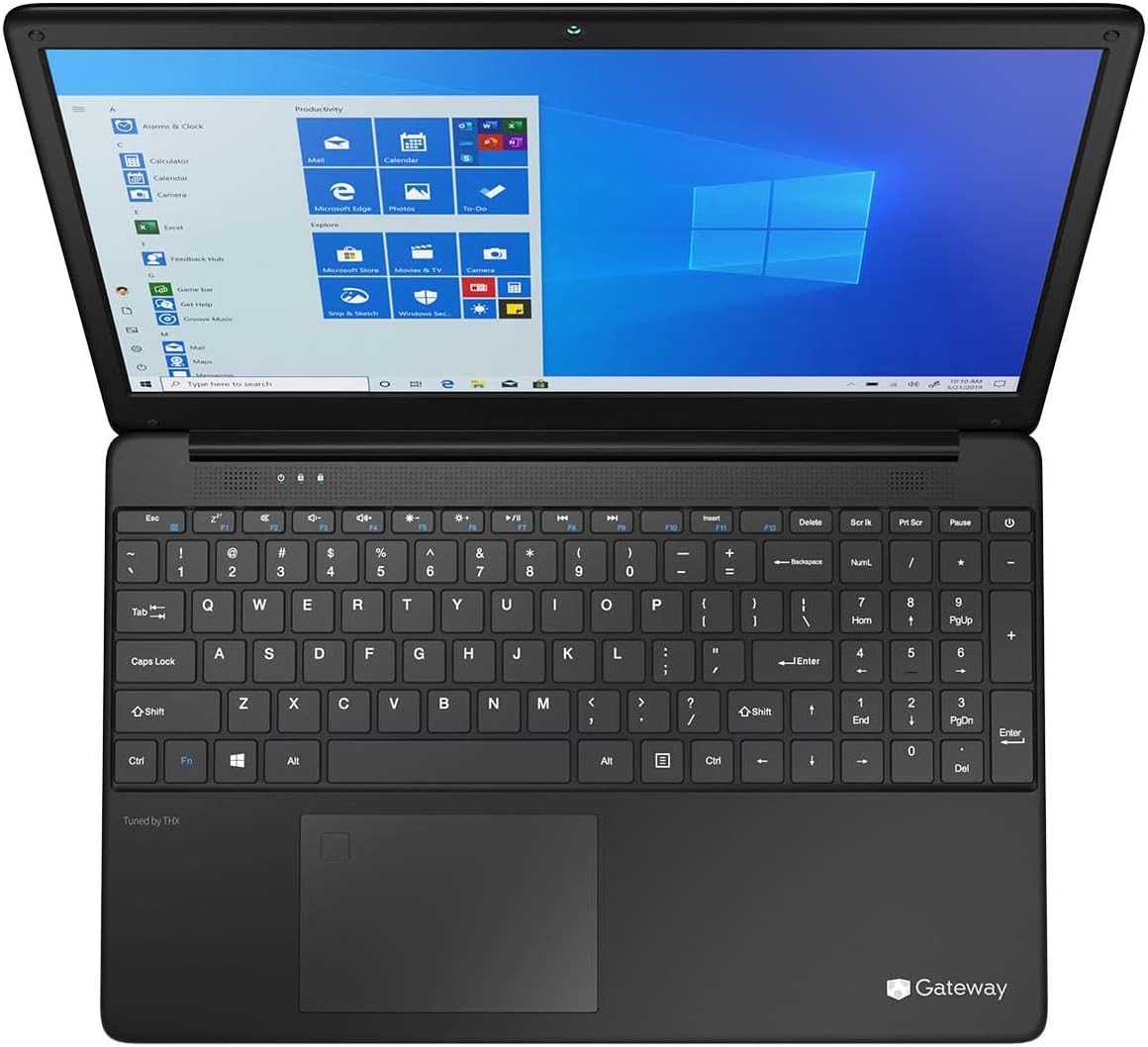
Figure 3.1: Keyboard and Precision Touchpad layout.
3.3 외부 장치 연결
The laptop provides various ports for connecting peripherals:
- USB 3.0 포트(x2): 외장 하드 드라이브, 마우스, 키보드 등의 USB 장치를 연결하는 데 사용합니다.
- USB Type-C 포트(1개): Supports both charging and data transfer.
- HDMI 출력(1개): 외부 모니터 또는 TV에 연결하세요.
- Micro SD Slot (x1): Supports Micro SD cards up to 512 GB for expanded storage.
- 켄싱턴 잠금 장치: 물리적 보안을 위해서입니다.
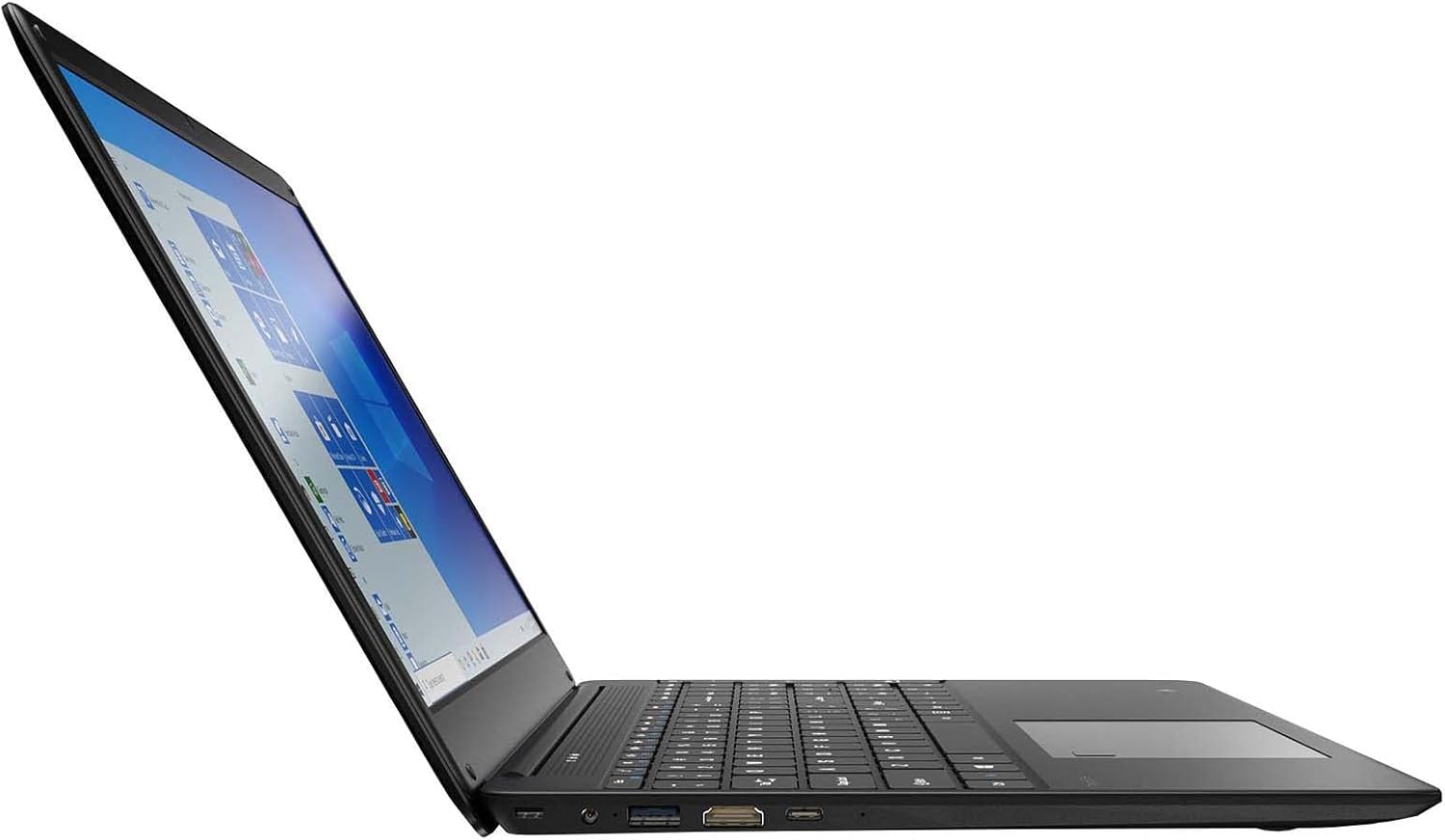
Figure 3.2: Left side ports (USB, HDMI, USB Type-C).
3.4 무선 연결
The laptop supports Wi-Fi and Bluetooth 5.1 for wireless connections. Access network settings via the Windows taskbar or 설정 > 네트워크 및 인터넷 to connect to Wi-Fi networks or pair Bluetooth devices.
3.5 오디오 기능
The built-in stereo speakers are tuned by THX Audio, providing enhanced sound quality. Adjust volume using the function keys on the keyboard or through Windows sound settings.
4. 유지관리
4.1 노트북 청소
- 화면: 부드럽고 털이 없는 천을 살짝 사용하세요.amp물이나 화면 세척제로 닦아주세요. 화면에 직접 액체를 분사하지 마세요.
- 섀시 및 키보드: 부드럽고 마른 천을 사용하세요. 잘 지워지지 않는 오염의 경우, 약간amp 천을 사용할 수 있습니다. 강한 화학 물질은 피하세요.
- 통풍구 : 냉방 성능 저하를 방지하기 위해 주기적으로 압축 공기를 사용하여 환기구를 청소하십시오. 먼지가 쌓이면 냉방 효과가 떨어질 수 있습니다.
4.2 배터리 관리
배터리 수명과 내구성을 극대화하려면:
- 배터리를 자주 완전히 방전시키지 마세요.
- 노트북을 극한의 온도에 노출시키지 마십시오.
- 노트북을 장기간 보관할 경우 배터리가 약 50~70% 정도 충전되어 있는지 확인하세요.
- Optimize power settings in Windows to conserve battery power.
4.3 소프트웨어 업데이트
Regularly check for and install Windows updates to ensure your system has the latest security patches and performance improvements. Navigate to 설정 > 업데이트 및 보안 > Windows 업데이트.
4.4 데이터 백업
데이터 손실을 방지하려면 중요한 데이터를 정기적으로 외장 드라이브나 클라우드 스토리지에 백업하세요.
5. 문제 해결
이 섹션에서는 노트북에서 발생할 수 있는 일반적인 문제에 대해 설명합니다.
5.1 노트북 전원이 켜지지 않습니다
- 전원 어댑터가 노트북과 작동하는 전원 콘센트에 모두 단단히 연결되어 있는지 확인하세요.
- 다른 장치를 연결하여 전원 콘센트가 작동하는지 확인하세요.
- 노트북을 다시 켜기 전에 일정 시간 동안 충전하십시오.
5.2 Wi-Fi 연결 문제
- Windows 설정에서 Wi-Fi가 활성화되어 있는지 확인하세요.
- 라우터와 모뎀을 다시 시작하세요.
- 와이파이 네트워크 범위 내에 있는지, 그리고 올바른 비밀번호를 입력했는지 확인하세요.
- Windows 네트워크 문제 해결사 실행(설정 > 네트워크 및 인터넷 > 상태 > 네트워크 문제 해결사).
5.3 느린 성능
- 백그라운드에서 실행 중인 불필요한 애플리케이션을 닫으세요.
- 보류 중인 Windows 업데이트를 확인하고 설치하세요.
- SSD에 충분한 여유 공간이 있는지 확인하십시오.
- 악성코드나 바이러스를 검사하세요.
5.4 과열
If the laptop feels excessively warm, ensure that the ventilation vents are not blocked. Operate the laptop on a hard, flat surface to allow for proper airflow. Avoid using it on soft surfaces like beds or couches that can obstruct vents.
5.5 기타 문제
For issues not covered here, refer to the Windows help documentation or contact Gateway customer support.
6. 사양
| 특징 | 사양 |
|---|---|
| 모델명 | Gateway GWTN156 (GTW15G) |
| 디스플레이 크기 | 15.6 인치 |
| 화면 해상도 | 1920 x 1080 픽셀(FHD) |
| 프로세서 | AMD Ryzen 5 3450U (2.1 GHz, Up to 3.50 GHz) |
| 숫양 | 8GB DDR4 |
| 저장 | 256GB SSD |
| 그래픽 코프로세서 | AMD 라데온 베가 8 그래픽 |
| 운영 체제 | Windows 10 (Free Upgrade to Windows 11) |
| 무선형 | 와이파이, 블루투스 5.1 |
| 포트 | 1x HDMI, 1x USB Type-C (Charge + Data), 2x USB 3.0, 1x Micro SD Slot (Up to 512 GB) |
| 특별 기능 | Built-in Fingerprint Scanner (Windows Hello), Stereo Speakers Tuned by THX Audio, HD Web캠 |
| 품목 무게 | 5.5파운드 |
| 패키지 크기 | 16.65 x 11.73 x 2.8 인치 |
7. 보증 및 지원
For warranty information and technical support, please refer to the official Gateway website or contact Gateway customer service directly. Keep your proof of purchase for warranty claims.
This product may be eligible for separate protection plans. Details regarding these plans are available from your retailer at the time of purchase.


