1. 서론
Thank you for choosing the MOES 3 Gang WiFi Wall Touch Smart Switch. This device is designed to enhance your home lighting control with smart features, including touch control, app control, voice control, and multi-control association. Please read this manual carefully before installation and use to ensure safe and correct operation.
2. 중요한 안전 정보
- 중성선 필요: This smart switch requires a neutral wire in your switch box for proper operation. Please confirm its presence before installation.
- 2.4GHz 와이파이 네트워크: The switch only supports 2.4 GHz WiFi networks. It is not compatible with 5 GHz networks.
- 디머 스위치가 아닙니다: 이것은 ON/OFF 스위치이며, 밝기 조절 기능을 지원하지 않습니다.
- Not a Traditional 3-Way Switch: This switch uses multi-control association via the app for 3-way functionality, not traditional wiring.
- 설치 전 전원 끄기: Always turn off the circuit breaker before performing any wiring or installation to prevent electric shock.
- 전문 설치 권장: 전기 배선에 대해 잘 모르시겠다면 자격을 갖춘 전기 기술자에게 문의하십시오.
- 피하다amp 환경: Do not install the switch in damp 또는 습한 곳.
- 최대 하중을 초과하지 마십시오: Ensure the connected load does not exceed the switch's maximum rating (10 Amps, 2200W/Gang).

Image: Key considerations for MOES smart switch installation, highlighting 2.4GHz WiFi, neutral wire requirement, and non-compatibility with traditional 3-way or dimming functions.
3. 패키지 내용
- MOES 3 Gang WiFi Wall Touch Smart Switch
- 장착 나사
- 빠른 설치 가이드
4. 사양
| 특징 | 설명 |
|---|---|
| 작동 모드 | 끄기, 스마트 스위치 |
| 현재 평가 | 10 Amps |
| 운영 볼륨tage | 250 볼트 |
| 연락처 유형 | Touch-sensitive Mechanical Switch |
| 커넥터 유형 | 무선 전화 |
| 상표 | 모스 |
| 단말기 | 나사 |
| 회로 유형 | 3방향(앱 연동) |
| 액추에이터 유형 | 만지다 |
| 접촉 재료 | 유리 |
| 국제 보호 등급 | IP54 |
| 위치 수 | 3 |
| 컨트롤러 유형 | 아마존 알렉사, 안드로이드, 구글 어시스턴트, iOS |
| 제어 방법 | 원격 |
| 연결 프로토콜 | 블루투스, Wi-Fi |
| 색상 | 하얀색 |
| 품목 모델 번호 | WS-EU3-LW-N |
5. 설정 및 설치
5.1 사용된 도구
- 와이어 스트리퍼
- 전기펜 (Voltage 테스터)
- 전기 테이프
- Wiring Terminal (Wago connectors or similar)
- 드라이버
5.2 Wiring Diagram and Preparation
Before starting, ensure the circuit breaker is turned off to prevent electric shock. This switch requires a neutral wire. The diagram below illustrates the wiring connections.

이미지: 후면 view of the MOES smart switch with labeled terminals for Live (L), Neutral (N), and Load (L1, L2, L3) connections.
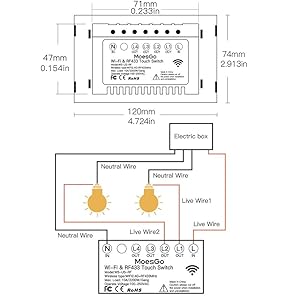
Image: Detailed wiring diagram illustrating the connection of Live, Neutral, and three separate lamp wires to the MOES 3 Gang smart switch.
5.3 물리적 설치
- 전원 끄기: Locate your circuit breaker and turn off the power to the switch you are replacing. Verify power is off using an electric pen.
- 이전 스위치 제거: Carefully remove the faceplate and unscrew the old switch from the wall box. Disconnect the wires, noting their positions.
- 전선 연결: Connect the Live wire, Neutral wire, and the three Lamp wires to the corresponding terminals on the MOES smart switch as shown in the wiring diagram. Ensure all connections are secure.
- 새로운 스위치 장착: Gently push the wired switch into the wall box and secure it with screws. Attach the glass panel faceplate.
- 복원력 : 회로 차단기를 다시 켜세요.
Video: Step-by-step installation guide for the MOES touch switch, demonstrating how to safely replace an old switch with the new smart switch.
5.4 App Pairing (WiFi Link Method)
To enable smart features, you need to pair the switch with the Smart Life/Tuya app.
- 앱 다운로드 : Download the Smart Life or Tuya Smart app from your mobile app store.
- Bluetooth 및 WiFi 활성화: Ensure your phone is connected to a 2.4GHz WiFi network and Bluetooth is enabled.
- 페어링 모드 시작: Press and hold any button on the smart switch for approximately 6 seconds until the blue indicator light flashes rapidly.
- 앱에 장치 추가: Open the Smart Life/Tuya app, tap the '+' icon to add a device. The app should automatically discover the switch. Follow the on-screen prompts to connect.
Video: Demonstrates the WiFi link method for pairing the smart switch with the Smart Life/Tuya app, including steps for entering pairing mode and connecting.
5.5 RF Pairing (RF Link Method)
This switch supports RF433 remote control (remote not included). To pair with an RF remote:
- Ensure Switch is Off: Confirm the smart switch is in the OFF state.
- RF 페어링 모드로 진입하세요: Press and hold the desired button on the smart switch for approximately 8 seconds until you hear two 'Di-Di' sounds.
- 리모컨 버튼을 누르세요: Immediately press the corresponding button on your RF433 remote control. The light connected to the smart switch will toggle ON/OFF, indicating successful pairing.
Note: The key of the remote controller can control the switching of the state of the switch on and off corresponding to the position of the switch.
6. 사용 설명서
6.1 터치 컨트롤
Simply touch the circular icons on the glass panel to toggle the connected lights ON or OFF. The blue backlight indicates the status of each gang.
6.2 앱 제어(스마트 라이프/투야)
Once paired, you can control your lights from anywhere using the Smart Life/Tuya app on your smartphone. Each gang can be controlled independently.

Image: A smartphone displaying the Smart Life app, demonstrating remote control of the MOES smart switch.
6.3 음성 제어(Alexa 및 Google Home)
Integrate your MOES smart switch with Amazon Alexa or Google Home for hands-free voice control. After linking your Smart Life/Tuya account in the Alexa or Google Home app, you can use commands like: "Alexa, turn on the living room light" or "Hey Google, turn off the kitchen lights."

Image: Illustration of voice control functionality with Amazon Alexa and Google Home, showing smart speakers interacting with the MOES smart switch.
6.4 다중 제어 연관(3방향 기능)
To achieve 3-way control (two switches controlling one light) without traditional wiring, use the multi-control association feature in the Smart Life/Tuya app. This allows multiple smart switches to control the same light.
- Ensure both smart switches are added to the same Smart Life/Tuya app.
- In the app, select the main switch that is wired to the light.
- Go to its settings and find "Multi-Control Association".
- Add the second smart switch (the one not wired to the light) to the multi-control group.
- Now, both switches can control the same light.
Video: Detailed demonstration of how to set up multi-control association in the Smart Life/Tuya app for 3-way switch functionality.
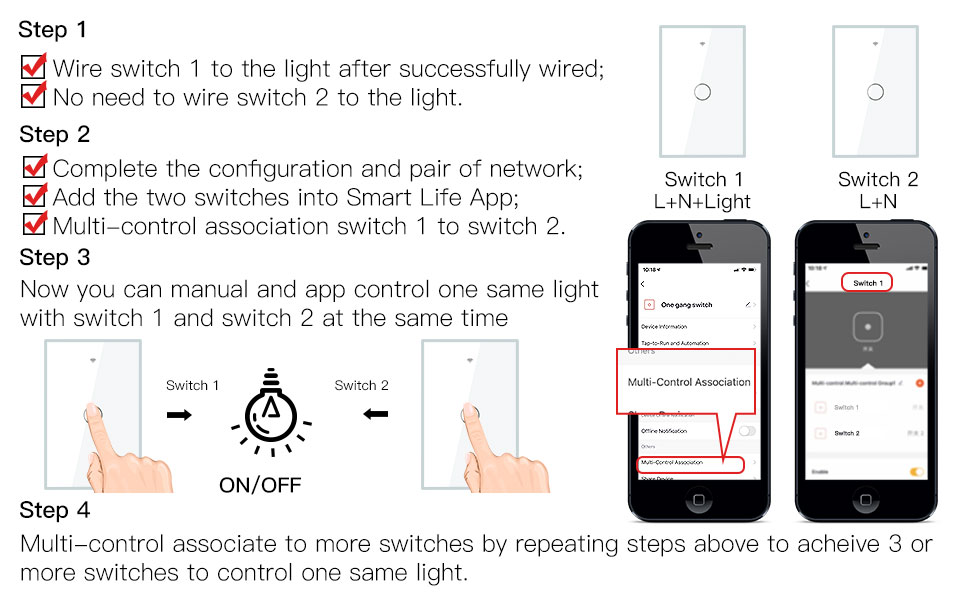
Image: Visual guide for setting up multi-control association between two smart switches to operate a single light source.
6.5 타이머와 카운트다운
Use the Smart Life/Tuya app to set schedules, timers, and countdowns for your lights. This allows for automated control, such as turning lights ON at sunset or OFF after a set duration.

Image: The Smart Life app displaying options for setting timers and countdowns to automate light control with the MOES smart switch.
6.6 릴레이 상태 조정 가능
In the app settings, you can configure the relay status after a power outage. Options include ON, OFF, or 'Remember last status' to restore the state prior to the power interruption.

Image: App screenshot showing the relay status setting, allowing users to choose the switch's state after a power interruption.
6.7 백라이트 켜기/끄기 제어
The backlight of the touch buttons can be turned ON or OFF via the app settings. This is useful for bedrooms or areas where you prefer no light from the switch.

Image: The MOES smart switch demonstrating the backlight ON and OFF feature, with the corresponding setting visible in the Smart Life app.
6.8 Device Share & Group Control
Share control of your smart switch with family members through the app. You can also create groups to control multiple switches or lights simultaneously with a single command.

Image: The Smart Life app illustrating how to share device control with family and create groups for simultaneous control of multiple MOES smart switches.
6.9 스마트 자동화
Create custom automation routines based on various conditions (e.g., time, weather, device status) to make your home truly smart. For example, turn on lights when a motion sensor is triggered.
비디오: 끝view of the functions and features of the MOES smart switch, including smart automation capabilities.
7. 유지관리
- 청소: 유리 패널은 부드럽고 마른 천으로 닦으십시오. 연마성 세척제나 용제를 사용하지 마십시오.
- 펌웨어 업데이트: Keep the Smart Life/Tuya app updated to receive the latest firmware for your switch, ensuring optimal performance and security.
- 정기 점검: Periodically check the switch for any signs of damage or loose connections.
8. 문제 해결
- 스위치가 응답하지 않음: Check if the circuit breaker is ON. Ensure the neutral wire is correctly connected.
- 와이파이에 연결할 수 없습니다:
- Confirm your WiFi network is 2.4GHz.
- Ensure your phone is connected to the same 2.4GHz WiFi network.
- Bring the switch closer to your WiFi router during pairing.
- Reset the switch to pairing mode (press and hold any button for 6 seconds until the blue indicator flashes rapidly).
- RF 리모컨이 작동하지 않습니다. Ensure the switch is in the OFF state before attempting RF pairing. Repeat the RF pairing steps carefully.
- 불빛이 깜빡거린다: This switch is not a dimmer. Ensure you are using compatible non-dimmable bulbs.
8.1 How to Reset/Re-pair WiFi Code
If you need to reset the WiFi connection or re-pair the switch:
- 스위치 버튼을 6번 누르세요.
- On the 6th press, hold the button.
- Release the button when you hear 'Di-Di-Di' (3 times).
- The blue indicator on the switch will flash fast after 3 seconds, indicating it's in pairing mode.
9. 보증 및 지원
MOES products come with a standard manufacturer's warranty. For specific warranty details, technical support, or further assistance, please refer to the warranty card included with your product or visit the official MOES website. You can also contact MOES customer service through the Smart Life/Tuya app or their official support channels.


