소개
This user manual provides comprehensive instructions for the installation, operation, and maintenance of your dynabook 16 GB DDR4 Memory Expansion Module. Please read this manual thoroughly before attempting any installation or operation to ensure proper functionality and to prevent damage to your system or the module.
제품 끝view
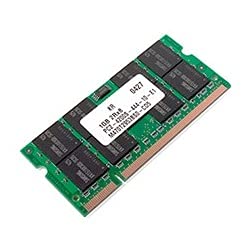
Figure 1: dynabook 16 GB DDR4 Memory Module. This image displays a green printed circuit board (PCB) with multiple black memory chips and a white label containing product information. Gold-plated contacts are visible along the bottom edge, designed for insertion into a compatible memory slot.
The dynabook 16 GB DDR4 Memory Expansion Module (Model: PS0098NA1MAG) is designed to enhance the performance of compatible computer systems by increasing the available Random Access Memory (RAM). This module utilizes DDR4 SDRAM technology, offering improved speed and efficiency over previous generations.
설정 및 설치
Before beginning the installation process, ensure your computer is powered off and disconnected from all power sources. It is recommended to wear an anti-static wrist strap to prevent electrostatic discharge (ESD) damage to components.
필요한 도구:
- Small Phillips head screwdriver (if required to open computer case)
- 정전기 방지 손목 스트랩(권장)
설치 단계:
- 전원 끄기 : 컴퓨터를 완전히 끄고 벽면 콘센트에서 전원 코드를 뽑으세요.
- 열린 사건: Carefully open your computer's case. Refer to your computer's specific manual for instructions on how to access the internal components.
- 메모리 슬롯 위치 찾기: Identify the existing memory modules and available memory slots on your motherboard.
- 모듈 삽입: Align the notch on the new DDR4 memory module with the key in the memory slot. Gently push the module straight down into the slot until the clips on both sides snap into place, securing the module.
- 사건 종결: Once the module is securely installed, close your computer's case.
- 전원 켜기: Reconnect the power cord and turn on your computer. The system should automatically detect the new memory.
메모: If your computer does not boot or recognize the new memory, ensure the module is seated correctly and try reseating it. Consult your computer's motherboard manual for specific memory compatibility and slot configurations.
작동 고려 사항
Once installed, the dynabook 16 GB DDR4 Memory Expansion Module operates automatically with your computer's operating system. No specific software installation is required for the memory module itself. The increased RAM will allow your system to handle more applications simultaneously and improve overall performance, especially for memory-intensive tasks.
설치 확인:
To verify that the new memory has been recognized by your system:
- 윈도우: Right-click on "This PC" or "My Computer," select "Properties." The installed RAM amount will be displayed.
- 맥 OS : Click the Apple menu, select "About This Mac." The memory information will be listed.
- 리눅스: 터미널을 열고 다음을 입력하세요.
free -horcat /proc/meminfo.
유지
Memory modules generally require minimal maintenance. However, proper care can extend their lifespan and ensure stable system operation.
- 먼지 방지: Regularly clean the interior of your computer case to prevent dust buildup, which can lead to overheating and component failure. Use compressed air to gently remove dust from around memory modules and slots.
- 온도 조절: Ensure adequate airflow within your computer case to maintain optimal operating temperatures for all components, including RAM.
- 물리적 취급: When handling memory modules, always hold them by the edges to avoid touching the gold contacts or the chips, as static electricity or oils from your skin can cause damage.
문제 해결
If you encounter issues after installing the memory module, refer to the following common troubleshooting steps:
| 문제 | 가능한 원인 | 해결책 |
|---|---|---|
| Computer does not boot after installation. | Memory module not seated correctly. | Ensure the module is fully inserted into the slot and the clips are locked. Try reseating the module. |
| System recognizes less RAM than installed. | Incorrect module placement or faulty slot/module. | Verify module is in the correct slot according to motherboard manual. Test modules individually if multiple are installed. |
| Frequent system crashes or "Blue Screen of Death" (BSOD). | Memory instability or faulty module. | Run a memory diagnostic tool (e.g., Windows Memory Diagnostic, MemTest86). Ensure BIOS/UEFI is updated. |
If issues persist after attempting these steps, contact dynabook customer support or a qualified technician.
명세서
| 특징 | 세부 사항 |
|---|---|
| 상표 | 다이나북 |
| 제조업체 | DYNABOOK OPTIONS |
| 모델 번호 | PS0098NA1MAG |
| RAM 크기 | 16GB (XNUMX기가바이트) |
| 컴퓨터 메모리 유형 | DDR4 SD램 |
| 제품 치수 | 36.58 x 12.7 x 27.94cm |
| 품목 무게 | 80g |
보증 및 지원
For information regarding the warranty terms and conditions for your dynabook 16 GB DDR4 Memory Expansion Module, please refer to the warranty card included with your purchase or visit the official dynabook support web사이트. 보증 청구를 위해 구매 증빙 자료를 보관하세요.
고객 지원:
If you require technical assistance or have questions not covered in this manual, please contact dynabook customer support through their official channels. Support contact information can typically be found on the dynabook web사이트 또는 제품 포장에 표시되어 있습니다.
부인 성명: dynabook is not responsible for any damage to your computer system or the memory module caused by improper installation or misuse. Always follow safety precautions and consult a professional if unsure about any installation steps.


