1. 제품 오버view
The XMARTO WNS58 is a 10-channel H.265+ 4K Ultra HD Network Digital Video Recorder (NVR) featuring an integrated 12.1-inch HD screen. This system is designed for surveillance applications, supporting up to 10 xmartO WiFi security cameras. It incorporates dual WiFi modules for dedicated camera communication and internet connectivity, along with G3 Auto WiFi Relay technology to extend camera range.

Image 1.1: The XMARTO WNS58 NVR with its integrated 12.1-inch HD screen, showing a multi-camera live feed.
주요 특징:
- 10채널 지원: Manages up to 10 xmartO WiFi security cameras (requires firmware version 3.2.4.2 or higher).
- Integrated 12.1" HD Screen: Provides direct video viewing without an external monitor.
- Dual WiFi Modules: One dedicated for camera connections, another for internet access, enhancing network stability and flexibility.
- G3 Auto WiFi Relay: Automatically extends camera WiFi range by using closer cameras as repeaters.
- Dual Recording Modes: Supports 24/7 continuous recording and simultaneous motion-triggered event recording.
- 모바일 앱 접근 권한: Enables live view and playback from smartphones or tablets.
- 4K 해상도 지원: Records and manages cameras up to 4K resolution.
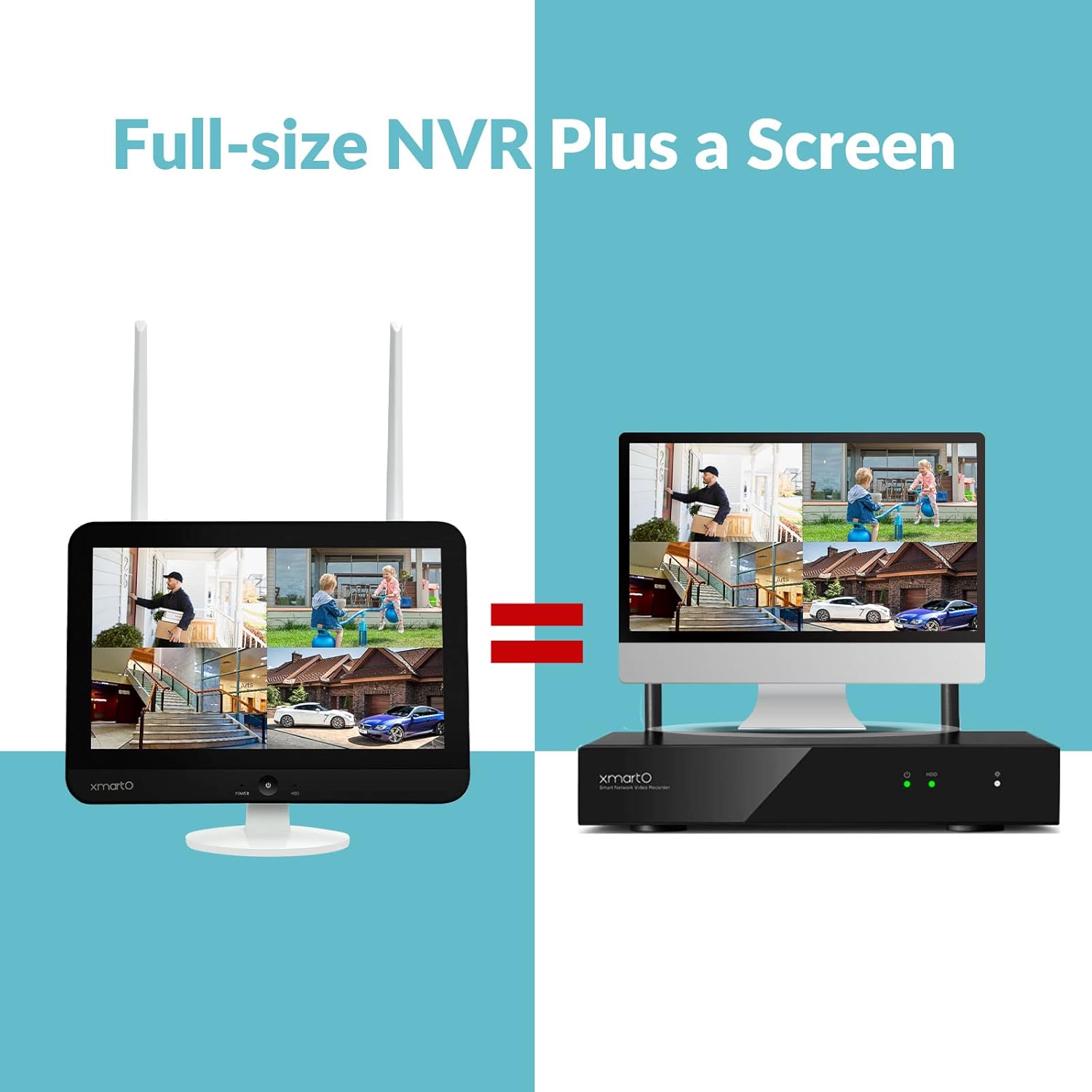
Image 1.2: Visual representation of the XMARTO NVR's integrated screen design compared to a separate NVR and monitor setup.
2. 설정 가이드
2.1 패키지 내용
Before beginning, verify all components are present in the package:
- XMARTO WNS58 NVR with 12.1" HD Screen
- Power Supply for NVR
- USB 마우스
- 사용자 설명서
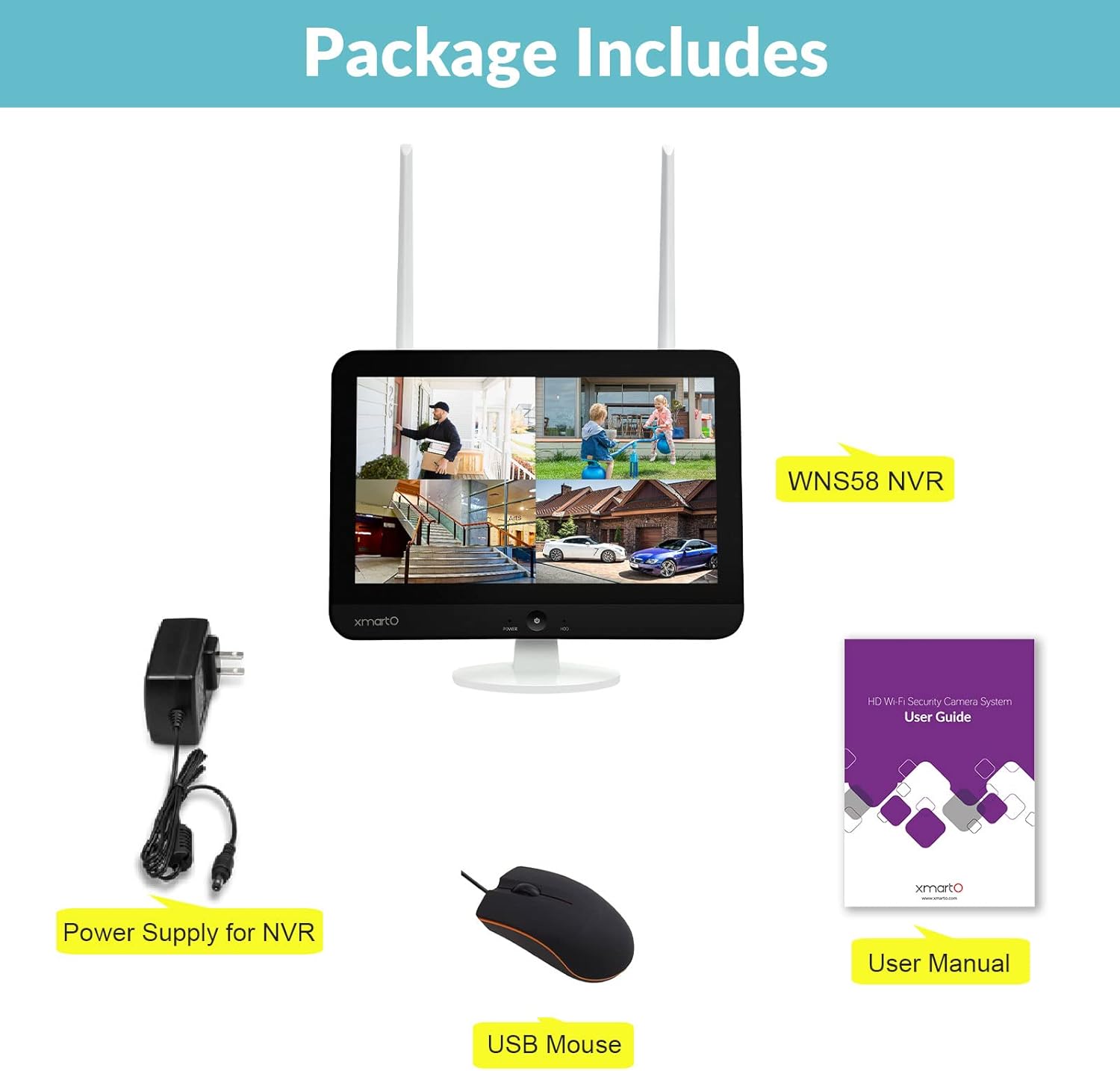
Image 2.1: The standard items included in the XMARTO WNS58 NVR package.
2.2 하드웨어 연결
Identify the ports and connections on the rear of the NVR:

이미지 2.2: 상세 view of the XMARTO NVR's rear panel and connection points.
- USB 마우스 연결: Plug the included USB mouse into the USB port on the NVR.
- 전원 연결: Connect the power adapter to the 12V DC IN port and then to a power outlet. The NVR will power on automatically.
- Optional HDMI Output: If an external monitor is desired, connect an HDMI cable from the NVR's HDMI port to the monitor.
- 네트워크 연결은 선택 사항입니다. For wired internet access, connect an Ethernet cable from the RJ45 network port to your router. The NVR also supports WiFi internet connection.
2.3 하드 드라이브 설치(선택 사항)
The NVR supports a standard SATA hard drive for local video storage. If a hard drive is not pre-installed, follow these steps:
- Unscrew the cover for the SATA hard drive dock on the back of the NVR.
- Carefully connect the SATA data and power cables to your 3.5-inch SATA hard drive.
- Slide the hard drive into the dock and secure it with screws.
- 덮개를 다시 덮으세요.
- After installation, power on the NVR. Navigate to the system settings to format the new hard drive before use.
Image 2.3: Illustration of the hard drive installation process for the NVR.
2.4 카메라 페어링
The NVR features dual WiFi modules: one for dedicated camera connections and another for internet access. Cameras connect wirelessly to the NVR's internal WiFi network.
- 자동 페어링: XMARTO cameras are typically pre-paired with the NVR in a kit. Power on the cameras, and they should automatically connect to the NVR.
- 수동 페어링: If adding new cameras or re-pairing, access the NVR's menu, navigate to 'Camera Management' or 'Wireless Setup', and follow the on-screen instructions to add cameras. This usually involves pressing a 'Pair' button on the camera and initiating a search on the NVR.
- G3 Auto WiFi Relay: The NVR utilizes G3 Auto WiFi Relay technology. If a camera has a weak signal, it can automatically use a closer camera as a WiFi repeater to maintain connection with the NVR. No manual configuration is required for this feature.

Image 2.4: Explanation of the G3 Auto WiFi Relay system, showing how cameras can boost signal to the NVR.
Image 2.5: The NVR's capability to support up to 10 wireless cameras.
3. 사용 설명서
3.1 사용자 인터페이스 탐색
Use the connected USB mouse to navigate the NVR's graphical user interface (GUI) displayed on the 12.1-inch screen or an external monitor.
- 마우스 오른쪽 클릭: 메인 메뉴에 접근하거나 이전 화면으로 돌아갑니다.
- 왼쪽 클릭: Select options, open menus, or confirm actions.
- 견인: Move windows or adjust settings.
3.2 라이브 View
Upon startup, the NVR typically displays the live view 연결된 카메라의. 단일 카메라 간에 전환할 수 있습니다. view, 4카메라 view또는 9개 카메라 view layouts from the menu.
3.3 녹음 모드
The NVR supports two primary recording modes:
- 24시간 연중무휴 연속 녹화: Records video continuously to the installed hard drive.
- 동작 감지 녹화: Records only when motion is detected by the cameras. This mode can run simultaneously with 24/7 recording, with motion events highlighted during playback.
Recording settings can be configured in the 'Record' section of the main menu, allowing you to set schedules, motion detection zones, and sensitivity for each camera.
3.4 비디오 재생
다시view 기록된 footage:
- 라이브를 마우스 오른쪽 버튼으로 클릭하십시오. view screen to open the main menu.
- '재생'을 선택하세요.
- Choose the desired camera, date, and time. The timeline will display recorded segments, with motion events often highlighted.
- 재생 컨트롤(재생, 일시 정지, 빨리 감기, 되감기)을 사용하여 음악을 탐색합니다.tage.
3.5 모바일 앱 및 원격 접속
The XMARTO NVR can be accessed remotely via a dedicated mobile application. This allows for live viewing and playback from your smartphone or tablet.
- 앱 다운로드: 검색 the official XMARTO app on the Apple App Store or Google Play Store.
- NVR을 인터넷에 연결하세요: Ensure the NVR is connected to your home network via its internal WiFi module or an Ethernet cable.
- 장치 추가: Open the app, create an account, and follow the instructions to add your NVR by scanning its QR code or manually entering its ID.
- View 및 재생: 연결되면 다음을 수행할 수 있습니다. view live feeds, play back recorded videos, and receive motion detection alerts directly on your mobile device. The app provides a daily message list with snapshots and video clips of detected events.
이미지 3.1: Example of motion detection alerts and event details within the XMARTO mobile application.

Image 3.2: The XMARTO system supports integration with Alexa and Google Assistant, and its mobile app is available on Google Play and the App Store.
3.6 Cloud Storage (Optional)
In addition to local hard drive storage, the system may offer cloud storage options for recorded events. Refer to the mobile app or NVR settings for details on activating and managing cloud storage services.
Image 3.3: The mobile application provides options for saving video footage to either cloud storage or the local hard drive.
4. 유지관리
4.1 펌웨어 업그레이드
Periodically check for firmware updates to ensure optimal performance and access to new features. Firmware updates can typically be performed via the NVR's system settings or through the XMARTO support website. Ensure the NVR has a stable internet connection during the upgrade process.
4.2 하드 드라이브 관리
Regularly check the status of your hard drive in the NVR's storage settings. If the hard drive becomes full, the NVR will typically overwrite the oldest footage. You can also manually format the hard drive if needed, which will erase all recorded data.
4.3 청소
Keep the NVR and its screen clean. Use a soft, dry cloth to wipe dust from the unit. For the screen, use a screen-specific cleaning solution and a microfiber cloth to avoid scratches.
5. 문제 해결
This section addresses common issues you might encounter with your XMARTO NVR.
5.1 Camera Pairing Issues
- 징후: Cameras fail to connect wirelessly to the NVR.
- 해결책:
- Ensure cameras are powered on and within range of the NVR or another camera acting as a relay.
- If the NVR's WiFi information (ESSID and password) was previously changed, this can prevent wireless pairing. Consider performing a WiFi reset in the NVR's settings to revert to original ESSID info, then attempt pairing. Alternatively, use an Ethernet cable to pair the camera initially.
- Refer to the XMARTO support website for detailed camera pairing guides: Camera Pairing FAQ.
5.2 Screen Goes to Sleep / Still Picture
- 징후: The NVR screen displays a still image or goes blank after a short period, even during live view.
- 해결책: This is often a power-saving feature. Access the NVR's system settings, typically under 'Display' or 'Screen Saver', and adjust the timeout settings or disable the screen saver function.
5.3 Mobile App Connectivity Issues
- 징후: Unable to connect to the NVR via the mobile app or experience frequent disconnections.
- 해결책:
- Ensure the NVR has a stable internet connection (either wired or via its second WiFi module).
- 모바일 기기의 인터넷 연결이 안정적인지 확인하십시오.
- 모바일 앱이 최신 버전으로 업데이트되었는지 확인하세요.
- Restart both the NVR and your mobile device.
- If the issue persists, remove the NVR from the app and add it again.
5.4 Password Related Issues
- 징후: Forgotten password or unable to log in.
- 해결책: Refer to the XMARTO support website for password recovery procedures: Password FAQ.
6. 사양
| 특징 | 사양 |
|---|---|
| 모델 번호 | WNS58 |
| 채널 수 | 10 |
| 비디오 압축 | H.265 + |
| 최대 해상도 | 4K 울트라 HD |
| 통합 화면 크기 | 12.1인치 |
| 연결 기술 | Wi-Fi (Dual WiFi modules) |
| 호환 장치 | XMARTO Cameras, Smartphones, Tablets |
| 저장 매체 | SATA HDD (up to 6TB), Cloud Storage |
| 품목 무게 | 3.27파운드 |
| 패키지 크기 | 13.74 x 11.02 x 3.23 인치 |
7. 보증 및 지원
7.1 보증 정보
The XMARTO WNS58 NVR is covered by a 1년 한정 보증 구매일로부터. 본 보증은 정상적인 사용 중 발생한 제조상의 결함 및 고장에 적용됩니다. 보증 청구를 위해 구매 증빙 자료를 보관해 주십시오.
Additionally, XMARTO offers a 30일 환불 보장 및 무료 반품 정책.

Image 7.1: Summary of XMARTO's after-sales support, including warranty and return policies.
7.2 고객 지원
For technical assistance, troubleshooting, or any product-related inquiries, XMARTO provides 연중무휴 24시간 온라인 1:1 지원.
Please visit the official XMARTO web지원 자료, 자주 묻는 질문(FAQ) 및 연락처 정보를 제공하는 사이트:
- XMARTO Support Web대지: support.xmarto.com
When contacting support, please have your product model (WNS58) and any relevant details about your issue ready.


